This updated guide on recovering deleted PDF files talks you through various solutions proven to help you restore deleted PDF files on various versions of Windows and Mac.
Looking for a quick way to perform PDF file recovery? Utilise professional tools like the Remo File Recovery tool. That can help you easily bring back your most treasured PDF files with just a few simple clicks.
PDF is Portable Document Format and was developed by Adobe to present documents in a consistent manner transversely in any software or operating system. A pdf file can fully preserve the original image, font, color, size, etc., of the page and thus prevents the chances of plagiarism. By breaking the boundaries, PDF has been standardized as a globally accepted document format. In recent advancements, Adobe allowed users to add digital signatures, making many organizations adopt PDF format to save confidential and critical information.
Table of Contents:
Disclaimer: The moment you encounter data loss on any device. It is highly recommended you stop using it right away. The reason is new data might get saved over and overwrite the deleted PDF files. thereby making the process of recovering deleted PDF files a fruitless and almost always impossible task.
As long as your deleted or lost pdf files have not gotten overwritten. You still have a good chance of recovering them.
The answer is - If you have saved the files on your local drive. Then you can find the deleted files in the Recycle Bin of your Windows or Mac system. Unless and until you have not used any complex file deletion tactics such as using the Shift + Delete keys, deleting files from the recycle bin, or deleting files from your system permanently.
This section talks about ways proven to help you recover deleted or lost PDF files from any Computer or Laptop running on any version of Windows or Mac.
If you have manually deleted PDF files, we highly recommend you first try to find those files in the Bin folder of your system.
If the Recycle Bin method was unhelpful in recovering the deleted PDF files, you could try other solutions like restoring previous versions, the File History option, and if you are a Windows 10 and Windows 11 user, you can also try the Microsoft Windows File Recovery Tool and many more ways explained in this exhaustive article on recovering deleted files.
If none of those solutions were of any use. Then you can try the following solution that is proven to recover permanently deleted pdf files from any computer or laptop running on any version of Windows.
The best and probably the safest method of recovering PDF files is using a specialized PDF recovery tool such as Remo - a reliable PDF File recovery tool.
Remo File Recovery is the ultimate deleted PDF file recovery tool. That is capable of recovering various types of PDF files such as: PDF, PDF/A, PDF/E, PDF/X, PDF/VT, PDF/UA, as well as PAdES, CAdES, XAdES, from all internal and external storage devices.
1. Remo is a specialized tool built to recover PDF files from 1000+ storage devices.
2. The tool is a sure-shot way to recover files lost for any reason. Provided those files are not overwritten.
3. The Remo File Recovery tool is compatible with all Windows, including Windows 11, Windows 10, Windows 8.1 & 8, Windows 7 and Windows XP, and Windows Vista.
4. Built with a powerful augmented Preview option that lets you have a quick look at the recovered PDF files even before saving them.
5. The tool is absolutely free to try, buy only when you are completely satisfied with the data recovery process.
Download Remo and start recovering your PDF files now.
Note: Don’t Install the Remo File Recovery Software on the same drive where the deleted PDF files used to exist.
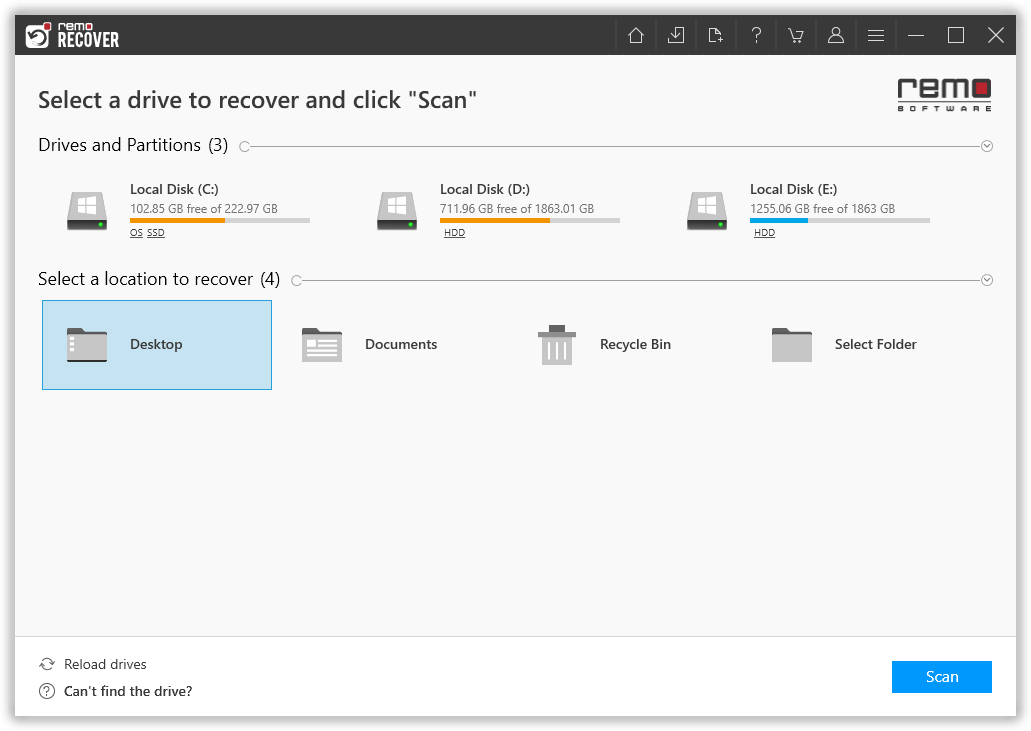
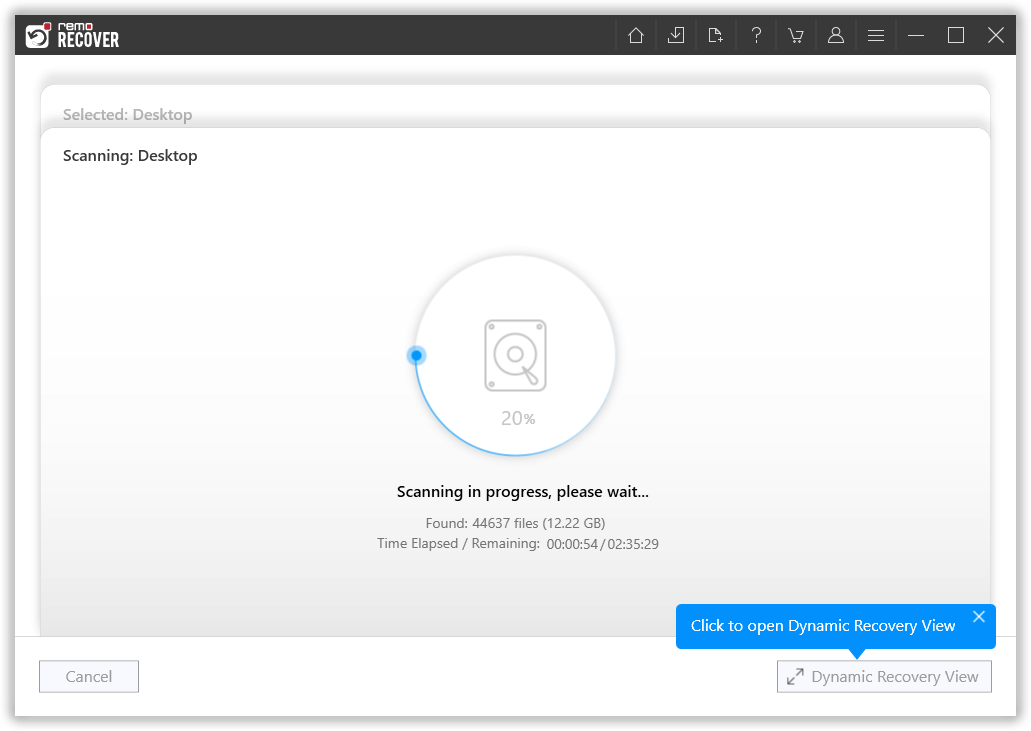
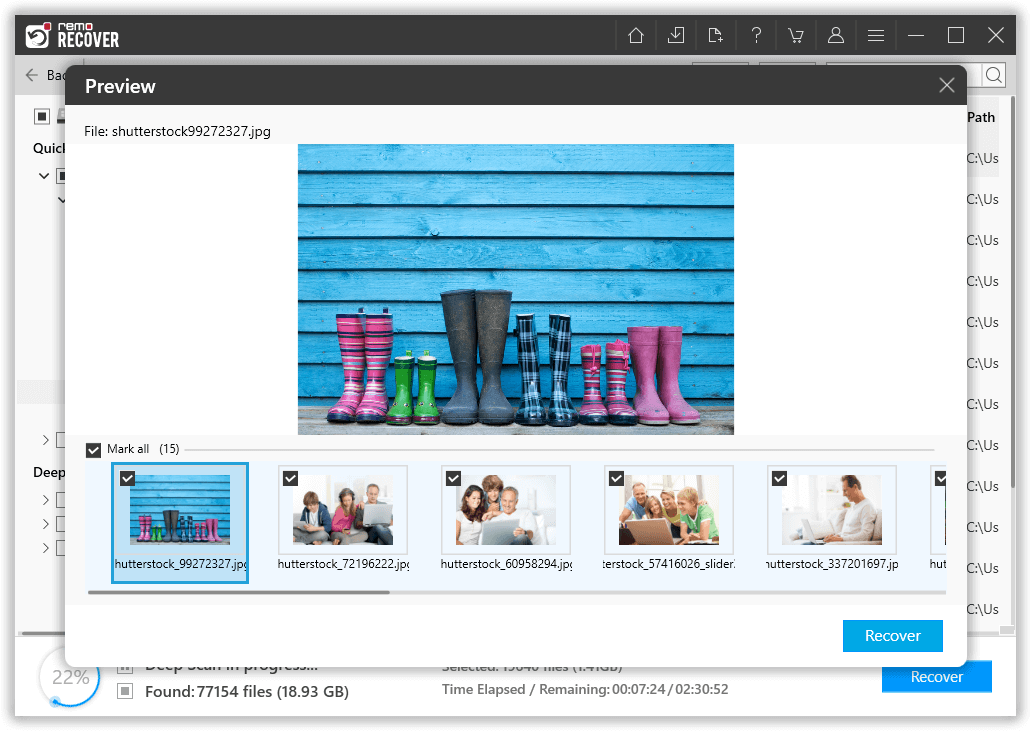
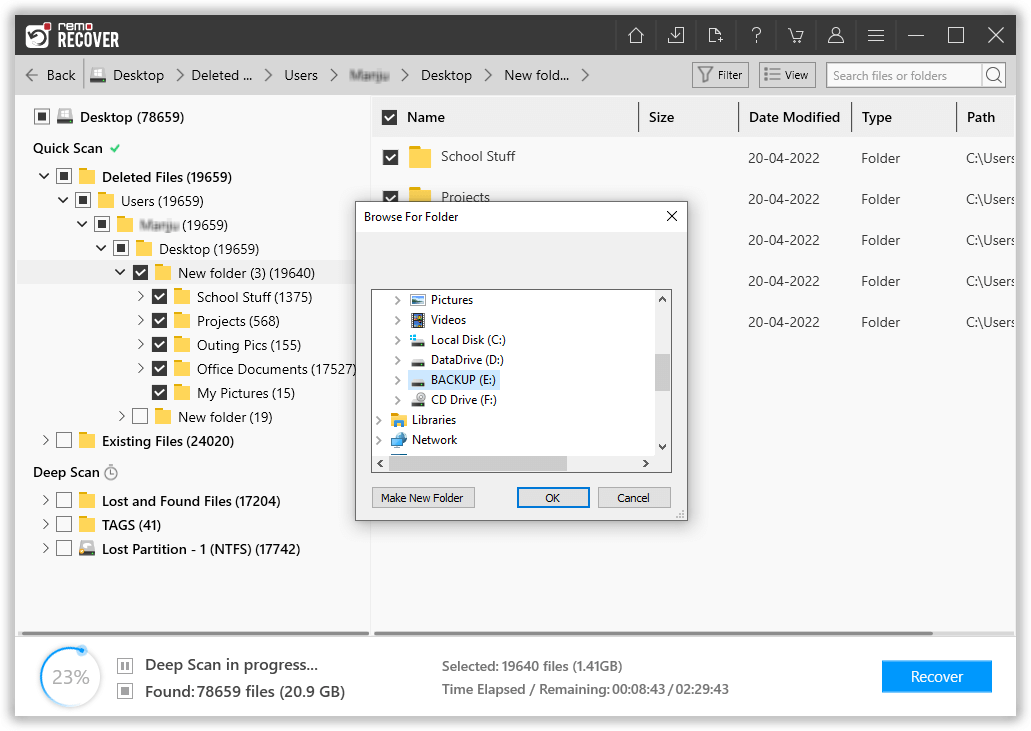
We are sure by now you were able to get deleted PDF files back.
If you are a Mac user who has lost or deleted important PDF files from your MacBook or iMac. Then, you can go through the next section.
This section talks about recovering deleted PDF files on Mac. You can try recovering PDF files from Trash, as well as other solutions such as the undo option, Time Machine backup, or iCloud backups, or using the Terminal command. Follow this article to find out all the possible ways using which you can recover deleted files on Mac.
If you have accidentally or intentionally deleted some of your PDF files. The trash Bin is the first place where you might find those files.
Remo Mac File Recovery Software is a best-in-class Mac file recovery tool to help Mac users recover more than 500 types of files from any iMac or MacBook with just a few simple clicks.
Additionally, the Remo Mac File Recovery tool is compatible with all versions of Mac, including Mac Ventura, Monterey, Big Sur, Catalina, and other older versions.
Step 1: Download and Setup Remo Mac File Recovery Software on your Mac Machine.
Step 2: Launch the application, and from the main screen, select the Recover Files option.
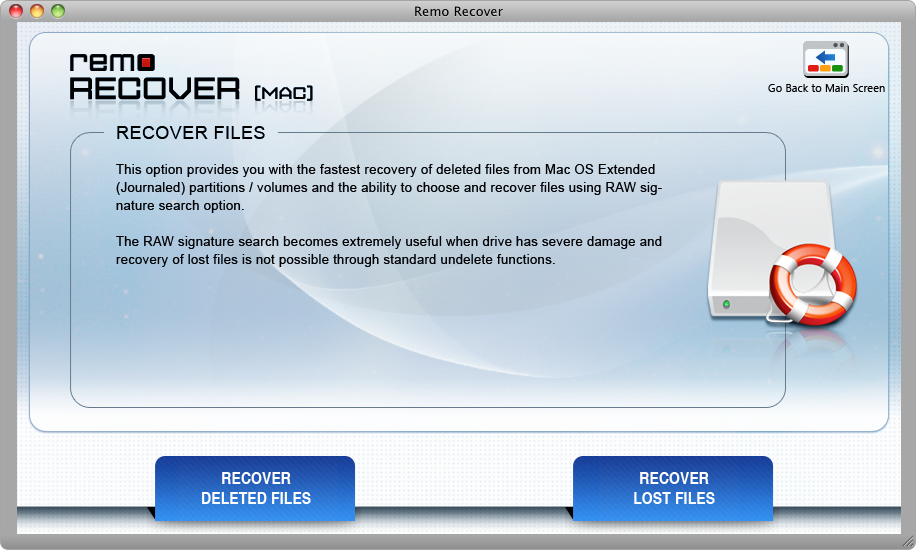
Step 3: If you have deleted your .pdf files, I recommend you choose the Recover Deleted Files option, and in case you have lost your .pdf files, you can select the Recover Lost Files option.
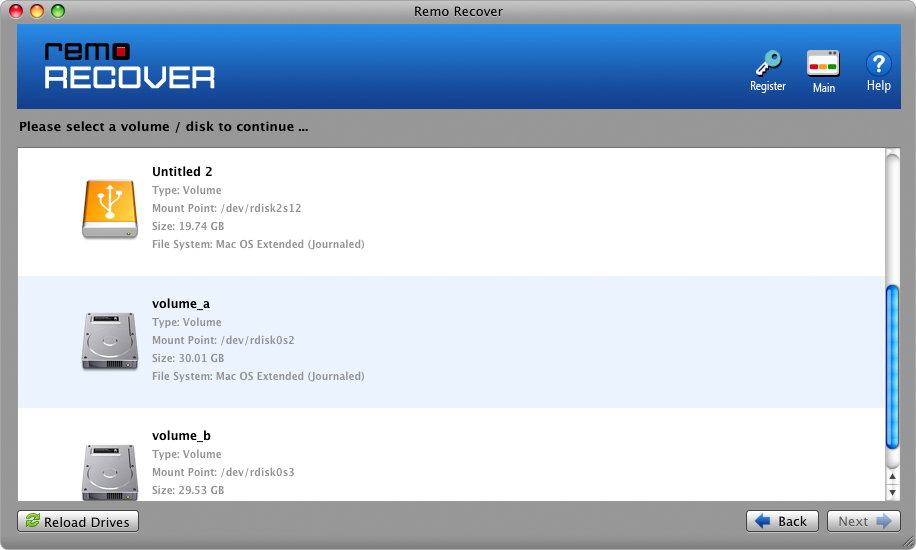
Step 4: Select the drive or the Volume from where you want to recover the deleted or lost PDF files and click the Next button.
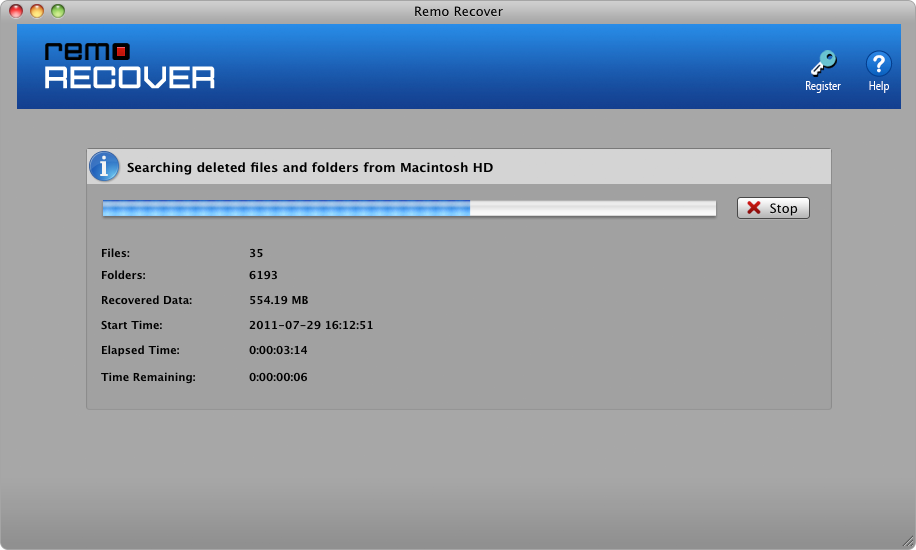
Step 5: Remo will start searching for the deleted PDF files from Mac.
Step 6: Upon completion of the drive scan, a list of all recovered files will get displayed on your screen. You can preview the recovered files by double-clicking on them.
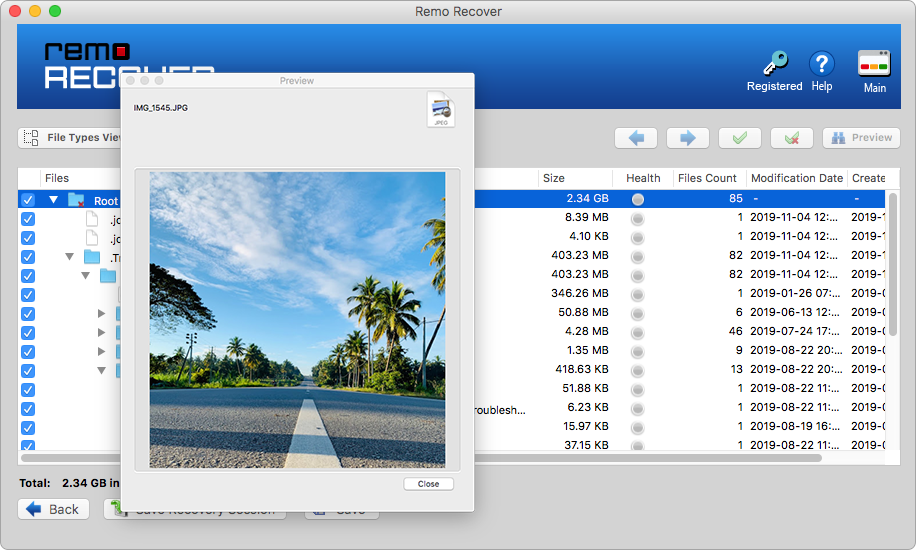
Step 7: Find the recovered PDF files and then select them. Once done, you must click on the Save button, where you will be prompted to choose a location to save the recovered files.
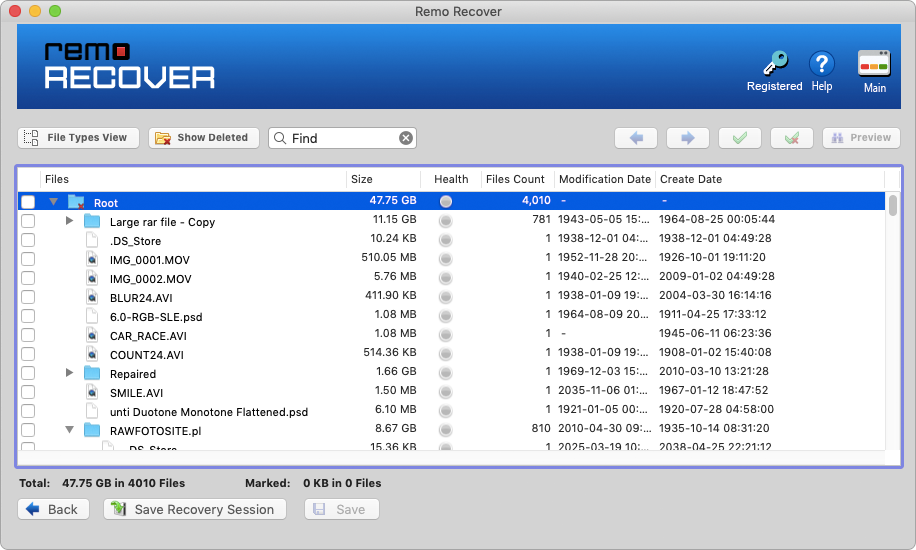
That’s it. All of your deleted or lost PDFs have now been successfully recovered and restored in the desired location of your choice.
Bottom Line
No file, folder, drive, partition, or Operating system is immune to data loss. But you can recover the data effortlessly if you have a contingency plan ready. As it is not always safe and convenient to restore lost files through manual methods, it is recommended to use a proficient tool like Remo. As long as you are using Remo, regardless of the severity of the data loss situation, you will not face many obstacles while restoring the data.
Also, take precautionary measures to prevent data loss; always keep a backup of important files; protect your computer with a reliable antivirus software, and always use a reliable data recovery tools like Remo.
Why Choose Remo?
100% safeSecure
100% SatisfactionGuarantee
10 Million+Downloads
Free TechSupport
Live Chat24/7 Support

