Both Windows 10 and 11 come with exciting features and upgraded security compared to their previous versions. Sometimes, when you connect your external hard drive to view your files, you might see your drive not showing up on Windows. This can be a serious issue as you cannot access or transfer your important files saved on the external hard drive.
Well, you don’t have to worry, you can easily fix the external HDD not showing up and restore all your files. In this article, find out why is your HDD not showing up on Windows 10 or 11 and how you can fix it using 6 reliable methods.
Why Is My Hard Drive Not Showing Up in Windows 10/11?
Here are some reasons why your Hard Drive Not Showing Up:
- Faults in Hardware:
It could be because of a faulty cable. If any one of the hardware components that’s no longer working, it could be affecting the performance of the entire drive.
-
Corrupted/Outdated Drivers:
Sometimes Corrupted or Outdated hard disk drivers result in Hard drives not showing up.
-
Unsupported file system:
If in case your drive is formatted with Apple's HFS+ file system, Windows will not detect the drive.
What to do if Windows External Hard Drive Does Not Showup?
Method 1: Powered up
Simply plugging the external drive into your PC does not ensure it is receiving power. Some External drives draw enough power from your computer’s/laptop USB port.
If your drive has an AC power adapter but you haven’t plugged it in, try pressing the power button, if there is one. If it has two USB plugs, make sure they’re plugged into your PC.
Method 2: Check the cable
Sometimes it could be because of a bad USB port. Try connecting the drive to another USB port. If this doesn’t work, try using a different cable to connect the drive to your PC.
Method 3: Update the Drivers
- Open This PC, right-click and select Properties to get System window
-
On the left side, click Device Manager, and next to Universal Serial Bus Controllers, click “+”. You will see a yellow exclamation mark (as the driver has compatibility issues)
-
Right-click on the name of the device and select Update Driver Software
Method 4: Uninstall the problematic drivers
- Open Device Manager and locate your portable hard drive, right-click and choose Uninstall device from the menu.
-
Now, click on Uninstall to remove the driver
-
Now, click Scan for hardware changes. Windows will install the default drivers for your portable hard drive.
Method 5: Using Disk Management
The first step is to check if external drive is showing up in Disk Management. If it is not, then you should update disk driver to enable external drive to get detected by Windows 10. Follow the steps to accomplish this –
- Open This PC, right click and select Properties to get System window
- On the left side, click Device Manager, and next to Universal Serial Bus Controllers, click “+”. You will see a yellow exclamation mark (as the driver has compatibility issues)
- Right click on the name of the device and select Update Driver Software
- Next, choose Search automatically for updated driver software, and follow the instructions to complete the process.
Method 6: Run a Troubleshooter
Troubleshooters can be used to scan and solve hardware-related issues like USB hard drives not Showing up.
Follow the below-mentioned steps to Run a Troubleshooter
- Open Command Prompt.
-
Run the command msdt.exe -id DeviceDiagnostic to bring up the Troubleshooter.
-
Click on Advanced and click Next.
-
Now the troubleshooter will start to scan your system for potential issues.
-
When the scan has finished, click on View detailed information to see an overview of the scan.
How to Recover Data from External hard drive that is not detectable or showing up on Windows 11/10?
When your external hard drive is not showing up, then make sure you first recover data from it. Use Remo Recover which is a user-friendly tool to recover data from unreadable external hard drive with ease.
Remo Hard Drive Data Recovery tool works with a deep scan technology to recover complete data from an external drive. All files present on the hard disk like media files, PPT files, documents, ZIP files, and so on, will be recovered in a few steps. The software also helps you recover partitions from external hard drive of various brands like Seagate, Maxtor, Buffalo, Lexar, Dell, WD, Toshiba, etc.
Steps to Recover data from external hard drive not showing up using Remo Recover
Step 1: Download and install Remo Recover on your computer.
Step 2: From the main screen click on the Can’t find the drive option to locate the RAW drive.
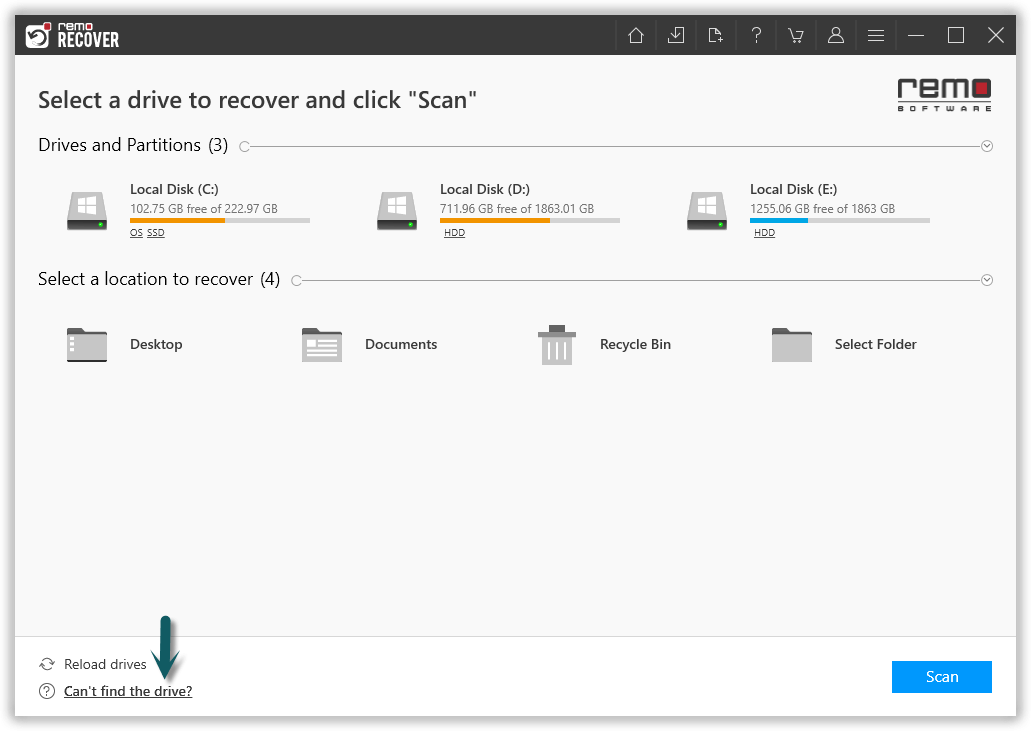
Step 3: Click on the Scan option to initiate the scanning process.
Note: Once the Quick Scan is completed it directly takes to Deep Scan without any human intervention. You can go to the Tags in the Tree structure to find your lost files.
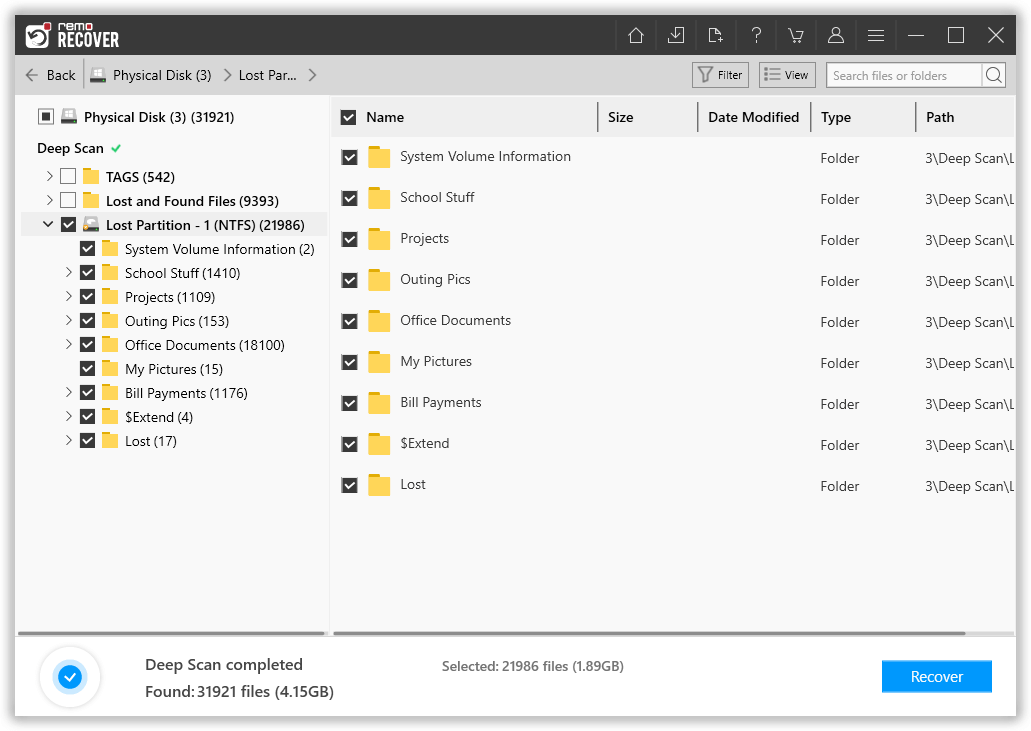
Step 4: Finally, select the lost files you want to restore and click on the Recover option to save the files to the desired location.
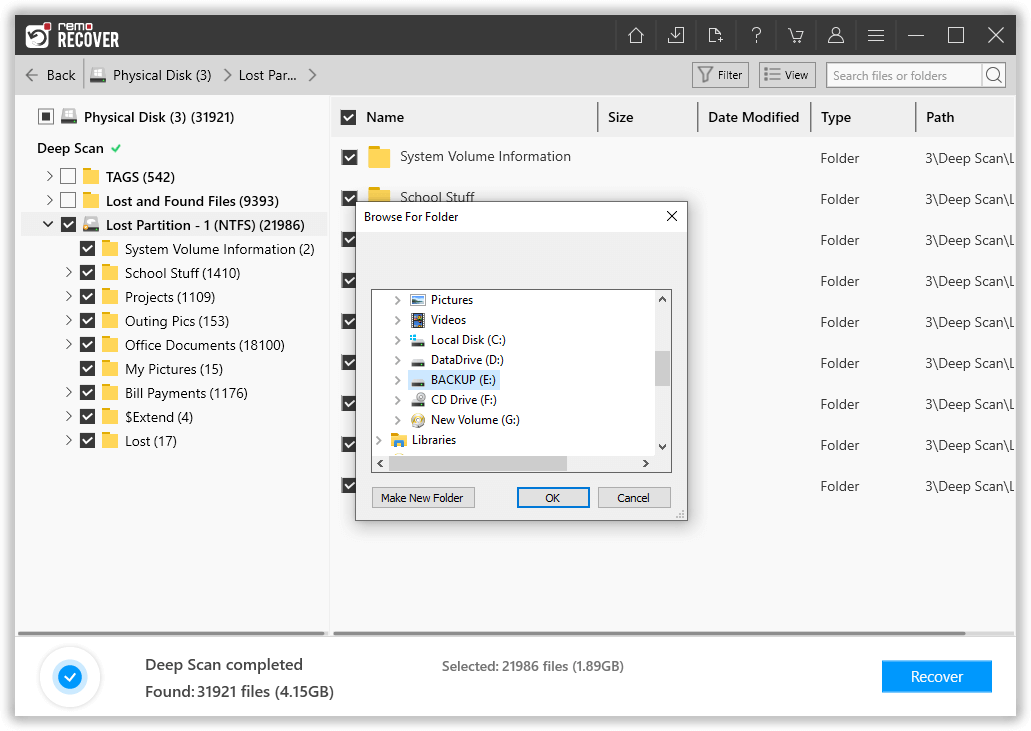
Remo Hard Drive Recovery tool also helps in recovering data from external drive after corruption, repartition, format, etc. It helps to sort the recovered data on the basis of date, file name, size and file type. You can also search for a particular file from the list of recovered data using the Find option. In case of queries, you can contact the technical support team anytime.
Reformat and partition:
After recovering data from external hard drive, you can reformat the drive and partition. This is done to initialize the drive and make it show up on Windows 10.
Conclusion:
With these easy methods, you can fix the not showing external drive on Windows 10 in a few steps. However, make sure you have your data backup before proceeding further. Also, take some precautionary measures to avoid such instances in the future.