If you are unable to access all your Outlook data there is a good chance that your Outlook profile is corrupted. In this article, we will teach you how to rebuild your Outlook profile on Windows 10/11 or earlier versions. Outlook data files generally contain data of high importance, if the same applies to your situation as well, and you would like to rebuild Outlook profile as soon as possible with minimal risk, we recommend that you use a professional Outlook repair software such as Remo Repair Outlook PST. Download now to Rebuild your Outlook profile!
No doubt Outlook profile is crucial when you are using a Microsoft Outlook account. When you open Outlook for the first time, a new profile will be automatically created, and eventually, Outlook uses it whenever you open your Outlook account. Microsoft Outlook allows its users to have multiple Outlook profiles. So anyone using Outlook can have multiple profiles. For example, separate profiles for personal and Office work.
Table of Contents:
Any damage or corruption to your Outlook profile can make all your emails, contacts, notes, reminders, events, and other Outlook items inaccessible. If such an issue arises, an Outlook error message is usually displayed.
Outlook error messages that state that your Outlook profile is corrupt are-
Sometimes, data corruption can also result in Outlook not responding.
In this article, you will find out how to repair and rebuild Outlook profile using several reliable methods. But before you move on to it, let’s find out a few common reasons for Outlook profile corruption or damage.
while there several possible causes, the most common reasons for a corrupt Outlook profile are listed below-
In all the above situations, your Outlook profile can get corrupt and all your Outlook items including your Outlook emails, contacts, reminders, etc., become inaccessible.

Find out the 3 most successful methods how to repair Outlook profile corruption.
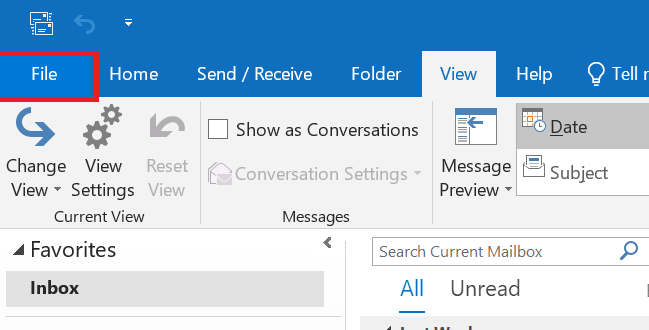
1. Open Microsoft Outlook tool and click on File tab.
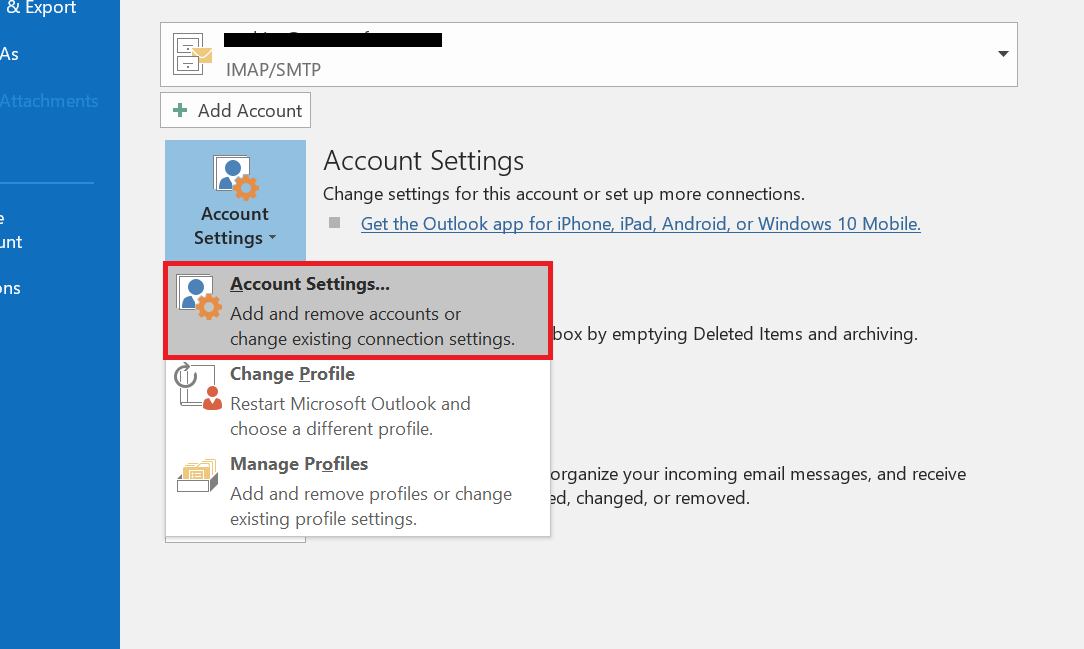
2. Select Account Settings drop-down box and then, Account Settings option.
3. In the Email tab, Select the corrupt Outlook profile which you want to fix and hit Repair button.
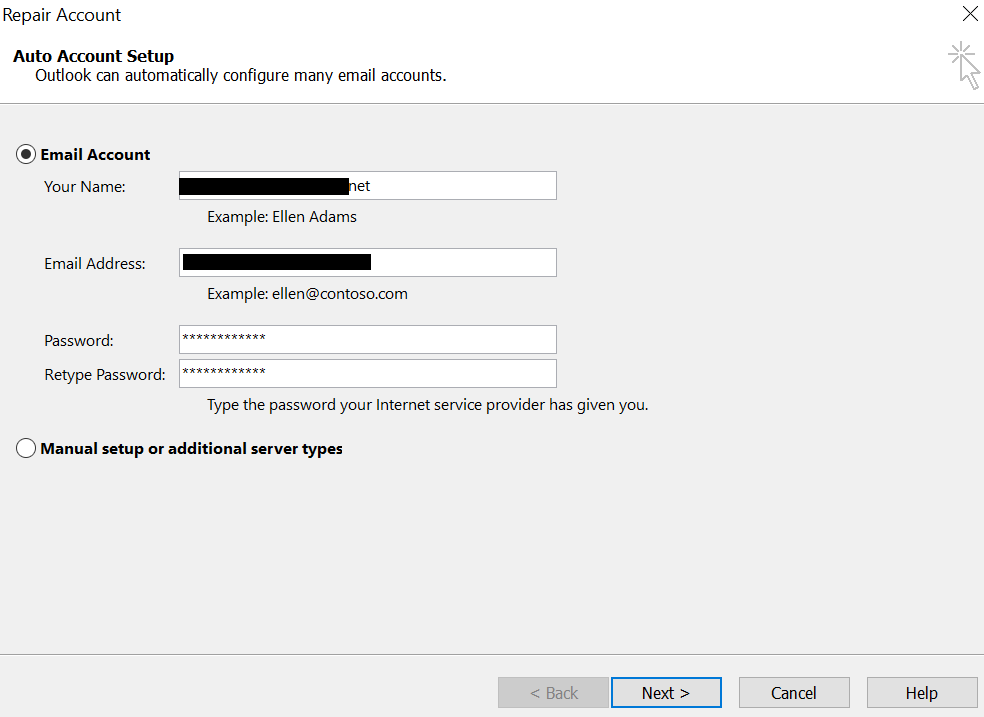
4. Confirm the login details if your Outlook profile is password protected and click Next.
5. After the completion of Outlook repair process, click Finish button.
This way you can repair your minor Outlook profile corruption in Outlook 2019, 2016, 2013, 2010.
Open Outlook application > Click on Tools > Select Account Settings > In the Email tab select Outlook account profile > Click Repair button > Now, follow the self-explanatory instructions to repair corrupt Outlook profile > Finally, restart Outlook 2007 to sync changes.
Launched by Microsoft, ScanPST is an inbuilt tool that comes with Outlook. It is designed to repair common issues and can fix pst files with low corruption levels. You can use ScanPST to repair your corrupted Outlook profile by following the instructions below-
| Outlook Version | ScanPST Location |
|---|---|
Outlook 2019 |
|
| Outlook 2016 |
|
| Outlook 2013 |
|
| Outlook 2010 |
|
| Outlook 2007 |
|
| Outlook 2003 |
|
| Outlook 2002 or XP | 32-bit Windows; C:\Program Files\Common Files\System\MSMAPI\ |
| Outlook 2000 | C:\Program Files\Common Files\System\MAPI\locale ID\NT\scanpst.exe |
| Outlook 97 / Outlook 98 | C:\Program Files\Common Files\Windows Messaging\scanpst.exe |

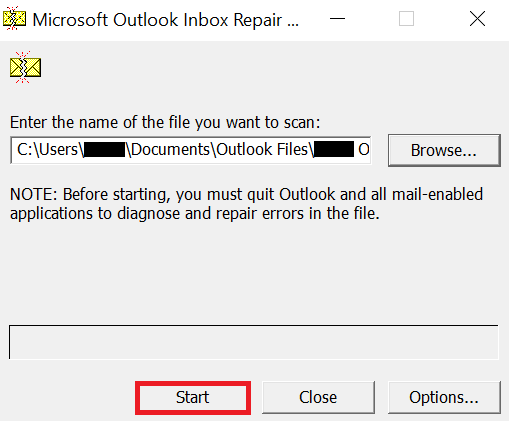
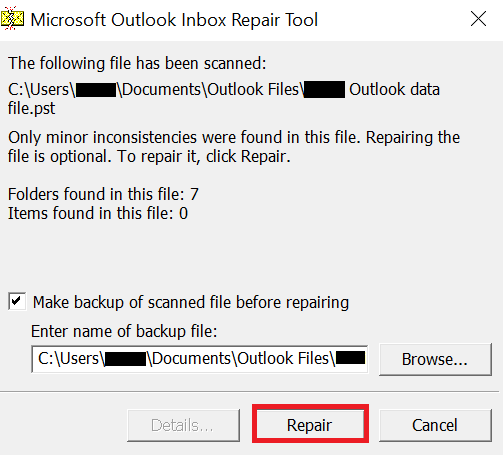
After the completion of the PST/ OST file repairing process, you can access your Outlook emails and other attributes. In case,you are still unable to rebuild outlook profile, use Remo Outlook PST Repair tool which can easily fix corrupt Outlook profile created on any version of Outlook including Outlook 2019, 2016.
If you were not able to solve your issue by now, we recommend that you make use of professional PST repair software such as Remo Repair Outlook PST.
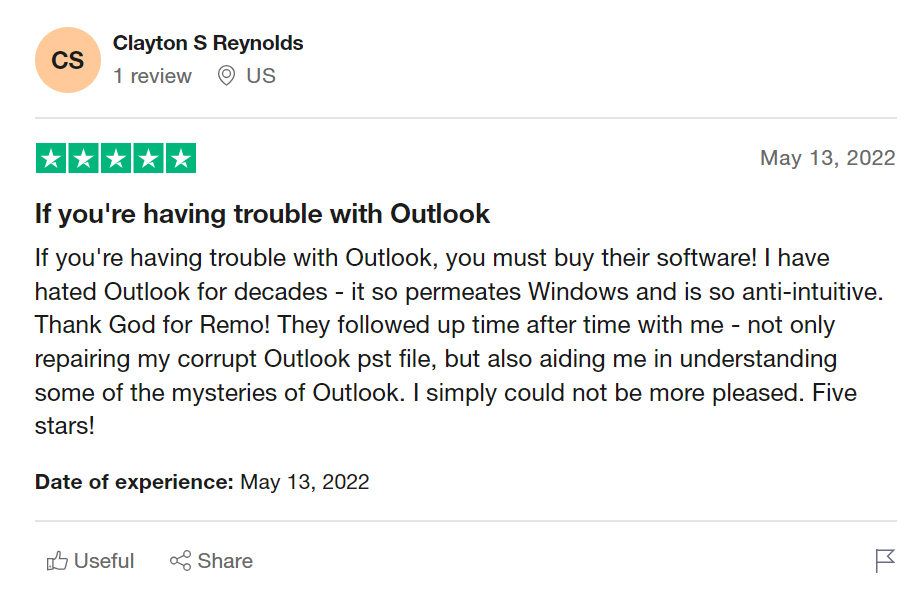
Source: Trustpilot
Remo Repair Outlook PST works with powerful scanning algorithms to fix corrupt PST file with ease. This read-only mode tool safely creates a healthy PST file by extracting all your data from the corrupt Outlook profile. And easily recovers all your deleted or lost Outlook emails, contacts, calendars, reminders, attachments, notes, folder structure, rules, and many more.
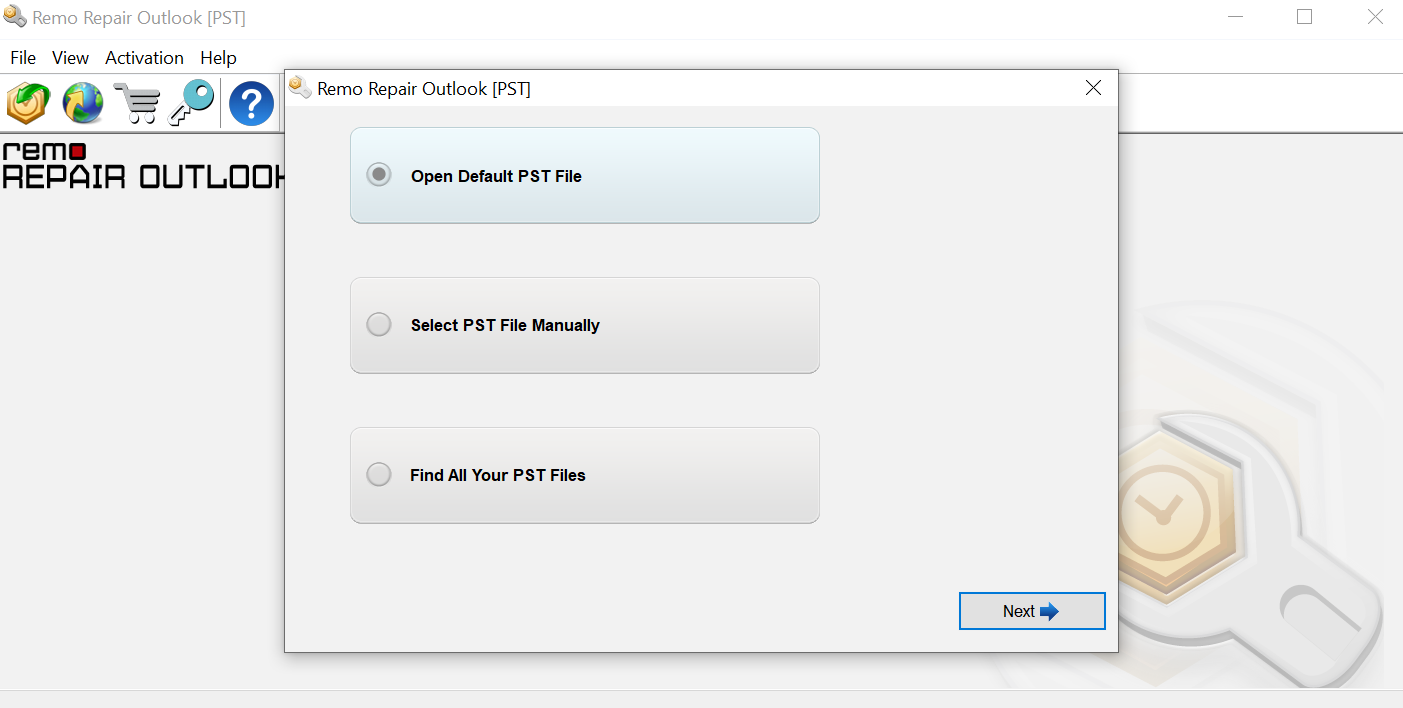
Step 1: Download and install Remo Repair Outlook (PST) tool on your computer and select the appropriate following option based on your need to fix corrupt Outlook profile.
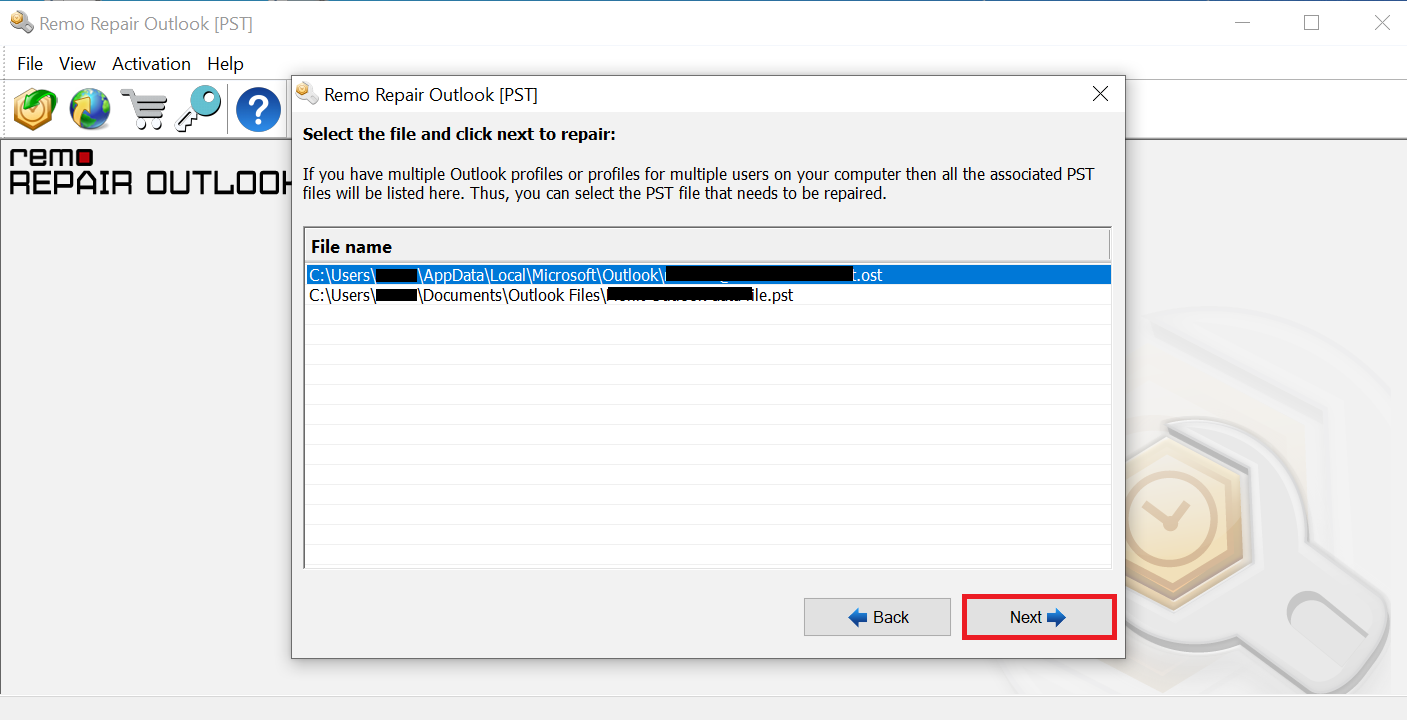
Step 2: After selecting the corrupt Outlook profile, click Next.
Step 3: Now, select the Smart Scan to fix your severe corrupt Outlook profile.
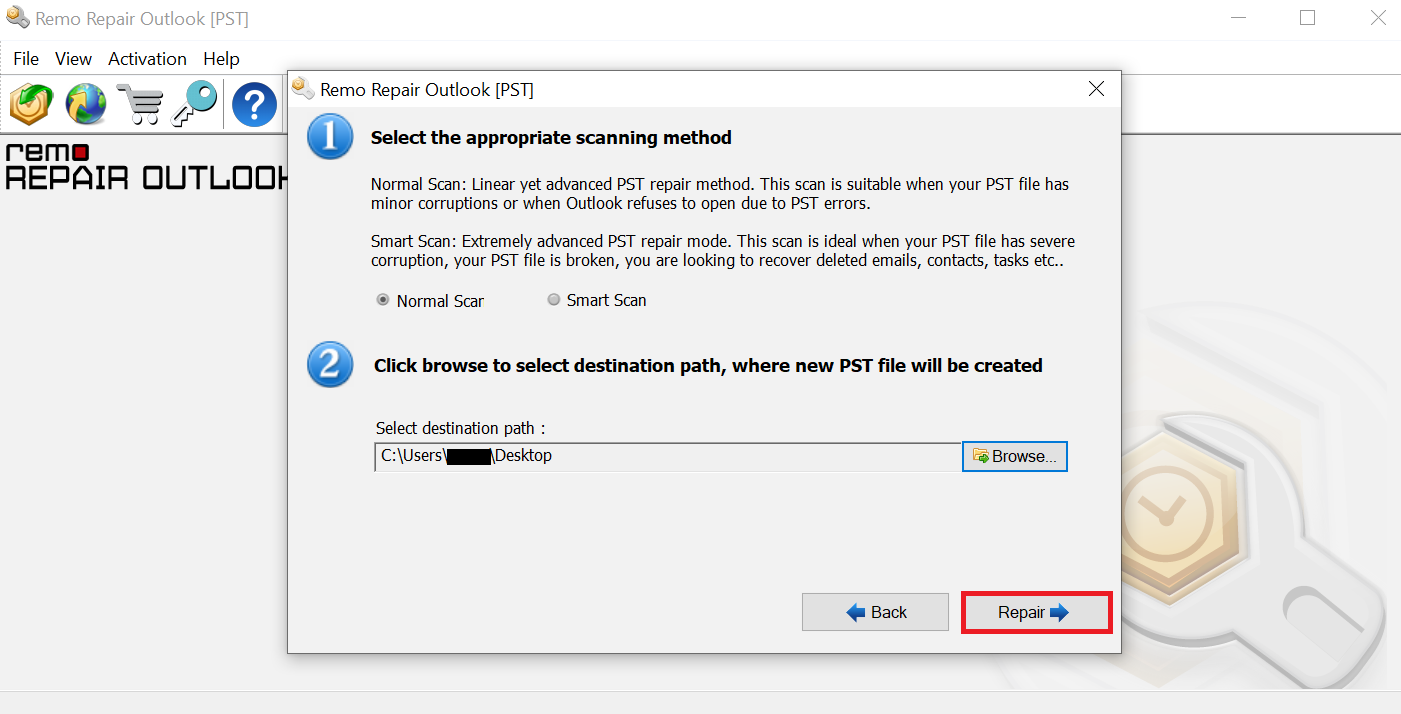
Step 4: Click the Browse button to select the location of your choice to save the repaired Outlook PST File and click the Repair option.
Once the Outlook profile repairing process completes, you can view your repaired PST file in the selected destination and can access all your Outlook data such as emails, contacts, reminders, attachments, etc. without any issue.

Frequently Asked Questions
Corrupted PST is one of the many causes of Outlook profile corruption. The profile may become unreachable owing to a corrupted PST and will need to be repaired.
Repair Profile In MS Outlook 2016/2019/2021:
The answer is NO. When you delete any file or folder from your Windows system. They end up in the Recycle Bin folder till the end of time. But if you have permanently deleted those files, they are gone forever. The only way to bring them back is by using a professional data recovery tool like Remo.
Why Choose Remo?
100% safeSecure
100% SatisfactionGuarantee
10 Million+Downloads
Free TechSupport
Live Chat24/7 Support

