MP4 is a popular video file format known for its compatibility and high-quality video and audio. However, like any other video format, MP4 files can sometimes encounter issues such as audio or video not playing, sync problems, or failure to play altogether.
Explore this article to understand the possible reasons behind MP4 videos failing to play on popular media players like VLC or Windows Media Player. Additionally, find out effective methods to safely repair MP4 videos that have issues with video, audio, or both.
Why Is MP4 Video Not Playing?
Here are a few reasons why you are unable to open MP4 video files or why your MP4 has no video but only sound.
| Reasons |
Description |
| Missing Codecs |
Codecs are components that allow media players to read and play media players. If the necessary codec to play the specific codec used in the MP4 file is missing or outdated, then the video may not play. Installing a codec pack, such as the K-Lite Codec Pack, can help solve this issue |
| corrupt file |
If the MP4 file is damaged or corrupt, it may not be playable. This can happen due to file transfer errors, incomplete downloads, or other issues. Using a file repair tool, such as Remo Repair Video
can help repair the file and make it playable again..
|
| Outdated media player |
If you are using an outdated media player, it may not be able to play the latest MP4 format or the codec used in the MP4 file. Updating the media player to the latest version can help solve this issue.
|
| Incompatible hardware |
If your hardware, such as a graphics card or sound card, is not compatible with the codec used in the MP4 file, you may not be able to play the video.
|
Do you know? Sometimes, your MP4 files might not play on your Windows computer if you have upgraded it.
A user by name Slim P on the Microsoft community reported that, after he upgraded his Windows 10 system, all the working MP4 video files were no longer playing on the media player. Also, he has further reported that he has even reset the media player, but it didn’t work.
Technically this can happen due to multiple reasons. The most obvious reasons are codec incompatibility, software conflict, and driver issues.
When you upgrade your Windows 10 or any other version, it can create software conflict between your Windows Media Player and other software including codecs. In rare cases, MP4 video files become corrupt during the system upgrading process.
How To Fix MP4 video file not Playing or Showing?
Worried about MP4 files not playing or showing video, below are the tried and tested solutions you can follow to easily fix the issue:
- Install necessary codecs
- Play video on another media player
- Use trouble-shooter on Windows 10
- Convert the file format to another format
- Use reliable video repair tool
Method 1: Install Necessary Codecs
As explained earlier, CODECS are used to compress and decompress your video files for easy storage and transfer. Just like other video file formats, MP4 also requires necessary codecs to play the video files correctly. At times the media player you are using might not have the codecs required for playing MP4 videos. This is the reason why your MP4 file won’t play video smoothly.
Now that you know what the issue is, installing the required codecs is the only solution to fix the MP4 playing only audio but no video or MP4 playing only video but no audio or both.
Basically, to play MP4 file, the media player you are using needs to support the following codecs:
- Video codecs: H.264 (AVC), MPEG-4 Part 2, MPEG-2, or H.265 (HEVC).
- Audio codecs: AAC (Advanced Audio Coding) or MP3.
You can go to any authentic site and choose any Codec that is compatible with your Windows operating system to fix MP4 video playback issue. In our article, we recommend you use K-Lite Codec Pack, which is known for its extensive range of supported codecs. Also, it offers different variants such as Basic, Standard, Full, and Mega, allowing you to select any level of codec coverage you require. The best thing about installing K-Lite Codec Pack on your PC is that it also resolves the issue of MOV files not playing video.
Since we just talked about not using necessary codecs, you can try playing the same video file on another compatible media player. At times, some users face issues like MP4 playing audio-only or they can play MP4 File with no sound. This can be due to incompatible codecs.
Due to missing Codecs, your media player might not be able to play the MP4 video properly. Sometimes, missing codecs can even lead to issues like MP4 file playing only audio but no video or vice versa, and in few cases, it shows up MP4 file unsupported error.
In all the above cases, you can try playing your MP4 video on other reliable media players like VLC or Windows Media Player.
If the other media player is able to play the video file, then the issue is definitely with video or audio codecs. In case, if the other media player fails to play the MP4 video clips, then undoubtedly, the matter in question is corruption.
Note: If you can’t play MP4 videos on VLC or Windows media player, just check if you are using the latest version or not. The older versions of them might not be compatible with a few audio or video codecs. So, check if there are any pending updates. Moreover, if your MP4 file not playing issue just pertains to the VLC, then check out a guide that I have written on how to play MP4 on VLC for free.
Method 3: Try Troubleshooter on Windows 11 and Windows 10
A troubleshooter is an ingrained tool designed to repair most of your hardware-related issues on your Windows 11 and 10. The following troubleshooting method can automatically detect and diagnose issues related to video playback on Windows. Also, it repairs issues related to drivers, adjusting video settings, or repairing any configuration problems that may be causing MP4 file not playing video or audio.
Step 1: Click on Start, then click on Settings, find and select Update & Security.
Step 2: Under the Update & Security option, Click on Troubleshoot.
Step 3: Click on Additional Troubleshoot, find and click on Video Playback.
Step 4: Click on Run the troubleshooter.
The media player you are using at times might not read and recognize the file format and hence is unable to play the video. So, the simplest thing you can do is convert your video file from MP4 file format to another file format that is compatible with your media player.
Follow the steps explained below to find out how to convert video formats;
Step 1: Open the VLC media player and click on Media. Select Convert/ Save option.
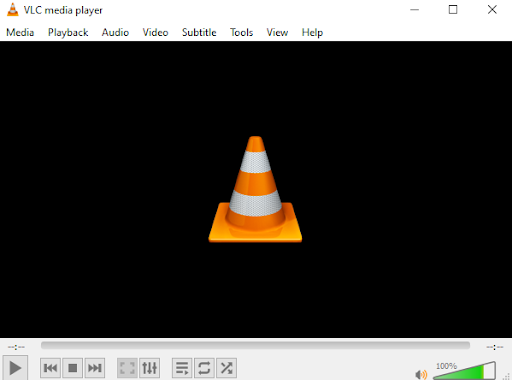
Step 2: Select and add the video that you want to convert, click on convert/save.
Step 3: Click on Browse and select the location you want to save your converted file.
Step 4: Click on Save, then Click on Start.
After you perform this method, the VLC player converts the MP4 video which was not playing into the playable video file format. And it also resolves any issue related to the MP4 audio or video codecs.
If you are still unable to play MP4 Video after using the above-explained methods, that means your video file is badly corrupt or damaged. Manual methods only fix minor issues, in order to repair extremely corrupt video files on any version of Windows and macOS including the latest Windows 11 and Ventura, you have to use an advanced video repair tool such as Remo Video Repair which is built to repair all of your files when everything else fails.
Remo Video Repair is the best tool to easily fix MP4 and MOV files. This tool works with read only mode interface to safely repair MP4 video errors like MP4 not playing video or audio, pixelated video, audio video out of sync, etc. Use this tool to preview the repaired MP4 video for free.
Step 1: Download and install Remo Video Repair software on your Windows or Mac to fix MP4 file not showing video.
Step 2: Launch the tool, and click on Select File to choose the corrupted MP4 video file that is not opening or playing. And click on Repair button.
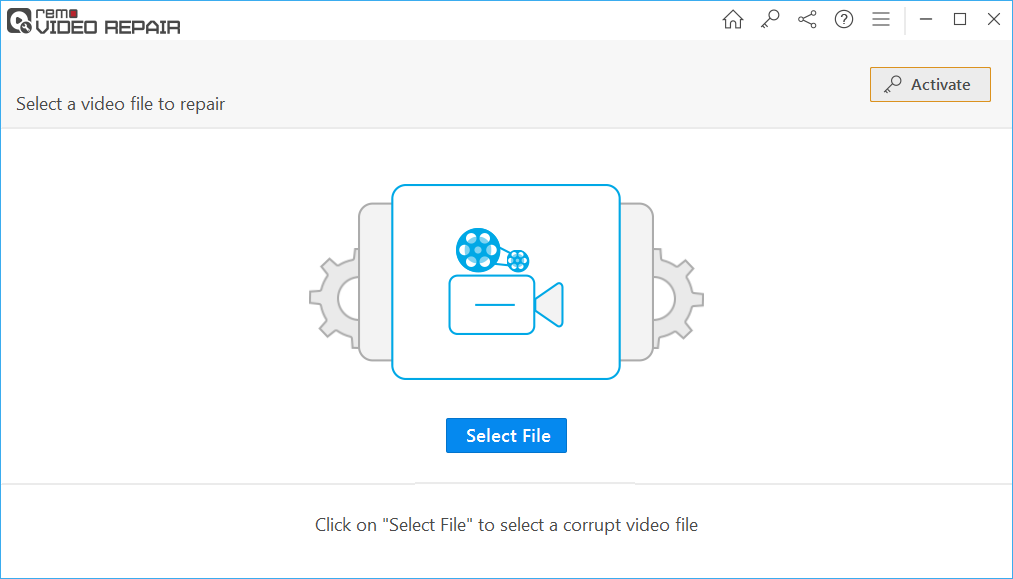
Note: In case, if the MP4 video file is severely corrupted, the tool will perform advance repair for which it will ask you to Choose a Reference MP4 file. Ensure the reference video is of same format and captured from the same device.
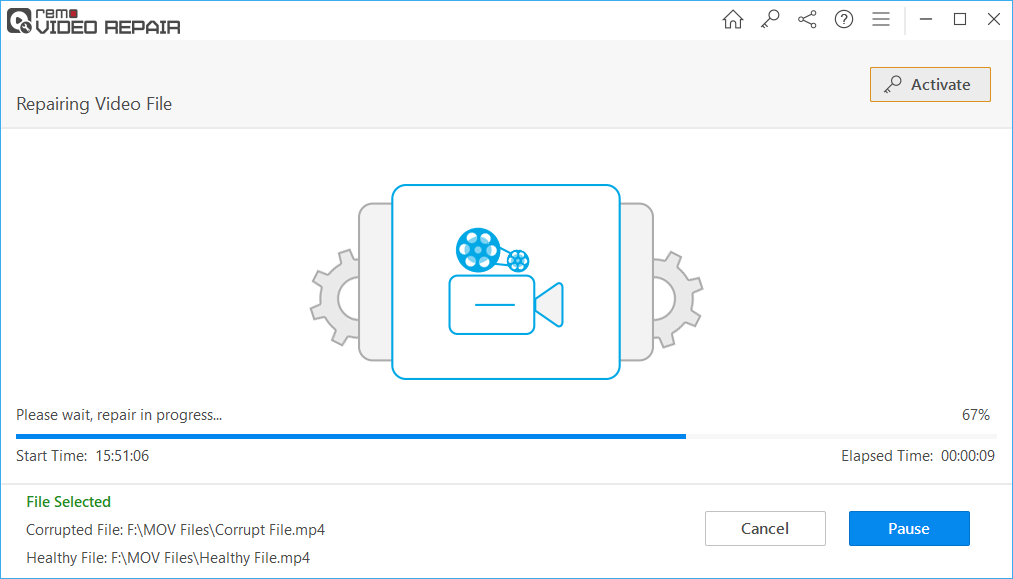
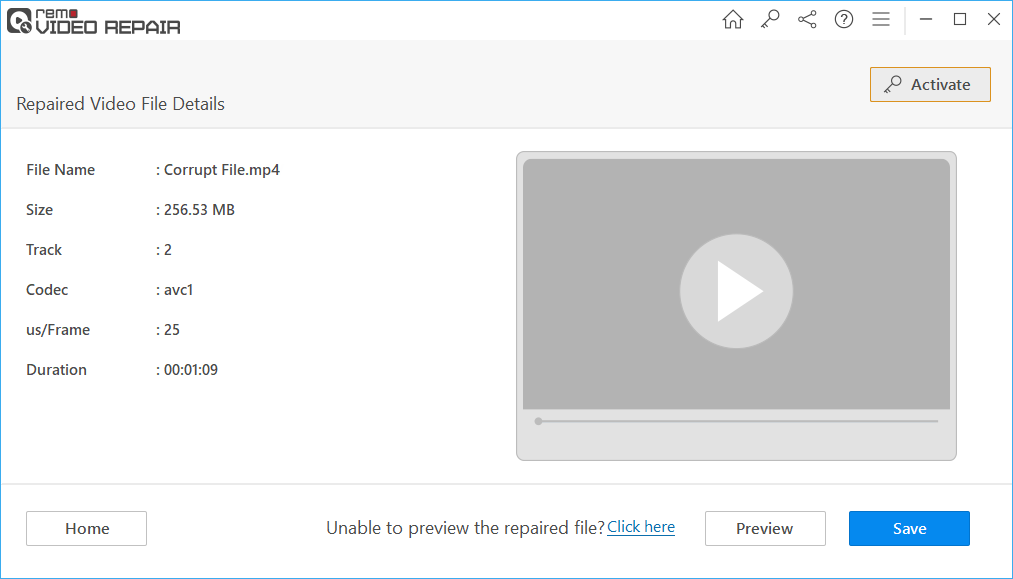
Step 3: Once the MP4 video repairing process is completed, you can preview the repaired MP4 video for free. If satisfied with the result, you can click on the Save button to restore the video file to a location of your choice.
Why Remo MP4 Video Repair tool to fix MP4 file not Showing video or audio?
- Best tool to repair various video file formats, such as MP4 and MOV.
- Support repairing MOV and MP4 videos recorded on various brands of cameras and camcorders, such as Nikon, Canon, Sanyo, Sony, Kodak, GoPro, etc.
- Allows you to preview repaired MOV, MP4, and M4V video files for free.
- Apart from fixing MP4 not showing video or audio, it also fixes MP4 video with the damaged header, audio-video synchronization issues, codec issues, QuickTime 2048 error, etc.
- This tool is compatible with all the latest Windows and Mac OS versions, including Windows 11, 10, and macOS Ventura and Big Sur, etc.
Supported CODECS:
- Video codecs: H.264 (AVC), and H.265 (HEVC).
- Audio codecs: AAC (Advanced Audio Coding) or MP3.
Conclusion:
If your MP4 video not playing, then this can be due to various reasons like MP4 video corruption or damage, codec issues, etc. In such cases, it is suggested to use Remo Repair MP4, which comes in handy to fix MP4 not showing the video, MP4 not playing sound, or any MP4 or MOV video errors, even repair corrupt MP4 File.