Hitachi is one of the well-known hard drive manufacturers which is quite popular and is known for its performance and reliability. These hard drives make use of magnetic recording to store data in them. So owing to these advantages, you might store a huge amount of data on a Hitachi hard disk. But there are times when you might encounter some unavoidable situations which result in data loss. Now you must be thinking about what could cause the loss of data from a hard drive, right? Well, let’s look at a few instances.
Table Of Contents
Possible reasons for losing files from Hitachi hard drive:
- While installing the operating system, you might accidentally format the wrong partition which leads to data loss from that partition
- Incorrect partitioning or resizing existing partitions may also result in loss of data from the drive
- Increasing bad sectors on Hitachi hard disk leads to loss of files
- Damaged hard drive structures, corruption of partition table, MBR corruption, accidental deletion of files, etc, all result in data loss from Hitachi hard drive
These are some of the situations of losing files from the Hitachi hard disk. If you have lost data due to any of these reasons, stop using your computer immediately because further usage may result in overwriting making recovery difficult.
How to Fix and Recover Data From a Hitachi Hard Drive?
Method 1: Recover Data From Unreadable Hitachi Hard Drive Using CHKDSK
CHKDSK is a utility in Windows which comes in handy to fix minor corruptions with the hard disk drives. This utility can be used if your Hitachi hard drive is inaccessible or unreadable. Hence recovery here would only pertain to regaining access to inaccessible hard drive data. Follow the below-mentioned steps to repair your Hitachi Hard Drive using CHKDSK:
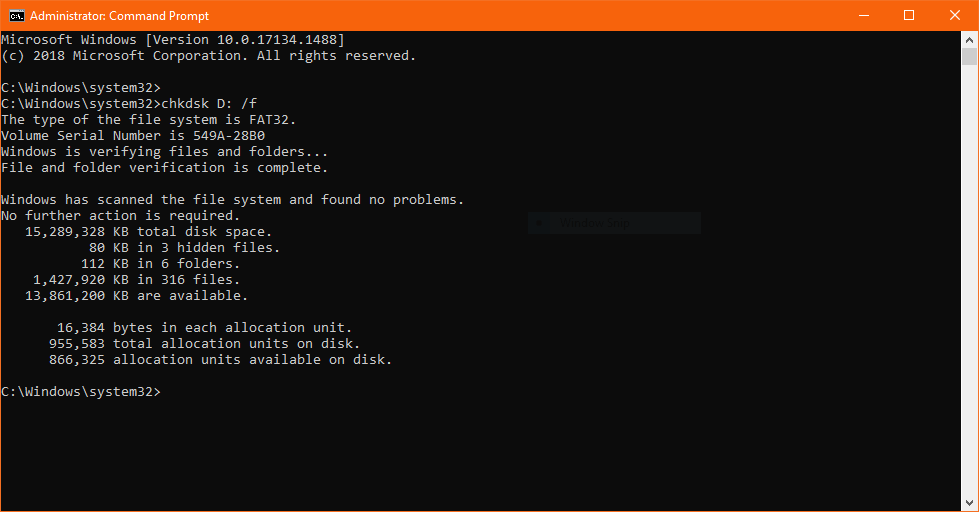
- Restart the computer after using CHKDSK to repair the Hitachi hard drive. This method doesn’t guarantee you to recover data but there is no harm in trying as it is a free method.
If the error checking tool didn’t help you then move on to the next method.
Method 2: Repair Hitachi Hard Drive using an In-Built Error Checking Tool
- Right-click on the hard drive or the partition that is corrupt and select Properties.
-
In properties go to Tools and click on Check.
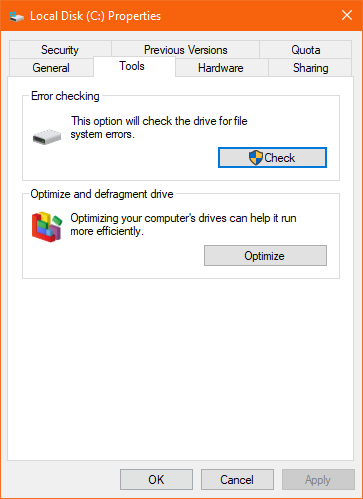
- Next click on Scan Drive to start the process of error checking.
This will check for errors on your hard drive and fix them, making your inaccessible hard drive data accessible.
If the above-mentioned method doesn’t work on your Hitachi hard disk, it is best to make use of Remo Recover.
Method 3: Remo Recover- The Best Hitachi Hard Drive Recovery Software
You can recover data from your Hitachi hard drive by making use of a professional hard drive recovery software by Remo. Remo Hard Drive Recovery Software is built with an advanced recovery algorithm that can recover data lost from any data loss scenario. Be it an unreadable Hitachi hard drive or if your Hitachi hard disk is corrupt, Remo Recover can help you get back your files from Hitachi Hdd easily. Download the tool for free now.
Download Now
Download Now
Remo Recover not only works on helping you recover files from external hard drives of Hitachi but also supports data recovery from Seagate, Western Digital, Samsung, Sandisk, HP, Sony, and many more brands.
Step by Step Guide to Recover Files from Hitachi Hard Drive:
- Download and install the Remo Recover software on your computer.
- Connect the Hitachi Hard Drive to the computer using a suitable card reader.
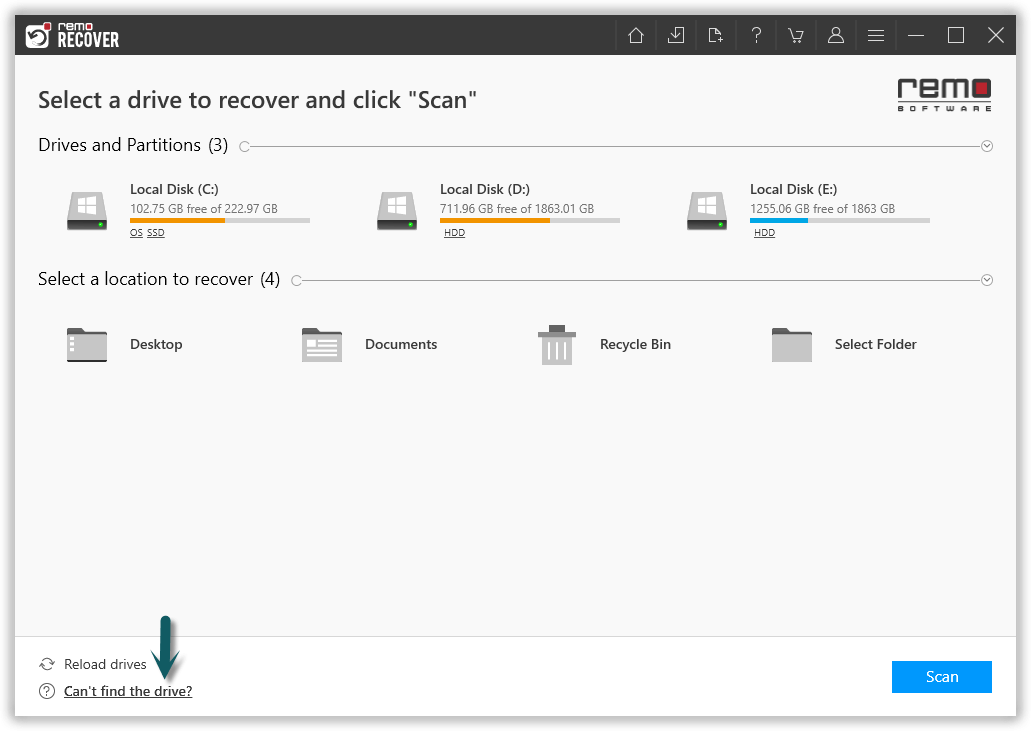
- Select the Hitachi Hard Drive and click on the Scan button.
Note: If you are unable to find the Memory Card, click on the Can’t Find Drive? option.
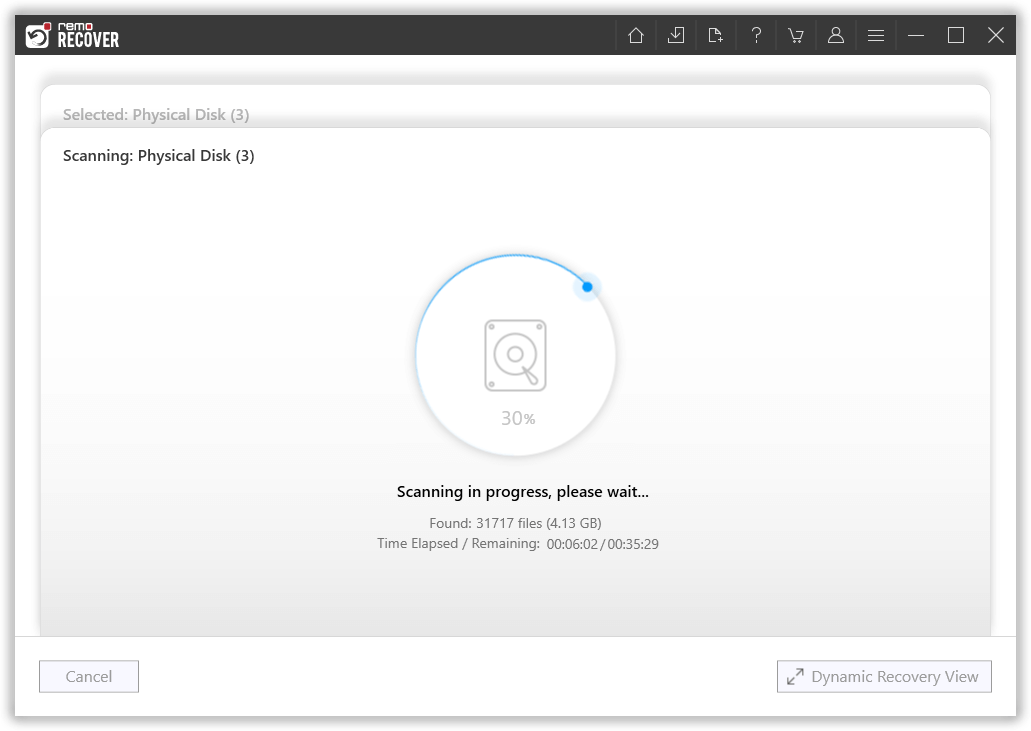
- Once the scan starts you can click on the Dynamic Recovery View to recover the lost files from Hitachi hard drive during the scanning process itself.
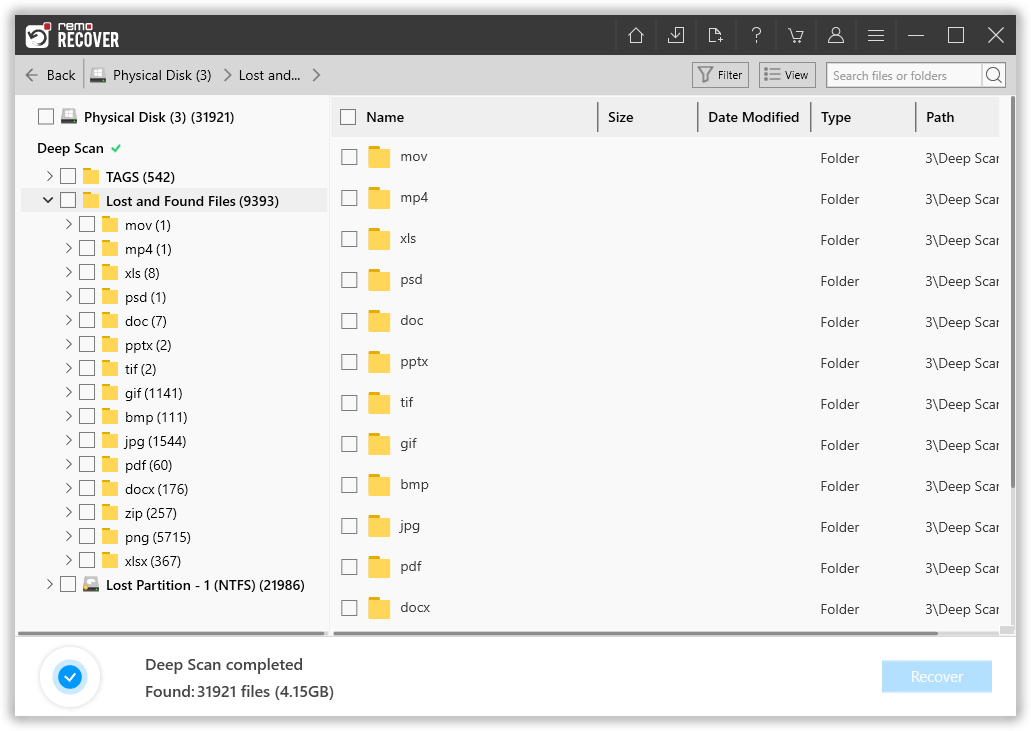
- After the scanning process, you can see your lost data under the Lost and Found folder or Lost Partition folder.
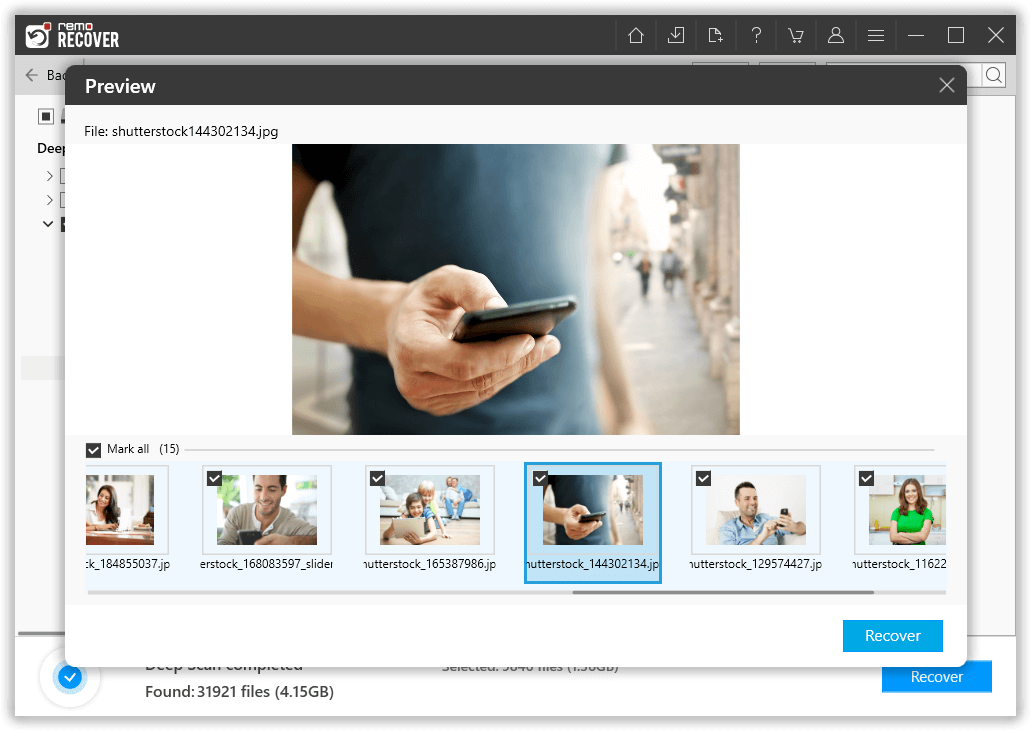
- You can double-click on any file to Preview the recovered files such as documents, PPTs, excel sheets, photos, videos, etc.
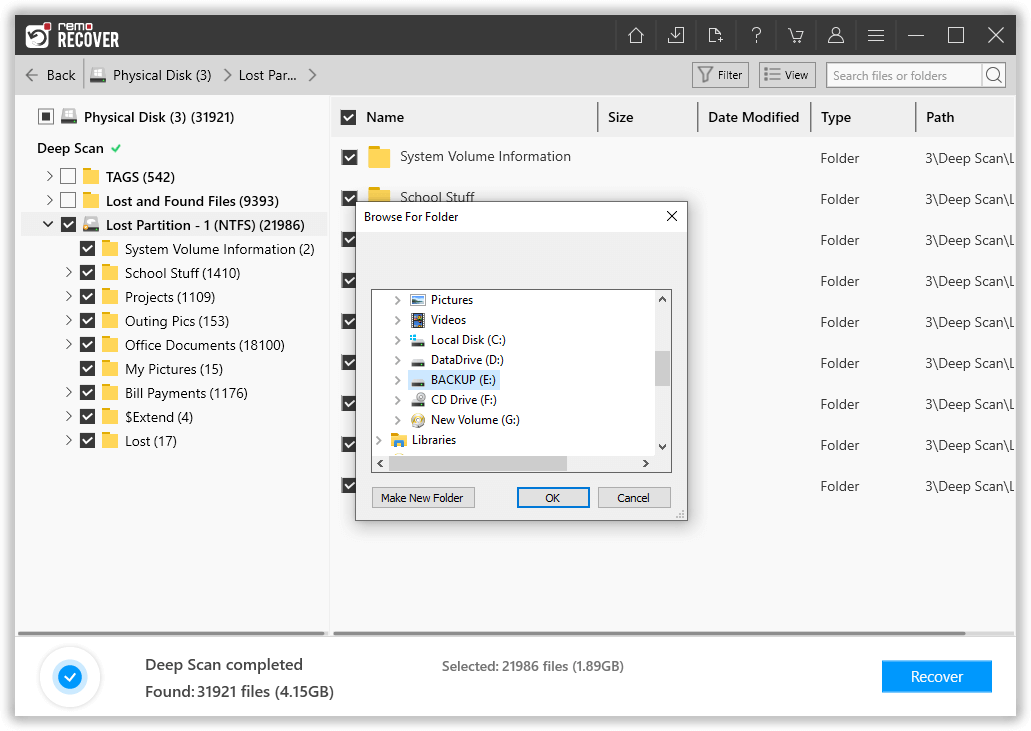
- If you are satisfied with the recovery session select the files you want to restore and click on the Recover button and save the file to your preferred location.
Tips For Successful Data Recovery From Hitachi Hard Drive
- Once you find that your Hitachi hard drive is damaged or formatted, stop using it to avoid overwriting the stored data and increase the chance of data recovery.
- Do not download or install Remo Recover Software to the same partition where you lost data to avoid overwriting the data stored on it.
- When recovering lost files from a Hitachi hard drive, do not save them to the same partition where you lost them before. Select another partition or drive to restore them.
- If you want to restore the files later after scanning, remember to save the scan result and you can directly restore them by importing instead of scanning again.
- In case, If you are a MAC user download Remo Recover Mac which works smoothly on macOS computers and can easily recover data from any Mac Operating System including the latest Monterey.
Conclusion:
All the above-mentioned steps will surely help you recover data from Hitachi hard drive. It is important to know that the above method can be used to recover data from Samsung hard drive or Sandisk SSD or hard drives and SSDs of any brand. Irrespective of any data loss scenario, make sure you to check out Remo to safely get back your data.