Losing Time Machine Backup(s) from any External Hard Drive is a common issue, which can happen due to accidental file(s) deletion, formatting of the external Hard Drive or other storage devices where you have saved your Backup, as well as damage, failure, or your storage device getting broken or corrupt.
Irrespective of the reason why you have lost your Time Machine backup. This write-up will make sure you recover those files safely.
Use Remo Mac File Recovery software to restore deleted Mac Time Machine backup files quickly!!
You might have backed up your Mac system or files and folders that were of vital importance using Time Machine and saved those backup files on any external storage device.
But now you have found that those backup files are no longer existing in the storage device where they were earlier saved.
You might be wondering, Is it possible to recover deleted Time Machine Backup files?
You have ended up in the right place; this article will help you easily recover deleted Mac Time Machine backups of any size from any storage device.
Irrespective of the reason why you have lost your Mac Time Machine Backup(s). The solution mentioned in this section can help you recover permanently deleted entire Time Machine backup, as well as recover deleted or lost files from the Time Machine Backup.
If you have taken an extra backup of your important Mac files and folders and have saved it on any other external storage device or iCloud. Then we recommend you restore the Mac Backup files from the external backup.
In case you don’t have any additional backup or have permanently deleted or lost your backup files. Then worry not, you try always rely on professional tools to help you out.
Remo Mac File Recovery Software is a specialized tool built to recover more than 500 types of files from any storage device on any MacBook or iMac running on any version of Mac OS.
The software is thoughtfully designed to scan the drive more comprehensively to find, locate, and retrieve Time Machine backup and other files and folders stored on any device. Additionally, Remo is compatible with all the newer and older versions of Mac OS.
So download the tool and start the Mac Time Machine backup recovery process now.
Step 1: Download and install Remo Recover Mac Software on your Mac system. Connect the storage device where you have saved your Mac backup.
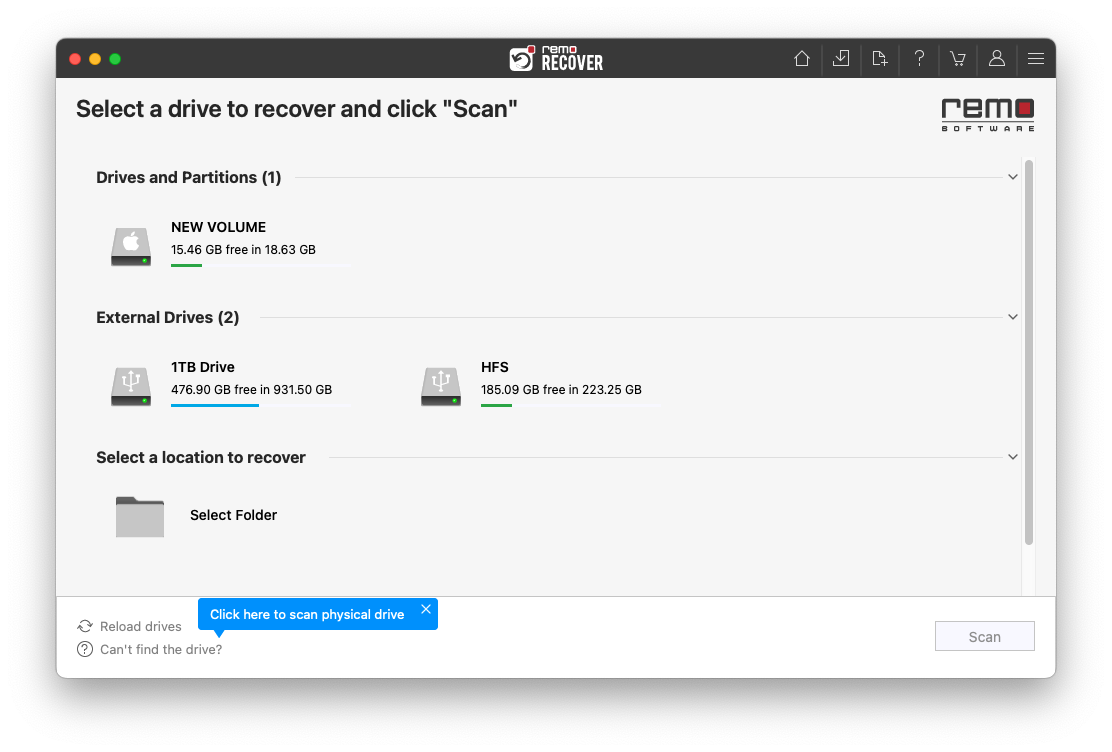
Step 2: Launch the tool from the main screen. Click on the Drive or the Volume from where you want to recover deleted or lost Time Machine Backup and click the Scan button.
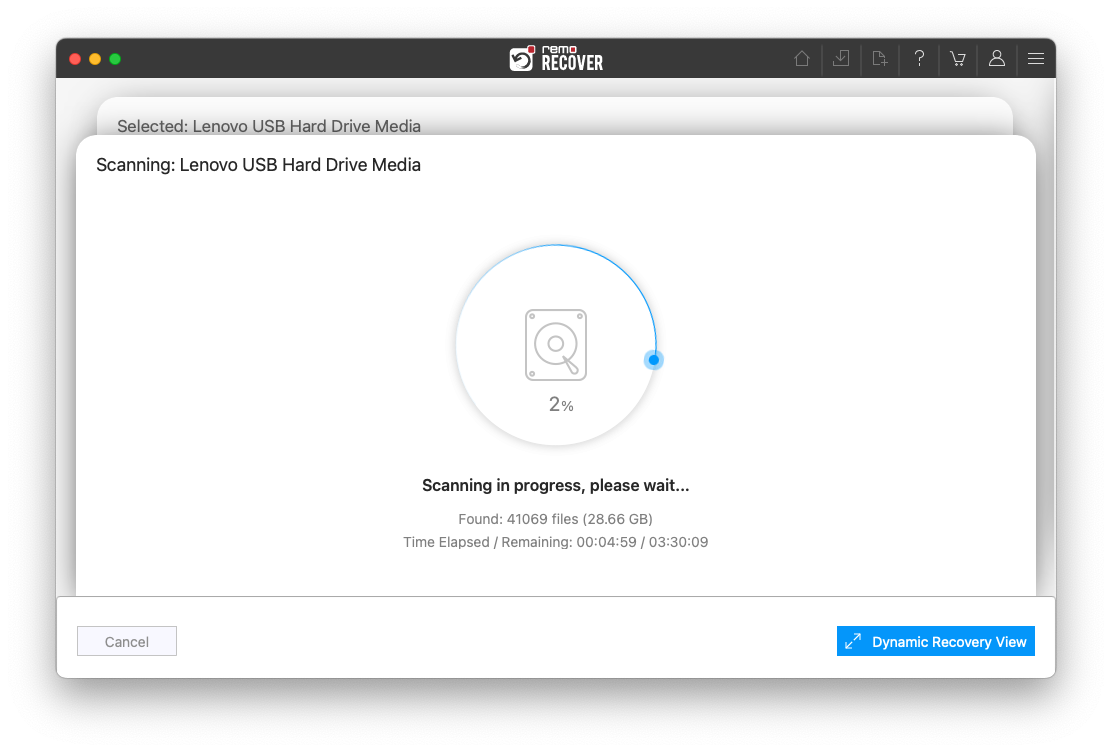
Step 3: Click on Dynamic Recovery View to see the data as it recovers.
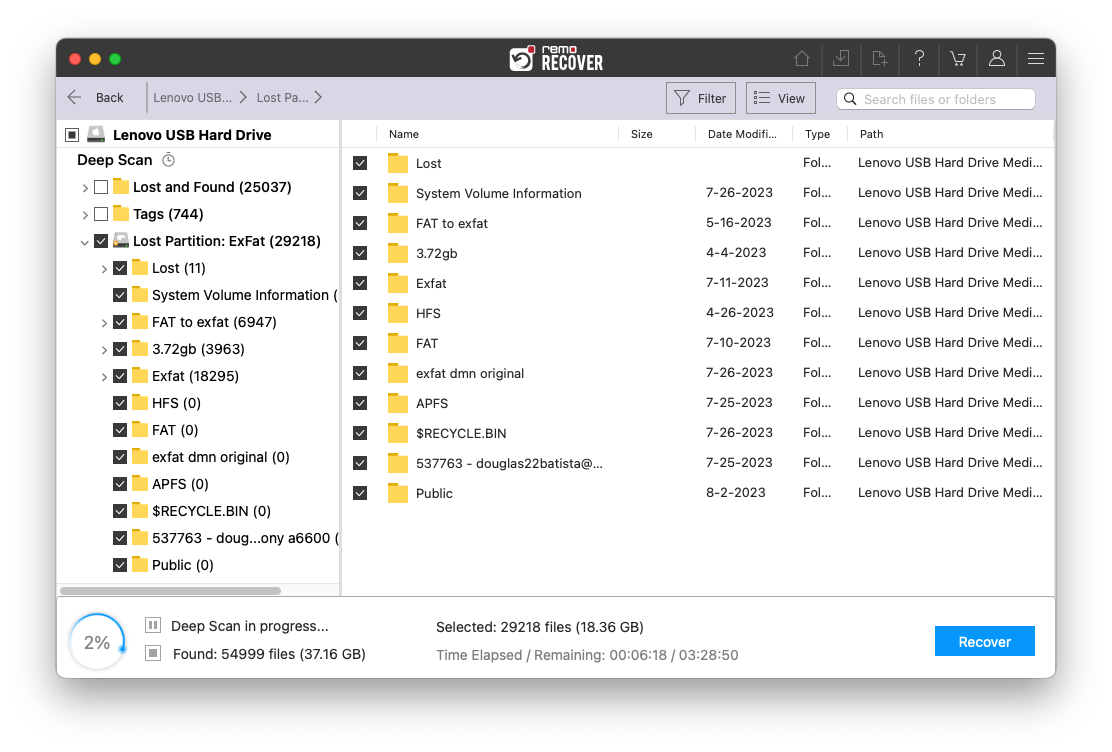
Step 4: A list of the files that can be recovered from the connected drive will be displayed on your Mac screen. Locate them either on Lost and Found or Deleted Files folders
Step 5: Double-click on the recovered files from the backup drive to preview them.

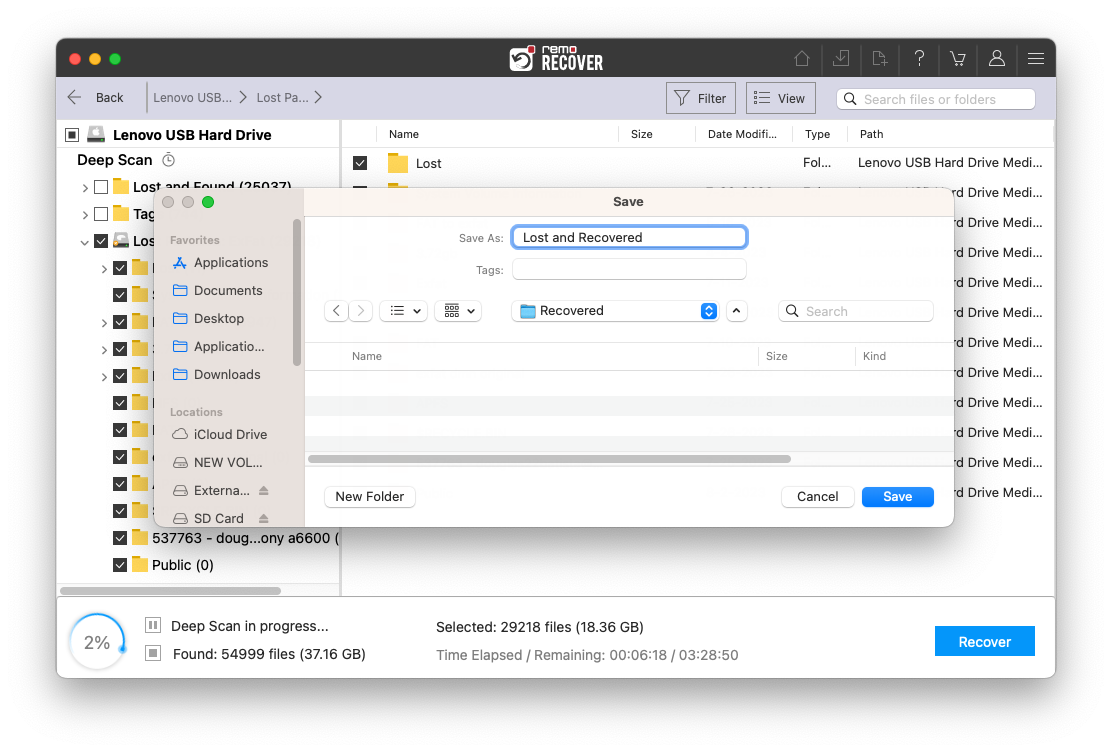
Step 6: If you are satisfied with the preview of recovered data from the backup drive, you can click on Recover to save the files in your preferred location.
Remo Mac File Recovery Software has successfully recovered your Time Machine Backup from the external drive without harming or damaging the files.
Note: If you are curious to know how to recover deleted files on Mac. Then this comprehensive guide on recovering deleted files on Mac can be your go-to guide.
Here are various ways Mac users across the globe lose their Time Machine backup.
Note: You can refer to this article to learn how to recover files lost during transfer.
By now, you are aware of the reasons why you have or might lose your entire Time Machine backups or a few files from the backup. As well as very acquainted with the solution to recover the deleted Time Machine backup.
Here are a few tips that you can try to protect not only your Time Machine backup data but also all other important files and folders.
Recommended read: If you are using an older version of Mac OS, such as Big Sur, Catalina, or Monterey. You can follow this article to find out how to upgrade to Mac Ventura without losing data.
Conclusion:
Here we wrap up our discussion on recovering deleted or lost Time Machine backup from external hard drives and other storage devices.
To quickly sum up what we have discussed so far. I explained in-depth about Remo File Recovery Software for Mac and showed you how to recover Mac Time Machine backup using the tool. Explained to you all the possible reasons why you and other Mac users lose their Mac backup data, as well as provided you with a few handfuls of tips and tricks to ensure the complete safety of your data.
I am sure you have found this article helpful. This is John Harris signing off.
Why Choose Remo?
100% safeSecure
100% SatisfactionGuarantee
10 Million+Downloads
Free TechSupport
Live Chat24/7 Support

