
You open one of your Photoshop documents, and all of a sudden, you see a popup error message saying, “Could not complete your request because an unexpected end-of-file was encountered.”
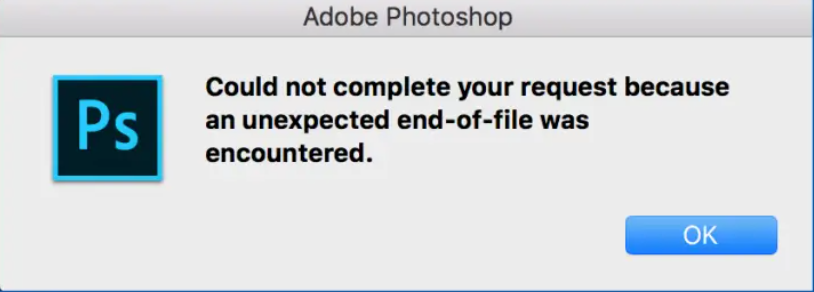
Photoshop user communities and forums buzz with discussions about this error. Here, we have addressed a similar user query from one of the forums, i.e., superuser.com.
After upgrading from Photoshop CC 2020 to 2021 (Windows 10 Pro), I was not able to op en JPG files and got the "could not complete your request because of program error".
- User Query from Superuser.com
If you have encountered a similar issue, then follow the steps to fix the issue.
- Disabling and enabling GPU: You can try disabling the GPU from the Performance tab.
- Update Drivers: Now, update your graphic card drivers. Now go back and try enabling the GPU and see if you are able to open the JPG files in Photoshop
- Opening Photoshop Files as a Different User: You can open the JPG files in the other Photoshop application as a different user.
- Check User Authentication Process: Now select Windows+X, select Windows Powershell, hit Enter, and type the command Get-Service seclogon.
- Run Photoshop Application as an Administrator: Now select Windows+R choose the Browse option, select the Photoshop folder path C:\Program Files\Adobe\Adobe Photoshop 2021\photoshop.exe, and hit Enter.
Now, you will be able to open the JPG files or any other image format files with Photoshop without encountering the error loading preferences or could not complete your request because an unexpected end-of-files was encountered.
- What Triggers The End of File Error in Photoshop?
- How to Fix PSD Unexpected End of File Error?
- Method 1: Restart the PhotoShop Application and the System
- Method 2: Open the PhotoShop File in Illustrator or Other Image Editing Software
- Method 3: Changing the File Extension of the Photoshop File
- Method 4: Open The Photoshop File in Safe Mode To Fix the Unexpected End of File Was Encountered Adobe Photoshop
- Method 5: Enable Backward Compatibility in Photoshop
- Alternative Method: Use the Disk Cleanup tool
- Method 6: Repair Corrupted PSD File Using PSD Repair tool
- Method 7: Reinstall the Adobe Photoshop Application to Fix End of File On Photoshop Error
- Tips to Avoid End of File error on Photoshop in Future
- Frequently Asked Questions On End of file error on Photoshop
What Triggers The End of File Error in Photoshop?
While there is no clear mention of what this error means, End of file error in Photoshop usually means that the PSD file is damaged. The PSD file can be damaged due to the following reasons:
| Reasons | Description |
| 1. Missing Header or Footer of a PSD file | The header and footer of the PSD file have the complete information of the PSD file, such as color mode, depth, number of color channels, etc. While saving a PSD file, the Photoshop application might fail to create a header or footer of a PSD file. Once the header or footer of the PSD file is missing or damaged, Photoshop will fail to process the PSD file and pops up an unexpected end-of-file error. |
| 2. Incompatible Photoshop version | Incompatibility in the PSD file occurs when you try to open a PSD file saved on the latest versions of the Photoshop application on the older version, because every Photoshop has elements that are limited to a specific version. |
| 3. Interrupting the saving Process | Interrupting the PSD file while saving it to a specific location can potentially damage the layers of the PSD file. In some cases, the file will be saved as a temporary file in a folder called temp. Situations like these result in “end of file error”. |
| 4. Corrupted PSD file | Managing a PSD file with numerous layers can be a bit complicated. It takes a lot of time while processing the large PSD file. Even a small interruption while processing, the PSD file might get damaged. |
If you are looking to fix your corrupted PSD files, we recommend you use the Remo Repair PSD tool.
Forget struggling with PSD repairs! This tool takes charge, effortlessly fixing your files with its powerful repair algorithm. The tool handles the hard work, minimizing human intervention for a smooth recovery process.
Download and try the tool for free now!
How to Fix PSD Unexpected End of File Error?
Method 1: Restart the PhotoShop Application and the System
At times, to solve the most terrifying problems. Sometimes, a quick system restart or relaunching Adobe Photoshop can fix the dreaded "Unexpected End of File" error. It’s one of the first and easiest solutions to try.
Restarting the system might work well in case of temporary software glitches, resetting the corrupted Photoshop preferences to default, conflict among different applications.
However, it important to keep in mind, that restarting the software or the application is not a guaranteed solution to fix the “Photoshop end of file was encountered” problem. The error can be caused by various solutions, and restarting might not address all of those causes.
Method 2: Open the PhotoShop File in Illustrator or Other Image Editing Software
Yes, most of the users in the Adobe community discussion forum mentioned how opening the file with the end of the file error was fixed by just opening it on Adobe Illustrator. The catch here is that there will still be some corrupted layers in the PhotoShop file, which you will have to work again to restore or repair using a PSD repair software like Remo Repair PSD.
Method 3: Changing the File Extension of the Photoshop File
You can use this fix if you fail to correctly save the Photoshop document. All you need to do is access the PSD file's temp file location and change the file's extension.
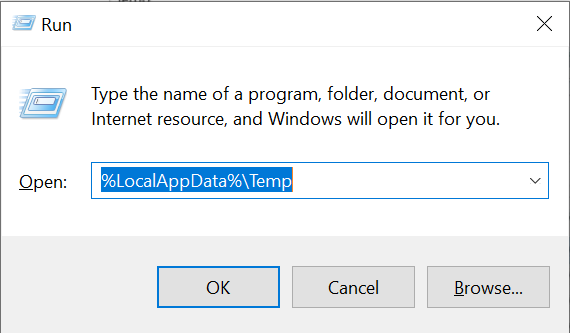
- Tap Win+R, enter the %LocalAppData%\Temp in the Run box, and click on the run to access the temp files.
- Now, search for the temp files in the list. You can search with respect to date and time to identify the damaged PSD file.
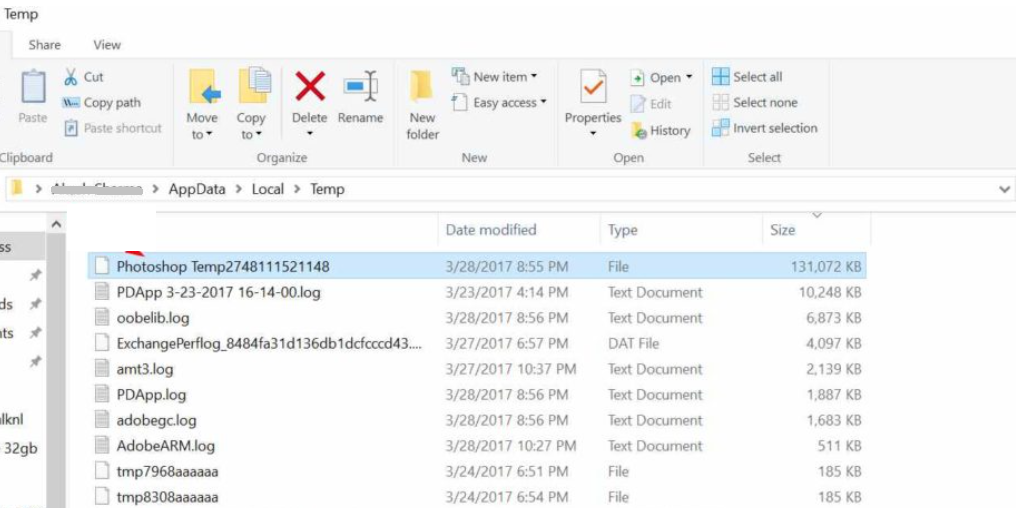
- Select the desired temp file, and go to the properties of the temp file. Rename the file with the .psd extension and restore the unsaved PSD file onto your desktop.
This might fix the end-of-file error due to incomplete saving of the PSD file.
Method 4: Open The Photoshop File in Safe Mode To Fix the Unexpected End of File Was Encountered Adobe Photoshop
Opening or launching the Adobe Photoshop application in Safe Mode launches the application with minimal features and extensions active. This solution isolates the core functionality of the program.
Safe Mode temporarily disables the custom preferences and resets the application’s settings to default. Additionally, this solution also finds where the conflict stems from, whether the issue is with the program or with other plugins and applications.
Opening the Photoshop file in Safe Mode can help you zero in on the causes and further guide you to troubleshoot the issue.
Simultaneously press the Ctrl + Alt + Shift keys while launching the Photoshop application.
If you could open the file without any effort or problem in Safe Mode. Then, the problem might have been triggered due to a conflict between the program and plugins or preferences. You should reset the preferences to default or disable the plugins to pinpoint the cause.
But if the issue continues to persist. Then, the issue might be with the Photoshop application itself. In this case, the best solution to try is to update or rreinstall the application.
The methods mentioned above can only fix simple PSD errors; you cannot fix damaged or broken PSD files, which are major reasons for the end-of-file error if you are still facing the same issue after trying the methods mentioned above. Then, the next method is for you.
Method 5: Enable Backward Compatibility in Photoshop
Compatibility issues occur when you try to open the latest Photoshop versions on the older versions. You can enable backward compatibility in the Photoshop application and fix any compatibility issues.
To enable the backward compatibility.
- Open the Photoshop application and go to Edit> Preferences > file handling, in the file handling window at the bottom you will find the maximize PSD and PSB file compatibility option.
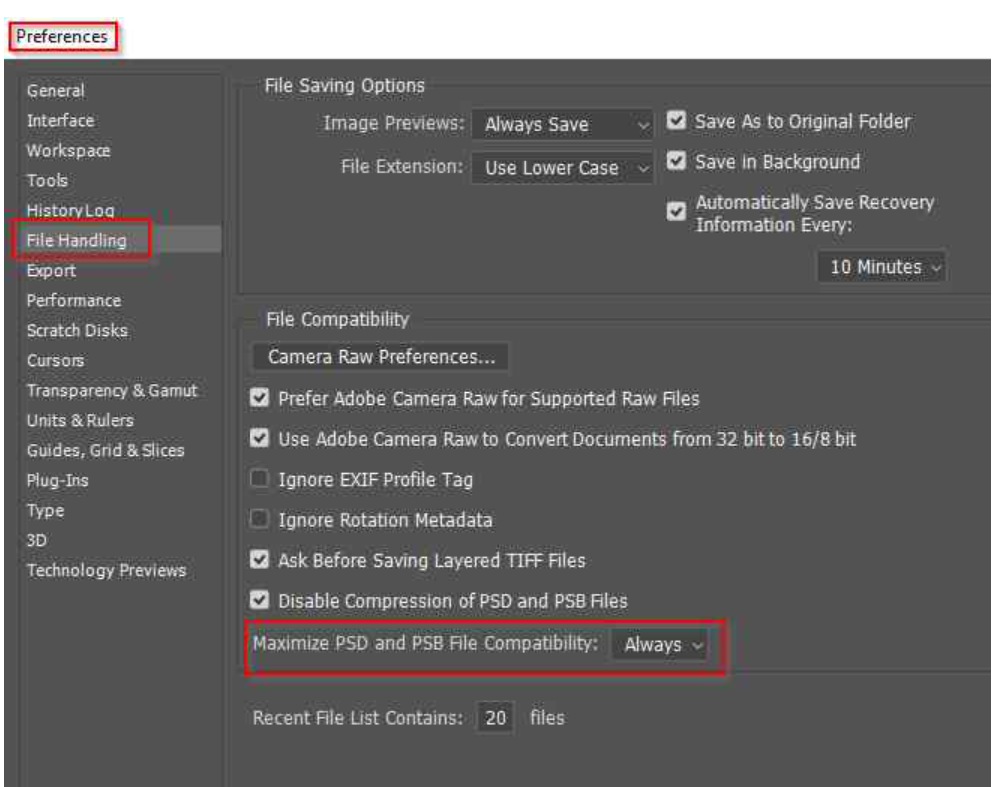
- Click change the option to always click on OK to save the changes.
This will enable backward compatibility and help open PSD files created on older versions of PS.
Alternative Method: Use the Disk Cleanup tool
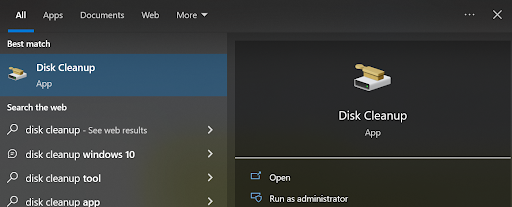
If your drive has insufficient space to save the PSD file, then you can also try cleaning up the disk using the Disk Cleanup tool. The tool is available on your Windows by default. You can try removing unwanted junk from your disk.
- To do so, go to your Search Bar on your Windows, type Disk Cleanup, and hit Enter.
- Select the drive, which you want to clean up your disk and hit OK.
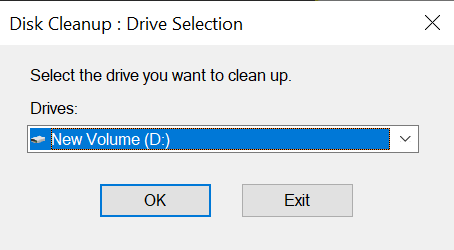
Now check if you can access Photoshop without encountering the error “could not initialize Photoshop because an unexpected end-of-file was encountered.”
Unfortunately, this is not a permanent fix; if the PSD file is severely damaged you cannot fix the error just by changing the extension. You need a tool that is dedicated to fixing the damaged PSD files, such as Remo Repair PSD.
Method 6: Repair Corrupted PSD File Using PSD Repair tool
If the previous solutions haven't resolved the error. Then there's a high chance that your PSD file is severely corrupted. To uncorrupt the PSD file, we recommend you use the Remo Repair PSD tool.
This tool is built with a powerful repair algorithm, meticulously fixing your damaged files without harming the original data. The tool has an easy interface, which makes the repair process simple. Download the tool now and start repairing your corrupted PSD files.
Steps To Resolve the Photoshop Image Corruption Issue Using Remo Repair PSD
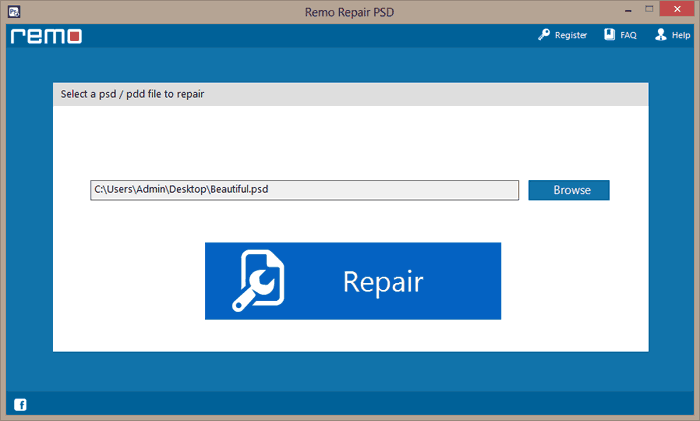
1. Download and install the Remo Repair PSD tool. Upon completing the setting up process. Launch the tool, and from the home screen, click on the Browse button, select the original file that has gotten corrupted or become damaged, and click on the Repair button.
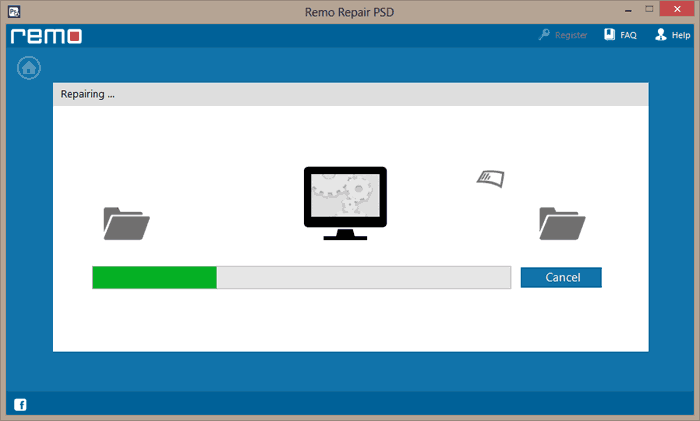
2. Now, the scanning of the corrupted PSD file will start. Once the scanning is completed, the tool will display the repaired PSD files in the tree structure.
3. You can also click on the Preview button and verify whether the PSD file is repaired or not.
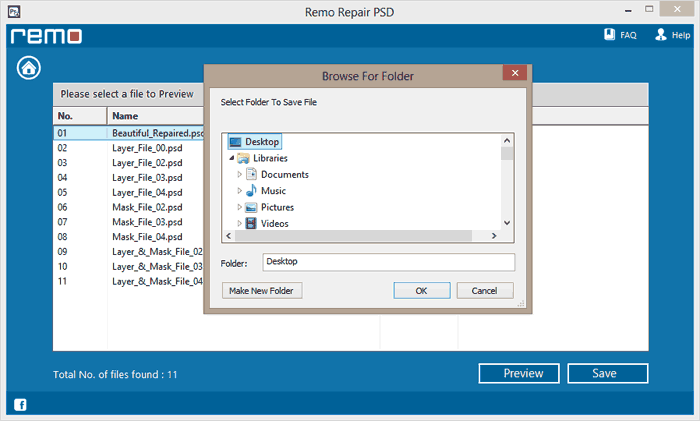
4. Finally, select the repaired PSD files that you want to save, click on the Save button, and Browse the location where you want to save the repaired PSD files.
Method 7: Reinstall the Adobe Photoshop Application to Fix End of File On Photoshop Error
Reinstalling the Photoshop application involves entirely removing the existing installation and reinstalling a fresh copy. This process is extremely helpful in case the error is caused by corrupt installation or program or configuration files; as mentioned earlier, the issue can also arise due to conflicting settings, add-ins, or plug-ins. In some cases, reinstalling the program might also cause bugs and glitches in the installation files.
Reinstalling the Adobe Photoshop application can remove those problematic files and set the setting pr preferences to default. Thereby fixing the “Unexpected End of File Was Encountered Photoshop.”
Even though I don’t recommend reinstalling the program as the best solution. If you have tried all of the above-mentioned solutions and still the issue of the end of the file in Photoshop persists. Then you can proceed to reinstall the application.
Before you proceed any further: I recommend you back up your important data. Since reinstalling wipes your preferences, workspaces, brushes, saved settings, and presets, etc. It is extremely necessary to take a backup of the necessary files.
The second thing I recommend is to deactivate your Photoshop license before you uninstall the application. This is crucial to prevent any issues during or after the reinstallation process.
Steps to Reinstall the Adobe Photoshop Windows
1: The first step is to uninstall the program. Open the Control Panel. Navigate to the Programs and Features. Search for the Adobe Photoshop application and right-click on it, click on the Uninstall option. Follow the instructions that are displayed on your screen.
2: The next step is to delete or erase any leftover files, including the Photoshop program files, temp and cache files, etc.
3: Go to the Adobe Creative Cloud Website and download the Adobe Photoshop installer on your Windows system.
4: Install Photoshop. Run the downloaded installer and follow the on-screen instructions.
5: When prompted, Log in to your Adobe account.
6: Once the tool is installed, launch the program and follow the instructions to reactivate the Photoshop license.
Tips to Avoid End of File error on Photoshop in Future
Unexpected End of the FIle errors in Photoshop can be easily avoided if you follow a few precautions, such as:
- Create various versions of the same file.
- Don't fill up the storage drive and have some empty space. This is a good measure to prevent the “could not initiate Photoshop because the scratch disks are full” issue.
- Work and upload onto the creative cloud.
If you are unable to avoid the error you can follow this article to fix the error.
Conclusion:
As discussed above, this error, “End of the file,” occurs when you are trying to open or save any image file. In case of Photoshop is incompatible or if the PSD file is corrupted or damaged, it will render this error. Hence, we recommend you take a backup of your important PSD files. If your PSD file is corrupted, you can rely on the Remo Repair PSD tool. Do share the article if you find it interesting. If you have any further queries related to this topic, use the comment section below to post queries similar to this topic.
Frequently Asked Questions On End of file error on Photoshop
The unexpected end of file error on Photoshop occurs mainly because of the following reasons: inadequate disk space, using an outdated version of Photoshop, a sudden hardware crash or failure, or the most unfortunate “PSD files getting corrupt.”
There are several ways to fix the corrupt PSD file, such as freeing up disk space, enabling backward compatibility in Photoshop, and changing the PSD file extension.
For severely corrupted PSD files, We recommend Remo Repair PSD.
You can flawlessly repair any corrupt Adobe Photoshop files using an advanced Photoshop Repair tool such as Remo Repair PSD.
As explained, corruption in the Photoshop file is one of the major reasons why you can’t open the PSD file on Mac. To fix the corrupted PSD files on Mac we recommend you use Remo Repair PSD on Mac.

