
Resetting Windows to factory settings is necessary if you want to increase system speed or enhance the computer’s performance. Sometimes it is also used as a way to troubleshoot, remove a malware infection from your PC, resolve any Windows operating system errors, etc. Resetting Windows to factory settings is also necessary before selling your system to ensure your personal data is not exploited.
In this article, find out how to recover data after resetting your Windows PC. So, without further adieu, let’s start recovering files after factory reset Windows 10.

Table of Contents:
- What happens if you reset Windows to Factory Settings?
- Can you recover files after a Factory Reset?
- How to Recover Data after Factory Reset without Backup?
What happens if you Reset Windows 10 to Factory Settings?
Resetting the PC to factory settings removes all the data and uninstalls third-party applications from your system. Further, it reinstalls the Windows operating system and removes all junk files to make your system look brand new, the way it was when you first bought it.
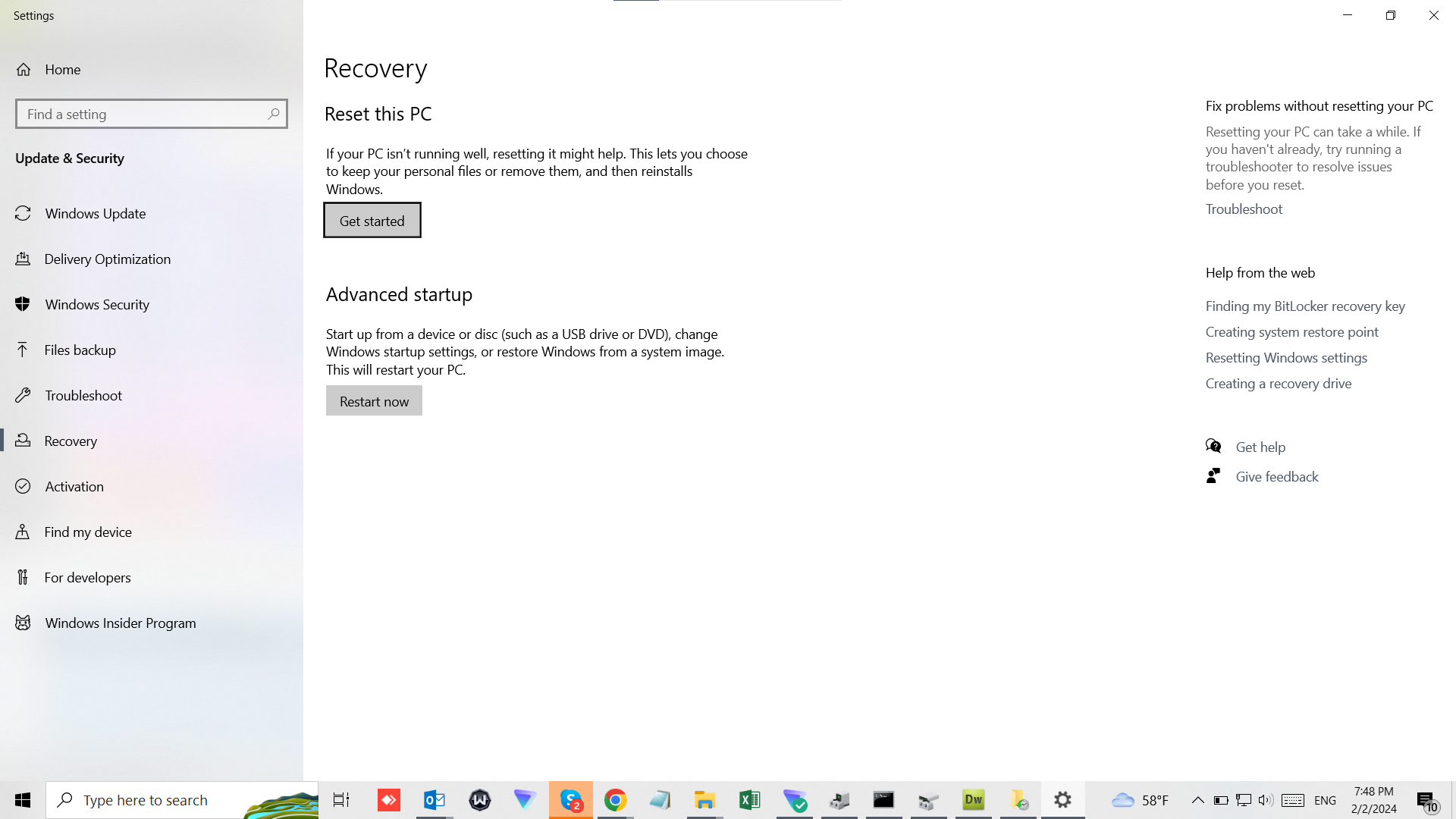
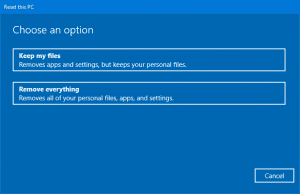
Though Windows 10 allows you to use the ‘Reset this PC’ utility along with two options. One is by keeping personal files untouched, and the other one is by removing everything stored on your system. Resetting Windows 11, 10, 8, or 7 to the factory settings can lead to a permanent data loss scenario if no backup is taken before implementing it.
However, it is advised to go for ‘Remove everything’ to fix the major Windows problems and errors. Even if you select the ‘Keep my files option, it doesn’t mean that all your important files are safe during the factory reset process.
Note: Check out this article to explore the reliable way to perform a factory reset in Windows.
Can you Recover Files after Factory Resetting Windows 11/10/8/7?
Yes, you can recover data after factory resetting Windows 10 or any other version. If you have lost data from Windows PC, make sure you act fast to recover it without overwriting the drive from which you want to restore the data. This way, you can successfully recover all your deleted files after hard resetting Windows 10.
How To Recover Files after System Restore Windows 10?
The answer is by making use of Remo File Recovery software, an advanced yet user-friendly tool that is guaranteed to recover files after factory reset windows 10. The tool works with an automated deep scan feature that scans the entire drive to recover files and folders without altering the original data. The tool lets you preview the recovered files for free to make sure you have recovered all of your important files.
Moreover, the software is compatible with all versions of Windows, including Windows 11, Windows 10, Windows 8.1, 8, 7, and other older versions.
Download and try the tool for free now and start recovering files after the Windows factory reset!!!
Steps to Recover Files after Factory Reset Windows 10/11 Using Remo Recover
- Download and install the Remo File Recovery tool on your Windows computer.
- Launch the software on your PC to recover files after a factory reset.
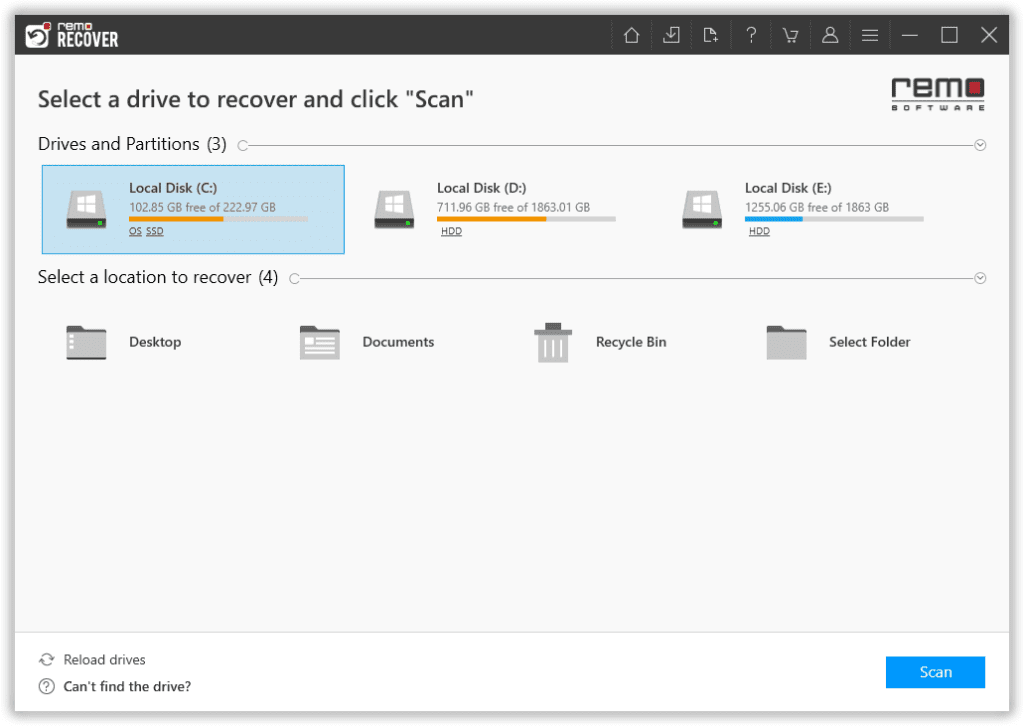
- Now, select the drive where all your lost or deleted files previously existed before resetting Windows 10 and click the Scan button.
- Make use of Dynamic Recovery View to have a look at the recovered files.
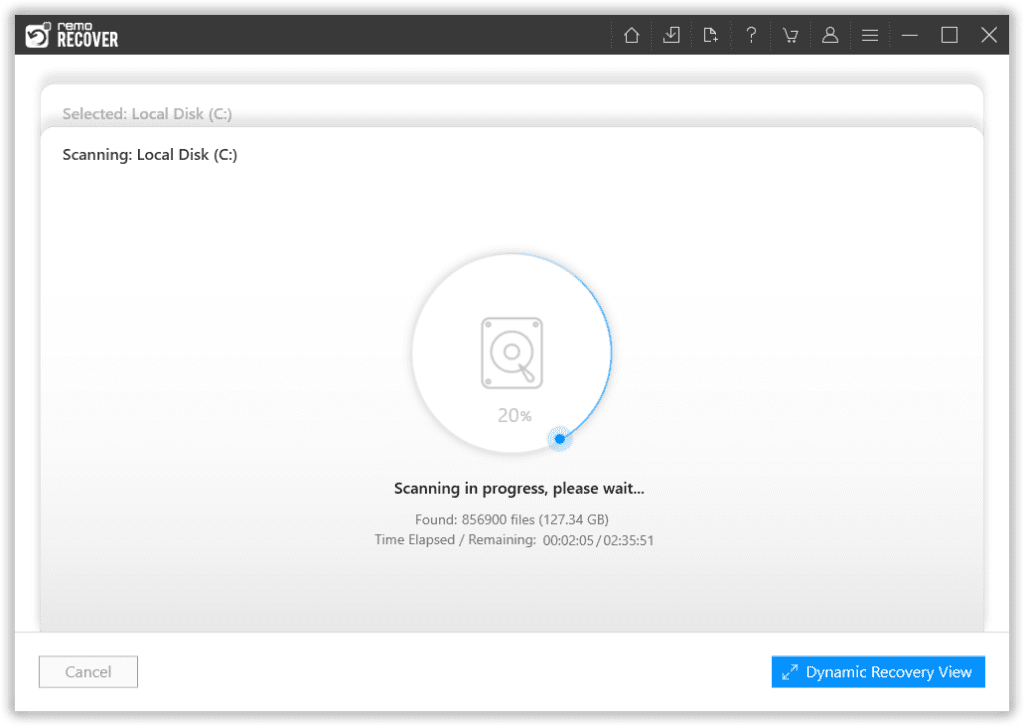
- After the data recovery software completes scanning the drive, all your files or photos that were lost due to resetting Windows 10 to factory settings will be displayed to you.
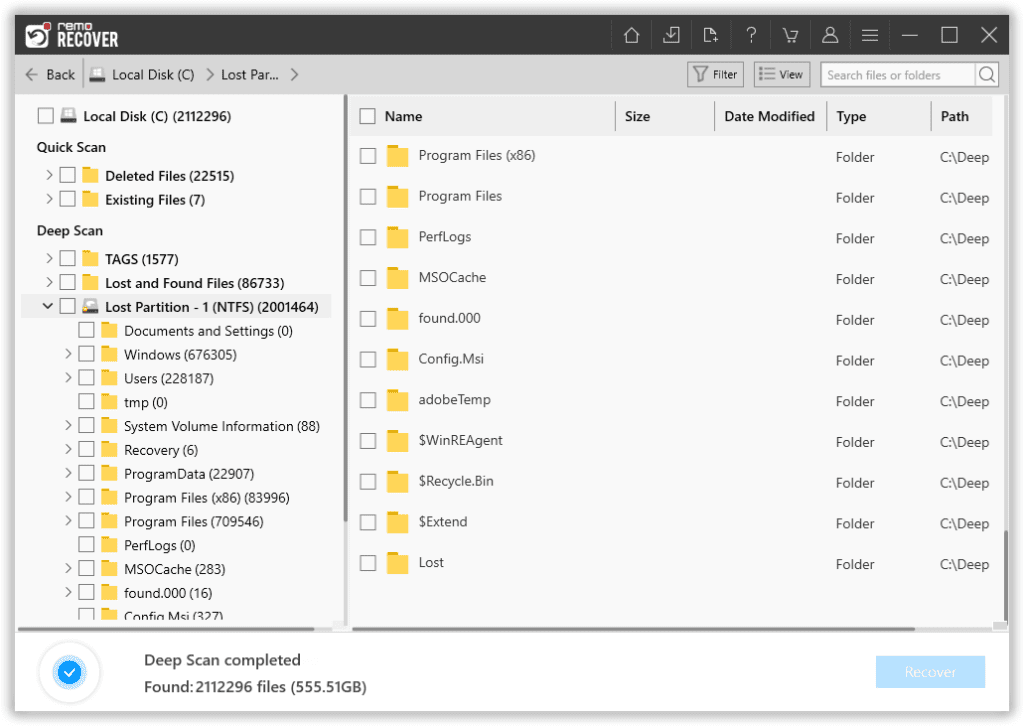
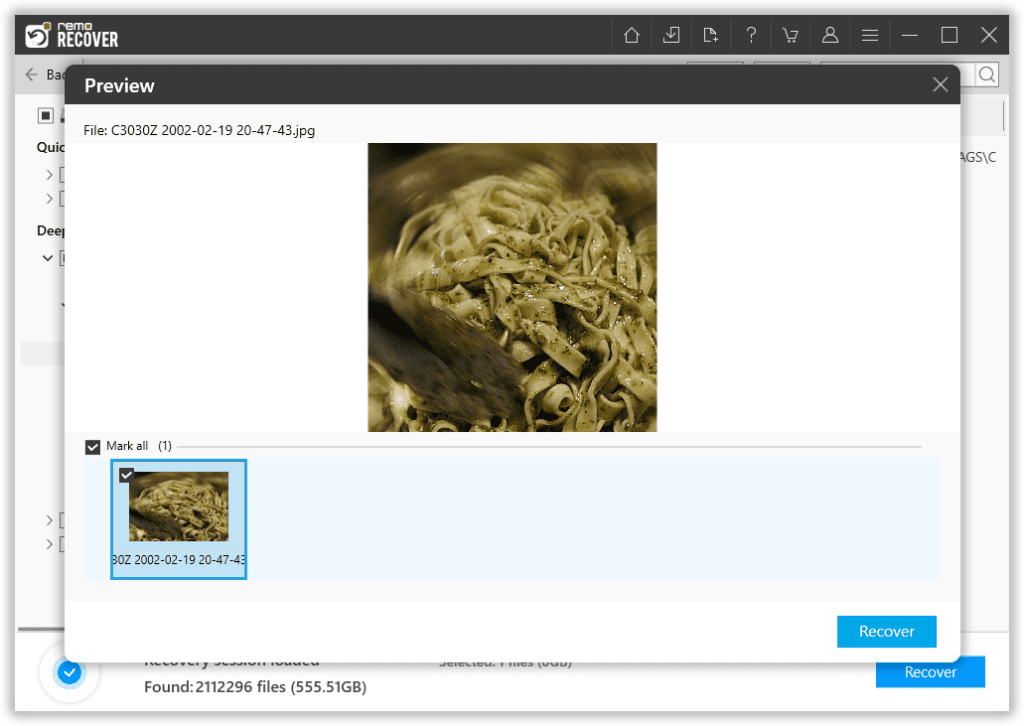
- Prior to saving, you have the option to Preview them by simply double-clicking on them.
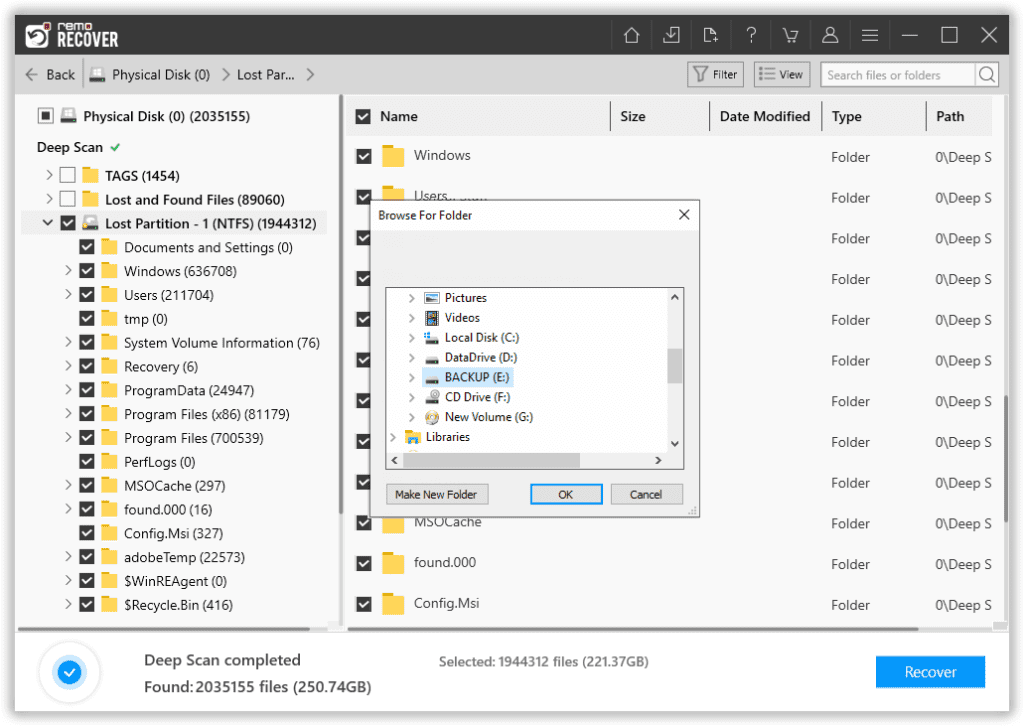
- Select the files that you want to recover click the Recover button and select a folder to restore them, followed by clicking on the OK button to start the data-saving process.
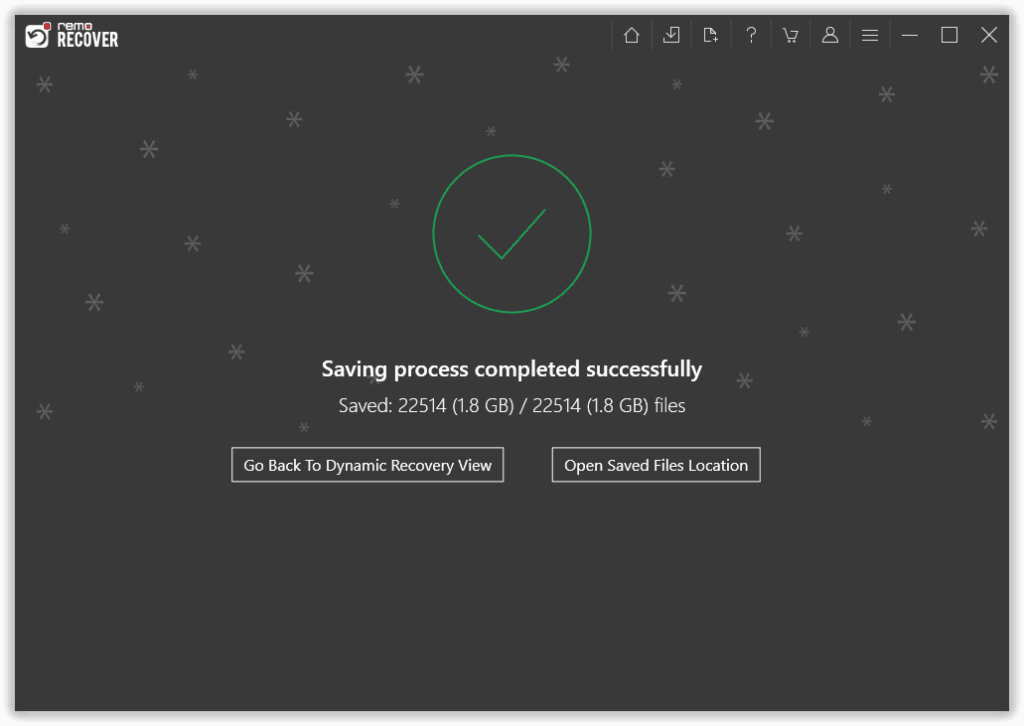
- Once the scanning process is completed, you can find the recovered files in the selected location.
Conclusion:
Resetting Windows to factory settings is a good thing if you want to speed up the computer’s performance or if you want to fix an operating system error. But before you factory reset your PC, make sure you have taken a backup of all your photos and files into an external storage drive as the results will be irreversible. In any case of a permanent data loss scenario, you can make use of Remo Recover to recover files after factory reset Windows 10 when all the manual methods you tried have failed.
Frequently Asked Questions
To recover data after a factory reset laptop, follow the below steps;
1. Download and install Remo Recover software.Step 2: Launch the tool and select the drive from 2. 2. which you want to recover data
3. Click on the Scan button. Once the scanning process completes, go to the Lost and Found Files to locate all your lost data from the laptop
Step 4: Select the files which you want to restore and click the Recover button
To recover lost photos after a factory reset, follow the below steps;
Step 1: Launch Remo Recover software on your computer
Step 2: Select the drive from which you want to recover photos lost after the factory reset
Step 3: Click on the Scan button. During the scanning process, you can click on the Dynamic Recovery View and find all the recovered photos and documents. After the scanning process, you can locate all your lost photos in the Lost and Found Files after the Windows factory reset.
Note:
You can make use of the Filter option to sort the recovered files based on Photos, Videos, Documents, Dates, etc.
Additionally, you can also use the Tags folder to locate photos according to properties like photo format (PNG, JPEG, BMP, GIF), device/camera used to capture photos, etc.
Step 4: Now, you can double-click on the photos you want to recover. Then select and hit the Recover button
If you don’t have a local backup or Google backup of files and folders. You have no other option but to use any good data recovery software.
This is where Remo Recover comes in, which will help you recover files after a factory reset on Windows 7.

