
MP4 is a commonly used video format for downloading and streaming videos on the internet, it is a standardized video format, and almost all media players support MP4 videos.
To open a video file all you need to do is double-click on the file to play the video on your default player, The Trouble is when you have a corrupt MP4 file, the media player starts showing error messages or videos fail to open in the player
- What happens if your MP4 video is corrupt?
- How To Fix Corrupted MP4 Files On Windows?
- Method 1: Repair MP4 Video File Using The Remo Video Repair Tool
- Method 2: Repair MP4 Video Files Using VLC Media Player
- Method 3: Mac Users! You Can Try QuickTime To Fix Your MP4 Video File
- Common Reasons for MP4 Video File Corruption
- Conclusion
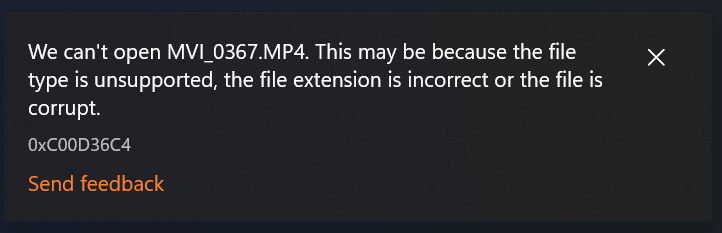
In this article, we have provided a complete guide on how to fix corrupt MP4 videos on Windows 11/10 using free and reliable methods.
What happens if your MP4 video is corrupt?
- Minor interruptions, such as sudden jerks or shocks to the device while transferring the MP4 file (from an Android phone to Windows PC or any other device), might result in missing audio or video frames.
- High-level virus infection might alter the codec of the MP4 video file, thus making the entire MP4 file inaccessible or unplayable.
- Issues that arise on the camera due to rough handling or abruptly switching off the camera will cause pixelation or broken videos.
How To Fix Corrupted MP4 Files On Windows?
When an MP4 video is corrupt or broken, it might be due to a damaged video track or audio track. It is impossible to manually repair these tracks separately. But you can repair MP4 files using a VLC media player if the issue is only with sync.
If the corruption is more than just sync issues or an audio track missing, you need an MP4 repair tool that can understand the level of corruption and repair it accordingly.
In this article, you can find easy ways to repair corrupt MP4 using the VLC Media Player in case of minor corruption issues and the Remo Video Repair tool if the MP4 file corruption is severe.
Method 1: Repair MP4 Video File Using The Remo Video Repair Tool
Remo Video Repair is an advanced yet user-friendly software designed to flawlessly repair corrupt MP4. It supports various video formats, including MOV, AVI, XVID, and DIVX.
With its read-only mode, your original videos remain undamaged. The software even supports repairing corrupt or damaged videos encoded with codecs like H.264 and advanced H.265/HEVC, providing comprehensive support for a wide range of camera models, file types, and codecs.
Step 1: Download and Install Remo Video Repair software on your Windows 11/10 or on its previous version and launch the software.
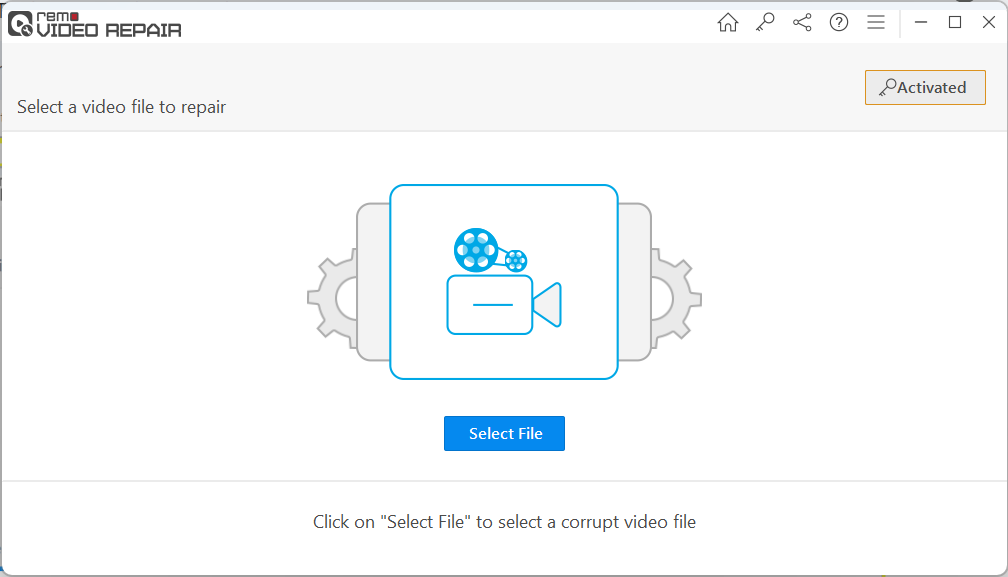
Step 2: Click on the Select File option to choose the corrupt MP4 video file that needs to be fixed. Once selected, click on the Repair button.
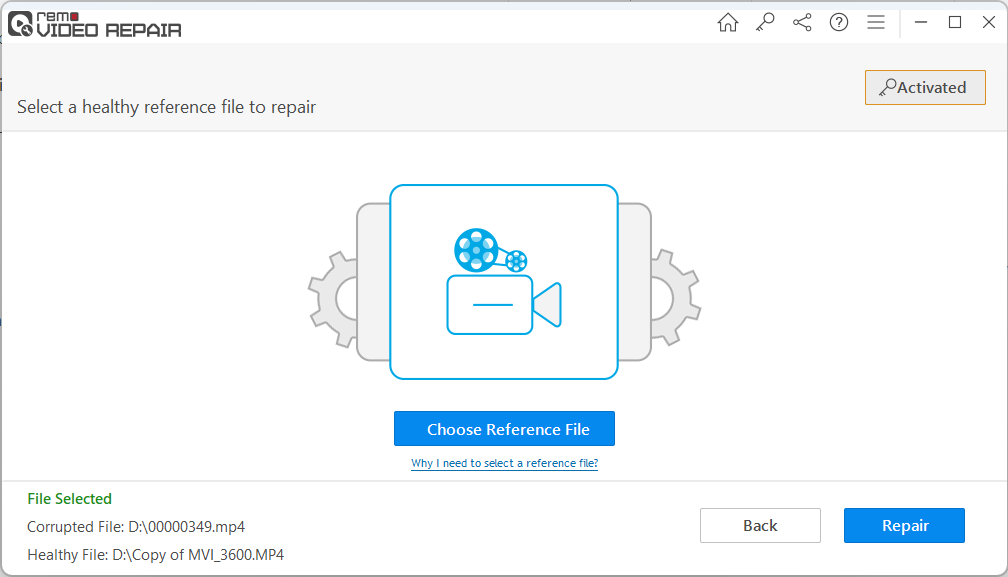
Note: If your MP4 video is severely corrupted, the tool will ask you to choose the reference file (healthy video), which is shot from the same device or format.
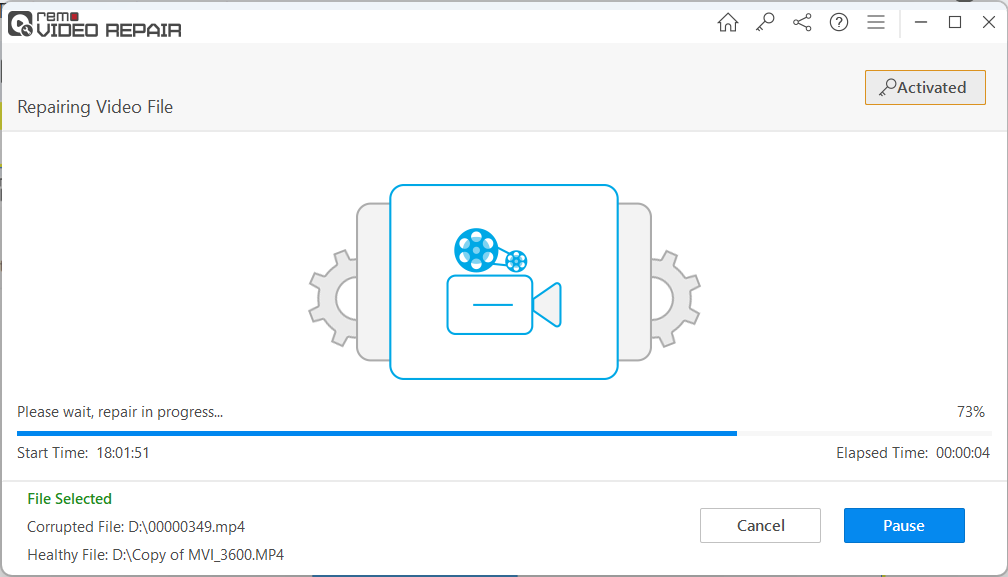
Step 3: Once the MP4 video repair process is completed, click the Preview button to verify the result. Once satisfied, you can click the Save button to restore your repaired MP4 files to your desired location.
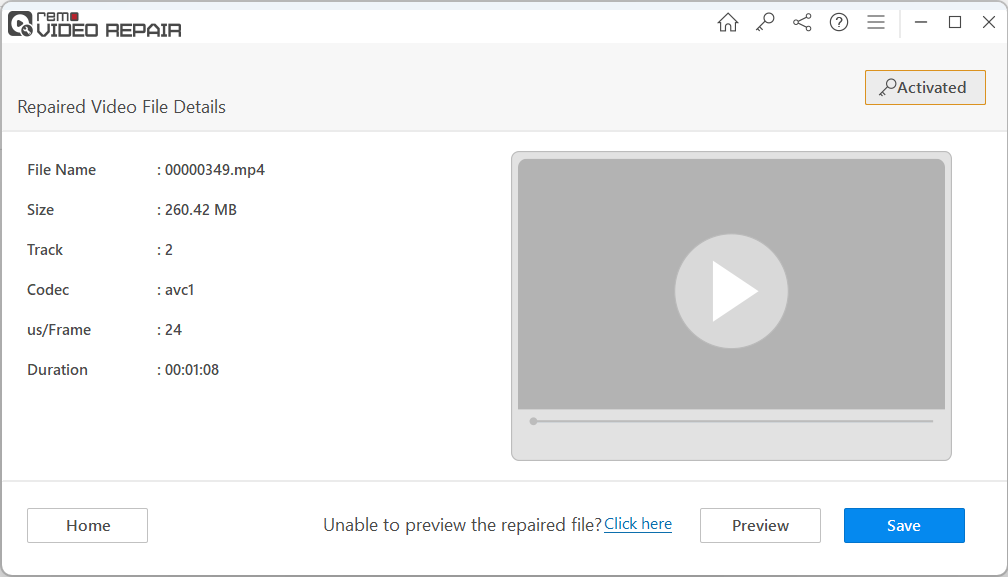
Supported Video File Codecs:
- Video - avc1/H.264, HEVC/H.265
- Audio - RAW, mp4a, sowt
Method 2: Repair MP4 Video Files Using VLC Media Player
VLC media player can fix green screen errors and damaged or corrupted MP4 video for free but with limited functionalities. VLC can only fix simple MP4 video errors, for example, MP4 audio out-of-sync error or audio delay errors.
To fix complicated MP4 corruption issues such as a broken header or damaged video frames or audio tracks, you need to use professional MP4 video repair software like Remo.
Alert: As a precaution take a copy of the corrupt MP4 video file before repairing it using VLC to avoid further damage.
A: Convert the Corrupt MP4 video into a different format
This method converts the corrupt MP4 video into a different format based on the original file. Using this method on VLC, you can repair any inconsistencies in the original MP4 video file, such as missing or corrupted data. One of the disadvantages of this method is it might result in a loss of video quality once it is fixed.
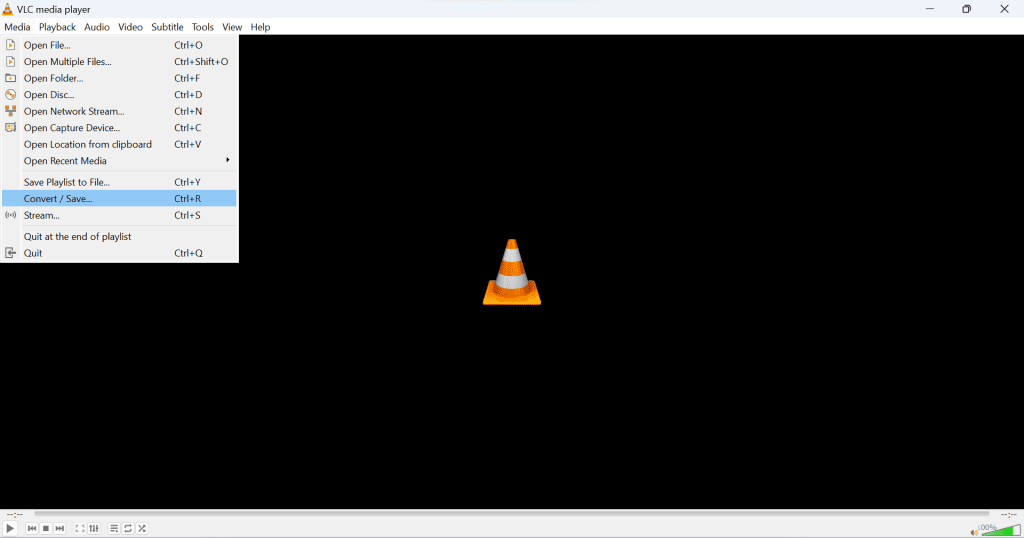
- Open VLC Player. Click on the Media tab and choose the Convert / Save option.
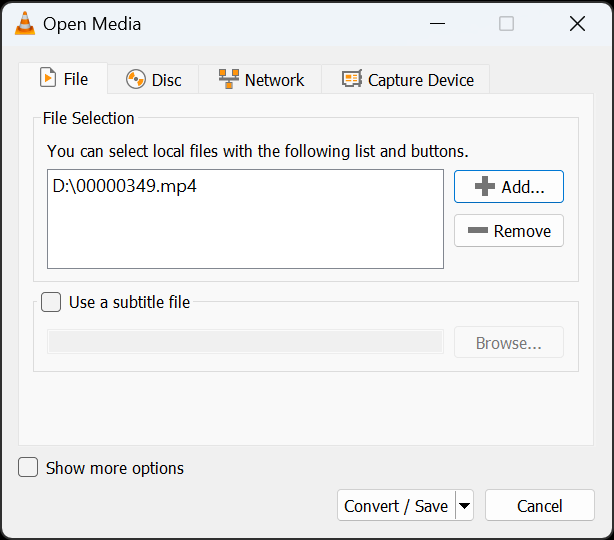
- Click on Add button to select the corrupt MP4 video file that needs to be repaired, and click on Convert / Save.
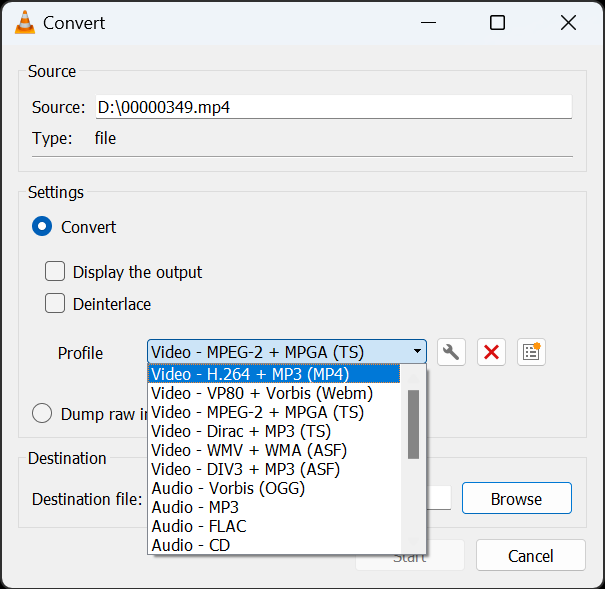
- Choose a different codec from the list and hit the Browse button to select the destination to save the repaired MP4 file.
- Click on the Start button. Once the repair process ends, you can play your MP4 video without any issues.
B: Modify the Cache Values in the VLC Player
Whenever you play any video on a Windows computer or Mac, VLC media doesn’t play the video directly from the system’s hard drive or connected SD card. Instead, it loads the video from the cache memory for a flawless video-playing experience.
Therefore, if you set the cache value too low, it can cause an issue while playing an MP4 video. In such cases, just increasing the cache value can help you fix MP4 video choppy or distorted problems.
Follow the below-mentioned steps to increase the cache value in VLC to repair the corrupted MP4 files:
Follow the below-mentioned steps to increase the cache value in VLC to repair the corrupted MP4 files:
- Open VLC Media Player
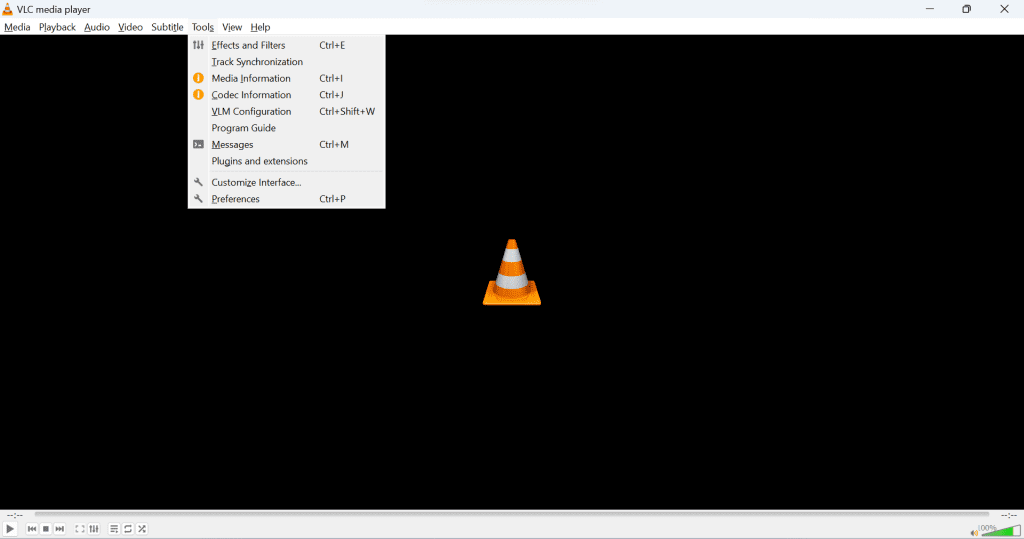
- Click on the Tools option, and go to Preferences
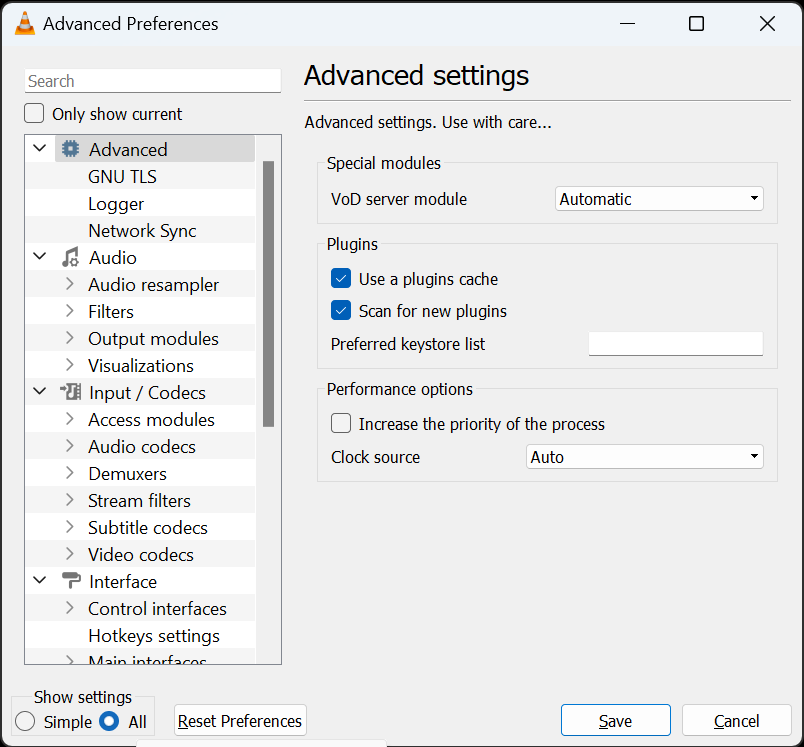
- Under Show settings, choose All to find Advanced Preferences window
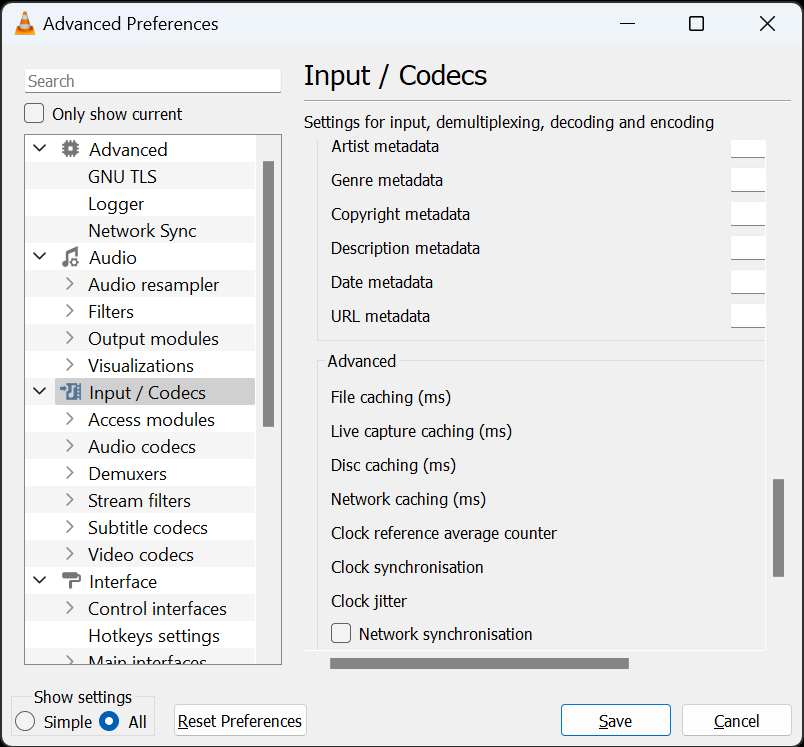
- Click on Input / Codecs and locate the Advanced section
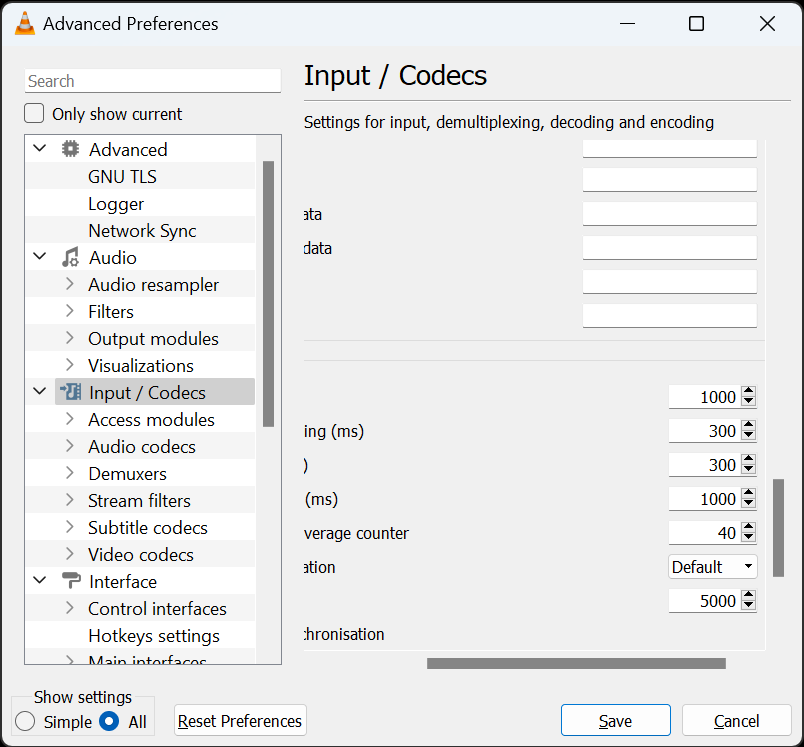
- Now, increase the File caching (ms) to 1000 to fix the MP4 video buffering or not playing issue.
- After completion, Save the settings and restart the application.
Method 3: Mac Users! You Can Try QuickTime To Fix Your MP4 Video File
If you are a Mac user trying to fix an MP4 video that refuses to play, you can simply try QuickTime media player to fix this issue. Follow the steps below to repair unplayable MP4 files on Mac computer:
Step 1: Open the QuickTime Media Player on your Mac.
Step 2: Select Show Movie Inspector from the Window tab.
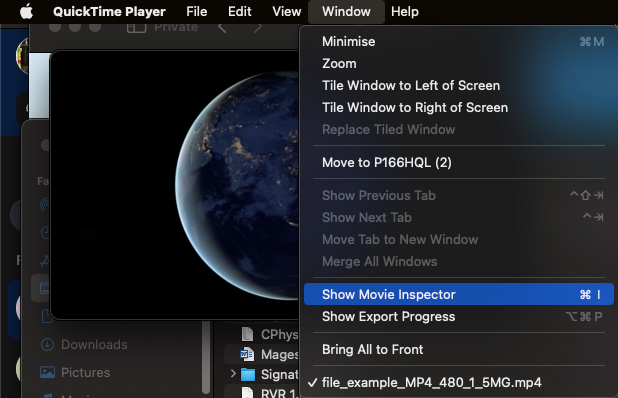
Note: The Movie Inspector will display various video details, including Movie FPS, Video Format, Playing FPS, Pixel Information, Duration, Data Rate, and Data Size, among others.
Step 3: QuickTime may display a black screen error message if the MP4 video file is damaged or corrupted. To fix this issue, follow the steps below;
- Go to Preferences, select QuickTime Preferences, and Update.
- Restart the QuickTime player and try playing the video file again.
Common Reasons for MP4 Video File Corruption
- Incomplete File Transfer: Transferring photos or videos from a camera or Android phone to another device is common. If the MP4 video file transfer is interrupted or stopped abruptly due to a power failure or disconnection of cables, then there is a chance of MP4 video not playing.
- Sudden Shutdown of Computer: If your PC shuts down unexpectedly while saving or playing any .mp4 video, it might cause corruption, such as audio-video sync issues, distortion issues, and video not playing completely.
- Virus Infection: If your PC is infected with a virus or malware, it can damage all your files, including MP4 videos. Malware can also delete, edit, or corrupt files saved on your system, depending on its programming and intent.
- Usage of Third-Party Software: Using unreliable third-party software to recover, repair, convert, or edit an MPEG4 file results in MP4 video file corruption. Also, inappropriate settings to edit MP4 video can cause damage to it.
- Failure in Hardware: If your computer hardware fails, it might result not only in data loss on your PC but also corruption of all your playable MP4 files saved on the affected drive.
Tips to Avoid MP4 Video Corruption
- Don't record videos when your camera battery is running low. If your camera turns off during MP4 video recording, it might corrupt the video.
- Avoid using unreliable third-party software to play, edit, recover, and convert MP4 videos.
- Do not eject the memory card from your camera or device during the MP4 file transfer process.
- Do not connect your camera or SD card to virus-infected devices. This can make your MP4 videos corrupt.
Conclusion
We hope the solutions discussed in this article helped you fix corrupted MP4 Files, You can start with repairing MP4 on VLC media player or converting it to any other video format.
In case of severely damaged MP4 files make use of a professional video repair tool like Remo Video Repair tool to repair the MP4 file easily.

