User Query: How to recover data from a hard drive not detected?
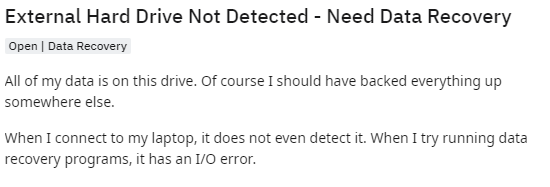
This can be a distressing situation where you cannot access data on your hard drive. If your hard drive is not showing up, it may be because it is not initialized or needs formatting. Make sure your drive is properly connected to the motherboard with a SATA cable. Due to some BIOS settings, your HDD may not be visible in Windows Operating Systems.
Hard drives, new or old, internal or external, can suddenly start not showing up in File Explorer or Disk Management. Don't panic – this is one of the most common problems faced by Windows as well as MacOS users.
When it comes to data backup and transfer, an external hard drive is invaluable. However, when it is not recognized or identified by the computer, it can cause problems. This is common with some error messages, such as:
- "The drive is not formatted"
- "The drive cannot be accessed"
- "RAW drive is not initialized"
First, you need to ask yourself why your system does not recognize hard drives. The problem can range from a minor inconvenience to a serious matter or even a malware infection. If you manage to boot your device, there is nothing to worry about as your drive is still functional. On the other hand, you may lose access to your files if Windows cannot be started from the problematic drives.
The good news is that we can show you a few ways to help you to fix the hard drive not detected or recognized problem and we will also explain how to recover files from an internal or external hard drive not detected. But before we jump into the main topic let's find out the possible reasons for a hard drive not detecting or recognizing issues.
Table Of Contents
Why Is My Hard Drive Not Detected?
Here are real-time situations you should know that makes your hard drive undetectable on your computer. So that you can avoid them in the future and prevent data loss.
- When hard drive sockets are not connected properly
- When a hard drive is corrupted
- Hard Drive turned Raw or a corrupt file system
- Errors in the registry directory
- When a hard disk is not specified as the first booting device in BIOS
- Improper partitioning of the hard disk
- Excessive bad sectors on Hard drive
- When a USB port or USB cable is broken
- When the file system of your external hard drive is not compatible with the operating system.
Fortunately, if the hard drive is not detected due to any of the reasons given above, there is still hope as data is not lost. Instead, your data has become inaccessible due to unknown reasons and can be fixed easily. When a hard drive is not detected or become unmounted, your first intuition might be to repair it. However, you need to realize that your crucial data is at higher risk, and recovering the data must be your first priority.
So before you try to gain access to your hard drive by formatting it and by fixing it, we strongly suggest you recover your data from your undetected hard drive using an ideal hard drive recovery tool like Remo Recover.
Remo Recover software is an effective data recovery tool that can easily perform the recovery of your hard drive that is undetected, corrupt, crashed, or damaged. Built with an advanced scan engine the tool can recover deleted files from external hard drives suffering from any data loss scenarios and can easily recover more than 500 file formats.
How to Recover Data From Undetected Hard Drive Using Remo Recover?
To perform the data recovery from your undetected internal or external hard drive first download and install the Remo Recover and follow the below simple steps:
- Connect the undetected hard drive to the computer.
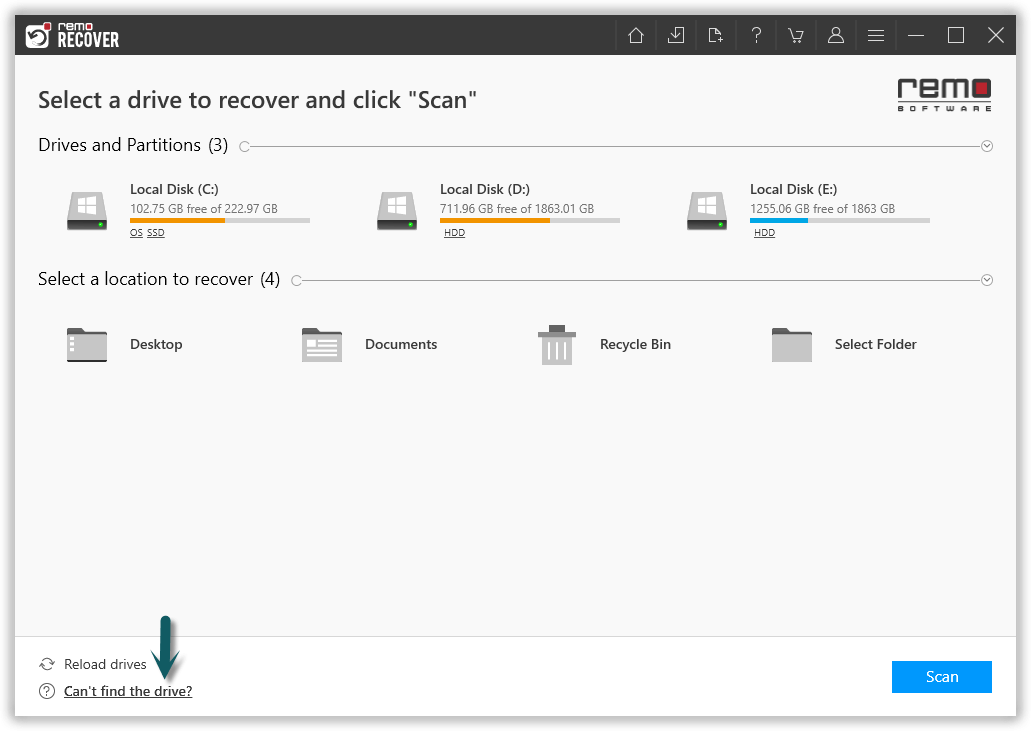
- Now, Launch the software on your system, select the hard drive and click on the Scan option.
Note: If you are unable to find the hard drive, click on the Can’t Find Drive? option.
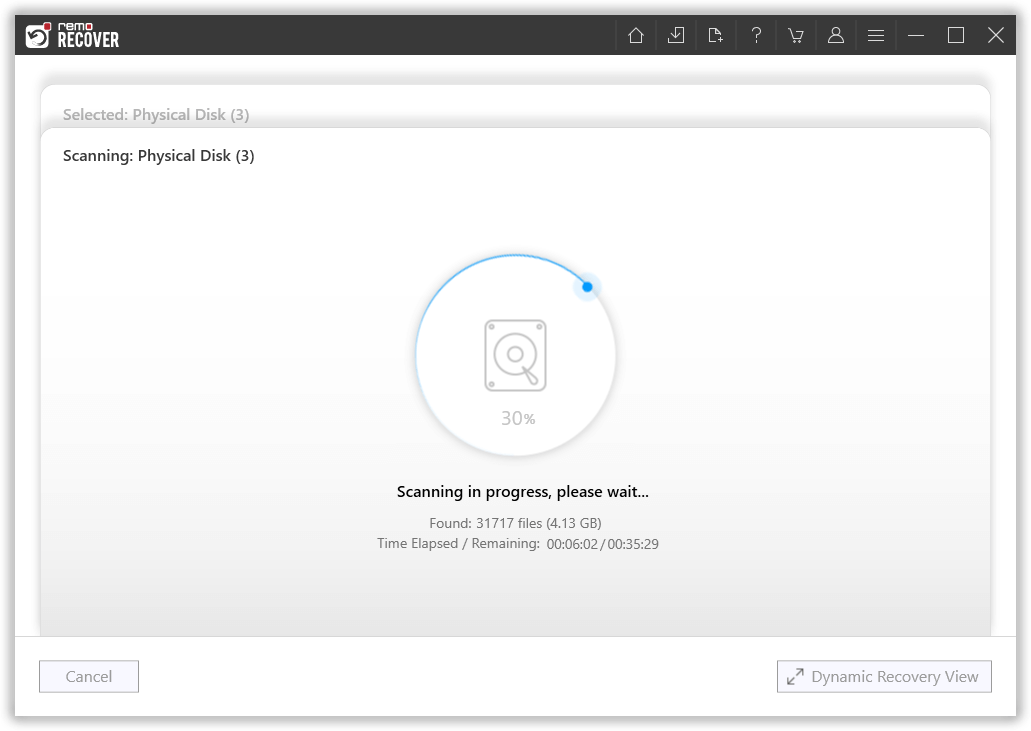
- Once the scan starts you can click on the Dynamic Recovery View to recover your files and folders from your unrecognized hard drive during the scanning process itself.
- After completion of the scanning process, a list of recovered files is displayed under the Lost and Found folder or Lost Partition folder.
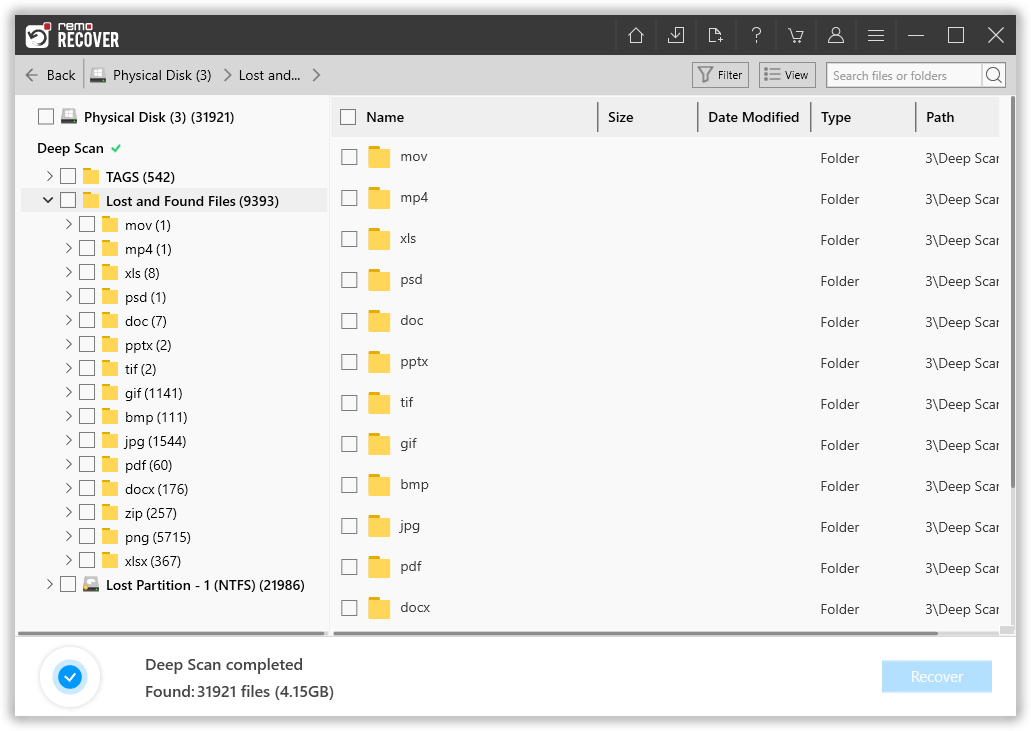
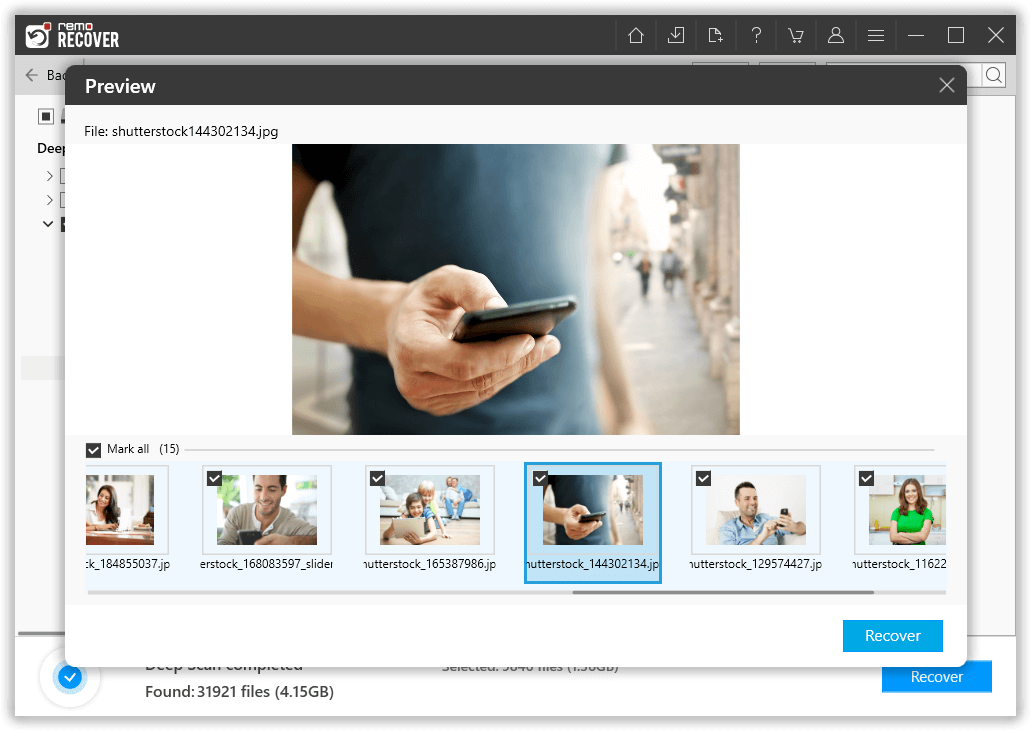
- You can preview all the recovered files such as photos, videos, excel files, etc using the Preview feature for free.
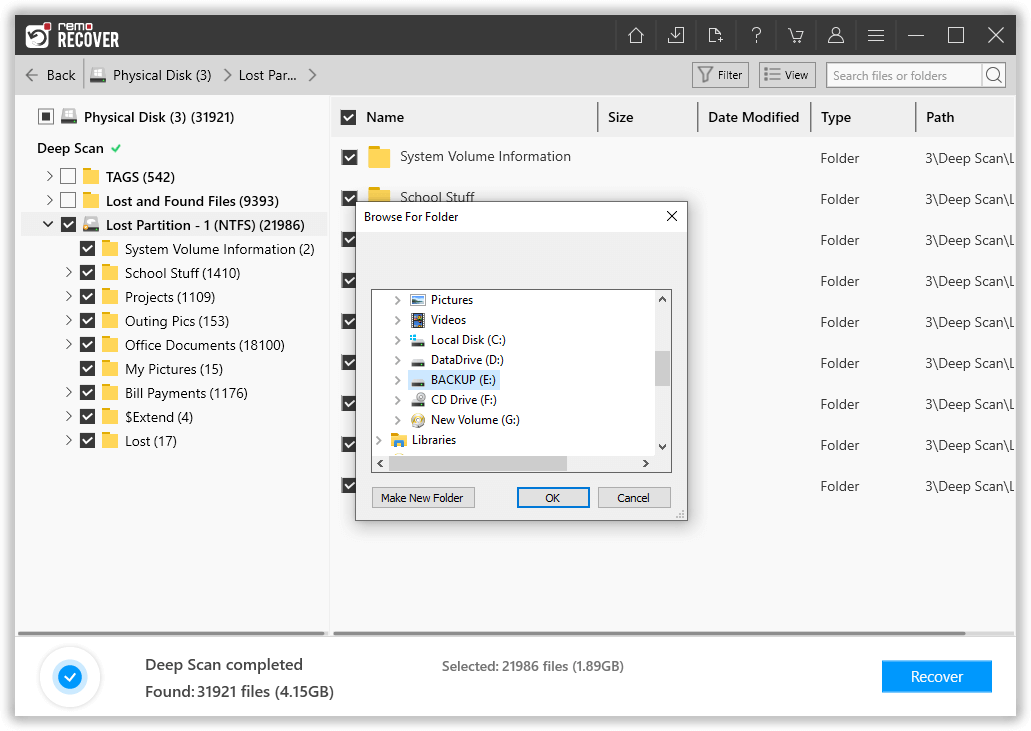
- If you are satisfied with the recovery results, select the files which you want to restore and hit the Recover button to save them at your desired location.
4 Effective Methods to Fix Undetected Hard Drive
Method 1: By Formatting The Hard Drive Using Disk Management Utility
First, you have to check whether your hard drive is showing in Disk Management or not. If you see your hard drive here, the issue may be in not showing up in File Explorer for one or more reasons, such as the device status being unknown or not initialized or the disk space is unallocated.
If the drive is visible in Disk Management then follow the below steps to fix your undetected hard disk using Disk Management:
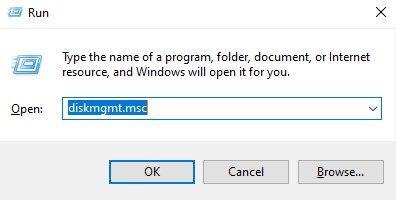
Step 1: Press Windows+R and type diskmgmt.msc and hit the enter button.
Step 2: See if your hard drive is listed among the list of drives.
Step 3: If you find your undetected hard drive, format the hard drive.
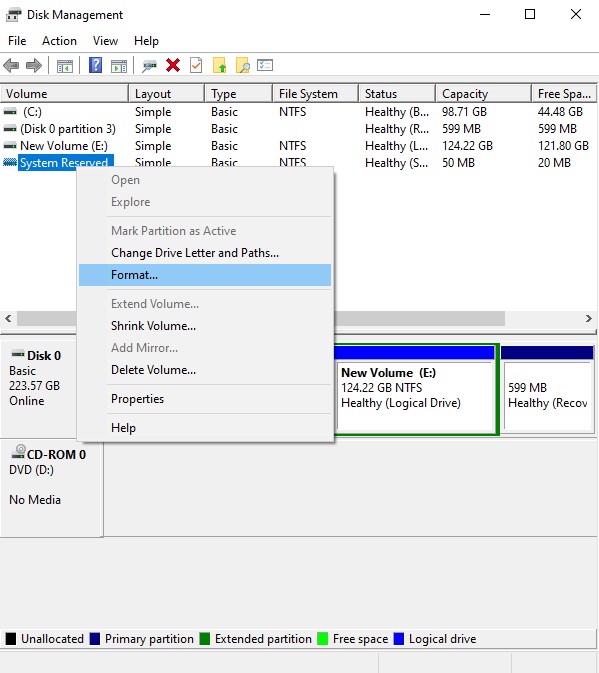
Alert: Perform data recovery using the Remo Recover tool to restore your data from your undetected hard drive before formatting as formatting the drive will erase all your valuable data.
Method 2: Look For Errors In The Device Drivers
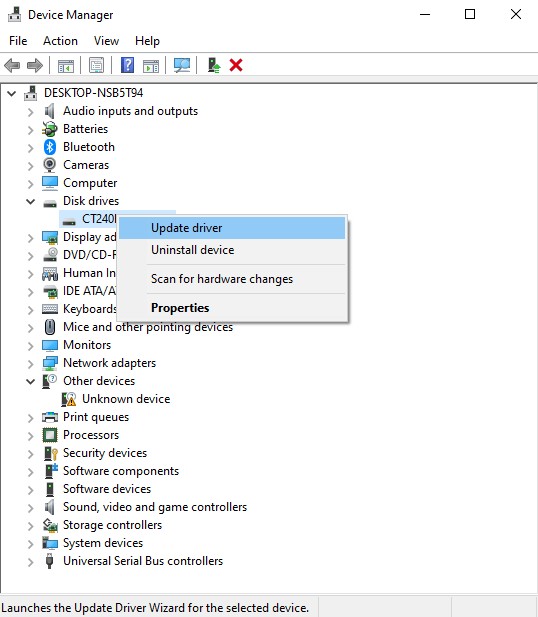
Outdated device drivers or any issue with the device drivers are also one of the reasons why your computers fail to detect the hard drive. Follow the below-mentioned steps to find errors in device drives to fix the hard drive won’t mount or not detected issue:
- Press Windows+R and type devmgmt.msc and click on ok
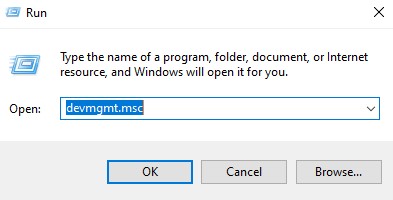
- Under disk drives and look for any exclamation mark
- If yes, right-click on the device and select properties to see the error message
- If the issue is due to outdated drivers update the drivers and see if the issue is fixed.
Method 3: Use Command Prompt To Fix Your Hard Disk Not Detected Issue
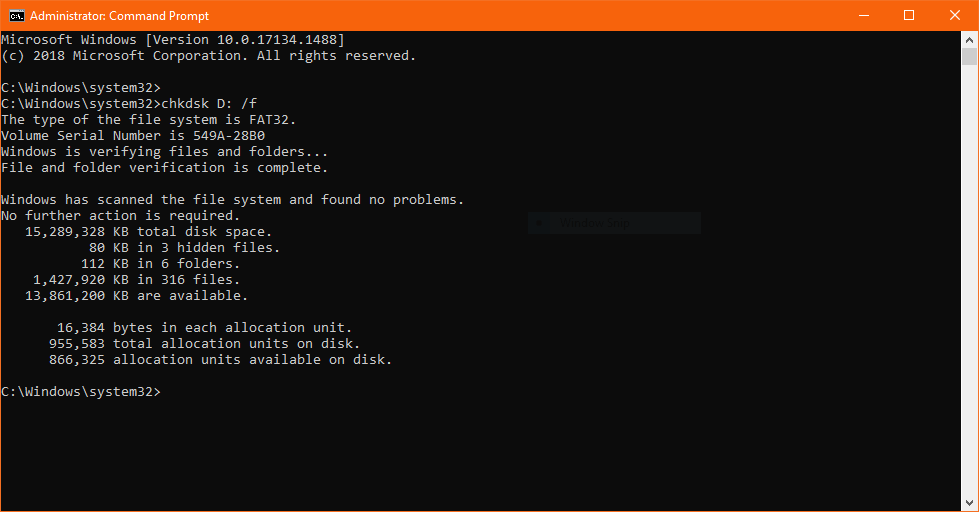
To fix the hard drives that are not detected using CMD or CHKDSK, follow the below-mentioned steps:
- Go to disk management, check which drive is undetected and remember the drive letter.
- Open the command prompt in administrator mode and type chkdsk drive letter:/r/f in place of a drive letter and enter the drive letter assigned to the undetected hard drive letter. (For example chkdsk d:/r/f)
- Wait for the process to complete and enter diskpart tap on the enter key
- Once you are in the diskpart type rescan command and wait for the process to complete
- Exit the diskpart and enter the command chkdsk /f drive letter after completing the process check if you have fixed the hard drive not detected issue.
Method 4: Fix the Unrecognized Hard Drive By Changing The Assigned Letter
All drives are assigned an identifying letter when they're created. For example, the default letter of Windows drives is usually "C:". In some cases, simply changing this letter could solve the visibility issues, as long as your computer boots up.
- In Disk Management, right-click the volume and select "Change Drive Letter and Paths."
- In the new window, click "Change." Here you can assign a new drive letter to your USB and click "OK." This should fix the problem.
A used device can suddenly produce unallocated space. Unallocated space cannot be used to store data. To use the space, you need to create a partition on it or divide it into multiple partitions. Accidental partition deletion, virus attacks, or other reasons can cause this type of disk partition loss. You simply need to recover the data from the unallocated space and create a new disk volume to reuse it.
Sometimes, Windows tries to fix the issue with the hard drive by asking you to format it. In case you click on yes and give permission to format the hard disk, your data will be lost in just one click. In another scenario, the hard drive might have turned RAW or been damaged due to virus intrusion. Either case, your precious data is at risk and you should act soon to recover data from a hard drive that is not detected. We strongly suggest you perform the data recovery using Remo Recover before following the steps to fix the undetected hard dive.
Conclusion
Recovering data from an undetected hard drive can be risky without proper guidance. Hence, this article specifically explains the steps you need to do when your hard drive is not detected and recover data safely. It is recommended to always make use of a trusted data recovery tool like Remo to make the process secure and simpler.