User Query: How to Recover Files From An Unmountable Hard Drive?
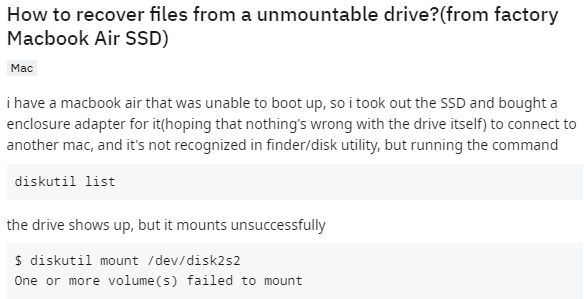
Source: Reddit
Solution: When your computer's internal hard drive or an external hard drive is not mounting on Windows/Mac, then all the files stored in the drive become inaccessible. If you are facing the same issue and worried about how to recover data from an unmountable hard drive, stop worrying...! Here is a solution to recover data from an unmountable hard drive. To know how to, continue reading...!
An unmountable hard drive is very rare to happen but when it happens then there is a great risk to the data which is residing within the drive. Any uncertainties with the hard drive can result in a malfunction of the drive, however, for the above-mentioned scenario there can be many reasons associated with the drive and if the problem associated with the drive is major then there might be a huge loss of data from the drive.
Thus, the data lost from the drive can be recovered by making use of suitable data recovery tools, but the major concern is when the drive does not mount then how does the computer locate the drive? Thus, in order to mount the drive you have to follow some steps so that after the recognition of the drive the data recovery tool can easily recover data from hard drive.
Table Of Contents
Common Reasons Behind An Unmountable Hard Drive
1. File System Error: If the file system on a hard drive is corrupted, the hard drive may become unmountable.
2. Physical Damage: A hard drive connection may fail due to physical damage to the hard drive, such as a damaged read/write head.
3. Virus or Malware Infection: Virus or malware infection can corrupt data and cause hard drive connection failure.
4. Disk Error: Disk errors such as bad sectors or other physical damage to the hard drive can prevent the operating system from mounting the hard drive.
How to Mount an unmountable Drive on Windows 7?
- Navigate through: Control Panel > System and Security > Administrative Tool > double click on Computer Management > from the left pane click on Storage > under storage click on Disk Management
- Here right click on the drive that you desire to mount, click on Change Drive Letter and Paths
- Click on Add and then click on Mount in the following empty NTFS folder, select an empty folder by providing the path directly or by clicking on Browse option and then click on OK
NOTE: There may be chances that your external hard drive connectivity may be lost due to defect cable or loose connection, as this problem can make the drive un-mountable. Thus, make sure that the connection is correct and there is no defect in the cable.
Additional Information: If your internal hard disk is unable to boot, then read this article to find out how to recover data from hard drive that won't boot.
How to Mount an unmountable Drive on Windows 10?
- In Search panel Search for Create and Format hard disk Partitions.
- In Disk Management window, right click on the drive and select the change Drive Letter and Path option.
- Click on Add button, Select assign the following drive letter option.
- Select any of the available letter from the drop-down menu.
Even after following the above mentioned steps if you are failed to mount the hard drive successfully you will lose all data stored on it. In order to restore data you have to perform data recovery using suitable hard drive recovery software, and one such tool which is most trusted among many users is Remo Recover (Windows / Mac).
Download Now
Download Now
How To Recover Files From Unmountable Hard Drive?
- Download and install the Remo Recover software on your computer.
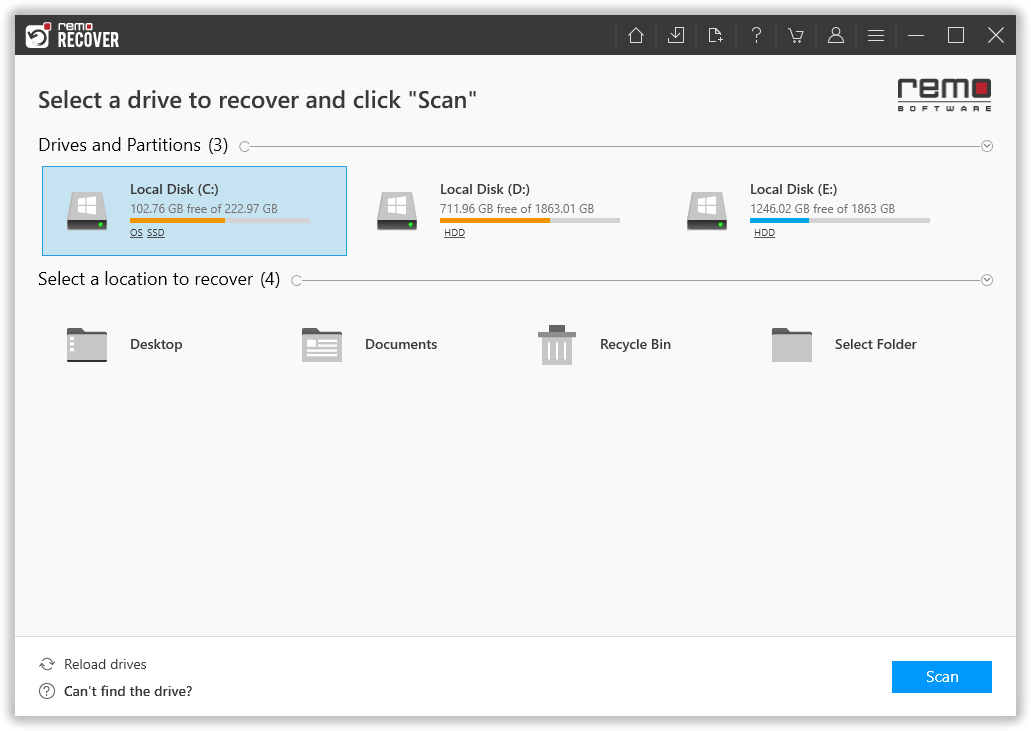
- Now, Launch the software and select the unmountable hard drive from the list of devices, and click on the Scan button.
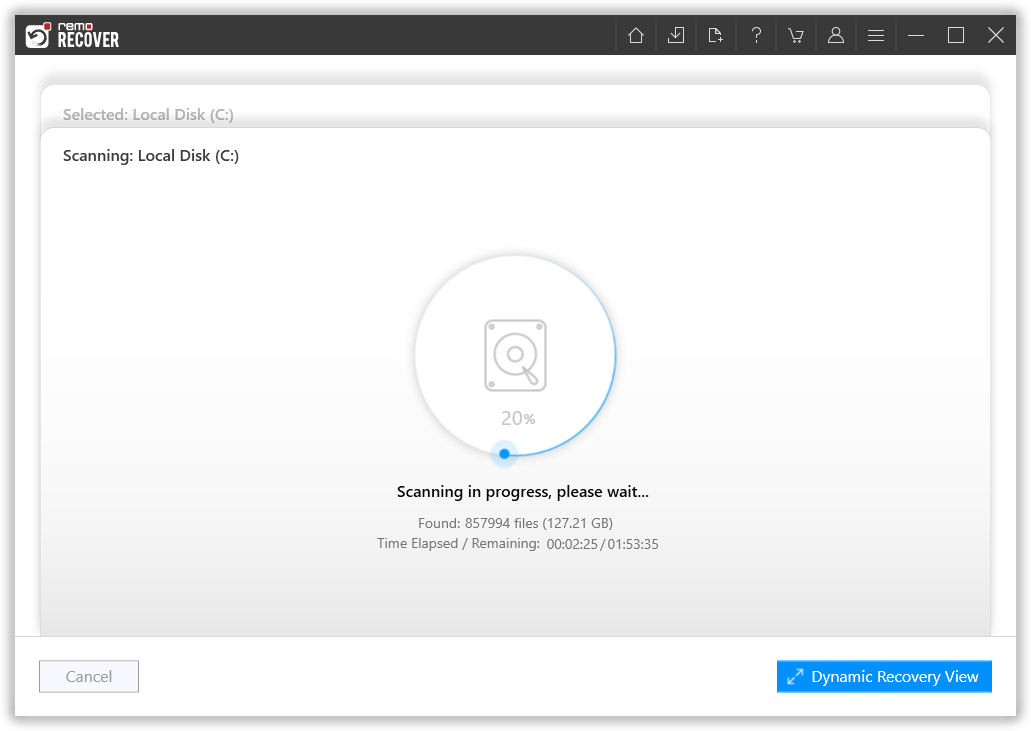
- Once the scan starts you can click on the Dynamic Recovery View to recover the lost file during the scanning process itself.
- After the scanning process, you can see your lost data under the Lost and Found folder or Lost Partition folder.
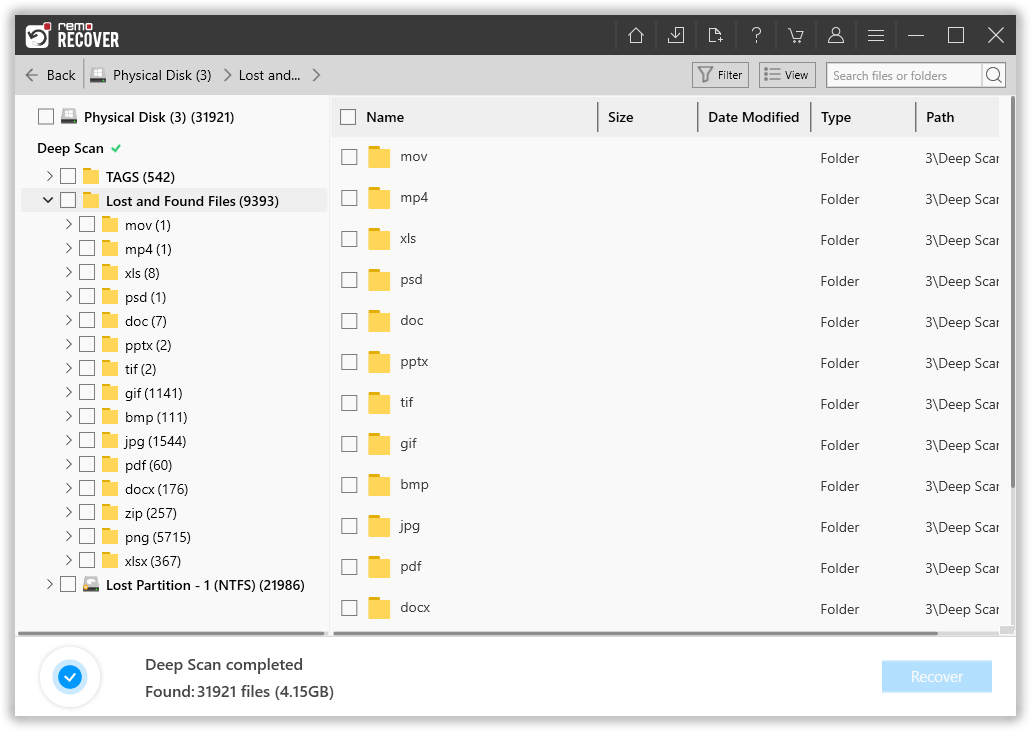
- You can double-click on any file to Preview the recovered files such as documents, PPTs, excel sheets, photos, videos, etc.

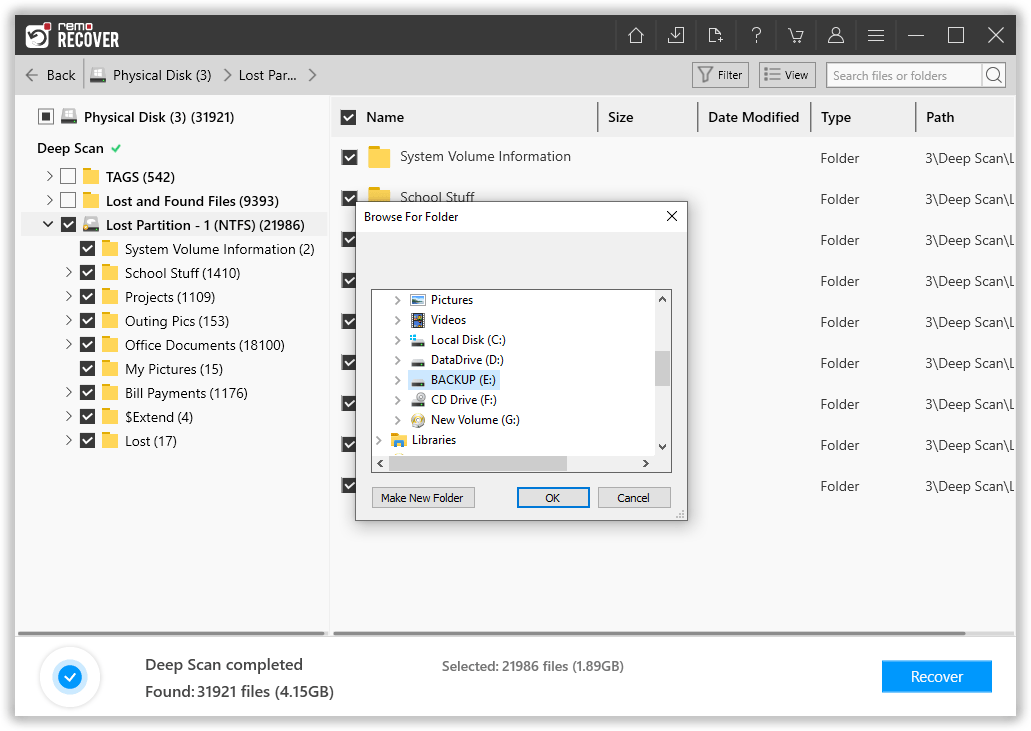
- If you are satisfied with the recovery results, select the files which you want to restore and hit the Recover button to save them at your desired location.
Prominent Features of Remo Recover
- By making use of this advanced utility you can effortlessly recover all your lost data within minutes, this is possible because the application is equipped with a strong algorithm that makes the scanning process very quick.
- The Windows version of this software is compatible with Windows 11, 10, 8, 7, Vista, and earlier versions, whereas the Mac version is compatible with macOS Big Sur, Catalina, High Sierra, Sierra, El Capitan, etc.
- It is free from viruses and for installation, it consumes very less amount of hard drive space on your computer.
- Comes with a very simple user interface which makes data recovery from failed external hard drives extremely easy.
- Capable of recovering more than 500 types of files such as video files, audio files, archives, document files, images, exe files, and many more.
Additional info: Apart from the external hard drive you can easily recover data from the internal hard drive that is formatted, thus in order to recover formatted external hard drive just click on the link which is provided.
Conclusion
To sum up, data loss due to an unmountable hard drive can be stressful. However, you can recover lost data with the help of a professional data recovery tool like Remo Recover.
In this article, we explained the causes of an unmountable hard drive and provided tips to recover data. Before we end make sure you take back up your important files regularly to avoid data loss.