Summary
Losing important Excel files on Mac can be a nightmare for anyone. But fortunately, there’s no need to panic. This article mentions 5 guaranteed solutions that can help anyone recover deleted and retrieved unsaved Microsoft Excel Files on Mac.
How to Recover Excel Files On Mac?
This article is broadly categorized into 2 sections to recover saved as well as unsaved Excel files on Mac. They are as follows:
Part 1: Recovering Deleted Excel files on Mac using reliable methods:
- Recover Deleted Microsoft Excel Files from Mac Trash Bin
- Restore Deleted Excel Files from Time Machine Backup
- Recover Deleted Excel Files on Mac Using Remo Mac File Recovery Software
Part 2: Recovering unsaved Excel files on Mac:
- Recover unsaved Excel files from AutoRecovery Folder
- Recover unsaved Excel files from Temporary Files Folder
Part 1: How To Recover Deleted Excel Files On Mac?
Method 1: Recover Deleted Excel Files On Mac From Trash Bin
The Trash Bin is a folder where all of your deleted Excel files and other files you have deleted from your Mac reside for a certain period before getting permanently deleted.
So the Trash folder is the first place where you should be finding your deleted Excel files on Mac.
How to Recover Deleted Excel Files from Mac Trash?
- Go to the Mac Trash Bin folder.
- Find and select the deleted Excel files that you want to restore.
- Right-click and click on the Put Back option from the options menu.
- The restored Excel files that were earlier deleted will be restored to the same location where they were saved earlier prior to deletion.
The Trash Bin is a great way to restore deleted Excel files and other types of files and folders that were deleted from your iMac or MacBook.
If you are curious about more ways of recovering deleted files from Mac, refer to this article to find out how to recover deleted files on Mac.
Suppose you have emptied the Trash folder or permanently deleted Mac files from Trash. Then you can try the next solution to recover Excel files that were deleted from Mac.
Method 2: Recover Deleted Excel Files On Mac Using Time Machine Backup
Make use of the Time Machine utility, which is used to back up all your Mac data, such as Applications, Photos, Videos, Excel files, System files, other documents, etc.
With the help of this Time Machine backup, you can restore all your deleted and lost Excel files on your Mac by going back in time with ease.
Before you start the steps to recover Excel files on Mac using this method, make sure to check the Show Time Machine on the menu bar using the following instructions:
Go to Apple menu > select System Preferences > Now, click Time Machine option > Finally, Tick the checkbox Show Time Machine on the menu bar.
How to Recover Excel Files on Mac using Time Machine Backup Utility?
- On the menu bar, click on the Time Machine Backup.
- Select the Enter Time Machine Backup option.
- Now you can locate Excel files by entering a date or timeline at which you lost or deleted them on Mac.
- At last, select the Excel files on Mac which you want to recover, and then click the Restore option to recover Excel files on Mac from Time Machine Backup.
Note: If you have not scheduled the Time Machine Backup on your Mac before deleting or losing the Excel files, you cannot use them using this technique. In such a scenario, the only way to recover deleted Mac Excel files is by using Remo Mac File Recovery Software.
Method 3: Recover Permanently Deleted Excel Files On Mac Using Remo Mac File Recovery Tool
Remo Mac File Recovery Software is a specially designed tool to help any Mac user recover deleted Excel files along with 500 more file types from 1000+ internal and external storage devices.
The tool is ingrained with our most powerful search algorithms that work efficiently to recover Excel files that were lost due to any reason from any version of Mac OS.
Download Now
Steps To Recover Lost Or Deleted Excel Files On Mac Using Remo Mac File Recovery Software
After you download and install Remo on your Mac system and follow the below-mentioned steps:
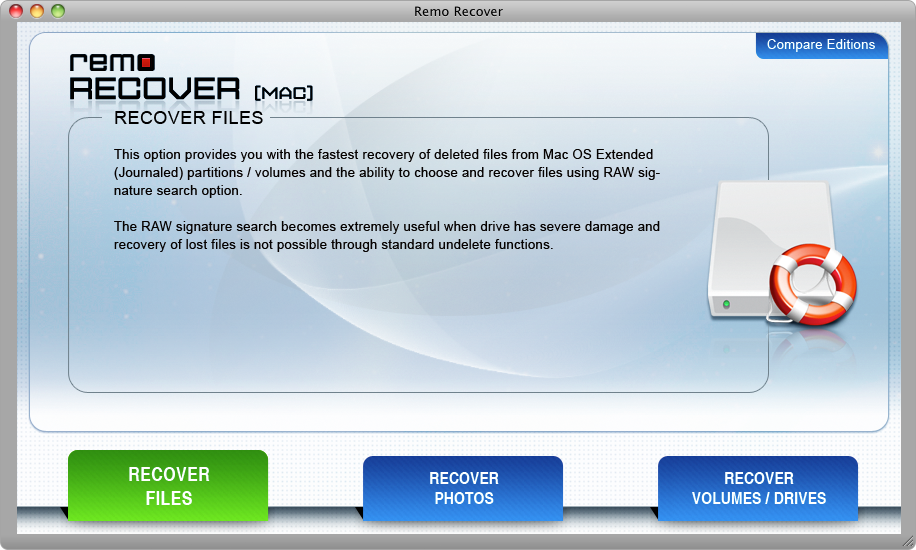
Step 1: Install remo recover for mac
Launch the application and select the Recover Files option to start recovering Excel files on Mac.
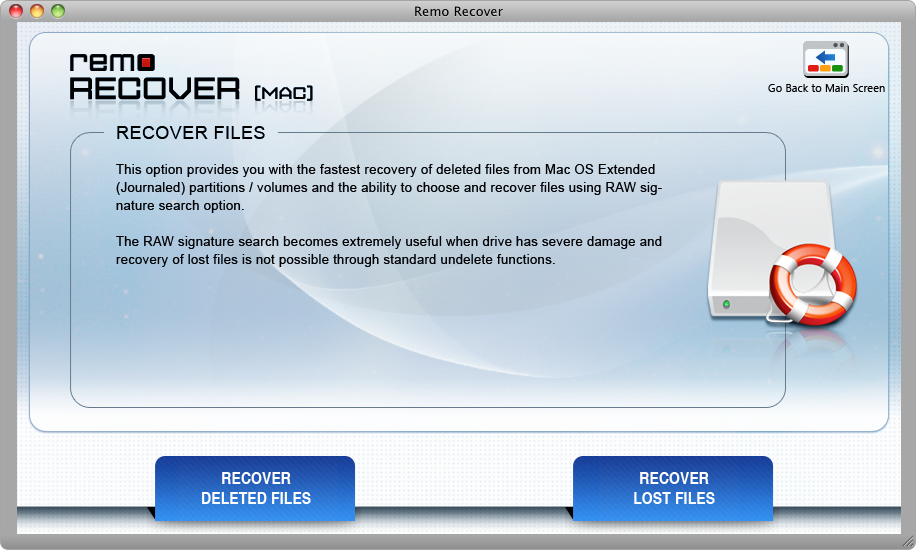
Step 2: Click On the Recover Deleted Files Option
Now, select the Recover Deleted Files o option to recover deleted Excel files on Mac and the Recover Lost Files option if you want to recover lost Excel files on Mac.
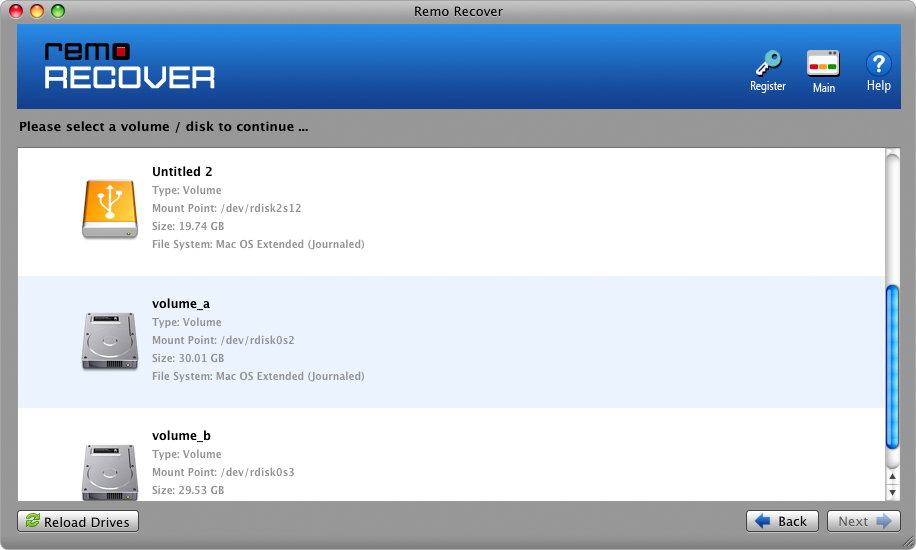
Step 3: Select the Mac Drive
Choose the Mac volume or storage drive from which you want to recover Excel files on Mac and click Next.
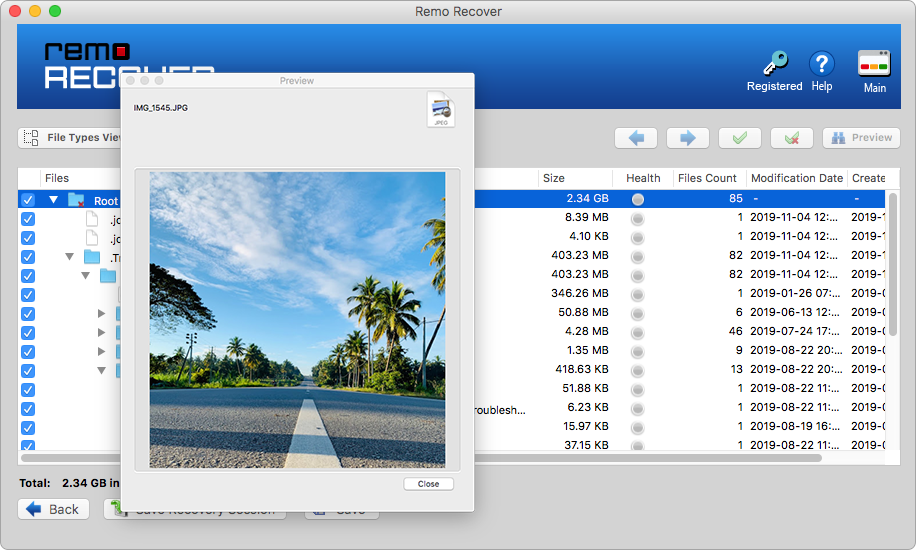
Step 4: Preview the Recovered Files
After the scanning process ends, you can preview the recovered Excel files for free and Save the recovered Excel files on any desired location of your choice.
This tool also recovers files deleted or lost after upgrading to macOS Catalina, formatted and corrupted Mac devices like the MacBook Air, MacBook, iMac, Mac Mini, Mac Pro, etc. It supports multiple updated Mac file systems like APFS, exFAT, HFS+, HFSX, etc.
Here we end our discussion on recovering Excel files saved on the Mac system. We have guided you through 3 ways to help you recover deleted Excel files from any MacBook or iMac.
The next section talks about recovering Excel files that were never saved on Mac.
Part 2: How To Recover Unsaved Excel File Mac?
Are you looking to recover unsaved Excel files on Mac? If yes, here are the most reliable methods to recover them for free.
You can recover unsaved Excel files 2019, 2018, 2016, 2011, etc., on Mac using 2 different methods.
- Recover unsaved Excel files from AutoRecovery Folder
- Recover unsaved Excel files from Temporary Files Folder
Method 4: Recover Unsaved Excel Files From AutoRecovery Folder on Mac
AutoRecovery is a hidden file that helps you recover unsaved Excel files in situations like a system crash or sudden power failures.
- Click Finder and type the following path in the Search box
a) 2016 an updated Office versions users enter:
/Users/Library/Containers/com.microsoft.Excel/Data/Library/Preferences/AutoRecovery
b) 2011 and 2008 Office users enter:
/Users/username/Library/Application Support/Microsoft/Office/Office X AutoRecovery
- Click the Go option to locate the Mac AutoRecovery folder.
- Now, find the unsaved excel files to restore them.
- At last, recover the unsaved excel file on Mac to a location of your choice.
Note: Under the AutoRecovery method, you cannot recover unsaved files that are not saved either once before the system has crashed or power shut down. In such situations utilize the below method to recover unsaved files.
Method 5: Recover Unsaved Excel Files From Temporary Files Folder
Go to Applications > Utilities > open Terminal > Type open $TMPDIR> press Return to open Temporary files folder > Now, open Temporary Items folder to locate the Temporary files > Now select unsaved Excel files (~Excel Work File) which you want to restore > Now, you can copy and save them in a location of your choice by editing the file extension from .tmp to either .xls or .xlsx to open them safely.
Note: Be cautious while entering the command line, a single mistake could delete the data.
Precautionary Measures To Avoid Excel File Deletion On Mac
- Take a backup of important Excel files on external storage devices.
- Be careful while deleting Excel files using the Command Delete keys.
- Verify files reside in the Mac Trash bin before emptying it.
Conclusion:
Here we end our article on recovering lost or deleted Excel files on various versions of Mac OS from all older and newer MacBooks and iMacs.
Discussed in this article are various solutions to recover Excel files on Mac; each has its own share of limitations as well as advantages. Solutions like AutoRecover and Temp folder provide a level of ease when it comes to recovering lost Mac Excel files. And on the other hand, recovering deleted Excel files on Mac requires you to utilize solutions like Trash Bin and Time Machine Backups, as well as reliable data recovery tools like Remo Mac File Recovery Software.