Panasonic cameras are known for their unmatched build quality and clear photos, but they are also unfortunately susceptible to data loss scenarios such as accidental deletion, SD card corruption, and file transfer interruptions.
However, to retrieve photos from a Panasonic camera, immediately stop using the camera, remove the memory card from the device to avoid overwriting, and follow the viable solutions listed in this article to perform Panasonic Lumix photo recovery.
A simple mistake or technical issue is all it takes to lose photos on your Panasonic Lumix Camera. Fortunately, that is not the end, you can recover photos from the Panasonic Lumix camera. To know how, just scroll down and follow this article till the end for a highly tested method to recover photos from the Panasonic Lumix camera.
There are many reported cases where recovered images from a camera SD card are damaged. However, Remo Recover software is developed with a robust recovery algorithm that scans each storage sector for photo signatures and ensures the undamaged recovery of photos and videos. The software recovers on other Panasonic devices like Panasonic hard drives and Panasonic branded SD cards.
The software is capable of Recvering from all kinds of lumix models like: Panasonic LUMIX G7,Panasonic Lumix DC-FZ10002, Panasonic Lumix FZ80 4K, Panasonic Lumix G85, Panasonic Lumix G9, Panasonic Lumix ZS100 4K.
Click on the download button and try it for free.
Connect the Panasonic Lumix Camera SD card to your computer and follow the mentioned steps. Note that you can utilize this software to recover data from any digital camera.
Step 1: First download and install the Remo Recover software on your system
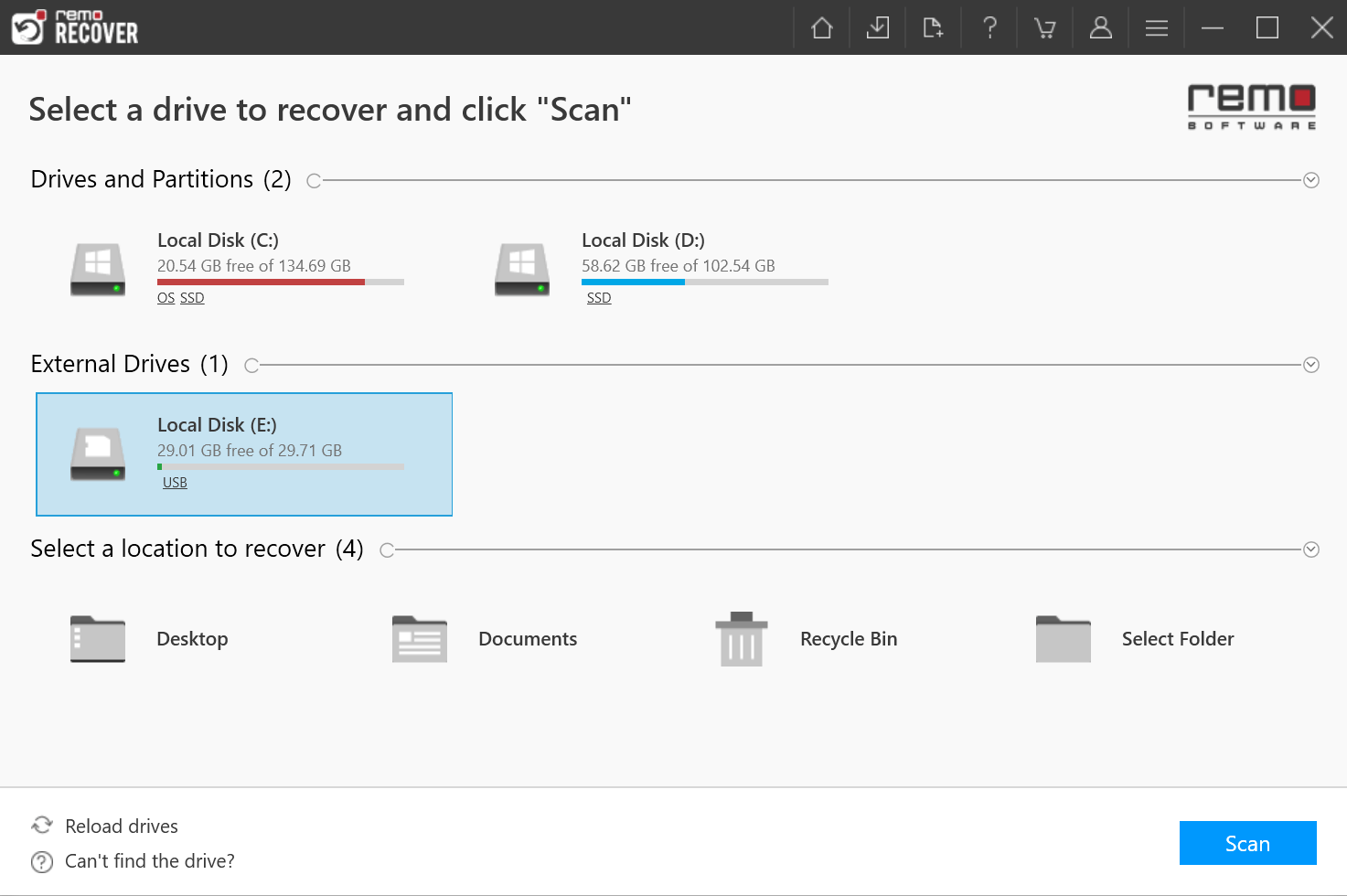
Step 2: Connect the Panasonic Lumix Camera SD card to the system and launch the tool.
Step 3: Now the software lists all the available drives in the system (including your camera card). Now, select the drive and hit on the Scan button to initiate scanning.
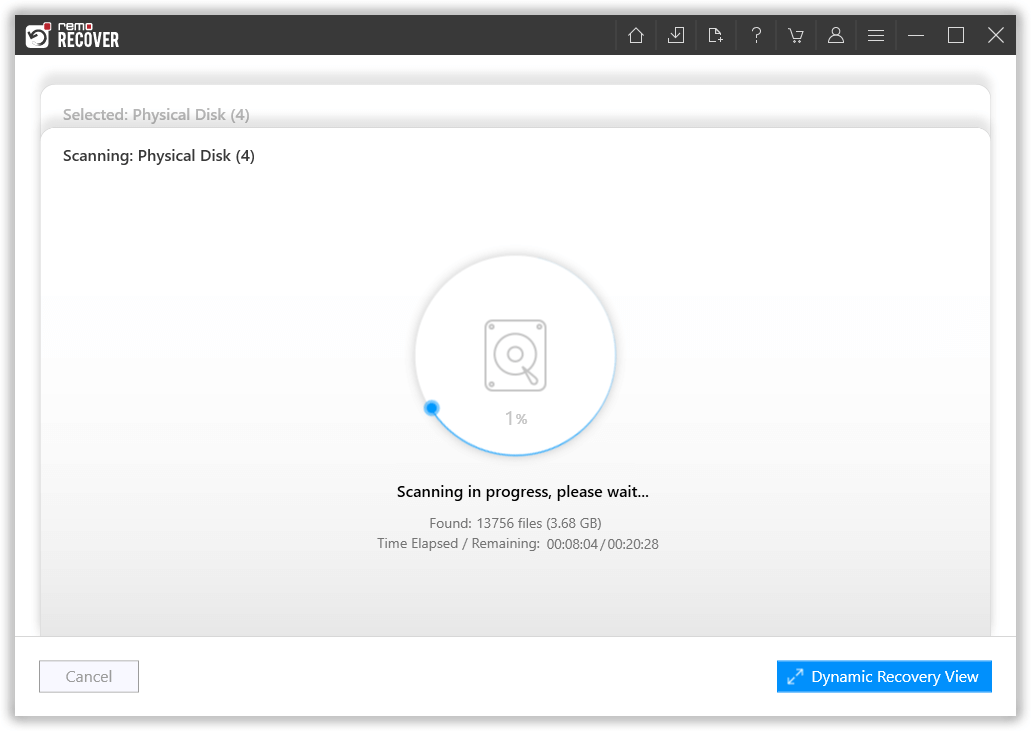
Step 4: The software starts scanning your camera card. Click on the Dynamic Recovery View button to recover the lost file during the scanning process itself.
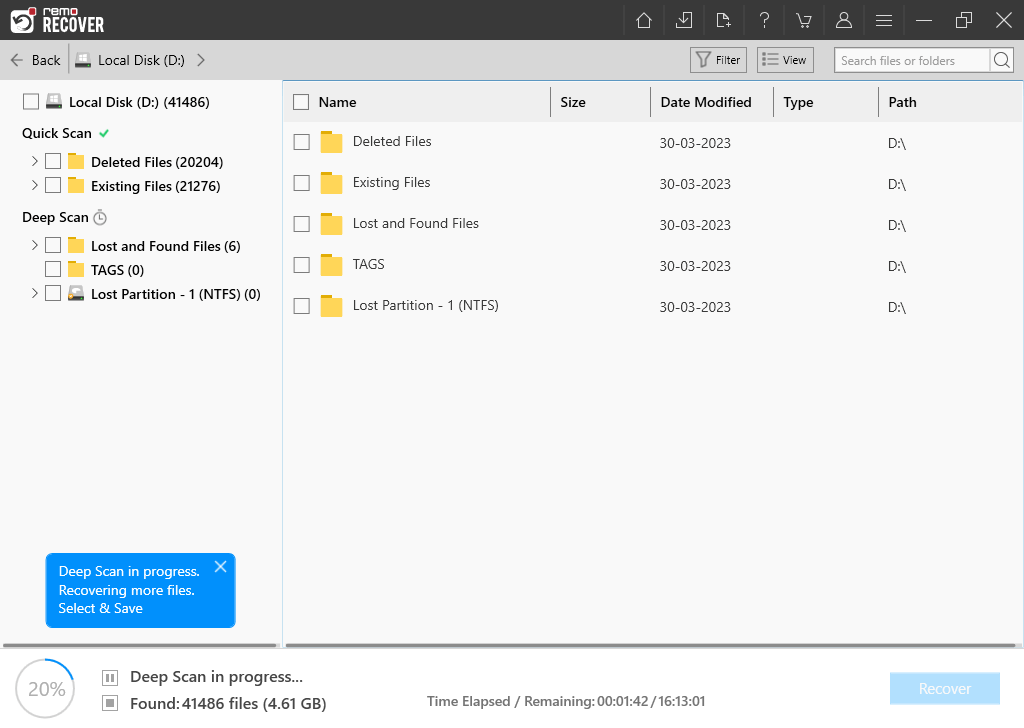
Step 5: Once the software is done scanning the drive completely. It displays a comprehensive list of recovered files.
TIP: You can click on the Filter option, which lets you sort files based on file type and file formats.
Step 6: You can double-click to preview on the recovered files, Click on Recover to save them on the location of your choice.
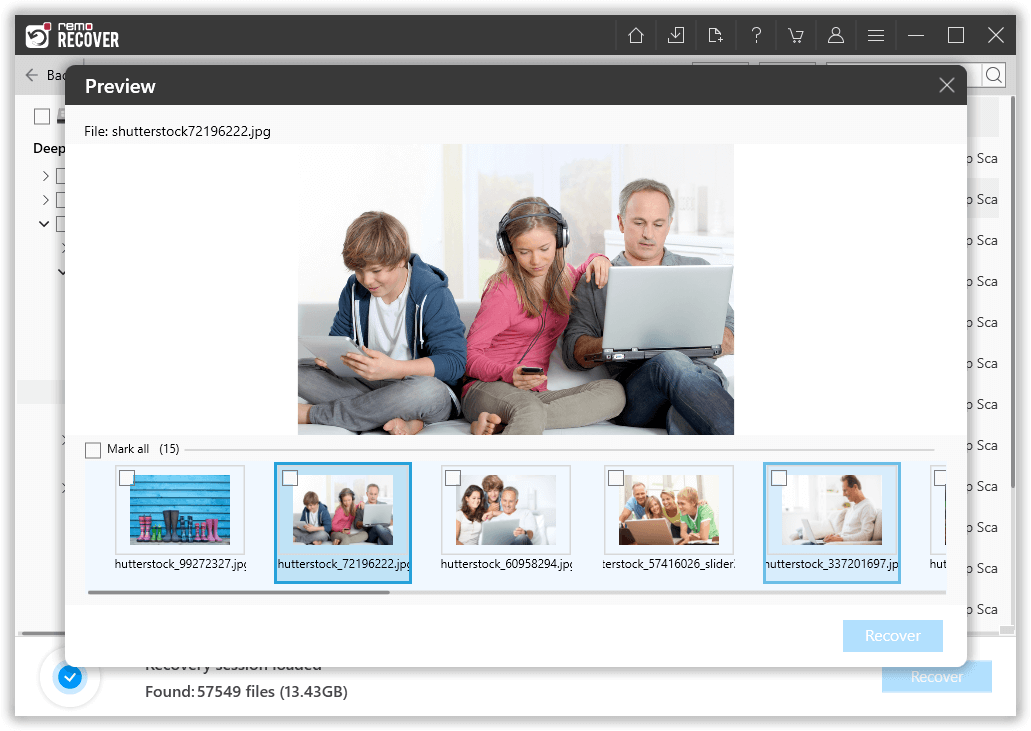
Attention: ⚠: Save the recovered photos on the different location than the previous one, to avoid loosing the pictures again.
It is crucial to be aware of what not to do in order to prevent data loss in a Panasonic camera. The following section provides valuable tips to avoid photo loss in a camera.
Follow these simple tips to avoid losing photos from your camera.
Conclusion
We strongly suggest you have a backup of the photos and videos you care about. However, in case of accidents or other data loss, you can rely on Remo Recover to get back the deleted photos from your Panasonic digital camera. The tool is tested for recovering photos among major camera brands.
In case of physical damage, you will need to approach data recovery services to recover the photos from the camera card. Choose a reputed service with the highest success rate for the best results.
Frequently Asked Questions
To recover photos from the Lumix camera, download and install Remo Recover. Connect the device to your system and scan it to recover all the deleted images.
Yes, the camera reset will delete all the images and videos, and other personalized settings, effectively restoring the camera to its original state.
Why Choose Remo?
100% safeSecure
100% SatisfactionGuarantee
10 Million+Downloads
Free TechSupport
Live Chat24/7 Support

