Is the question “How to Recover Deleted Windows Mail Emails” stressing you out? You have ended up in the right place. Explained here are various ways to recover deleted emails windows 10 and Windows 11. Recovering permanently deleted emails from Windows live mail account becomes a cakewalk when you use Remo File Recovery software. The tool can recover deleted or lost emails from Windows mail account with just a few easy clicks.
Download and try the tool now for free!!!
Whenever we find that the inbox, draft or sent items folder is full with mails we often empty some space by deleting the unwanted emails from deleted items folder. At times you may be in urgent need of mails that have moved out of the deleted items folder. Microsoft has moved the Windows Live Mail to the newer Mail app. But if you are still a user of Windows Live Mail, here are 3 expert-approved ways to answer your question about how you can restore the lost emails.
Method 1: Restore Deleted Emails from Windows Live Mail
Method 2: Recover Windows Live Mail Emails Using Default Directory
Method 3: Restore Previous Versions of Deleted Emails
Method 4: Recover Permanently Deleted Emails using a Data Recovery Tool Windows Live Mail
You can try the below-mentioned steps to retrieve the missing emails from Windows Live Mail
Step 1: Launch Windows Live Mail, Click on View in the taskbar, By clicking on Compact View all the Windows Live Mail folders listed will collapse
Step 2: Now, click on the green sign in the shape of a plus under them.
Step 3: As soon as you do so, a dialog box that lists ALL of the Windows Live Mail folders on your computer
Step 4: Check the Inbox folder that you want to restore by clicking on the checkbox beside them, and then click on OK.
Step 5: Finally, click on View and then click on Compact View to find all the lost emails on Windows Live Mail
With this method, all of the lost folders are restored directly from the location where they are stored using an important tool. Follow the below-mentioned steps:
Step 1: Open the Run application ( Press and hold Windows key and press R).
Step 2: Type “%appdata%” and click OK. Depending on your Windows configuration, this will either be in a roaming or local folder in your AppData directory.
Step 3: Now, you will be able to see all the email folders. Make a new desktop folder in which you can paste everything from the folder.
Step 4: click on the File menu located in the top left corner of your screen when you open a Windows Live Mail account. Search and click on the important messages and select the same file format as that which you used in the Windows Live Mail backup folder. Click on the Next button. Once the restoration is complete, click on the Finish button.
Restoring to the earlier version of the mail folder is one of the easiest ways to restore Windows live mail emails that were deleted, lost, or missing.
Navigate to the following location in File Explorer:
Step 1: Hit the Windows key + R key simultaneously. Type in Appdata and hit Enter.
Step 2: Locate the Windows Live Mail folder by scrolling down.
Step 3: Select Restore Previous Version from the context menu of the Windows Live Mail folder. This will bring up the Windows Live Mail properties pane.
Step 4: Click on the Restore button on the Previous Versions tab.
Step 5: Windows will do a system scan and begin the recovery procedure.
Step 6: Finding and restoring deleted emails from the Windows Live Mail account may take several minutes.
Important Note: Make sure you don’t perform any other tasks on your computer during this process.
Step 7: When the recovery is finished, follow the on-screen directions and restart the system.
Step 8: Check to see if your deleted emails have been restored by using Windows Live Mail.
If you haven’t been able to recover the emails despite following the above method, there is a chance that the emails be deleted permanently. However, by making use of a trusted data recovery software you will be able to recover deleted email from Windows Live Mail
Recovering any emails that are missing from the Deleted Items folder is tricky. Remo File Recovery Tool is an effective tool to recover deleted emails from your computer.
Integrated with a deep scan engine the tool scans the drive sector by sector to retrieve lost emails. The software is compatible with all the versions of Windows including the latest Windows 11, 10, and other older versions such as Windows 8, Windows 7, Vista, and XP. It can easily recover your deleted emails comprising of .eml extensions.
Click on the download button to install the tool and perform the email recovery process with just a few clicks.
To recover deleted emails on Windows, download and install Remo File Recovery Software and restore the deleted Windows emails by following the below-mentioned steps:
Step 1: Launch the Remo Recover Software and select the drive from which you want to recover deleted emails.
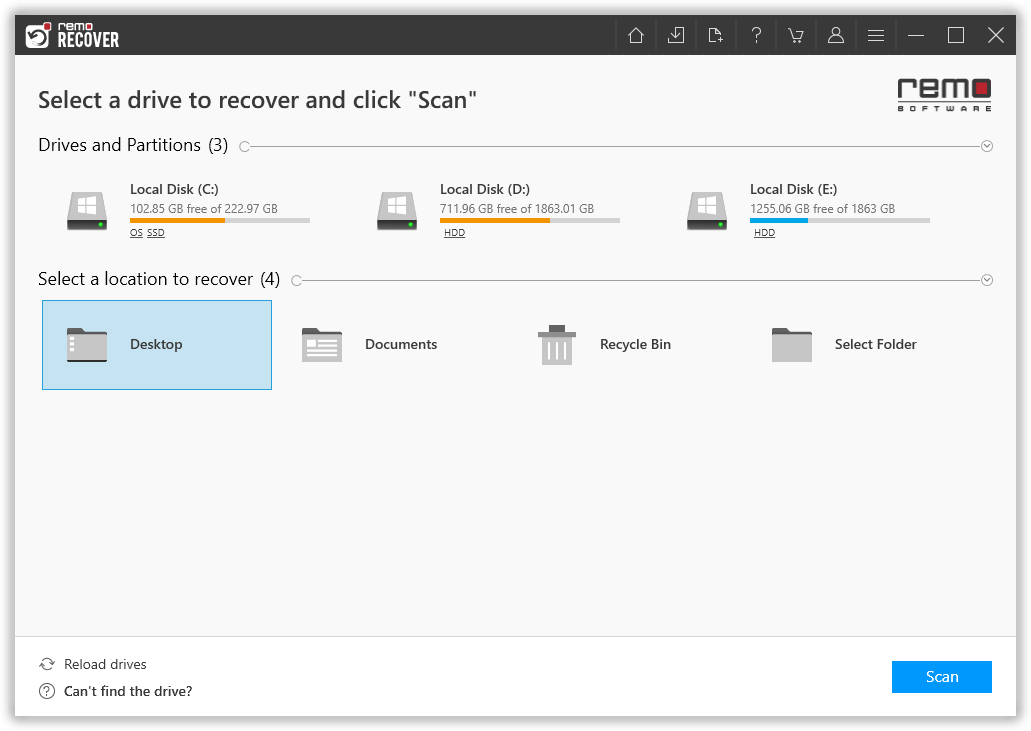
Step 2: click on the Scan button to start recovering your deleted emails.
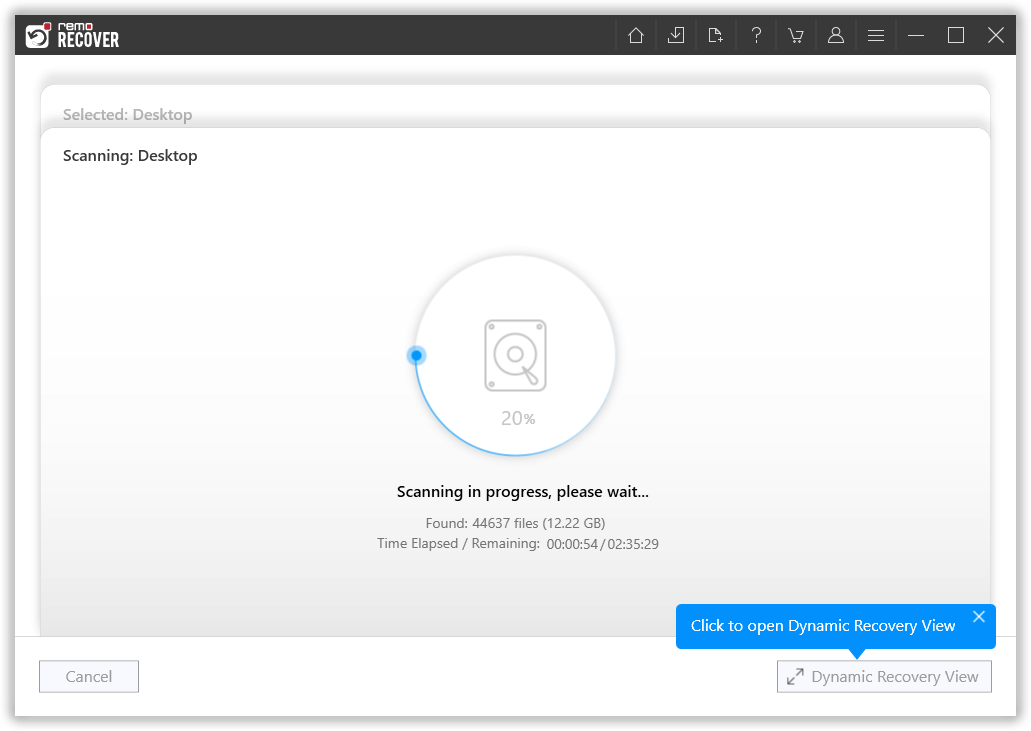
Step 3: After the scanning process starts, click on the Dynamic Recovery View option to view the files that are being recovered.
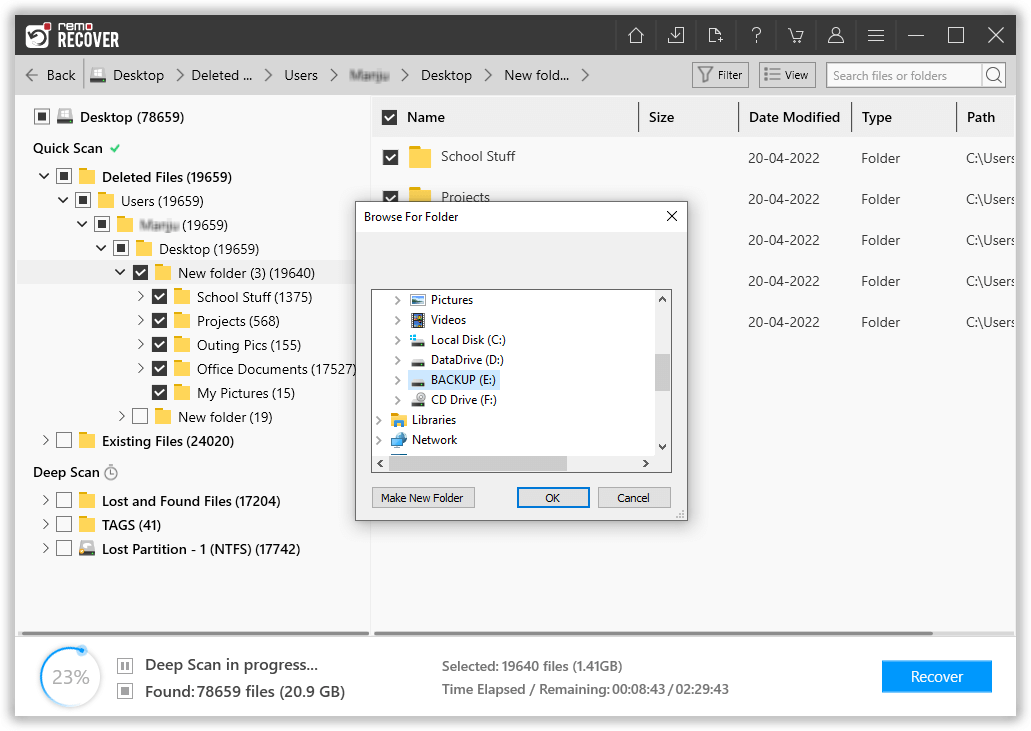
Step 4: Double-click on the recovered emails to preview them, after you are satisfied with recovery you should select the files you want to recover and click on the Recover button to save them in the desired location.
The manual methods mentioned in the article, may or may not help you in recovering the emails from Windows Live Mail. However, if you are unable to recover the emails from Windows Live Mail, you can always count on Remo Recover to recover deleted emails For any additional information, refer to the user guide of this tool or contact Remo’s help desk, 24 X 7.

Frequently Asked Questions
Exporting your emails as.eml files is the easiest approach to back them up. This may be accomplished by opening Windows Mail and clicking "File," then "Save As," and then selecting the.eml file type.
To recover your emails, go to "File" and then "Restore."
When you delete an email from Windows Live Mail, it does not leave your computer. It is simply erased and relocated to the Deleted Items folder. This folder is situated on the left side of the screen, beneath the Inbox folder. This folder may also be accessed by clicking on the "Deleted Items" button.
Windows Mail files are saved in the Microsoft Mail folder. You can follow the below-mentioned path to access the Windows live mail files.
C:\Users\AppData\Local\Microsoft\Microsoft Mail
Why Choose Remo?
100% safeSecure
100% SatisfactionGuarantee
10 Million+Downloads
Free TechSupport
Live Chat24/7 Support

