Table of Contents:
User Query: After going through multiple posts online, I corrected my Outlook contacts/address book issues by creating a new profile. But, I have accidentally deleted my original Outlook profile. My Inbox subfolders, contacts, and many emails are lost. I have done as advised by opening the Outlook data file but the only thing listed is the new profile information. There is no original profile. Is there any way I can recover Outlook profile?
Accidentally deleting Outlook attributes can be the worst nightmare, even more so, when you delete your Outlook profile. Because deleting an Outlook profile basically means all your emails, tasks, appointments, reminders and all other Outlook attributes will be lost.
How Do I Restore a Deleted Outlook Account?
If you have deleted your Outlook Account and looking to restore your Outlook profile, you can do it by finding the location of the Outlook data file and importing it back to outlook. This method is for .pst users. If you are a .ost user you can simply recreate your Outlook profile. We have covered both the scenarios below in detail for your reference.
How to Restore Outlook Account Manually (.pst)?
Method 1: Sign into your Account
When you delete an Outlook account, Microsoft's server does not immediately delete it. Microsoft stores your account information on its servers for 60 days before totally erasing it. Within 60 days of deletion, you can easily retrieve it by logging into your account.
Method 2: Try Contact Microsoft Private Support
If you try signing in and get a notification that your email account isn’t available, it means it has been deleted for more than 60 days. In such a situation, one of the best things to do is to contact Microsoft Private Support. Although far-fetched, there’s a possibility that your account may still be on their server.
- You can log into Microsoft Account from the Microsoft Support Center.
- Choose Outlook from the list of products on the Microsoft support page.
- Click the Get Support link at the bottom of the page as you scroll down.
- Click the Get Help button after providing your reason for contacting assistance in the box provided. You'll receive a list of self-help books and articles.
- Scroll down to the bottom of the page and click the Contact Support option.
- From the Products and Services menu, choose Other Products.
- Choose Outlook from the Category options at this point and click on the Confirm button.
- Choose your preferred assistance method from calling the hotlines or live-chatting with a support professional.
- Inform the Microsoft support representative that you want to recover your deleted account when you speak with them. Respond to their questions. The customer service representative will inform you if there is a possibility to restore your account.
Method 3: Import PST Data File
All of your Outlook data is usually stored in a data file called PST. So, even when you delete an Outlook profile, you should be able to get back your Outlook data by finding the PST file.
Your Outlook account cannot be deleted or removed without affecting the PST file. All of your email items are automatically saved in a PST data file when Outlook is configured with a POP account. Your local drive houses this PST data file. Only if you manually remove this file or if it becomes corrupted or damaged will you lose your mailbox data.
You can find the PST file in the following locations depending on your Outlook version.
All of your Outlook data is usually stored in a data file called PST. So, even when you delete an Outlook profile, you should be able to get back your Outlook data by finding the PST file.
For Outlook 2013, Outlook 2016, Outlook 2019, and Outlook 2021
C:\Users\\AppData\Local\Microsoft\Outlook
For Outlook 2007 and Outlook 2010
C:\Users\Username\AppData\Local\Microsoft\Outlook
Once you have found the PST file, import it to Outlook to get back access to your data. To import the Outlook PST file follow the below mentioned methods:
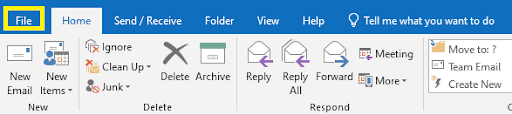
- Open Outlook and go to File.
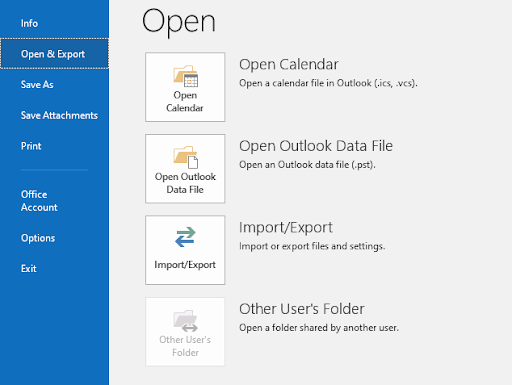
- Click on Open & Export and then click on Open Outlook Data File.
- Browse to the location specified above, then select the file to open it in Outlook.
This way, you will have your Outlook profile restored and you will regain access to your Outlook account along with its attributes. If this method fails due to PST file issues, you should consider repairing the Outlook data file.
Unable to find PST file? PST file not showing data even after importing? This can happen when you have a corrupt Outlook profile in other words your PST file is damaged or corrupted. In this scenario, it is recommended to repair your PST file using PST repair software.
Use Remo Repair for Outlook PST to automatically find and repair damaged or corrupt PST files and thereby restore your Outlook account with ease. With the help of just 3 clicks, the software recovers your Outlook profile including emails, contacts, calendar items, journals, tasks, etc. Download the tool for free now!
How to Recover Outlook profile using Remo Repair Outlook?
To recover outlook profile automatically using Remo, you need to download and install Remo Repair PST on your Computer and follow the below mentioned steps:
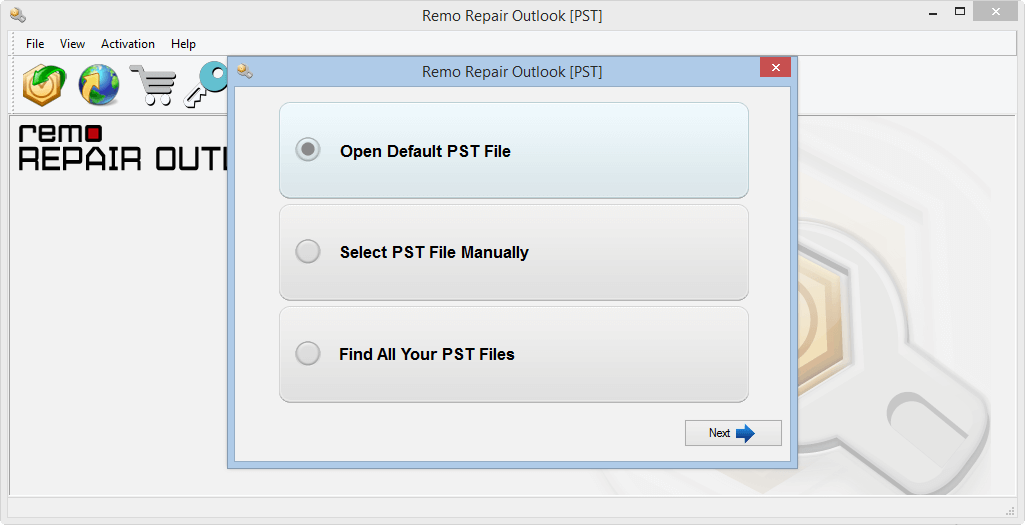
Step 1: Find your PST file
Launch the utility and from the main screen, select ‘Find PST file‘ for the software to find the PST file automatically.
Step 2: Choose between the Scan Modes
Normal Scan: When the level of PST corruption is low, a normal scan is useful because it ensures quick PST repair.
Smart Scan: It can help you in recovering emails, contacts, notes, and other Outlook data items from a severely damaged PST file. You can also select this option if the standard scan fails to repair the PST file.
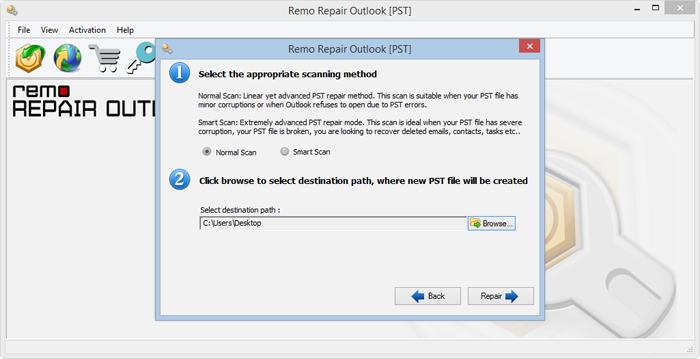
Step 3: Choose the location.
After the scan is complete select a destination location for the software to save the repaired PST file, this file can be imported back to Outlook and you can restore your Outlook account with all attributes intact.
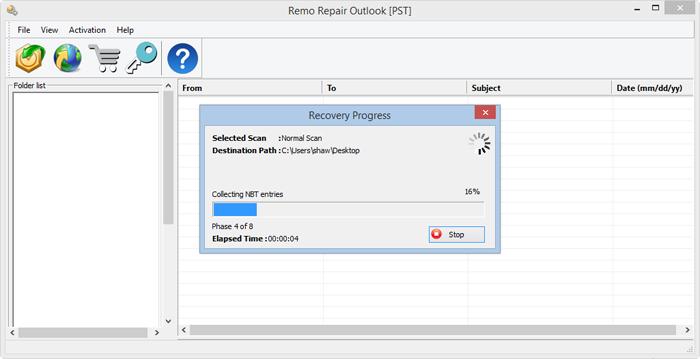
Step 4: Import the Repair PST file to Outlook
Launch Outlook, select File > Open > Open Outlook Data File. This will help you launch Outlook with a healthy PST. Make sure you open the Outlook data file that you repaired using the Remo Repair PST tool. Here’s how you can do it:
- Open Outlook, click on File > Open & Export, and then click on the Import/Export option.
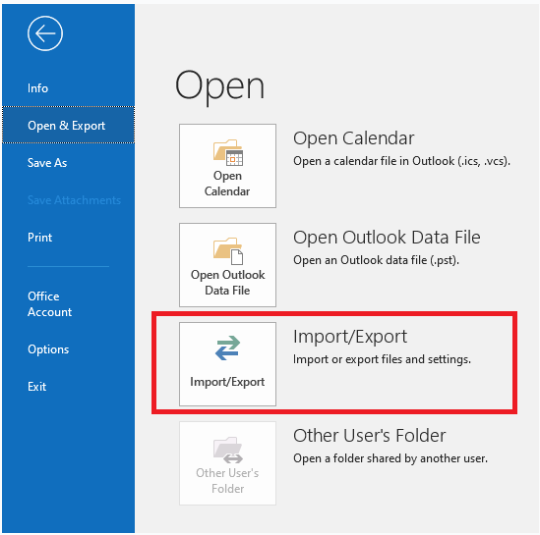
- Choose Import from another program or file option and click the Next button.
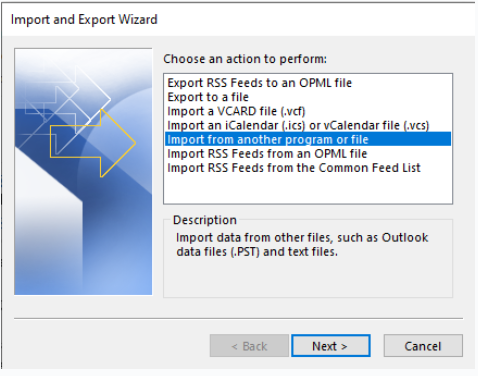
- Choose the Outlook data file (.pst) option and click Next.
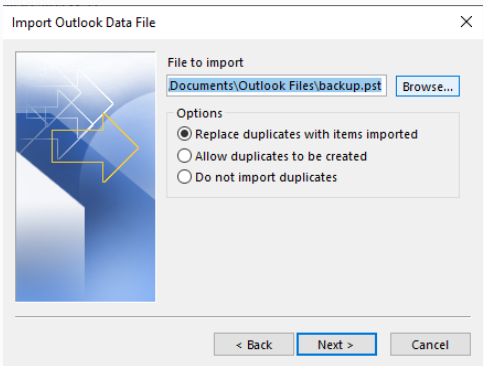
- Now click on Browse and add the use the PST file that you repaired by using the Remo Repair PST tool. Choose the duplicates option according to your need and click on Next.
How to Manually Restore Outlook Profile for .ost Users?
If you are using an IMAP account and have a .ost file, restoring your Outlook profile is a simple task. Follow the below mentioned steps to easily restore Outlook profile on .ost file.
- Close Outlook application and open Mail from Control Panel on your Windows
- Mail Setup dialogue box will open, click on Email Accounts
- In the next window click on Data Files, choose the OST file and click on Open file location
- Now you just need to right click on the OST file and delete the file. However, make sure you you have closed Outlook and Mail setup before you delete the OST file.
- Open Outlook application now, you will have a new OST file created with all your Outlook data in it.
This is how you manually restore Outlook profile for a .ost file. If you are looking to moving your Outlook profile to another computer then it is recommended you make use of a safe and smart options for your Outlook migration.
Remo Outlook Backup and Migrate is an exclusive tool designed to put an end to all woes of Outlook data loss scenarios. With smart backup options and swift migration facility, Remo’s Outlook Backup and Migrate software is a must have tool for regular Outlook users.
Final Words:
Restoring an Outlook profile or an account may seem simple by looking at this article, however in some cases it might lead to permanent data loss if the outlook data file is not found. It is important you to take regular backup of your Outlook data file to stay away from these kinds of crisis.