Wondering how to delete videos from the Camcorder? Then this article is for you. In this article we will discuss how to utilize a Remo Recover tool to recover lost or deleted videos. This tool works with deep scanning algorithms to effectively recover deleted videos of various formats like MP4, MOV, AVI, etc. This tool can recover more than 500 file formats from Camcorder, Camera, and other multiple storage devices, etc.
How do I recover deleted videos from my Camcorder? I have a Sony camcorder and I captured a bundle of HD video clips on it. Today morning I did a blunder, as I accidentally deleted some important video clips while erasing the unwanted files. How can I restore them back? Please help me..!
If you are looking to recover deleted videos from camcorder, then stop worrying. Here is a complete guide on how to retrieve deleted videos from a camcorder of any brand like Sony Handycam, Canon Camcorder, JVC Everio Camcorder, etc., using Remo Recover software.
Note: Before we start, don't capture any new videos with your camcorder after you accidentally deleted video clips on it. This is because, the deleted videos will be overwritten with new videos, and the deleted videos will go forever & no chance to regain them back.
A camcorder is used to record videos, and pictures because of its higher bit rate than standard video cameras. And all the captured videos can be stored on any of the different storage media including the SD card, SDHC card, CF card, Memory Stick, etc. Some of the popular camcorder brands include Sony Handy Cam, Canon Camcorder, JVC, Panasonic, Samsung, Kodak, Sanyo, SanDisk, Flip, and more.
But, once you delete your video from your camcorder either accidentally or intentionally, then the video will be lost. You cannot restore it back manually as it can be done on your Windows or Mac computer using the Recycle Bin or Mac Trash.
Methods to Recover deleted Videos from Camcorder:
1. Recover Videos from Camcorder using Recycle Bin
You can find your deleted videos on the Recycle Bin and it is the first place to check for the deleted videos. You might be wondering if you can access Recycle Bin on SD card follow the steps below to do so. Connect your SD card of your Camcorder to the Windows via card reader and then follow the steps below to undelete video files.
● Go to $RECYCLE.BIN Folder on your Windows File Explorer.
● Go to the File Explorer and navigate to the View tab and select Options.
● Select Change folder and search option and in the View tab select Show hidden files folders and drives and uncheck Hide protected Operating System files. And hit Apply and OK and then navigate to the C:\$RECYCLE.BIN folder and select the deleted files.
● Right click on it and select videos which you want to restore and right click on it and select the Restore option.
In case you did not find the deleted video files on the Recycle Bin then you can move to the next section of the article.
2. Camcorder Recovery - Recover Deleted Video using Remo Recover
You don’t have to worry about your deleted camcorder videos as you can easily recover them in just a few clicks using reliable camcorder data recovery software called Remo Recover (Windows / Mac) software. The tool is equipped with robust algorithms that scan your entire camcorder memory card and restores the deleted or lost videos with utmost ease.
Remo Recover (Windows / Mac) is a robust utility that works extraordinarily and restore photos that are missing from camera SD card. With the aid of this tool, you can recover videos of any format like MOV, MP4, M4V, and many more
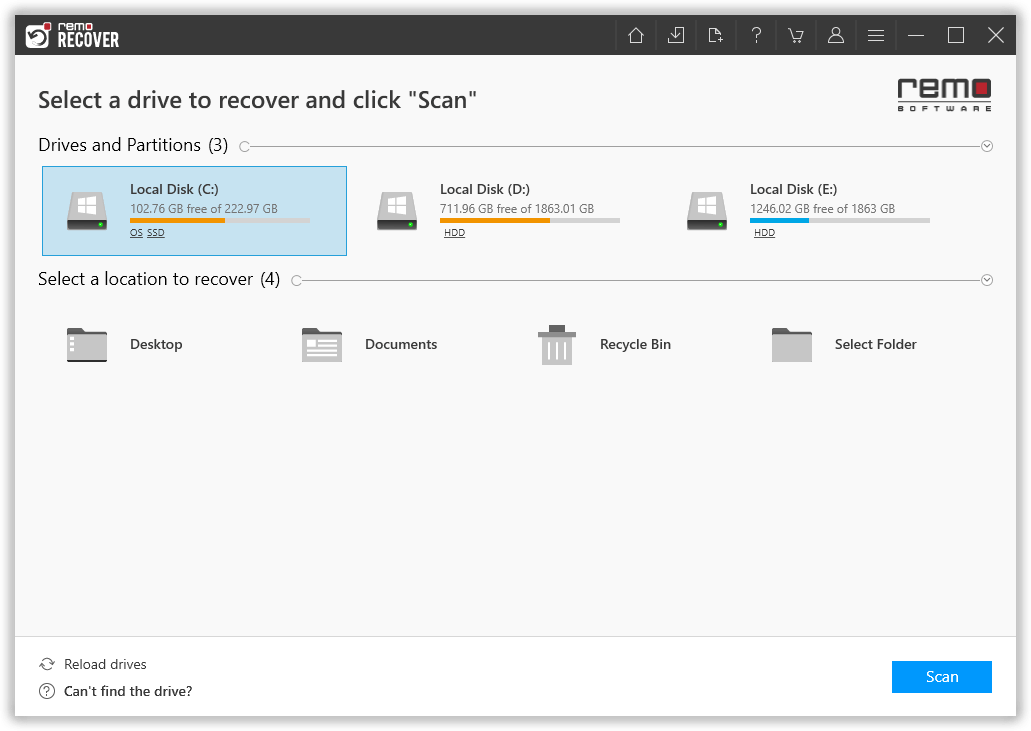
Download, install and launch Remo Recover on your computer and connect the SD card of your camcorder to it
Select the SD card drive to recover deleted videos from it and hit the Scan button. During the scanning process, you can click on Dyanamic Recovery View to verify the recovery result
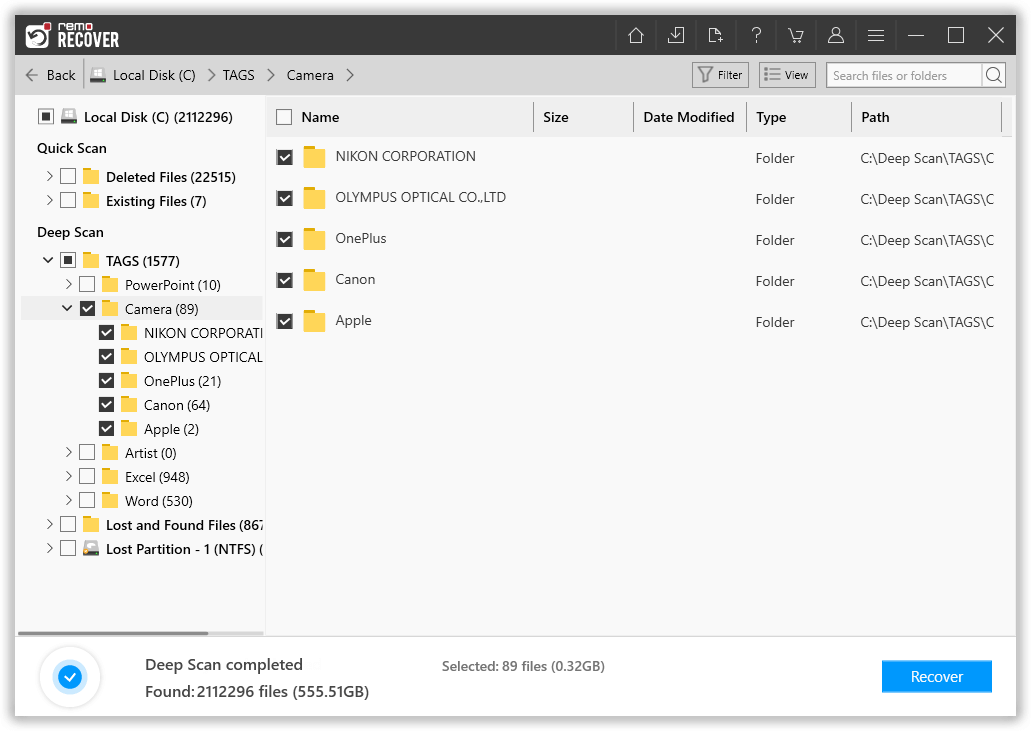
Once, Deep scan is completed all your lost or deleted videos can be found under Lost Partition However, you can also use Tags folder to find your videos with various properties like camera devices, video file format, and many more
Now, you can double-click on the recovered videos to preview them for free. If you are satisfied with the deleted camcorder video file recovery result, select the videos that you want to get back and click on the Recover option
3. Restore Lost Videos from Camcorder using File History
If you back up your files before deleting, this is the method for you. There are many ways you can backup your videos depending on the operating system and version. Windows 10 users use File History, while Windows 7 users use Windows Backup.
Go to the File History and select the files which you want to get back.
Select the files and click on the Restore option and then click on the Restore to option.
Browse the location where you want to save your files and click on OK and Apply.
Few Common Reasons for Video loss or deletion from Camcorders
Accidental deletion of important videos while deleting some unwanted ones.
Capturing the video while the camcorder battery is low or the memory card used in the camcorder is full.
You have formatted your camera card without taking the backup.