Text files are created using Notepad, WordPad, and other similar applications. In case you have permanently deleted text files. You can use the Remo File Recovery tool, a powerful text file recovery software to help you recover lost Notepad files and recover deleted text files in just 5 simple clicks.
Remo is a reliable yet user-friendly tool designed exclusively to recover text documents safely from any Windows or Mac system with ease. Download the tool for free now!!!
Notepad files, popularly known as Text files. These are files that store plain and simple text data, including numbers, alphabets or letters, symbols, as well as unused spaces.
Accidental Deletion of the Text Files: You might accidentally delete or misplace your .txt files while organizing or cleaning up your system.
Formatting the Drive or Reinstallation of the OS: Formatting your drive or the partition or reinstalling the OS without taking proper backup of the Notepad files results in the Permanent loss of Text files.
Sudden System Crash: Unexpected system shutdown or application crash due to power failure.
File Corruption: Notepad files can get corrupted due to system shutdown without proper saving of the file, conflict among different applications, and hardware failure.
Storage Media Failure: Failure of storage devices such as hard drive, USBs, or any other storage device where you have saved the Notepad files. Failure can happen due to storage devices getting damaged or broken or dead.
Virus Attacks: Virus attacks can edit, modify, or delete files from the infected system or the device.
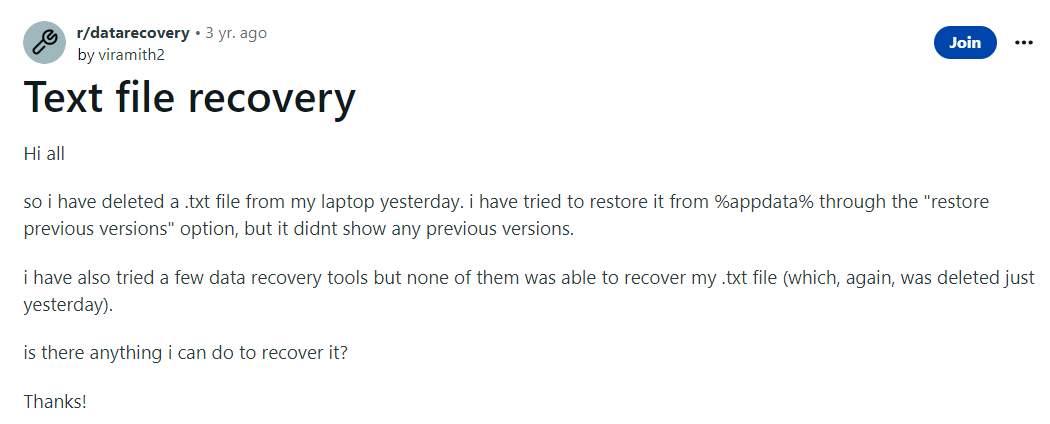
But the real questions that arise in the minds of Notepad users is -
You can for sure recover deleted or lost notepad files using methods such as recovering .txt files from the Bin, undo text file deletion action, and using Remo Recover, the best text file recovery software available in the market.
Source: Reddit
Irrespective of the reasons why and how you have lost your .txt files. You can follow the solutions mentioned in the following section to start the Notepad recovery process.
Here are various solutions that can help you recover Notepad files from various versions of Windows OS.
If you have accidentally deleted your Text files, then you can undo the file deletion.
Microsoft Undo file deletion option is one of the least talked about deleted file recovery solutions.
Go to the exact location from where you have deleted the text files. Right-click, and from the menu option, select the Undo Delete option.
You can do it by pressing Ctrl + Z keys simultaneously.
If you have a manually deleted saved text file or notepad file, there is no need to worry since it can be restored from the Recycle Bin.
Just Double click on the recycle bin icon on the main screen of your desktop. Find the deleted .txt files, select the files you want to recover, right-click and select the restore option.
You can find the restored files in the same location they were earlier saved.
I Can’t Find My Text Files In The Recycle Bin; What Should I Do?
You won’t find .txt files in the bin if you have used Shift + Delete or emptied the Recycle Bin or if you have deleted files from the Bin folder.
The only way to recover permanently deleted or lost text files on Windows or Mac systems is by making use of a reliable file recovery software like Remo which is specially designed to recover text files or notepad files.

Source: Trustpilot
These text files, unlike others, don't have a distinctive file structure. It is quite challenging to identify pieces of these notepad/text files and find out where they begin and end in your storage drive; this makes them difficult to be recovered from your computer or any storage drive. However, this recovery process can be easily performed with the help of Remo File Recovery software in a few clicks.
Remo File Recovery software is a renowned tool that has helped millions of Windows and Mac users across the world recover deleted, lost files.

Source: Remo Software Reviews
If you are trying to perform Notepad file recovery or trying to recover text files that have been permanently deleted. Download and install Remo Recover software on your PC and follow the instructions provided below to recover notepad files;
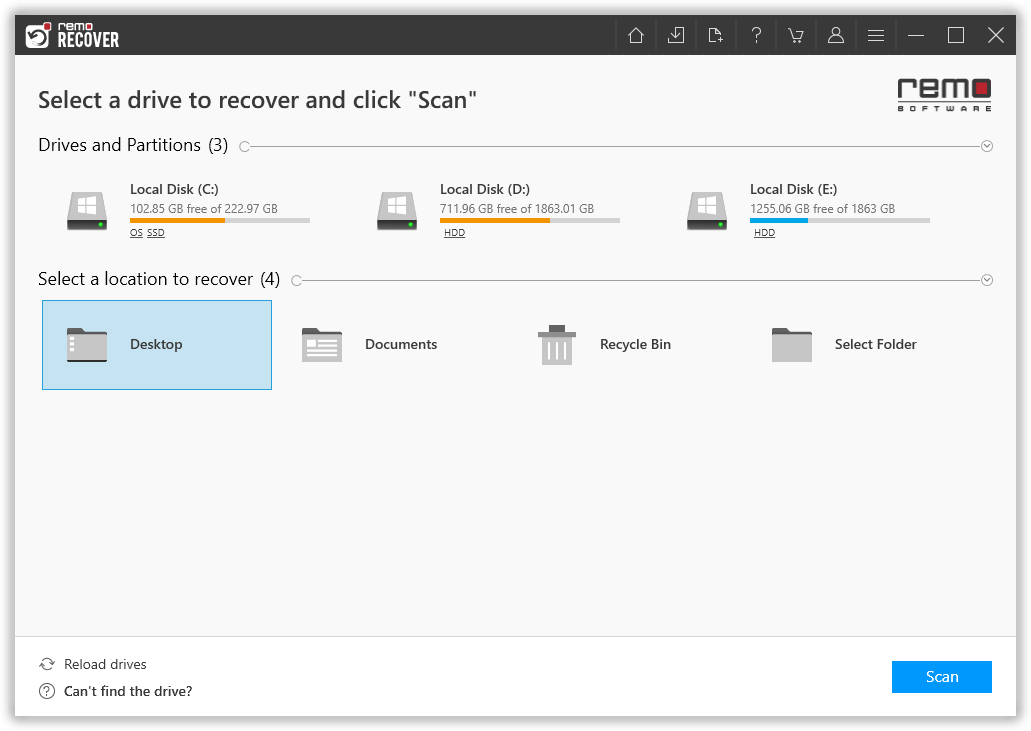
Step 1: Launch the Remo Recover software and select the drive from where you want to recover your notepad files.
Step 2: After selecting the drive, click on the Scan button to start recovering the text files.
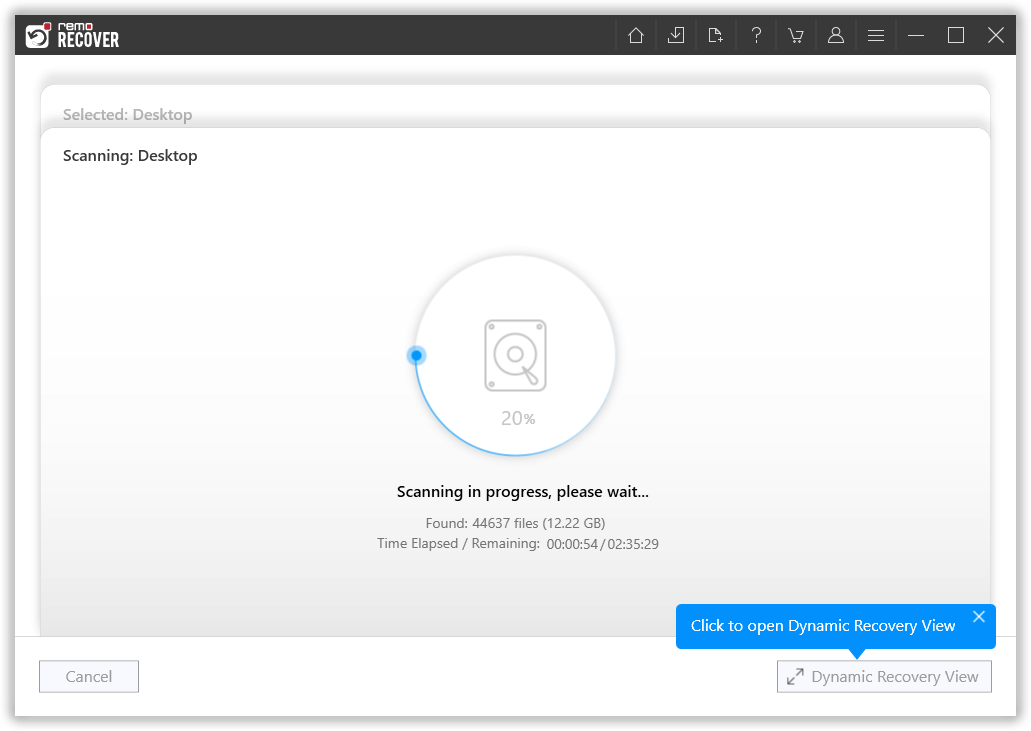
Step 3: Click on the Dynamic Recovery View option, as this tool allows you to view the Notepad files getting recovered during the scanning process.
Step 4: While the scanning is in progress the software displays all the recovered txt files that were deleted from the computer in the Deleted Files folder and Lost or Missing Text files in Lost and Found Files folder or Lost Partition folder as and when they are recovered.

Note: This tool also gives you an Advanced Filter option to sort the recovered files according to their types, such as documents, PPT, excel sheets, photos, videos, etc.
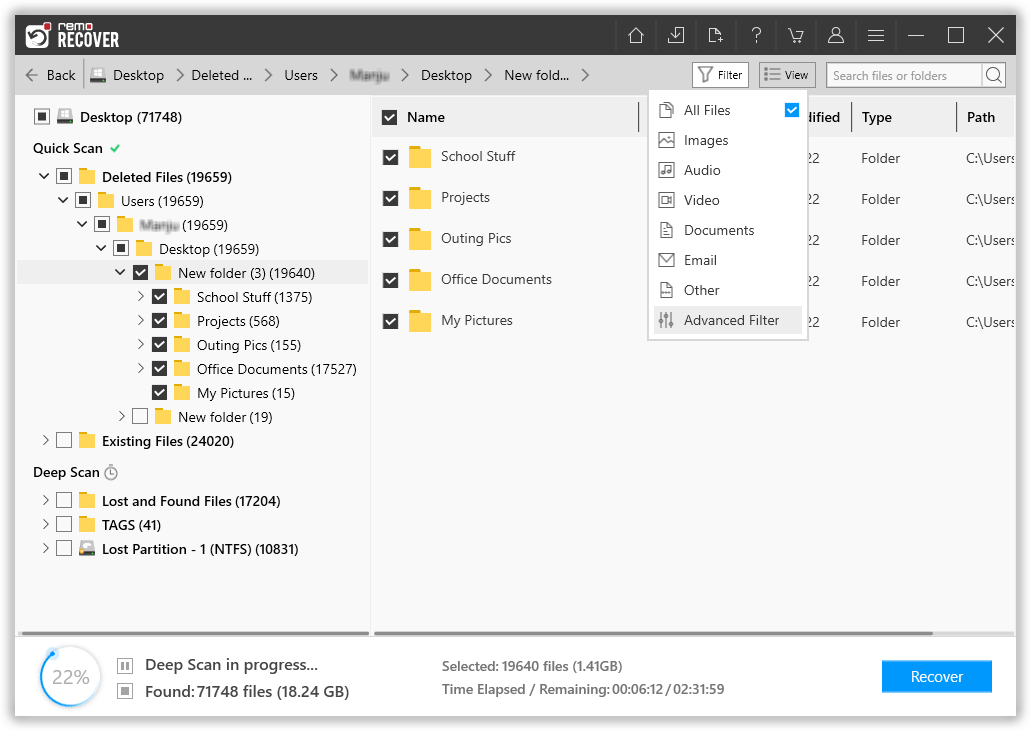
Step 5: Make use of the preview feature by double-clicking on the file to view and verify the notepad files and click on the Recover option to save the recovered notepad files or text files in a location of your choice.
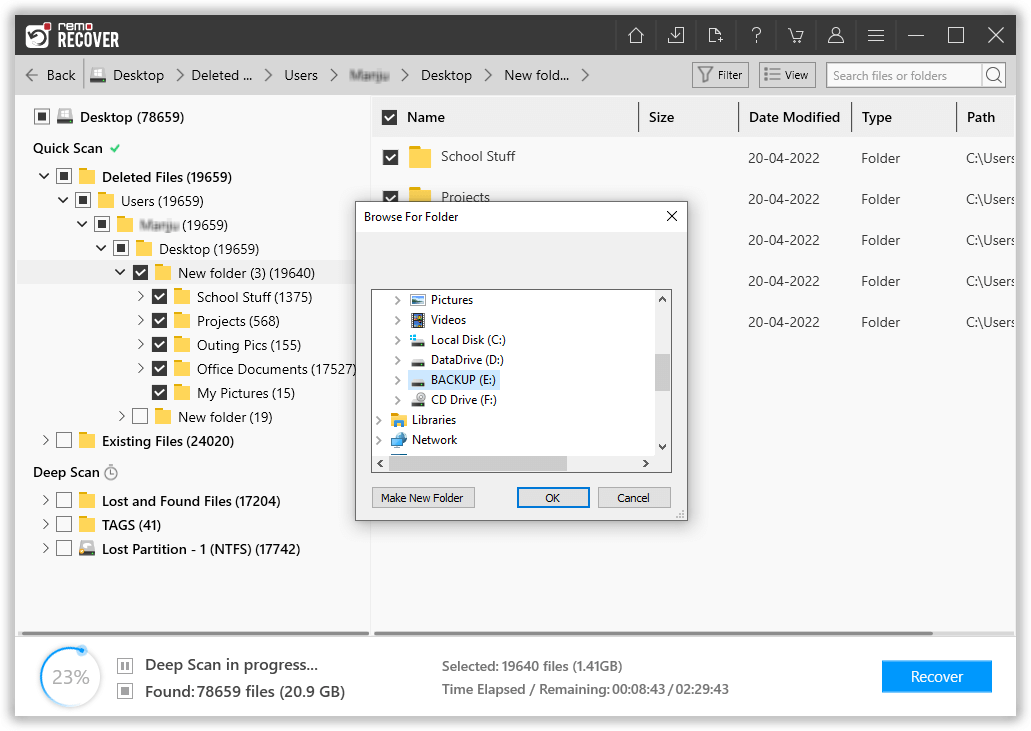
I am sure by now you have safely recovered deleted text files after using the above-mentioned solution. Refer to this article if you are curious to know more ways of recovering files from Windows.
This section talks about recovering unsaved notepad files.
No, Notepad does not have an auto-save feature that can save your unsaved text (.txt) file.
If in case you have closed Notepad without saving text files. Then the only way to recover unsaved notepad files or restore notepad files not saved is by finding and recovering them from the Temp folder.
Read the next section to know where the temporary .txt files are saved so that you can restore them.
The unsaved .txt files are stored in your Windows computer’s Temp folder. Luckily, you can recover unsaved Notepad files by going to the location path which is mentioned below.
Step 1: Type or Paste %AppData% in the Windows Search box.
Step 2: Now, click Enter; this will take you to this location "C:\Users\USER\AppData\Roaming".
Step 3: In the Search box, type “.asd” or “.tmp” to view the unsaved temporary Notepad files.
Step 4: Now, rename the temporary file with a .txt extension and copy it to any location you choose.
Following the steps above will quickly recover an unsaved Notepad text file. This is the only way to recover unsaved files.
A word of caution, be careful when you are restoring unsaved text files from the Temp folder, as any wrong step can lead to permanent loss of data.
You can lose or delete your important files in many cases like accidental deletion, emptying recycle bin, etc. but recovering deleted notepad files is never an easy task. However, by making use of the Remo Recover tool you can recover it in just 3 steps. Carefully utilize Temporary files to recover unsaved text files, as any wrong step can lead to permanent loss of data.

Why Choose Remo?
100% safeSecure
100% SatisfactionGuarantee
10 Million+Downloads
Free TechSupport
Live Chat24/7 Support