15 Million Users! 30-day money-back guarantee. Risk-free.

Buy Remo Repair Outlook (PST)

Choose the plan that's best for you!

For Business License Click Here >

1 Month License

Retail $79.97 $69.97 / month Buy Now Monthly License License expires after 30 days
  • 30-Day Money Back Guarantee
  • Monthly License for 1 PC / Laptop
  • Standard Tech Support
Most Popular

6 Months License

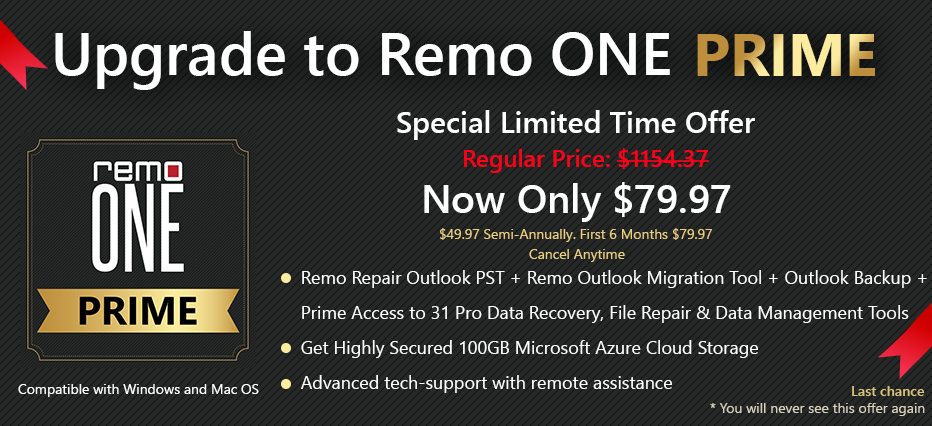
Retail $99.97 $79.97 / 6 months Buy Now $49.97 Semi-Annually. First 6 Months $79.97 Auto renews every 6 months. Cancel the subscription anytime.
  • 30-Day Money Back Guarantee
  • Semi-annual License for 1 PC / Laptop
  • Remote advanced file repair assistance

Lifetime License

Retail $399.97 $199.97 Buy Now Lifetime License LifeTime License for 1 PC with 1 year free upgrades
  • 30-Day Money Back Guarantee
  • LifeTime License for 1 PC / Laptop
  • Remote advanced file repair assistance
  • Unlimited
    Recovery
  • Instant License Key
    Delivery by Email
  • Free Standard
    Tech Support

Frequently Asked Questions

We support payment methods such as Credit card, PayPal, and Bank/Wire Transfer. However, Credit card and PayPal are always preferred.

Once you purchase the Remo Repair Outlook PST, you will receive a product activation email. In the email, you will have a link to setup a password for your Remo ONE account where you can see the license key to activate the software. Moreover, Product activation email will also have the license key which you can use to activate the software.

To activate Remo Repair Outlook software, follow the below simple steps:

  • Check your inbox for an email with the subject "Remo Repair Outlook (PST) - Product Activation".
  • You will find a weblink in the email to create a password for your Remo ONE account.
  • Click on that weblink and create a password for your Remo ONE account.
  • Once the password is set, please open Remo Repair Outlook PST software on your computer and click on the Activate button.
  • A browser window opens and prompts you to purchase the software, please close it.
  • Now, you could see the activation window of Remo Recover software.
  • Click on Login, enter your Email Address (used while purchasing the software) and the Password (created under Step 3) and click Sign In to activate the software.

Note: In case you couldn’t find the Product Activation email in the Inbox, please check in Junk or Spam folder.

If you are still unable to find our email or are having trouble trying to activate the software, please follow the instructions below and use the License Key to activate the software.

License key steps:

  • Open Remo Repair Outlook (PST) software and click on the Activate button.
  • A browser window opens and prompts you to purchase the software, please close it.
  • Now, you could see the activation window of Remo Repair Outlook (PST) software.
  • Click on Enter the License Key button, copy and paste the above License Key in the activation text box and click Activate.

Note: Please make sure that you are not copying any extra space with the License Key.

You can use the same license key twice to activate the software. After two activation, you will see the device activation limit exceeded error. Then you need to login to Remo ONE account and remove the previously activated device or contact support team for resetting the activation limits.

Yes, we provide time to time free updates after you have purchased the software. If you are a lifetime user, you will receive the updates for the rest of the product lifecycle. Similarly, for subscription-based purchase, you will receive updates till the subscription is active.

There are 2 ways through which you can import or open the repaired PST file:

Method 1: Open Recovered PST File in Outlook: (Highly Recommended)

  • Once the repair process completes, close Remo Repair Outlook (PST) software
  • Launch Microsoft Outlook application.
  • Click on File menu and select Open & Export option.
  • Further, select Open Outlook Data File.
  • Navigate to the location where you have saved the recovered PST file.
  • Select the recovered PST file and click Open.
  • Now, the recovered PST file will be opened on your Navigation/Folders pane on your Outlook.

Method 2: Import Recovered PST File in Outlook:

  • Once the repair process completes, close Remo Repair Outlook (PST) software.
  • Launch Microsoft Outlook.
  • Click on File menu and select Open & Export option.
  • Further, select Import/Export option.
  • In the Import and Export Wizard, click Import from another program or file, and then click Next.
  • Click Outlook Data File (.pst), and then click Next.
  • Click on the Browse button to navigate to the location where you have saved the recovered PST file.
  • Choose the recovered PST file to import and click Finish.

Note: Importing would merge the data in the recovered PST file to your existing / default PST file. If you are trying to recover data from the existing/default PST file, we strongly recommend you to use Method 1. Importing data from existing / default PST file would overwrite the lost data. Data once overwritten cannot be recovered by any software

  • Yes, you can use Remo Repair Outlook to easily repair password protected and or oversized PST files. Moreover, this software repairs PST files without altering the original file attributes. If the original PST file is password protected, the repaired PST file will also be password protected. You can use your assigned password to unlock the repaired PST file post recovery.

    Yes. You can use Remo Repair Outlook software not only to repair PST file but also to repair corrupt or damaged OST file.


    100% Safe

    Secure


    100% Satisfaction

    Guarantee


    Free Tech

    Support


    30 Days Money-back

    Guarantee