If you find that ScanPST fails when trying to recover emails, make use of a specialized tool called Remo Repair PST to recover deleted or lost emails. It works in all situations regardless of the size of the PST file and on any version of Outlook like Outlook 2016, Outlook 2013, Outlook 2010 and earlier versions.
The Inbox Repair tool or Scanpst.exe as it is commonly known is a built in tool designed to repair corruption in PST files. A PST file is a data file that stores all Outlook data like emails, contacts, calendars, etc. It is basically a file that contains a backup of all Outlook items. Any corruption or issue with the PST file can cause Outlook to not work properly.
In order to repair these corruption issues, Microsoft provides a built in tool called ScanPST. This tool, along with repairing corrupt PST's also has the ability to recover deleted or lost emails from Outlook. Hence, many users use ScanPST to not only repair PST files, but also to recover emails.
Why does ScanPST.exe fail or return errors?
ScanPST, although a very useful tool has certain limitations. That is, it can be used only to repair corrupt indexes and data structures. So, if the PST file involves corruption in other areas of the PST database, ScanPST may fail or produce error messages.
While that is one drawback with ScanPST, there are also others such as it cannot work with over-sized PST files or PST files that are severely corrupt. In these cases, ScanPST fails because it cannot successfully rebuild indexes to repair the PST file and hence cannot recover deleted emails.
To overcome this problem, make use of specialized PST repair tool called Remo Repair PST which repairs your PST files and also recovers deleted emails, contacts, calendars and other items in Outlook. It is an advanced Remo PST Repair Tool that can repair even the most severely corrupted PST files and recovers deleted emails skillfully with all its components like To, From, Subject and body along with attachments.
Easy guide: How to recover emails when ScanPST produces errors?
1. As a first step, download and install Remo Repair PST on your computer. After successful installation, launch the software to open the main screen.
2. In the main screen, you will find 3 options: 'Select PST file manually', 'Open default PST file' and 'Find All PST files'. Choose 'Select PST file manually' if you know the location of the PST file. If you do not know the location of the PST file, select Open Default PST file for the software to locate it
3. If you selected 'Select PST file manually' in the previous step, browse to the location of the PST file and select it
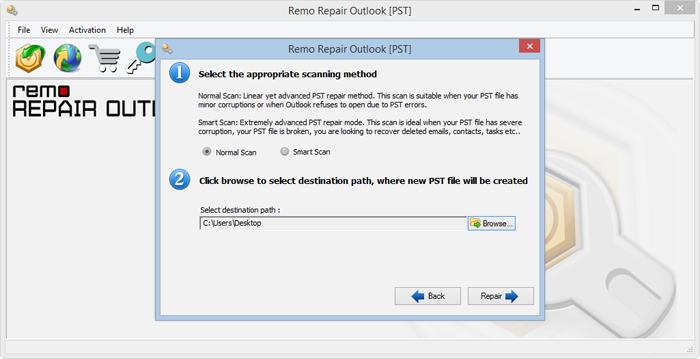
4. Next, select Normal Scan (since you recovering emails) and select a location to save the repaired PST file
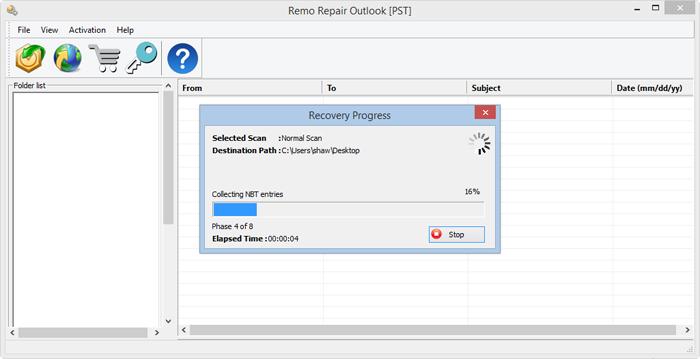
5. Click Repair for the software to start recovery of deleted emails
6. Once the scan completes, your PST file with recovered emails are stored in the destination specified in Step 4.
How to view recovered emails and copy them to your default PST file?
Once Remo Repair PST has recovered all your Outlook emails, you can view them in Outlook and copy them to your default PST file using the guide below.
Open Outlook and click File > Open > Open Outlook Data File
Select the PST file repaired by Remo Repair PST to open the repaired PST file with recovered emails
Right click on the emails you want to move (use Ctrl to select multiple) and select Move
Then select Copy to Folder and select the folder (like Inbox) to move the recovered emails to
Now you should be able to view all the recovered emails in the desired folder
How to avoid accidental deletion of emails and other items in Outlook?
With the help of some simple tips provided here, you can easily avoid accidental deleting of emails and other items in Outlook.
Double check prior to manually deleting email or any item in Outlook
Turn OFF 'Empty deleted items upon exit' option
Have your 'Auto Archive' feature setup to delete old items from the Deleted Items folder
Frequently Asked Questions
If Scanpst.exe is unable to repair your PST files, you should use a professional PST repair tool. Remo Repair Outlook PST Tool is a one-stop solution for all of your PST-related issues. It is designed with an advanced algorithm to repair any PST file. This tool will repair any level of corruption with a few clicks.
Instead of using ScanPST, you can use the Remo Repair Outlook PST tool to repair PST files. The software's read-only methodology, advanced scan algorithms, and quick repair make Remo PST advantageous over scanpst.exe.
Outlook has a size limitation in creating a PST file of up to 2 GB in size in older Outlook versions. If your PST is corrupt because of this size limitation then it is recommended to use the latest version of Outlook, which can support much larger PST files. A severely corrupt PST file may be beyond Scanpst.exe's repair capabilities, causing the tool to freeze while attempting to repair it and only a professional PST repair tool can help you.