Why Are My Emails Downloading but Not Showing Up in Outlook?
Sometimes, Microsoft Outlook program behaves oddly and as an outcome users face several issues. Among numerous Outlook problems, emails downloading but not showing inbox is the most distressful one. Even though this is not a common Outlook issue, several users are struggling to fix it.
Typically, users can see that there are new emails coming in through MS Outlook. But, they cannot view those received emails, although they are listed under Outlook Conversations (inbox). The precise reason behind this “Outlook downloading emails but not showing” problem is not learned.
However, there are a few troubleshooting techniques you can try. If, even you are worried why are my emails downloading but not showing up in Outlook?
Caution: Backup your Outlook data file (.pst) safely and save it to a secure location, before you begin with the below resolution methods.
Resolution: Outlook Downloading Emails but Not Showing
#1: Reconfigure Email Account
Open Outlook, go to File -> select Account Settings -> Data Files -> Select the email address for which you want to see received emails -> click Set as Default. Now, restart the Outlook.
This is to ensure, the email account to which you are receiving new emails and the one which you are checking inbox, both are same.
At times, Outlook downloads email but not into inbox which you are checking. This happens if your email account is pointing to a different data file and you are looking at another inbox (maybe your default data file).
#2: Create a New Profile
- Go to Control Panel, and open Mail
- In the Mail Setup window, select Show Profiles option
- Click Add button
- Name the new profile and click OK
- Add your Outlook e-mail account to use in this new profile
- Follow the on-screen instructions
#3: Repair Outlook Program
- Open Control Panel, select Programs, then Programs and Features
- Find and select the Microsoft Office program
- Click the Change button
- Choose Quick Repair (or Repair)
- Wait till the repair process gets completed
Note: If you are unable to see the sent mails in the sent folder of Outlook. Then go through this article to find out why is Outlook not saving my sent items?
#4: Repair PST File
- Go to Control Panel select Programs, then Programs and Features
- Find Microsoft Office and select it
- Click on Change button
- Choose Quick Repair (or Repair) and complete the process
Make use of Scanpst.exe (Inbox Repair Tool) and repair your Outlook data file (.pst). Then, run your Outlook profile with this repaired PST file.

Still Outlook downloading emails but not showing in Inbox? Don’t lose hope! The ultimate solution is here.
Ideal Solution for Outlook Emails Downloading but Not Showing in Inbox:
Remo Repair Outlook application fixes all sorts of issues in your Outlook with ease! The tool scans PST file on any edition of Microsoft Outlook like Outlook 2000, 2003, 2007, 2010, 2013, and 2016. The tool resolves any MS Outlook-related issue efficiently by keeping your Outlook data safe. It supports Windows XP, Windows Vista, Windows 7, 8, 8.1, 10 etc. Windows operating systems versions.
Moreover, the user-friendly interface of this application offers easy steps to fix sync issues, errors, corruption, and damage in your Outlook and restores it to working state. The very important feature of this software is it doesn’t modify or affect your original data as it does not work on the original PST file. Instead, it reads the affected data file, creates a new copy of it and repairs.
3 Quick Steps to Fix Emails Downloading but Not Showing Up in Outlook Problem:
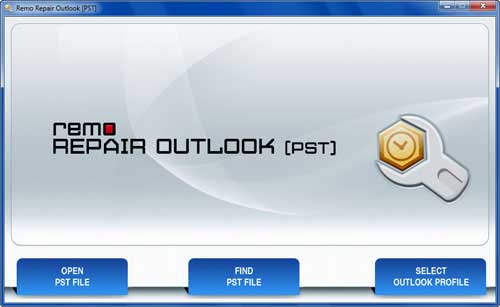
Step 1: Launch Remo Repair Outlook software. Click Open PST File button and select your PST file to repair.
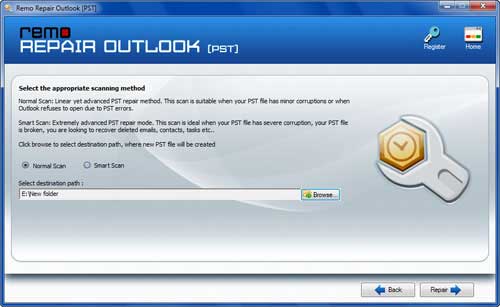
Step 2: Choose scanning mode and location to save repaired PST. Click the Repair button.
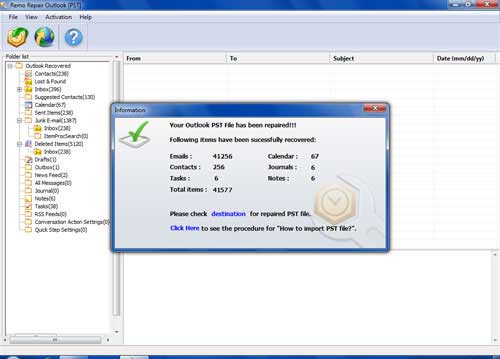
Step 3: Verify the summary of your repaired PST file in Outlook styled interface.
Note: If your PST file location is unknown, then go for Find PST File option on the main screen. In case, you have multiple Outlook email accounts then click Select Outlook Profile. If you are not able tp locate your PST file due to accidental deletion there are a few methods that you could use to recover deleted PST files