Everyone makes big or small, mistakes. However, accidentally deleting an Outlook express e-mail is a small mistake that can have significant consequences. But you need not worry for this article will teach you how to Recover emails from all OE folders and e-mails within a few simple steps!
Recover deleted Outlook Express emails
I have accidentally deleted some emails from my Outlook Express Inbox.dbx folder. I deleted those emails using Shift + Del keys. I need to retrieve all the deleted emails. Suggest me on how I an recover them?
Things like deleting emails by mistake, losing confidential emails often occur. Emails deleted from Outlook Express can be easily recovered if you act instantly (It helps because there is always a chance of deleted emails getting overwritten if new mails are stored in the same OE folder).
What exactly happens when an email is deleted in Outlook Express?
When you delete an email in Outlook Express, it is usually moved to a Deleted Items folder. The Deleted Items folder is just like a Recycle Bin for emails, and gives you the chance to restore those deleted emails. However, Outlook Express has an option to clear the contents of the Deleted Items folder whenever you close the program. If you have enabled that setting, you will not be able to restore the emails from Deleted Items folder.
But, when you use shift+del key combination to delete emails, the emails are not re-directed to deleted items folder. Instead they are deleted directly from the source OE folder. Hence, if you are looking to recover deleted emails after using shift+del, then you must scan the source OE folder rather then the deleted items folder to recover those deleted emails.
When an email is deleted from a folder it is not physically erased. The data is just marked as deleted, and hence becomes inaccessible to the user, resulting in Outlook Express not displaying it. In reality, the deleted email still exists, until it is overwritten by new emails getting stored in the same OE folder.
When you accidentally delete an email in Outlook Express, immediately exit Outlook Express, and try not to compact the email folders. If you continue using Outlook Express, even after deletion of the emails, there is a probability that the deleted emails might get overwritten with new emails that you download and will get permanently lost.
What next?
You can use the REMO Recover Outlook Express software, to scan, and retrieve all your lost emails.REMO Recover Outlook Express software is a software specially designed to recover Outlook Express email messages, that have been accidentally deleted, lost, missing from any dbx archive. Try it Now!
Guide to locate and recover deleted Outlook Express emails using REMO Recover Outlook Express software
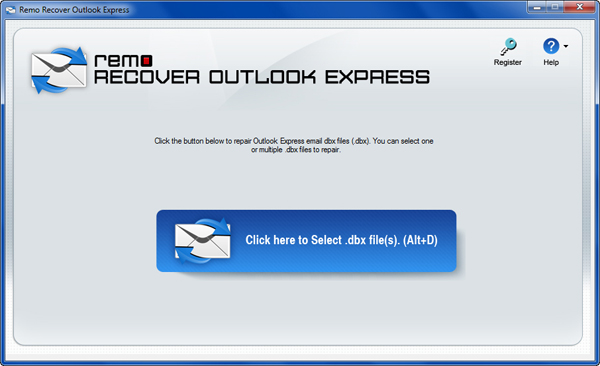
Step 1: Run REMO Recover Outlook Express software, either by double clicking desktop icon, or by selecting the icon from the Programs list in the Start menu. The program main window is displayed as shown below.
Step 2: When you click the  button,
the application scans the whole drive, and lists the identities present in
it. A window will now appear with a list of identities on the left, and a
list of dbx files in the respective identities. Select the dbx file which
contains deleted emails and click on the
button,
the application scans the whole drive, and lists the identities present in
it. A window will now appear with a list of identities on the left, and a
list of dbx files in the respective identities. Select the dbx file which
contains deleted emails and click on the button.
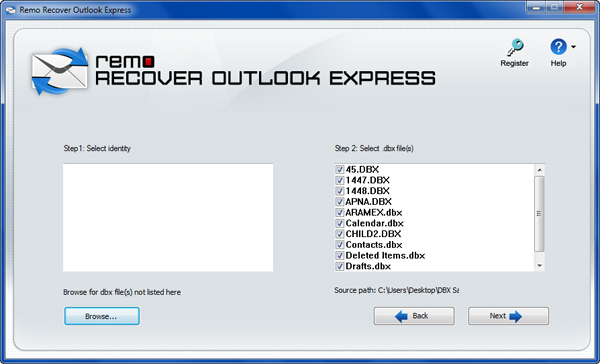
Step 3: As you click on the Next button, the program displays a window to select the destination drive to save your recovered email.
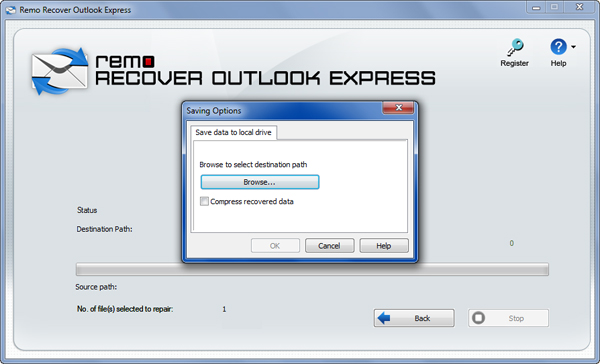
Step 4: Click on the  button,to
select the destination drive, where you can save all your recovered emails.
button,to
select the destination drive, where you can save all your recovered emails.
Note: You can select the Compress recovered data option,
if you want to save the recovered data in a compressed form, and click on the  button
to proceed to the next step.
button
to proceed to the next step.
The program starts to search the selected .dbx file to locate lost/ deleted e-mails, and recovers all found emails in a new folder by name “xxxx recoveredx” in selected destination drive. All the found emails will be recovered in .eml format.
Bonus Tip: If you have trouble opening Outlook, then click here to know how to fix cannot start MS Outlook error here.
How to import the recovered data?
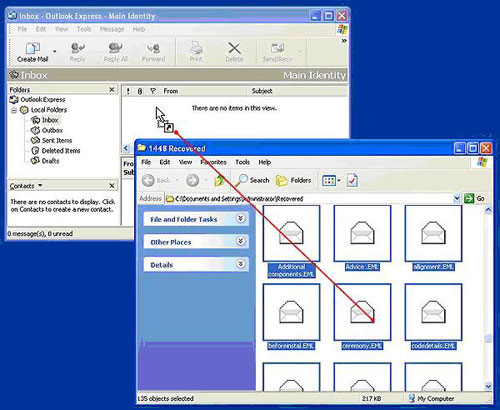
After recovering the lost/deleted e-mails using REMO Recover Outlook Express software, you can import these e-mails (.eml files) into the Outlook Express folders, by selecting the e-mails you wish to import, and performing the Drag and drop task. The Drag and drop task can be done by selecting the file(s) (that need to be moved to the folder in Outlook Express), and dragging the same to the desired folder, as shown below.
Related Information
0x80040600 Error in Outlook
When you get this error the recommended method to resolve it is to run Inbox repair tool provided by Microsoft called scanpst.exe. In case of severe corruption you would require a tool which has been specially designed to repair heavily damaged or corrupted PST files. Read here the Remo Software's recommended method of recovery in case of 0x80040600 error in Outlook.
DBX Repair
DBX files are files created by Outlook Express, these files store email related information. To repair a corrupt DBX file which is either not opening or if your Outlook Express goes blank you need to use Remo Recover Outlook Express which will recover all your emails in .eml format inside a recovered folder.
How to Recover a Lost Folder in Outlook Express
Folders in Outlook Express are actually files with .dbx extension. When you delete a folder you actually end up deleting a .dbx file. Remo Recover Basic Edition has been designed to undelete files like Microsoft Office documents, photos, email archives like .pst and .dbx. Explore here a step by step tutorial on how to recover a lost folder from Outlook Express.
Recover Deleted Files in Windows XP
When files are deleted in Windows they are sent to recycle bin, when you empty the recycle bin the files get "permanently" deleted. If you need to recover these files you will have to use a file recovery software provided by Remo Software. Explained here are precautions and detailed steps on how to recover deleted files on Windows OS.
Why Choose Remo?
100% safeSecure
100% SatisfactionGuarantee
10 Million+Downloads
Free TechSupport
Live Chat24/7 Support

