RAW images are those which are unprocessed from the image sensor. Normally, different camera brands have different formats for saving RAW images. The Canon camera saves its RAW images in the following file formats.
- CRW (Canon RAW format)
- CR2 (Canon Raw Format version 2.0 )
However, like other image formats, even your CR2 and CRW RAW images would get deleted or lost from your Canon digital camera. It is quite normal to panic at that time if you have no idea on how to perform Canon RAW file Recovery. Know that even though your RAW images have been lost or deleted. There is an easy availability of an amazing CR2 recovery software to help you recover deleted cr2 files.
Table of Contents:
- Why are your Canon RAW Image Files CR2 and CRW Missing?
- How To Recover Deleted, Lost, Corrupted Canon RAW files?
- How To Fix Corrupted Canon RAW Image Files?
Causes for the loss/deletion of CR2 & CRW image files
- Accidental Deletion: Accidentally format of the camera card containing your RAW images
- Physical issues: Removing the memory card from the Canon camera while transferring the files
- Technical issues: Camera card corruption due to virus attack or taking pictures when the camera battery percentage is very low
How To Recover Deleted, Lost, or Missing Canon RAW Image Files?
Even when you have deleted or lost your Canon RAW images, they are not gone permanently. With the help of recovery software, you can easily recover lost or deleted Canon image files like CRW and CR2. In this regard, the Remo Photo Recovery tool comes as a handy solution to restore Canon RAW images in an easy way. Its signature search mechanism helps easily identify and recover deleted or lost Canon RAW photos like CR2 and CRW files in a couple of minutes.
Recover Deleted & Lost CR2 CRW Image files From Canon Camera using Remo Recover
Whatever may be the reason for losing Cannon RAW images, Remo Recover software quickly recovers all those photos in a matter of minutes. In addition to recovering RAW images, it can also recover other media files like audio, video, etc. It supports Canon image recovery form all models of canon cameras like Canon Powershot compact camera, Canon Vixia camcorders and Canon EOS DSLR series.
Download Now
Download Now
Steps To Recover CR2 & CRW Image Files From Canon Camera
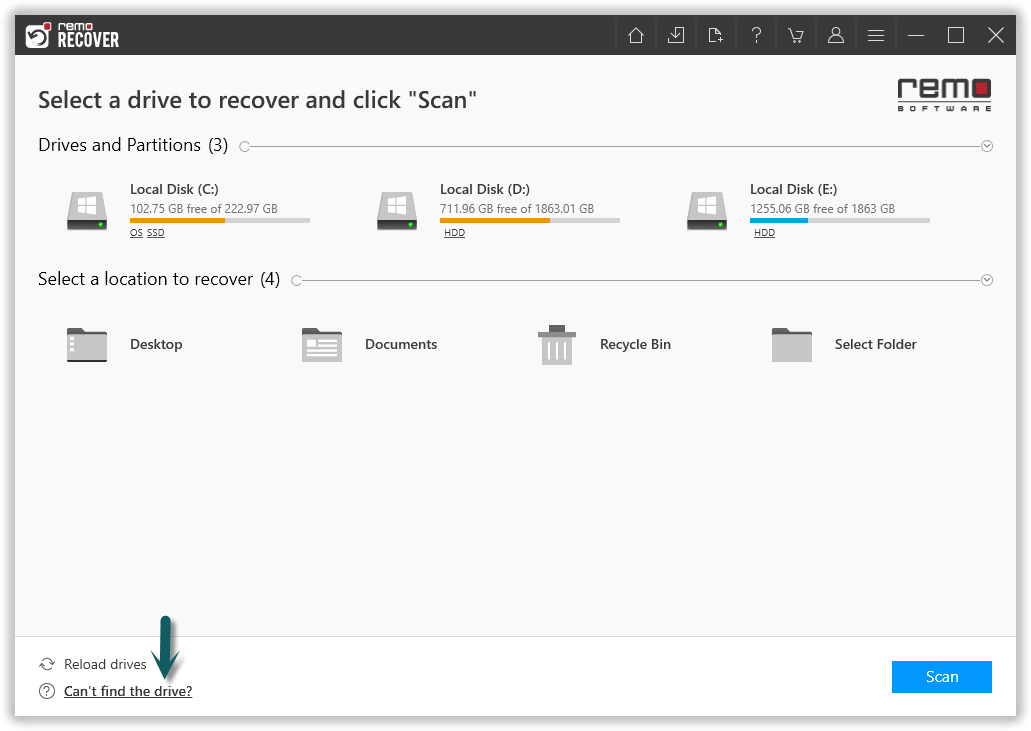
Step 1: Launch the Remo Photo Recovery Tool aka Remo Recover on your computer and select the drive from which you want to recover photos and click on Scan. If you didn’t find the connected drive, then click on the Can’t find the drive? option.
Note: If you want to recover CR2 files from SD card, then connect that particular SD card to your system.
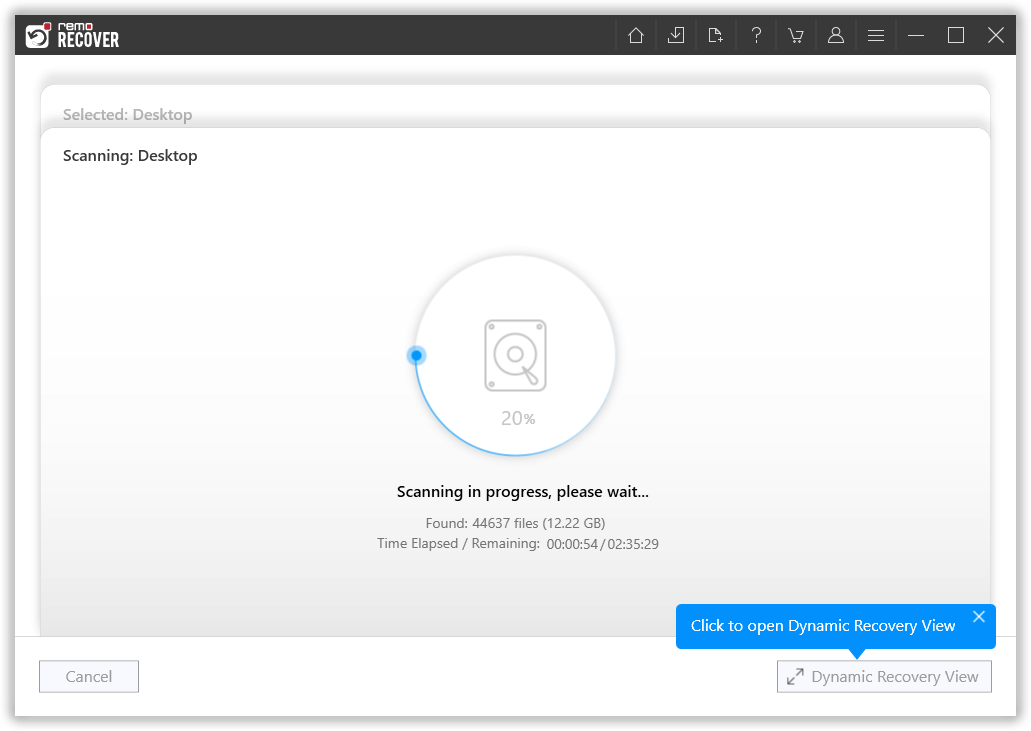
Step 2: The tool starts scanning the drive, you can click on Dynamic Recovery View option to view the files without having to wait till the completion of the scan.
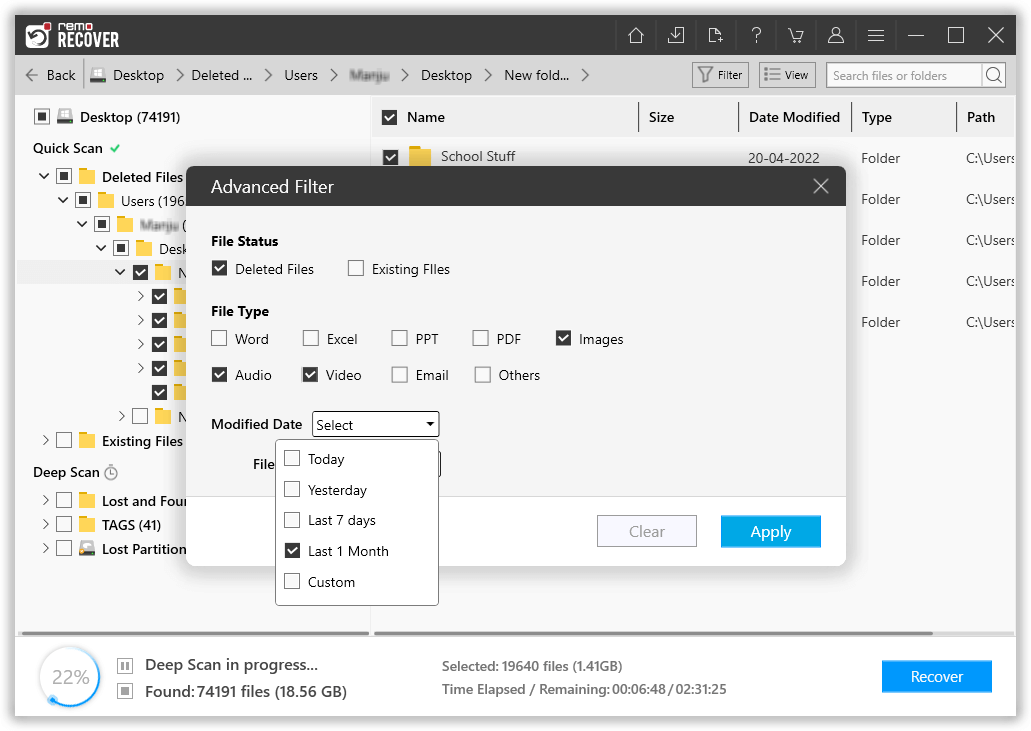
Step 3: After completion of the scanning process the tool will display the recovered photos. Find the CR2 & CRW image files by adding file type, signature or modified date using the Advanced Filter option.
Step 4: The software now allows you to preview the recovered image files with its Preview option. The Save Recovery Session option allows you to save the scanned information.
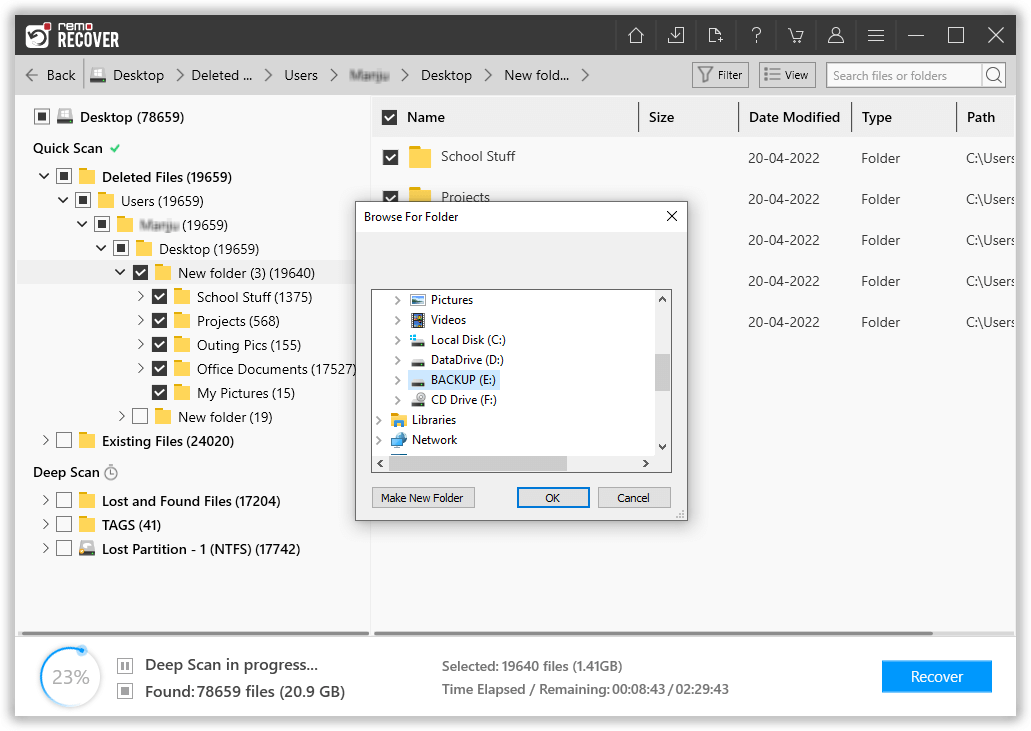
Step 5: Select the recovered CR2 and CRW files that you want to retrieve, hit the Recover button and select a location to save the recovered files. Click on the OK button to start the data saving process.
How to Repair Corrupted CR2 and CRW Files?
Damaged Canon CR2 file error is unpredictable and it will happen when it is least expected. There are a number of possibilities when it comes to repairing damaged CR2 files. Which is explained in the below section.
Method 1: Try Opening Canon RAW Image Files Using Any Other Application
If the RAW file didn’t open with the current application you are using then it’s a major sign that your file has gotten corrupt. At times, the issue might not be with the image files but the application you are using. To find out what is the issue we highly recommend you try opening the same file on any other CR2 file software.
If your Canon RAW format CR2 or CRW files were unable to open on any other RAW image applications. Then its a sign your Canon RAW format files have gotten corrupt.
You can go ahead and try the following methods to fix the corrupted CR2 or CRW.
Method 2: Recover lost CR2 File Using a Hex Editor
Hex-Editor is a manual solution that you could use to open or repair CR2 files. This is a special type of editor that opens any file type. The good thing about Hex-Editor is that it displays the contents of the file byte by byte. When you open any type of file, the contents of the file will be interpreted by the program. A large amount of information will be revealed. The result of this very useful feature is very useful when information is needed about CR2 files, even if they are damaged. After identifying the exact cause of the damage using a hex editor, repairing the same becomes easy as well.
Method 3: Run CHKDSK to repair corrupted CR2 Files/Corrupted
With chkdsk, you can easily recover deleted/damaged CR2 files by following the simple steps.
Step 1: Type CMD in the search bar. ( Right-click on CMD.exe and select Run as Administrator)
Step 2: Type chkdsk X: /r command and press Enter.
Note: replace X with the letter assigned to your SD card.
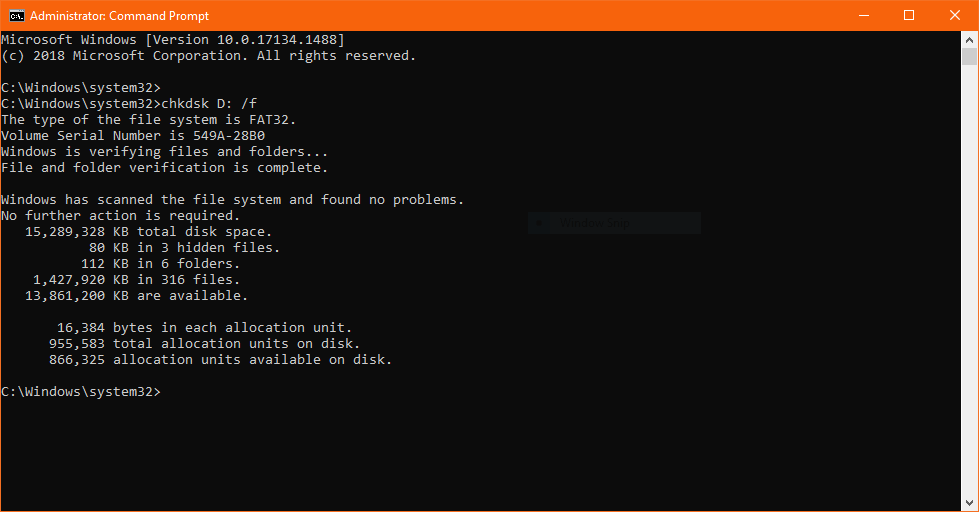
Step 3: Wait for CHKDSK to finish.
Step 4: After the process is complete, reboot the computer.
If the above methods don’t work you need to use data recovery software to recover deleted or damaged CR2 files.

RAW Image Format Supported: This Media File Recovery software recovers RAW images like ARW, SR2, ORF, MRW, 3FR, RAW, X3F, PEF, DNG, RAF, KDC, K25 and DCR etc.
Camera brands supported: This application is compatible to even recover photos from canon camera, Sony camera, Nikon, Olympus, Kodak, Panasonic, and Fujifilm etc.
Operating systems supported: All versions of Windows and Mac OS X including Windows 11, 10, and older versions like 8, 7, Vista, XP, Server 2003 & 2008, 2000, and macOS Monterey, Big sur, and other older versions.
What else can Remo Recover software do?
- Even if the Canon camera card is formatted or the card is inaccessible due to corruption problems, this digicam photo recovery software comes in handy to guide you to recover all lost multimedia files in an easy way.
- The software lets you recover files from canon CF card, XD card, SD card, MMC card, SDHC card, and many more.
- Not just cr2 and CRW files, the tool can even recover jpeg files from formatted hard drive, partition, pen drive, etc.
- You can also make use of this tool to restore data from RAW partitions or deleted partitions. After recovery, you can easily locate the recovered file based on the file name, type, or on the basis of other file attributes using ‘Advanced Filter’ option.
- Also, the tool lets you recover data from memory cards, external hard drives, pen drives, etc. However, the entire recovery process requires a few minutes.
For any sort of assistance related to the recovery process, you can get in touch with the customer support team available round the clock.