Almost everything you see today is digital. Nowadays, if you lose your digital media files, it means you have lost something significant. However, it's not the end of the road; you can perform digital media recovery using good digital media recovery software, such as Remo Recover, to regain all your digital data.
Did we mention it's free? Yes, it is free to download and try
Digital media is almost everything you see around you, from images, videos, audios to complex databases is a form of digital media.
It is very easy for me to say that we live in a 100% digital world, and it has become convenient. Most of us have an old picture of ourselves re-rendered digitally or cleaned via a digital camera. So it obvious that it holds a irreplaceable value on our lives, loosing them would be very frustrating.
If you are one of the users who has lost or deleted your important media files and are wondering how to recover them, this write-up is for you.
If you had lost your digital media files, first thing you need to do is to stop using the device right away to avoid overwriting of data. And try these following methods to recover deleted media files.
If you deleted media files accidentally on your Windows or Mac, the first thing you can do is to go to Recycle Bin or Trash and restore deleted media files from them. If you have deleted photos,videos or any other media files.
This will restore all the digital media files on their original location. If in case if you have shift+deleted files you wouldn’t be able to recover them from Recycle Bin or Trash.
If the above-mentioned method has not worked well for you. Then, your only resort is to make use of a professional digital media recovery software
Your precious multimedia files might be stored on various devices such as flash drives, USB or SD cards, or compact flash cards. You need capable and robust software to retrieve them.
Remo Recover is one such tool that can efficiently recover data from almost all modern-day storage devices. It can understand up to 500+ file formats, making it possible to recover almost all lost media files in just a few clicks.
I had to recover files in a partition…
"I had to recover files in a partition failed disk Runing Remo recover was easy and the result, showing the Tree Catalogue of the disk helped, me a lot to chose what files I had to copy. wonderfull help in a desperate case"
Source: Trustpilot
Follow these simple steps to recover all you lost multimedia files
Step 1: Download, install Remo Recover on your computer.
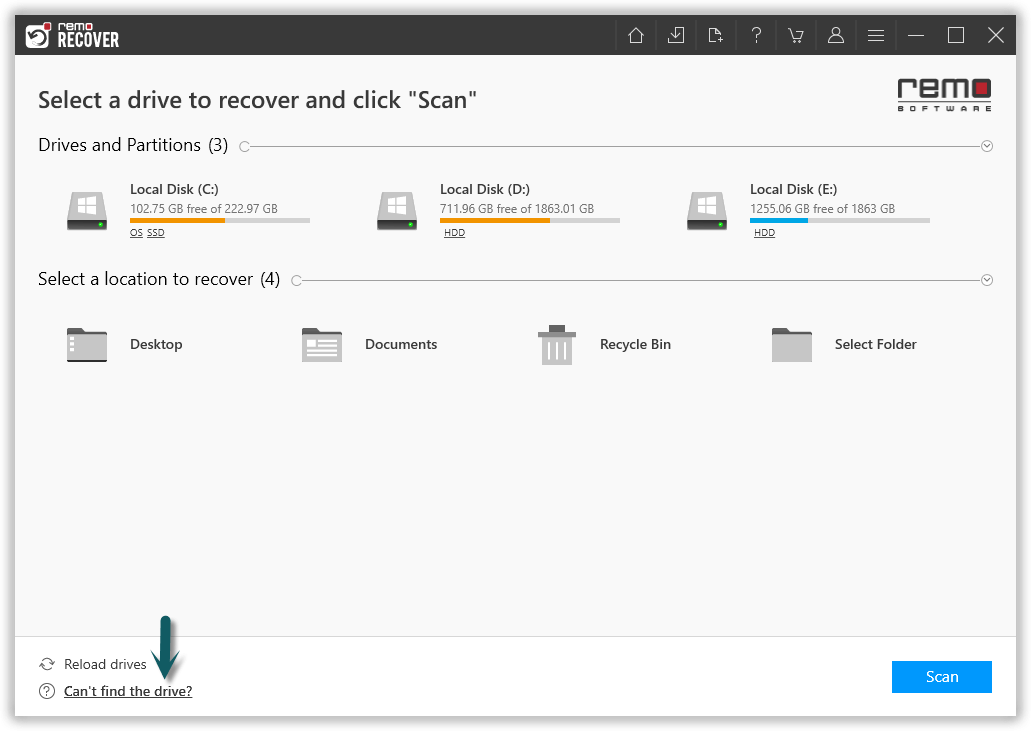
Step 2: Launch the software and select the drive from where you want to recover deleted media files and click on the Scan button.
Note📌: If you couldn’t locate your storage device, you can click on the Can’t find the drive? option to locate them.
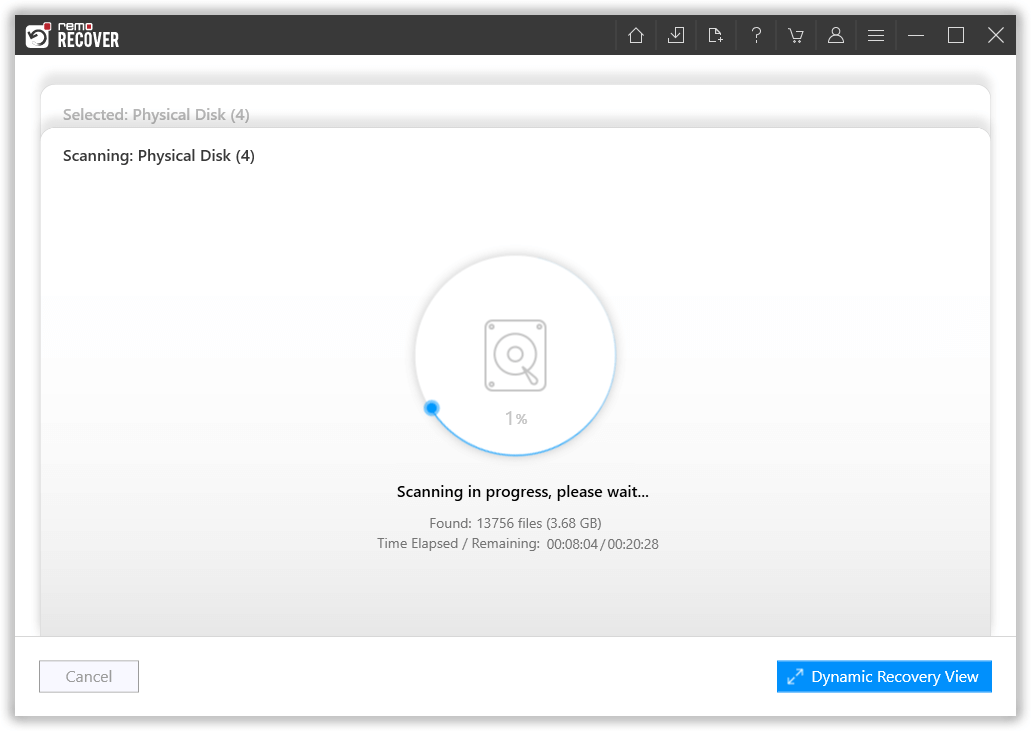
Step 3: Once the Quickscan is completed, you can click on Dynamic Recovery View to see the initial multimedia recovery from the device.
Step 4: You can locate your deleted or lost multimedia files under Deleted Files folder and Lost and Found Files folder as the software progresses with automated Deep Scan.
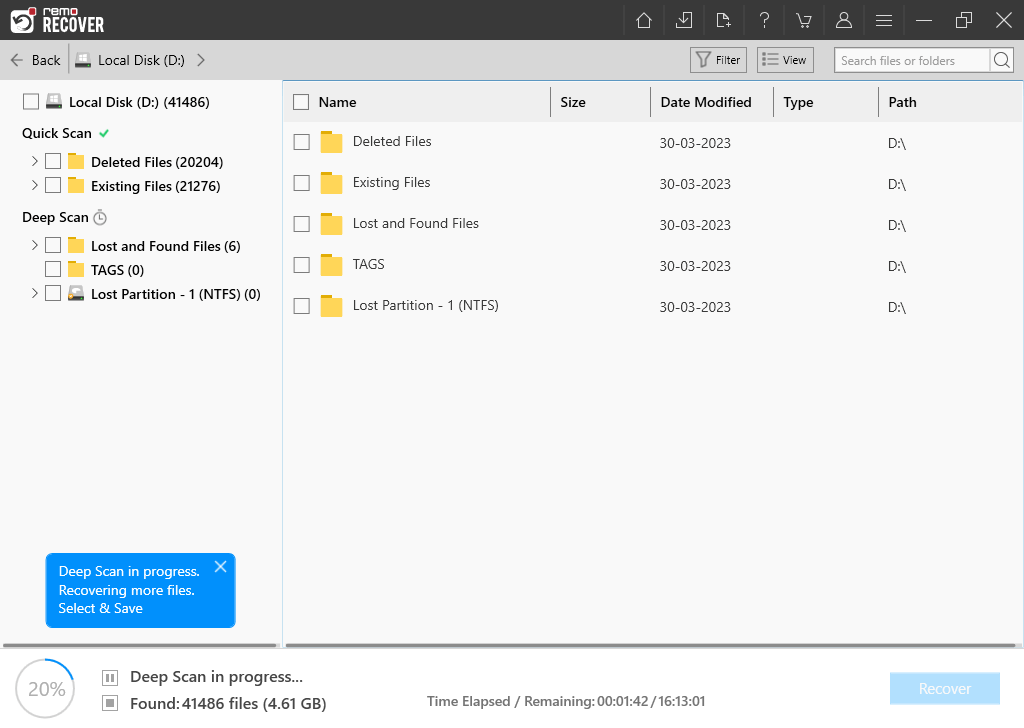
Tip💡: You can use the Advanced filter or Search Box option to locate your recovered digital media files much more easily.
Step 5: Double-click on the media file to preview (NO ADS or PURCHASE REQUIRED), and if you are satisfied with the recovered multimedia file, then click on Recover to save them on your computer.
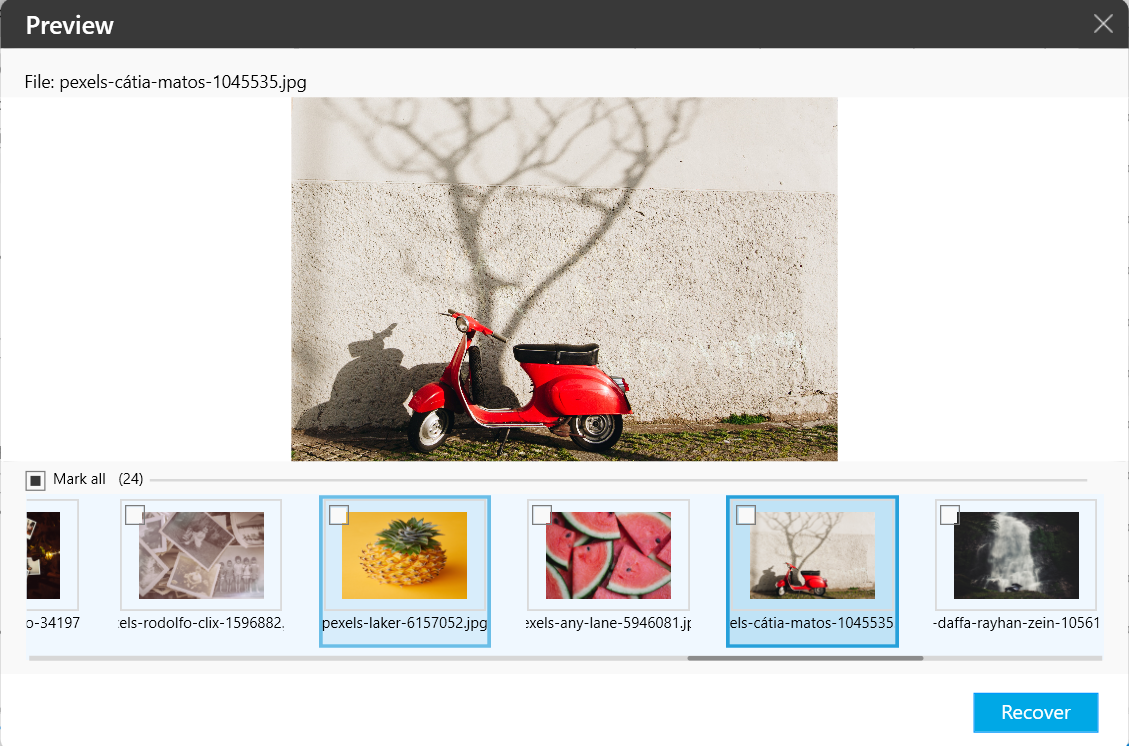
Caution🛑: Save the Recovered digital media files in a different location than the previous one to avoid losing them again.
Having a backup of your media files and organizing them well is always recommended to avoid losing them. This article intends to help those who are looking to recover their digital media files. With Remo Recover, performing digital media file recovery is a cakewalk, whether it's recovering cherished memories like photos and videos or essential business document files from all types of data storage devices. Download and experience it yourself.
Why Choose Remo?
100% safeSecure
100% SatisfactionGuarantee
10 Million+Downloads
Free TechSupport
Live Chat24/7 Support

