Running into trouble while opening Outlook is the worst way to start your day. Don't worry, with this article, you will be able to repair Outlook with some common troubleshooting methods. In case you have a corrupt PST file causing this issue, you can easily repair Outlook PST files with advanced PST repair software by Remo. Irrespective of the severity of the issue, you can repair Outlook by the end of this article.
Microsoft Outlook is one of the best platforms to manage, plan and collaborate your work. Faulty Outlook application could be due to virus, errors in program files or corruption in Outlook data files. Hence repairing Outlook becomes crucial as it holds information like emails, meetings, attachments, tasks etc. A crashing or freezing Outlook should be repaired to avoid any halts in your work and regain access to all your mails, calendar and notes. However, repairing Outlook can involve the multiple troubleshooting methods depending on the source of the problem. Read through the following sections to learn effective ways to successfully repair Outlook on all the versions including 2019, 2016, 2013 and 2010.
There are 3 Tools installed on Windows That you can use to repair Outlook and they are
This tool is used when there is an issue with the application and its program files. In order to fix your Outlook application, you can follow the instructions mentioned below:
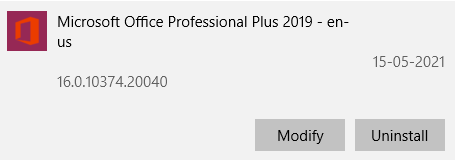
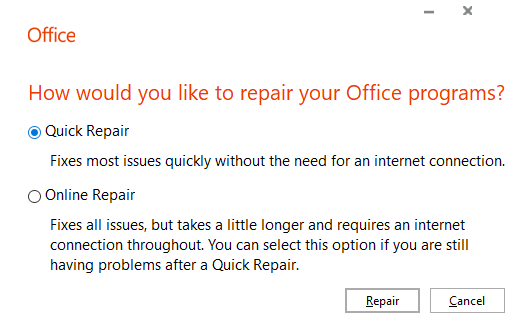
If the Quick Repair option does not work, you can try the Online Repair option.
Now Open your Outlook and login with your email address of Office 365. This way you can repair Outlook 365 on your Windows easily.
Note: Choosing Online repair option will make you lose all your Outlook settings and customization.
The Inbox Repair Tool is a built-in utility that is useful in fixing Outlook data files. The tool is very effective in fixing headers of the corrupt PST files that are crucial to running the application. You can repair your PST files using ScanPST.exe by following the instructions below-

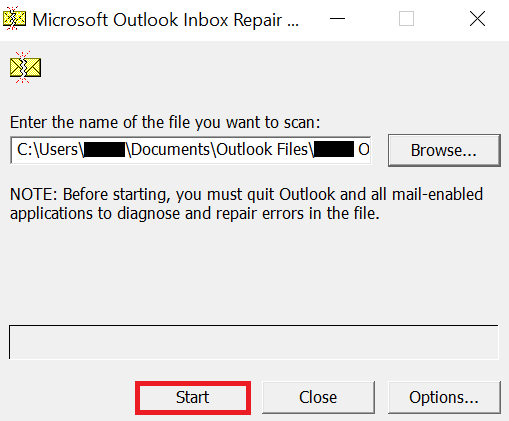
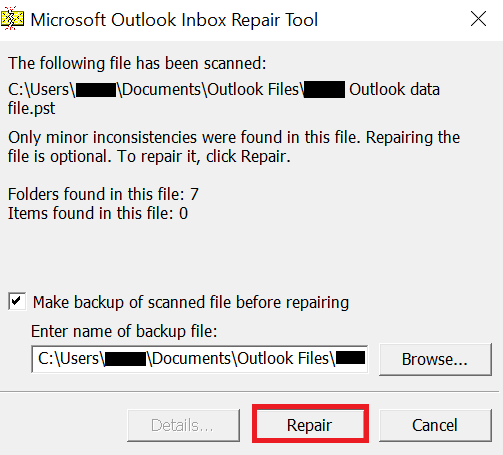
The above-mentioned troubleshooting step might help you fix the issue. However, there are possibilities that the utility might fail in fixing critical errors such as fixing PST header file corruptions. Hence, it is recommended you make use of a PST repair tool to repair your corrupt Outlook PST file.
In order to repair outlook, download and install the Remo Repair Outlook software and follow the below mentioned steps.
1. Launch the Remo Repair Outlook PST
Download, Install, and launch the Remo Repair Outlook PST software.
2. Select Preferred PST Import Method
Select one of the three options-
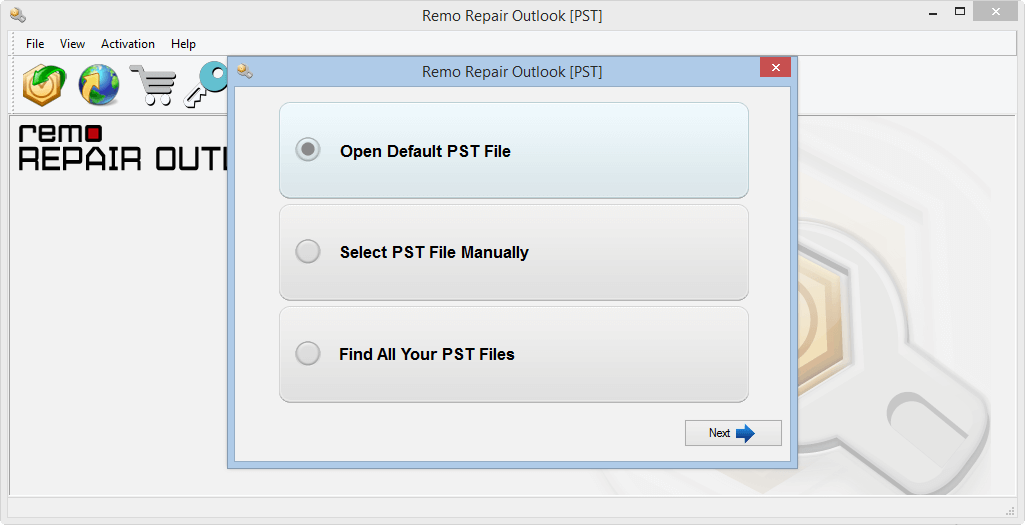
After choosing an option, click on Next to continue.
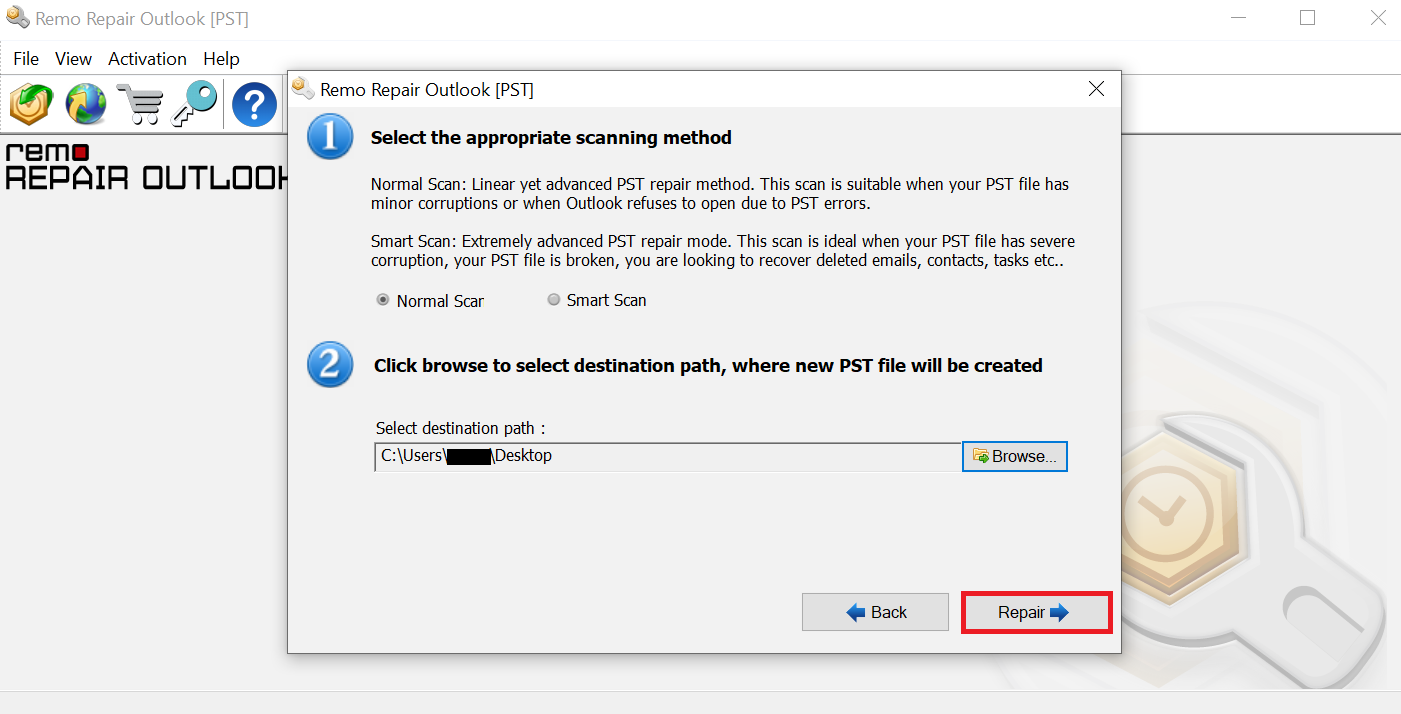
3. Choose Scan Type
You get two choose between the following two options-
Normal Scan: Suitable for Outlook files that have lower levels of corruption.
Smart Scan: This option is capable of repairing files with severe corruption and can even retrieve deleted items such as notes, calendars, notes, etc.
4. Select Destination Folder
You can use the Browse option to select a destination path. Your healthy Outlook file will be exported to this location after the repair process. After selecting the destination location, click on Repair to begin the repair process.
5. Preview Repaired PST File
After the PST repair process, you can use the Outlook-styled browser to preview the results. If you are happy with what you see, you can activate the tool and save your healthy PST file.
The Microsoft Inbox repair tool can be used to repair Outlook in case of minor corruption. As the article indicates, the possibility of repairing Outlook is very low and the chances of data cannot be denied. However, in case you are stuck in a situation where the Inbox repair tool has failed to fix Outlook issues do not worry. You can always depend on Remo Repair Outlook software and fix the Outlook problem in no time.
Frequently Asked Questions
If you are unable to access your Outlook information due to a corrupted file, you can repair your Outlook data files (PST) using ScanPST.exe.However, If your Outlook data file has high levels of corruption that ScanPST.exe is unable to solve, it is recommended to make use of a professional PST repair tool.
Here are some common causes for Outlook not working-
If you plan to use Scanpst or any other PST repair tool to repair your Outlook data files, please ensure that you close Outlook first.
Why Choose Remo?
100% safeSecure
100% SatisfactionGuarantee
10 Million+Downloads
Free TechSupport
Live Chat24/7 Support

