Accidentally deleted the DCIM folder on your SD card? Wondering how to restore photos from the DCIM folder? Worry no more, this article will help you recover deleted DCIM folder easily with the help of Remo Recover. To quickly restore the DCIM folder from your Android phone SD card or Camera SD card.
Recover Deleted DCIM folder
"I was backing up photos from my iPhone onto my computer and accidentally deleted the dcim folder. All my photos are still on the phone but when I plug it back into the computer it won’t connect and I don’t see the dcim folder. What can I do to recover the folder?"
Source: Reddit
Table of Contents:
The DCIM folder is an acronym for Digital Camera Images folder, which is an automatic folder created on flash memory cards in the camera or the camera application on Android or iPhone to store the captured images. In this article, we will discuss various reasons for the loss of the DCIM folder and also how to recover deleted DCIM folder.
Note 📌 : During such cases we strongly suggest you to stop using the memory card to increase the chance of recovering deleted files or folders.
Now, that you know what is DCIM Folder What happens if the DCIM Folder is permanently deleted, and what causes the deletion of the DCIM folder? Now we will move with how to get your DCIM folder back.
If you have accidentally deleted the DCIM folder from your Phone or Camera, no worries. You can restore the DCIM folder using 3 different Ways.
To get My DCIM folder back from your SD card and camera you need to make use of a professional photo recovery software. Remo Recover is the most recommended photo recovery software to recover photos and videos from my DCIM folder. This tool has the flexibility to scan for inaccessible/deleted folders and recovers Videos, Music or any other Media files safely. Download the tool for free and try it for yourself.
To recover the DCIM folder from the from any device connect the device to the computer.
Step 1: Download and install Remo Recover on your computer
Step 2: Launch and select the drive from which you want to recover the DCIM folder and click the Scan button.
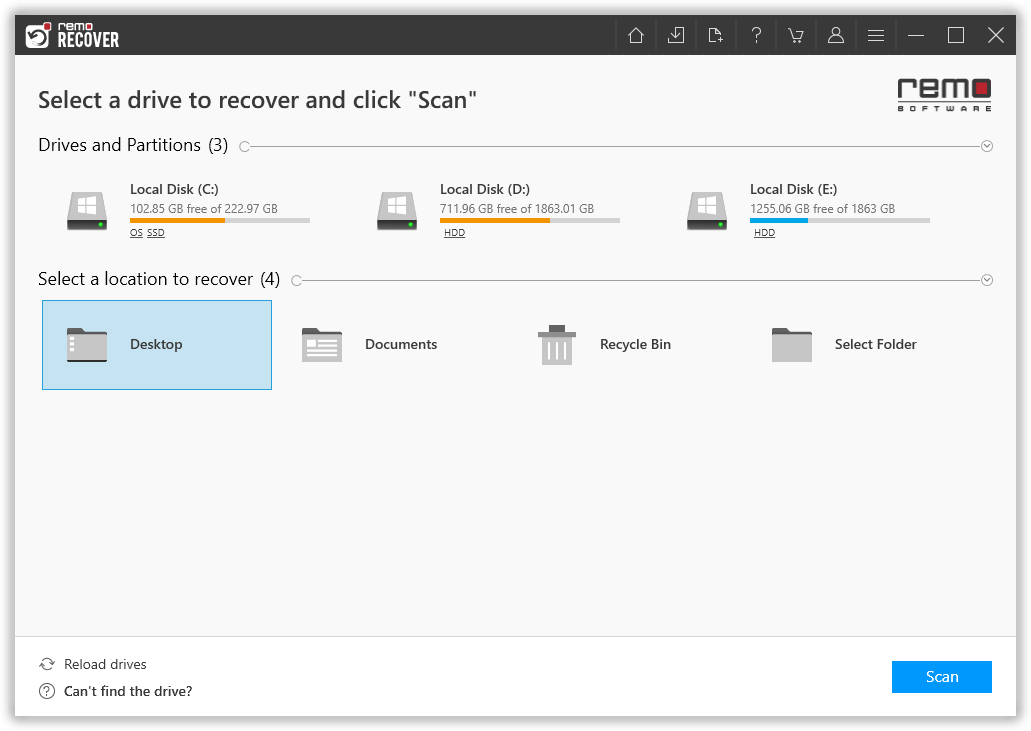
NOTE 📌: If you couldn't locate your device, then click on Can't find the drive option to locate it.
Step 3: After completion of QuickScan, click on Dynamic Recovery View to see the files and folders as they are being recovered.
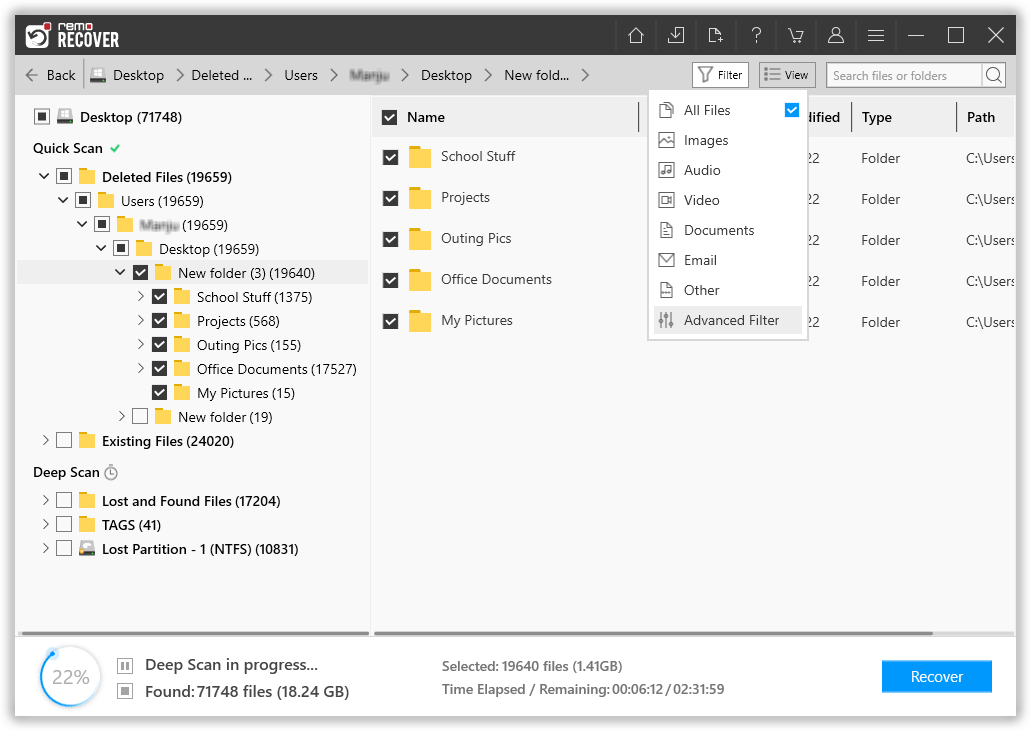
Step 4: Once after Deep Scan is completed you can locate your deleted DCIM folder under the Lost and Found files folder.
Suggestion: Make use of features like Advanced filters and a Search box to locate the files and folders much more easily.
Step 5: Double-click on the files to preview the files for free.
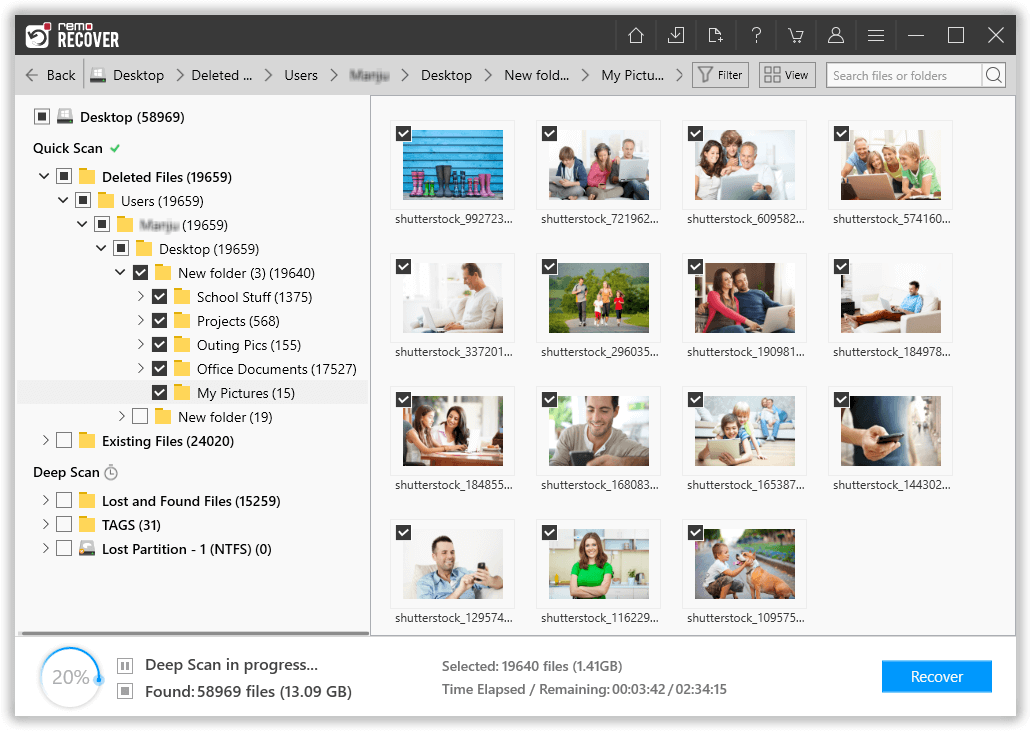
Step 6: Once after locating the deleted DCIM folder, you can click on the Recover button to save the folder on your location of choice.

Attention ⚠: Save the Recvoerd DCIM folder in a different drive or Volume to avoid losing them again.
In addition to the DCIM folder, Remo Recover supports different types of digital media file recovery and restores them back quickly. It also helps you sort the recovered media files based on their name, date, and file size. You can even connect your mobile SD card and make use of the Remo Recover tool to recover MP3 audio, image files, videos, etc.
Once the process is complete you will be able to see the DCIM folder on the SD card.
As the DCIM folders are stored on the portable storage devices such as SD cards, you might be plugging these drives to different computers. Therefore, DCIM can get deleted easily. However, by taking proper backup of the drive, you can easily recover the lost media files from the backup. But if you have come across data loss, make use of Remo Photo Recovery Software to recover the DCIM folder.
Frequently Asked Questions
The DCIM stands for Digital Camera Image, it is an automatically created folder by your digital cameras, and smartphones to save all the captured images.
In order to access your DCIM folder, you firstly need to connect your smartphone or camera to you computer using a USB cable.
Yes, you can recover deleted or lost photos and videos from DCIM folder. This can be done quickly and effectively with the help of a professional DCIM photo recovery tool. Follow the instructions provided in this article, to recover DCIM folder.
Why Choose Remo?
100% safeSecure
100% SatisfactionGuarantee
10 Million+Downloads
Free TechSupport
Live Chat24/7 Support

