User Query: I bought a Seagate Backup Plus portable hard drive because it can automatically save backups of all my media files, such as images, movies, music, and more. I was very happy to see my favorite data secured, but one day I was completely stunned when one of the Seagate Backup Plus partitions was missing. For a moment, my heart stopped, and I still couldn't understand how it happened despite all the safety promises. Can someone help me with this? How can I recover the lost partition from my Seagate Backup Plus hard drive?
Losing a partition from your Seagate Backup Plus drive can be a nightmare. Whether it's due to accidental deletion, formatting errors, or even a corrupted file system, the loss of valuable data can be a distressing experience. But don’t worry; this helpful article will help you recover a lost partition from your Seagate Backup Plus drive. But before we proceed to the recovery steps, it's important to understand the reasons behind the partition loss from the Seagate Backup Plus Hard Drive.
Common Causes of Lost Partitions in Seagate Hard Drives
Several factors can contribute to the loss of a partition on your Seagate Backup Plus drive. Understanding these causes is the first step towards recovery.
- 🤦♂️ Accidental Deletion: Human error is a common culprit. Accidentally deleting a partition instead of a file can lead to its loss.
- 🦠 Virus or Malware: Malicious software can corrupt or damage partitions. Ensure your drive is protected with up-to-date antivirus software.
- 🛠️ Disk Management Errors: Incorrect Windows Disk Management tool actions can inadvertently lead to partition loss.
- ⚡ Power Outages: Sudden power outages or improper drive ejection can result in partition issues.
- 📁 File System Corruption: A corrupted file system can render a partition inaccessible.
Methods To Recover Lost Partitions from Seagate Backup Plus External Hard Drive
Below we have added two proven methods to recover lost partition from your Seagate Backup Plus portable external hard drive:
Method 1: Check Disk Management
One effective way to recover a lost partition on your Seagate Backup Plus drive is by utilizing the built-in Windows Disk Management tool. This method allows you to identify and reassign a drive letter to the lost partition, making it accessible once again. Follow these simple steps to retrieve data from Seagate Backup Plus drive.
Step 1: Connect your Seagate Backup Plus drive to your computer.
Step 2: Right-click on "This PC" and select "Manage."
Step 3: Navigate to "Disk Management" under "Storage."
Step 4: Look for your Seagate Backup Plus drive in the lower section of the window. You might see your lost partition labeled as unallocated space.
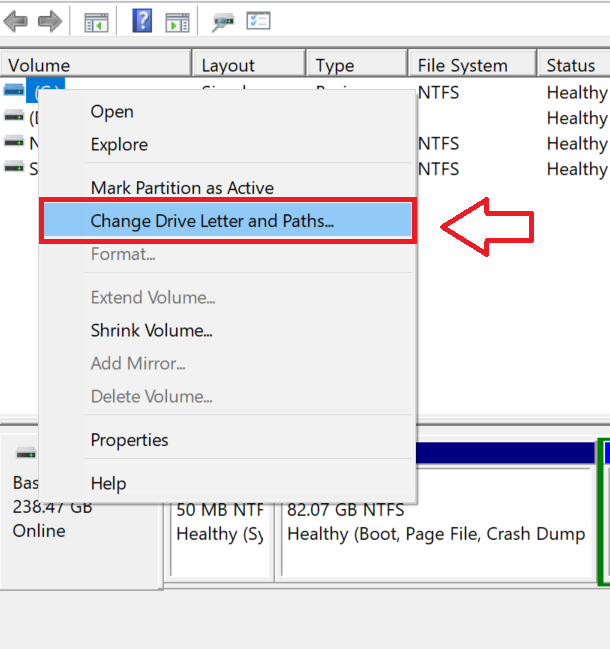
Step 5: If you find the lost partition, right-click on it and select "Change Drive Letter and Paths." Assign a drive letter to it, and it should become accessible again.
Method 2: Use Partition Recovery Software
To recover a lost partition from the Seagate Backup Plus hard drive, you need one of the best partition recovery software options: Remo Recover.
Remo Recover is a well-known product that can efficiently restore missing partitions on Seagate Backup Plus hard drives on both Windows and Macintosh systems. It is designed with a user-friendly interface to smoothly carry out the partition recovery process. If you're a first-time user, you can use this tool easily.
This partition recovery software can quickly locate your files from the list of recovered data based on their file name, creation date, extension, size, and date in just a few minutes. It supports lost partition recovery from various Windows/Mac file systems, including FAT16, FAT32, NTFS, HFS+, HFSX, and ExFAT, making the process straightforward. Download this tool now and follow the simple steps below to initiate the partition recovery process from your Seagate hard drive.
Steps to Recover Missing Partition from Seagate Backup Plus
Here are the steps to recover a missing partition from a Seagate Backup Plus hard drive:
- Download and install Remo Recover software on your computer.
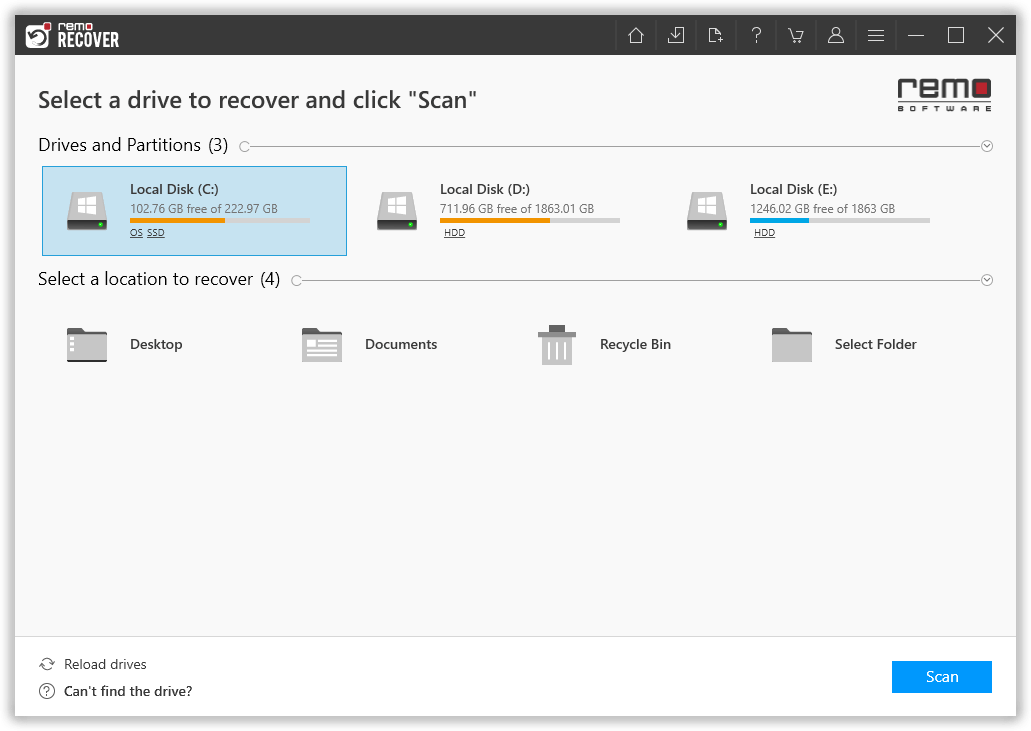
- Select the partition you lost from your Seagate Backup Plus hard drive and click the Scan button.
- After initiating the scan, you can navigate to the Dynamic Recovery View to retrieve lost files from your missing partition while the scan is in progress.
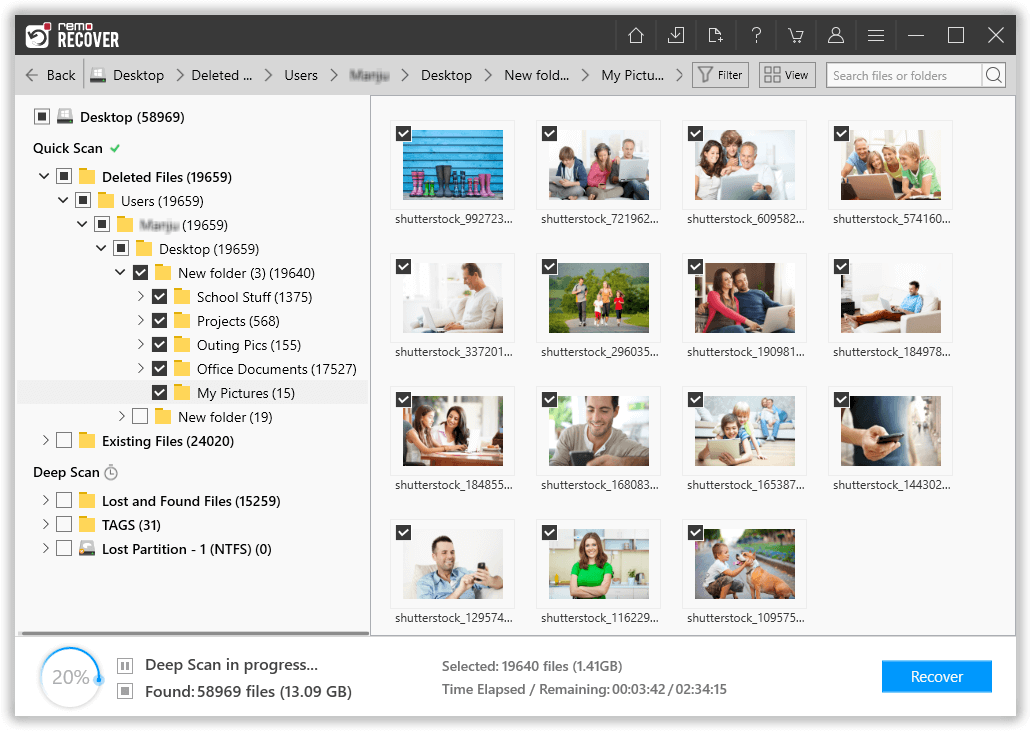
- Once the scanning process is complete, you can find your lost data in the Lost and Found or Lost Partition folders.
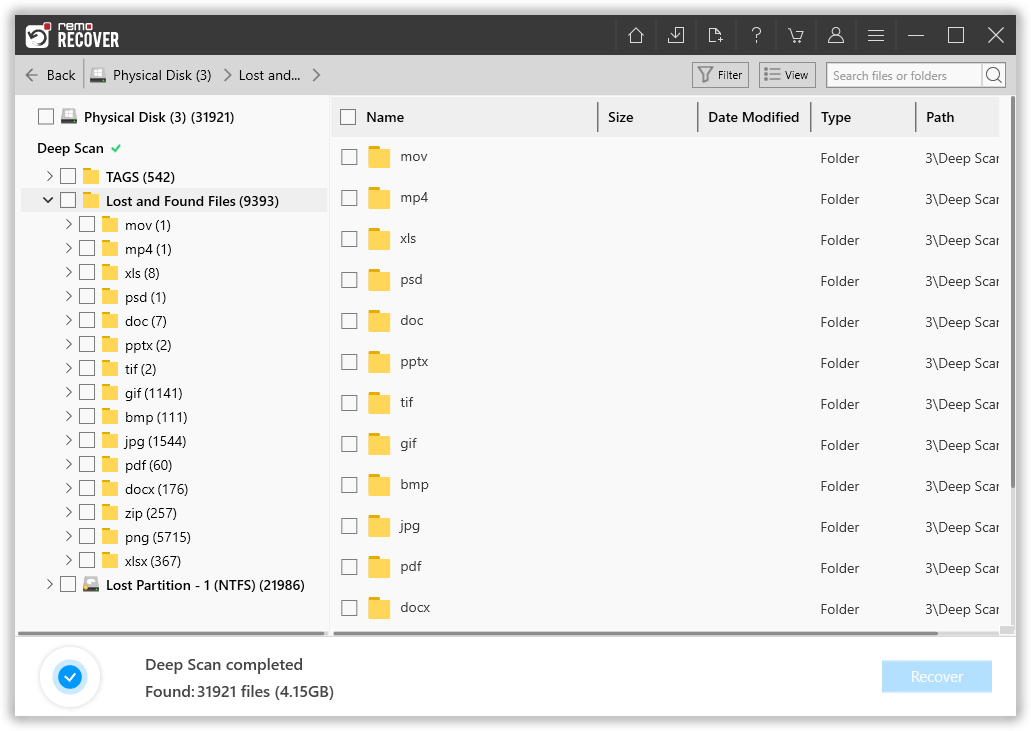
- You can double-click on any file to Preview the files that have been recovered so far from the lost partition.
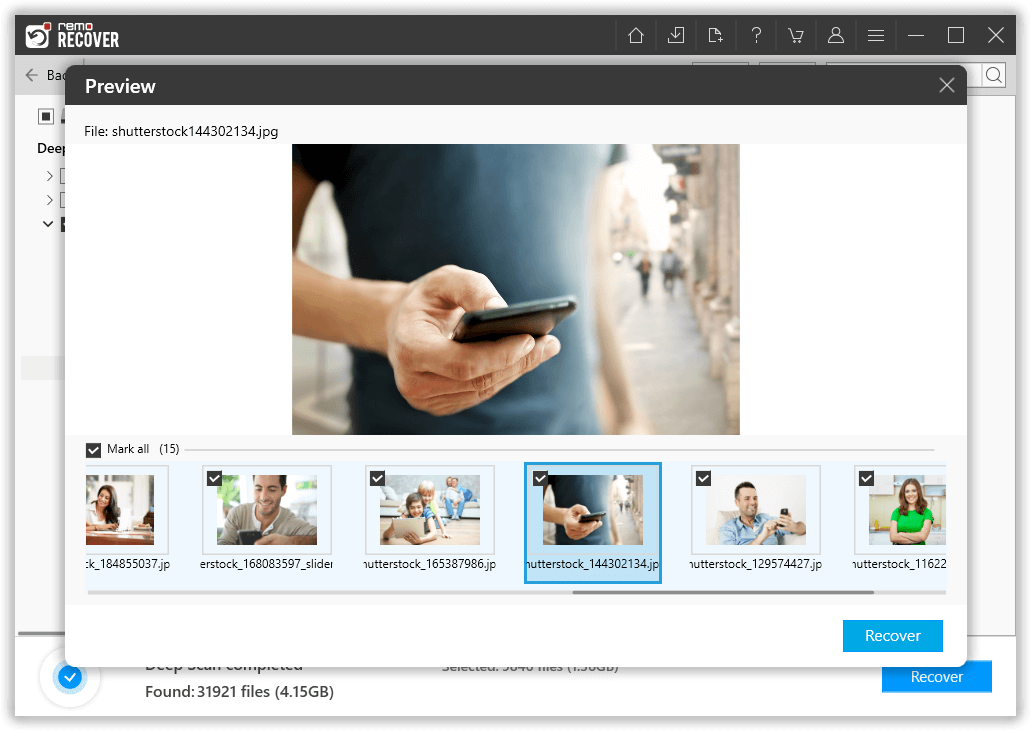
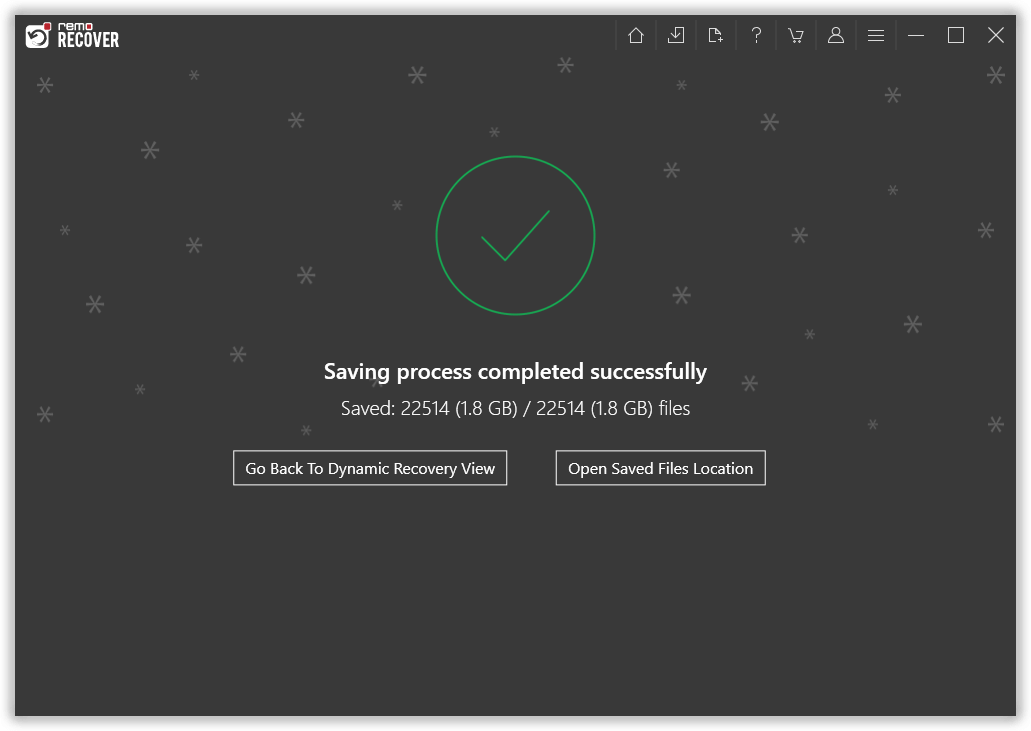
- If you are satisfied with the recovery results, select the files you want to restore and click the Recover button to save them to your desired location.
Conclusion
Losing a partition from your hard disk drive can be incredibly frustrating, but it's important to remember that it's not the end of the world. This is a relatively common issue, with approximately 30% of cases attributed to human error. Regardless of whether the fault lies with you, there's a straightforward solution for Seagate Backup Plus lost partition recovery, which comes in the form of Remo Recover.