When searching for SD cards online or offline, it's highly likely that you will come across SanDisk SD cards. Known for their incredible speeds and reliability, SanDisk cards are widely popular. However, even with their advantages, users may encounter data loss issues. If you find yourself in such a situation, don't worry, we've got you covered. With Remo Recover, SanDisk memory card recovery becomes a walk in the park for both Windows and Mac users.
If you are well-versed in SD cards, then Sandisk is a name that you are likely already familiar with. So, let's skip the introduction and get straight to the reason you're here—recovering your lost data.
Whether you have accidentally deleted files, experienced a formatting error, or encountered any other data loss issue with your SanDisk SD card, rest assured that you are not alone. Many SanDisk SD card users discuss SD card recovery on the internet, seeking solutions and sharing their experiences.
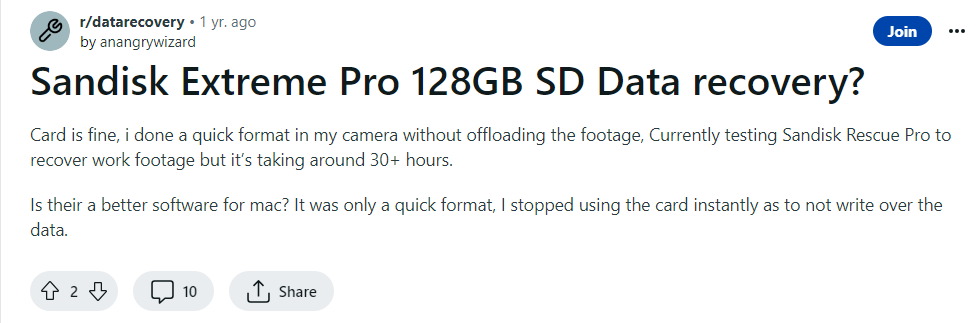
Source: Reddit
Table of Contents:
Before initiating the Sandisk SD card recovery process, ensure to verify a few things and do some troubleshooting.
Sometimes, the data on your SanDisk SD card may not be lost or deleted.
Insert Properly: Ensure that your SD card is inserted properly into the slot.
Verify Hidden Files: Verify the hidden files on your SanDisk SD card.
Update the Drivers: Check if the device drivers are outdated; outdated drivers may prevent access to your data.
Check for Physical Damage: Verify if the SanDisk SD card has any damage near the pins or in any other area.
Try Another Card Reader: Use a different card reader to attempt to access the SD card data.
Run Error Checking: A few errors can prevent you from accessing the Sandisk SD card data, you can use a built-in tool to scan and fix those errors.
This will repair minor errors and corruption issues in your SanDisk SD card, enabling you to access the files stored on it.
If you have done all the above and are still not able to see any data from your Sandisk SD card then You must approach SD card recovery software to perform SanDisk card recovery.
Apparently, Sandisk offers their own data recovery software called SanDisk RescuePRO® and RescuePRO® Deluxe for their products, you can definitely give it a try as the tool can recover videos, images, documents, music, etc.
The only limitation that the tool has is that it can only recover data up to 64 GB and supports only a few file formats.
SanDisk data recovery can get quite risky depending upon your choice of data recovery software. Make use of Remo Recover which is a highly trusted and reviewed software to recover data from various storage devices. This tool is designed with read-only mode algorithms to help you recover data from any brand of SD card securely.
Be it deletion, missing SanDisk data, or a formatted or corrupted SD card, Remo Recover restore data in just 6 simple clicks. This SanDisk SD card recovery tool not only restores files lost or deleted from your micro/ SD card but also from other storage devices like external hard drive, pen drive, SSD, etc. Moreover, this best SD card recovery tool can get back more than 500+ file formats such as photos, raw-images, videos, audio files, documents, Office files, and many more.
Successful recovery of priceless images...
Tried everything to recover priceless images on a failed SD card. Discovered Remo and it did the trick, perfect and full recovery. I'm not very technical, Remo support has been amazing - fast and got me through it… Highly recommended…
Source: Trustpilot
To recover SanDisk SD card data, download and install Remo Recover software on your Windows or Mac.
I can assist you in recovering data from SanDisk SD cards using Remo Recover. I did this effortlessly with my 32 GB SanDisk SD card on my Windows laptop, which has an Intel i3 core processor and 8 GB RAM.
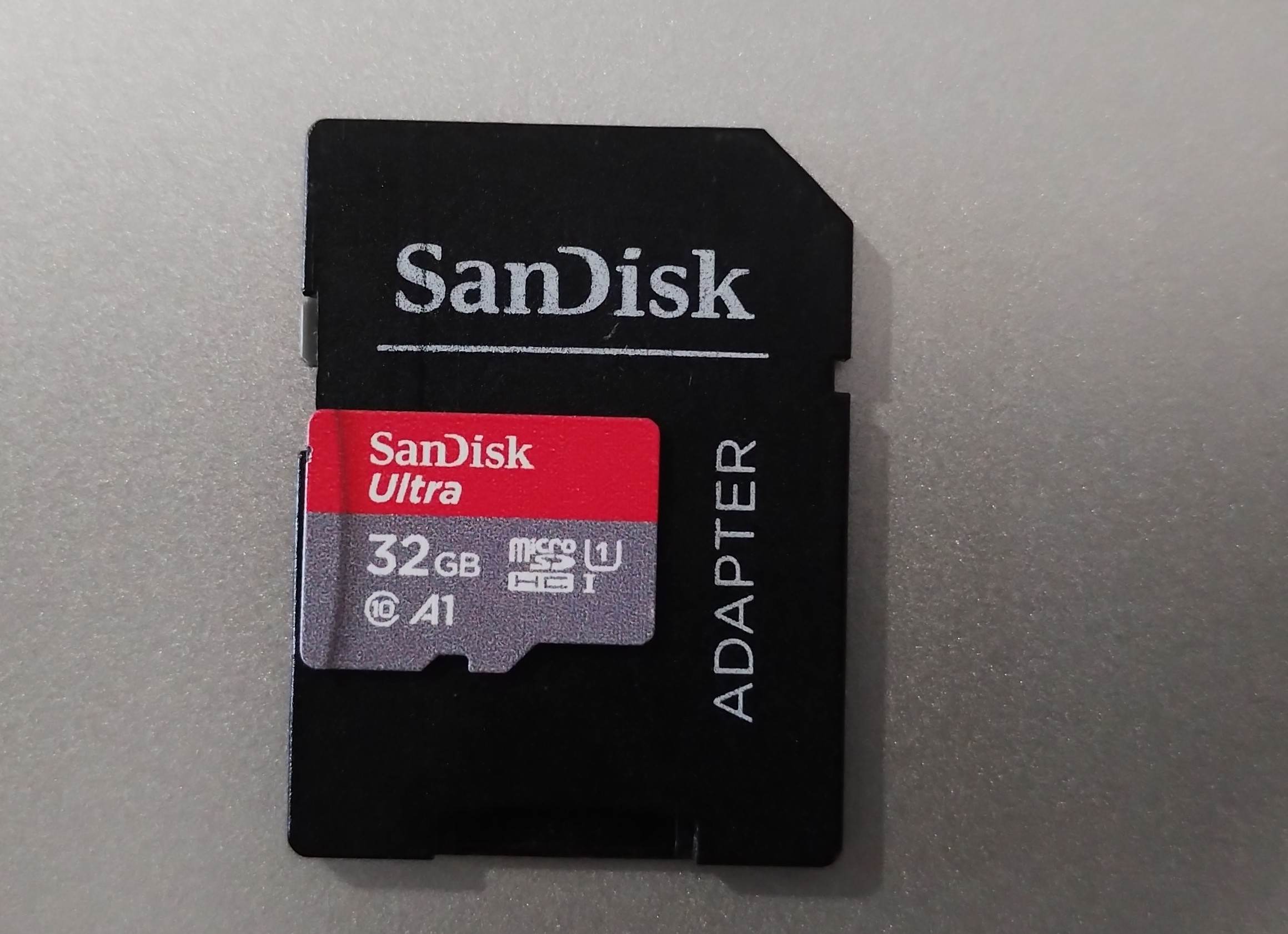
Step 1: Launch the Remo Recover tool and connect your SanDisk memory card to your system.
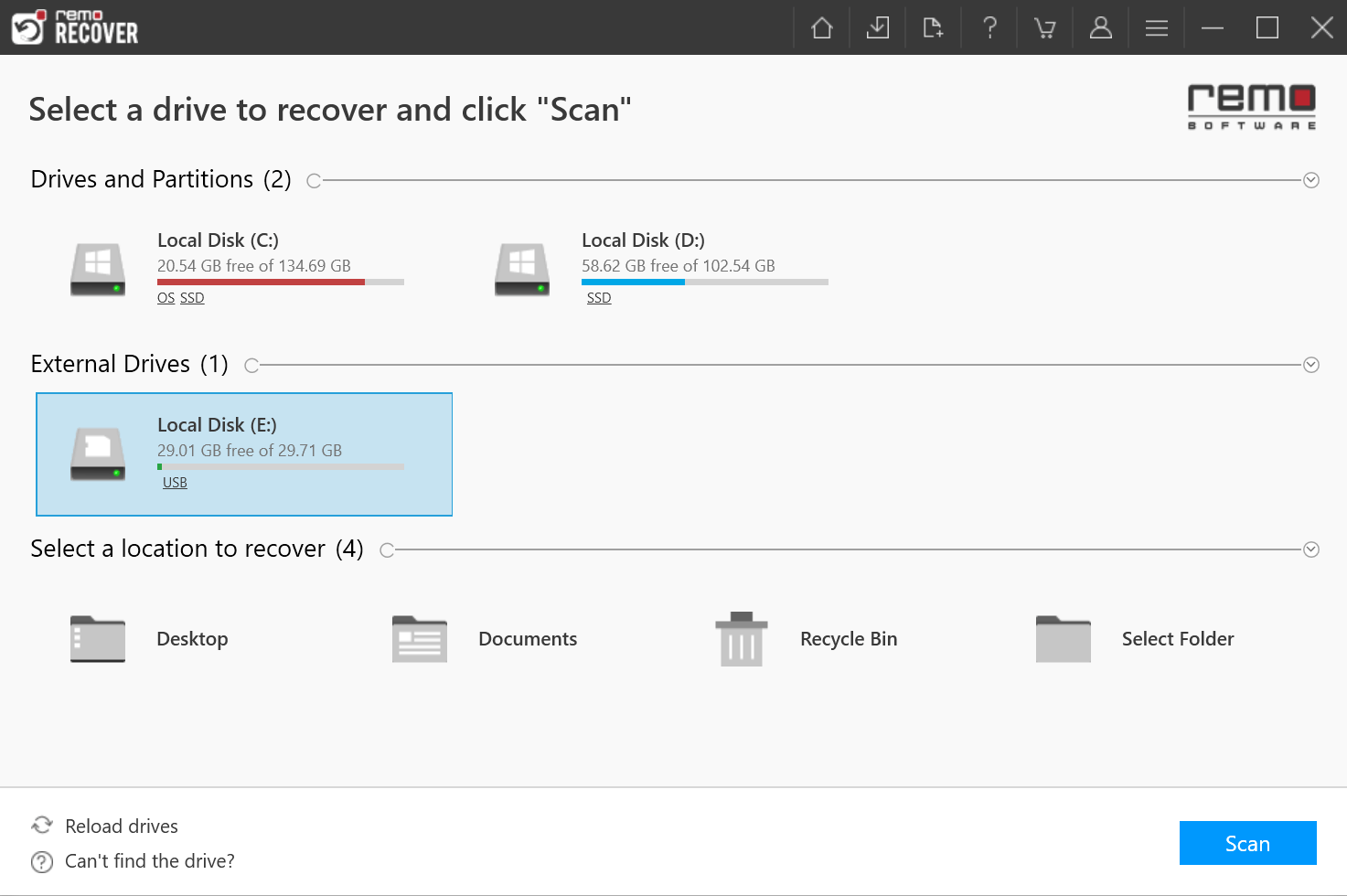
Step 2: Select the SanDisk SD card drive to restore data from it. Click on the Scan button to initiate the scanning process. If the connected drive didn't appear on your screen. Click on the Can't find the drive? option.
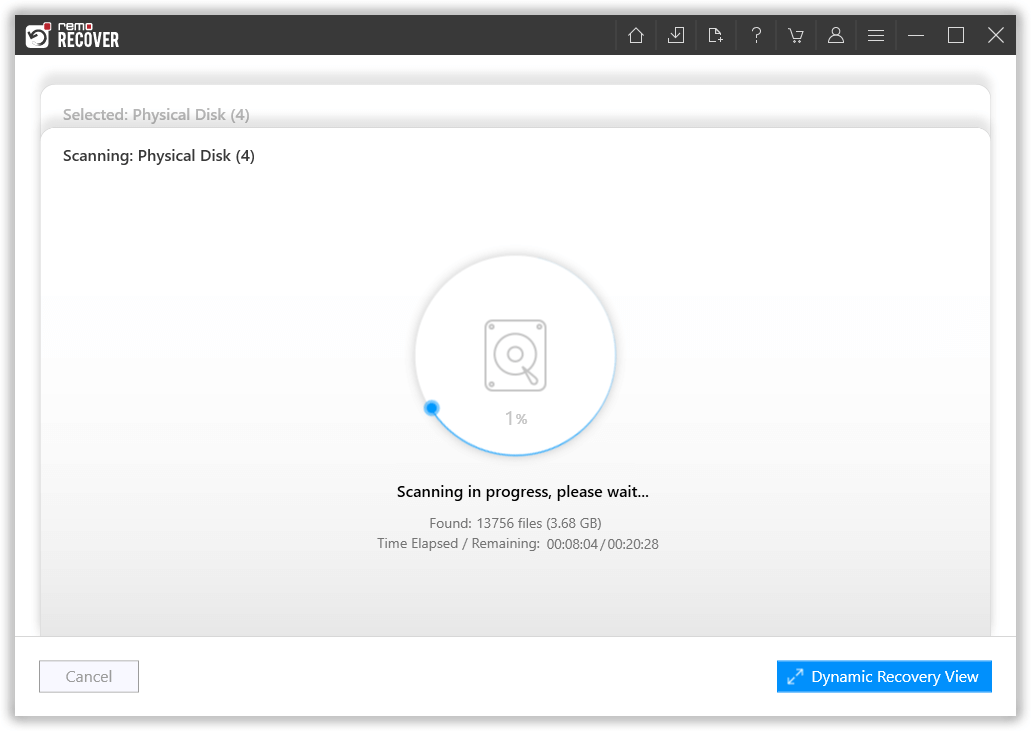
Step 3: The tool is built with Dynamic Recovery View option, which allows you to have a look at the recovered files without having to wait till the completion of the scanning process.
Step 4:. After the scanning process completes, all your recovered data from SanDisk memory card will get displayed.
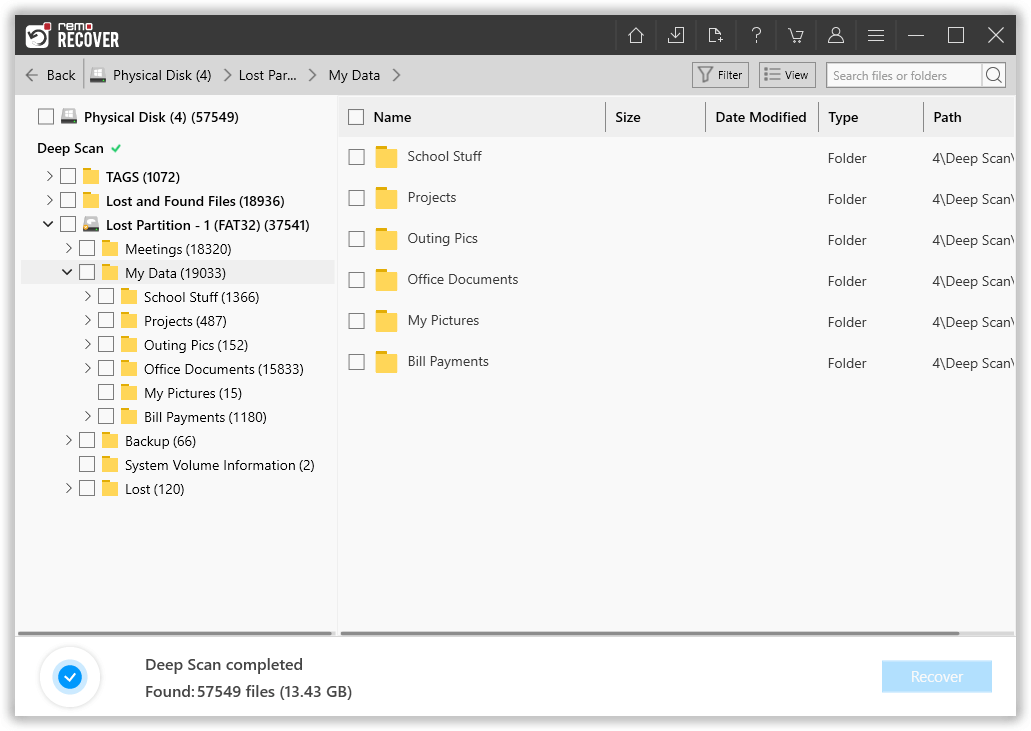
Step 5: Double-click on the recovered files to Preview it. You can make use of the Filter option to sort the files based on file types.
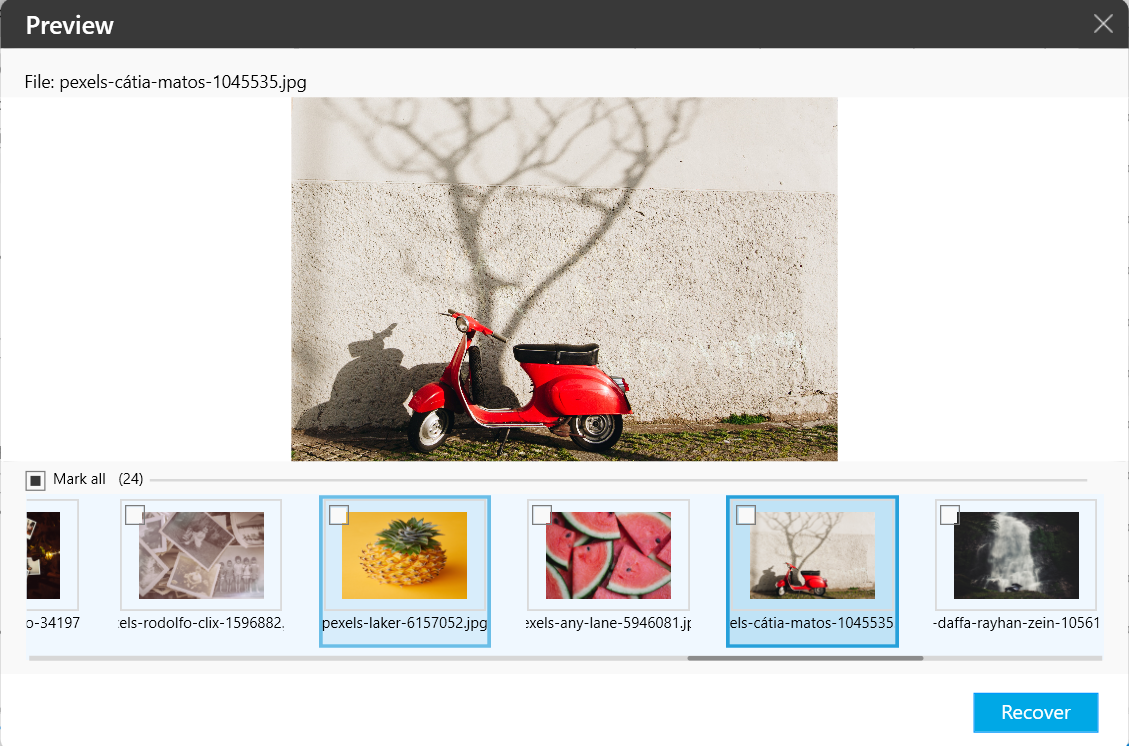
Step 6:. Select the files, photos, or videos that you want to recover from SanDisk micro/ SD card. Click on the Recover button to select a location to restore them.

It took me 20 minutes to complete the entire SanDisk SD card recovery process using Remo Recover. The recovery time may vary depending on the size of the data you are trying to recover.
Note: Recovering a specific file type can be confusing if you are recovering a large number of files on SD card. So, Remo Recover will classify the files into the File Type View and Data View to make your work hassle-free.
Remo Recover’s compatibility:
Note - The tool is compatible with different SanDisk SD models like SanDisk Extreme PRO microSDXC UHS-II, SanDisk Extreme PRO microSDXC/SDHC UHS-I, SanDisk Extreme PLUS microSDXC/SDHC UHS-I and others
In this article, you have learned how to perform SanDisk recovery like an expert. However, this article is not just limited to SanDisk recovery, it can also be used to recover data from all types of storage devices. However, it is suggested to follow the safety precautions mentioned in this article to avoid SanDisk data loss scenarios.
Why Choose Remo?
100% safeSecure
100% SatisfactionGuarantee
10 Million+Downloads
Free TechSupport
Live Chat24/7 Support

