
One of the issues that have troubled some users of Outlook has been of PST file not showing emails. We have solutions to solve this error. In this article, we will help you solve your emails not showing in Outlook error.
Quick note: If you have accidentally deleted emails and looking to recover them, click here to know how to recover deleted Outlook emails.
Given below are 4 methods that you could adopt to fix PST files not showing emails Outlook Error-
Methods to Fix PST File is not Showing Emails in Outlook
Method 1: Change Your Outlook Settings to Fix Outlook PST File not Showing Emails
- Open your Outlook application.
- Click View
- Now select Change View.

- In the context menu, click IMAP message.
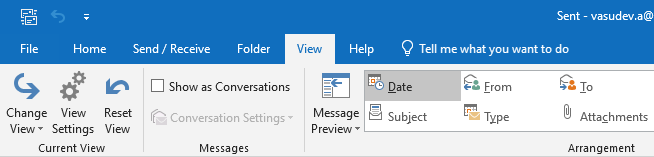
Refresh your mail and check if you can view any emails. If not, check the filter settings and remove filters that have been applied to the message box. To do so,
- Click View -> Customize Current View.
- Now click Filter -> Clear All.
Does your PST file now contain emails? If your answer to this question is No, your PST might well be corrupted.
Method 2: Resolve Outlook PST Could not be Found Using Scanpst.exe
Microsoft has a built-in repair tool, scanpst.exe to repair all your corrupt Personal folders (PST) and Outlook data (OST) files.
Note: to remove errors in your PST file, you need to run the ScanPST tool at least 6 to 7 times. Before you run your Inbox Repair Tool, ensure that Outlook is closed.
You can manually locate ScanPST using the table below-
| Outlook Version | ScanPST Location |
| Outlook 2021 | C:\Program Files (x86)\Microsoft Office\root\Office16 C:\Program Files\Microsoft Office\root\Office16 |
| Outlook 2019 | C:\Program Files (x86)\Microsoft Office\root\Office19 C:\Program Files\Microsoft Office\root\Office19 |
| Outlook 2016 | C:\Program Files (x86)\Microsoft Office\Office16\ C:\Program Files\Microsoft Office\Office16\ |
| Outlook 2013 | C:\Program Files (x86)\Microsoft Office\Office15\ C:\Program Files\Microsoft Office\Office15\ |
Open Inbox Repair Tool ScanPST.exe
Double-click on scanpst.exe to open the file.

- Now click Browse to select your corrupt PST file.
- Select Start to begin the scan.
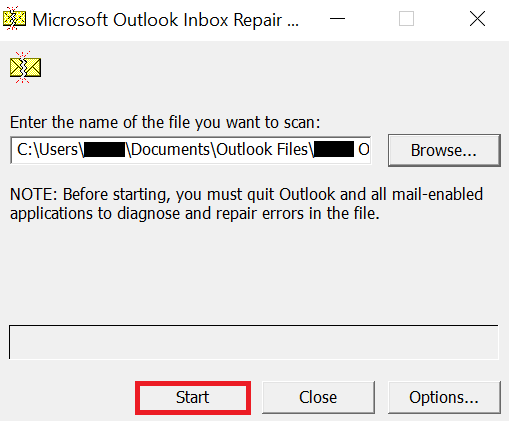
- If the scan returns errors, click on Repair to fix all the errors.
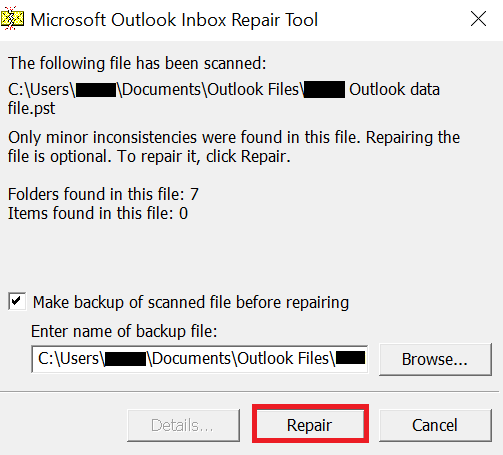
- Once the repair is complete, restart Outlook and check if you can see all the emails in your PST file.
Method 3: Reset All Views in All Folders
You may also utilize the reset view function in Outlook 2010/2013/2016/2019/2021 to reset the folder view. This solution will easily resolve the Outlook PST File Not Showing Emails.
- Start MS Outlook and look for the folder you wish to change the display of.
- Change the view by tapping on it. Then, from the drop-down menu that appears, choose a view mode.
- Press the reset view button on the view tab. Select Yes in the next dialogue box that appears. Following that, your selected folder will be restored to its original state.
- Now select View > Change View from the drop-down menu. Choose Apply Current View to Other Mail Folders from the Change View drop-down box.
- Select the checkbox for mailboxes and their subfolders’ in the Apply View dialogue box that appears.
Select the Apply View to Subfolders option as well. Finally, press the OK button using Remo Repair Outlook
Method 4: Using Remo Repair Outlook
If your Outlook application is still not showing emails after trying the above methods, Remo Repair Outlook provides a simple solution to repair all your damaged or corrupted PST files and safely restore data from them.
Remo Repair Outlook overcomes the limitations of Scanpst.exe as well. The scanpst.exe tool cannot handle large PST files or password-protected PST files. Remo Repair Outlook can repair PST files of all sizes as well as retrieve files from PST files that have password protection.
If you have deleted any folder in Outlook by mistake, you can recover deleted folder in Outlook easily through Remo Repair Outlook.
Steps to Fix PST File Not Showing Emails using Remo Repair PST
Steps to Fix PST FIle Not Showing Emails Using Remo Outlook PST Repair Tool
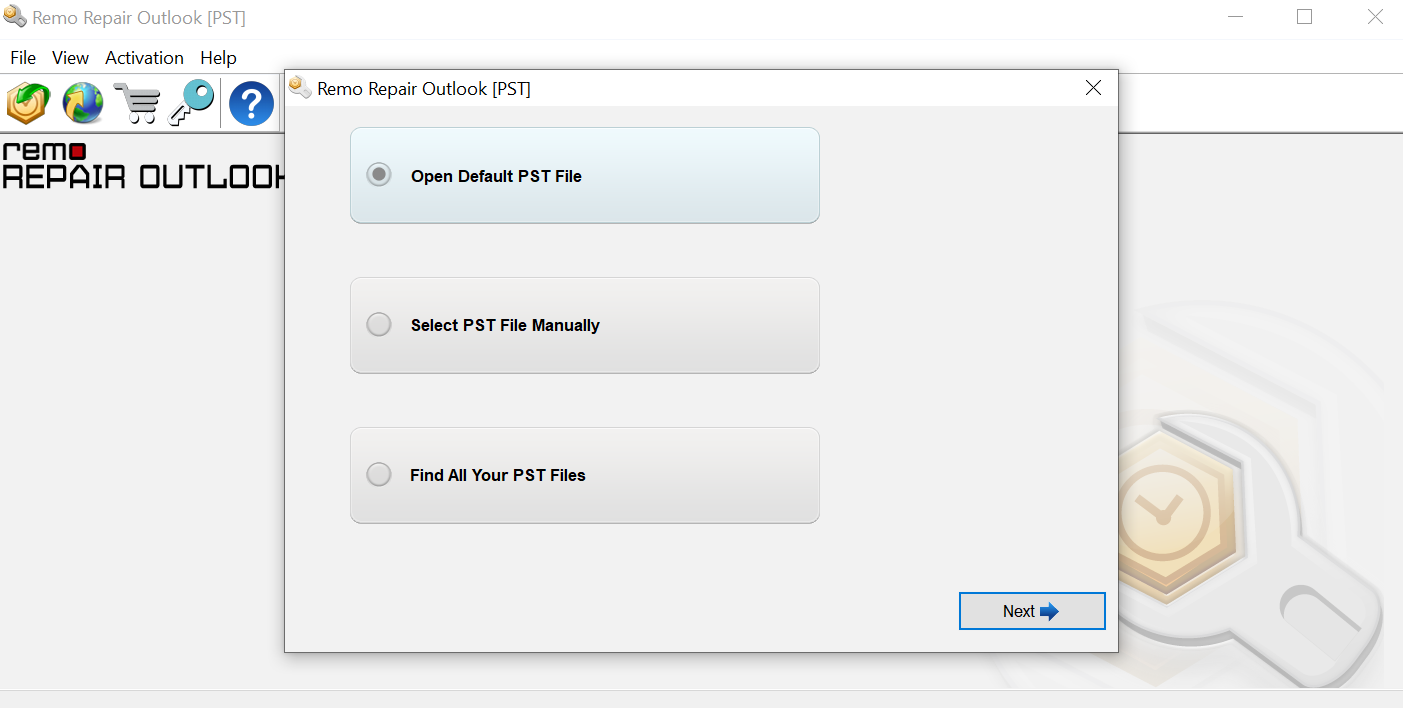
Step 1. When the main window appears, select the PST file that has to be repaired using the Browse option. There are 3 options to pick the Outlook data file-
1. Open Default PST File: To select the PST file from the default location
2. Select PST File Manually: PST file is not in its default location, then you can specify the path of your PST file to select it using this option
3. Find All your PST Files: To select the PST file, If you are unaware of the PST file location
Step 2.
Select Scan Type
Next, choose either Normal Scan or Advanced Scan.
Normal Scan - For low corruption levels
Advanced Scan - For high corruption levels
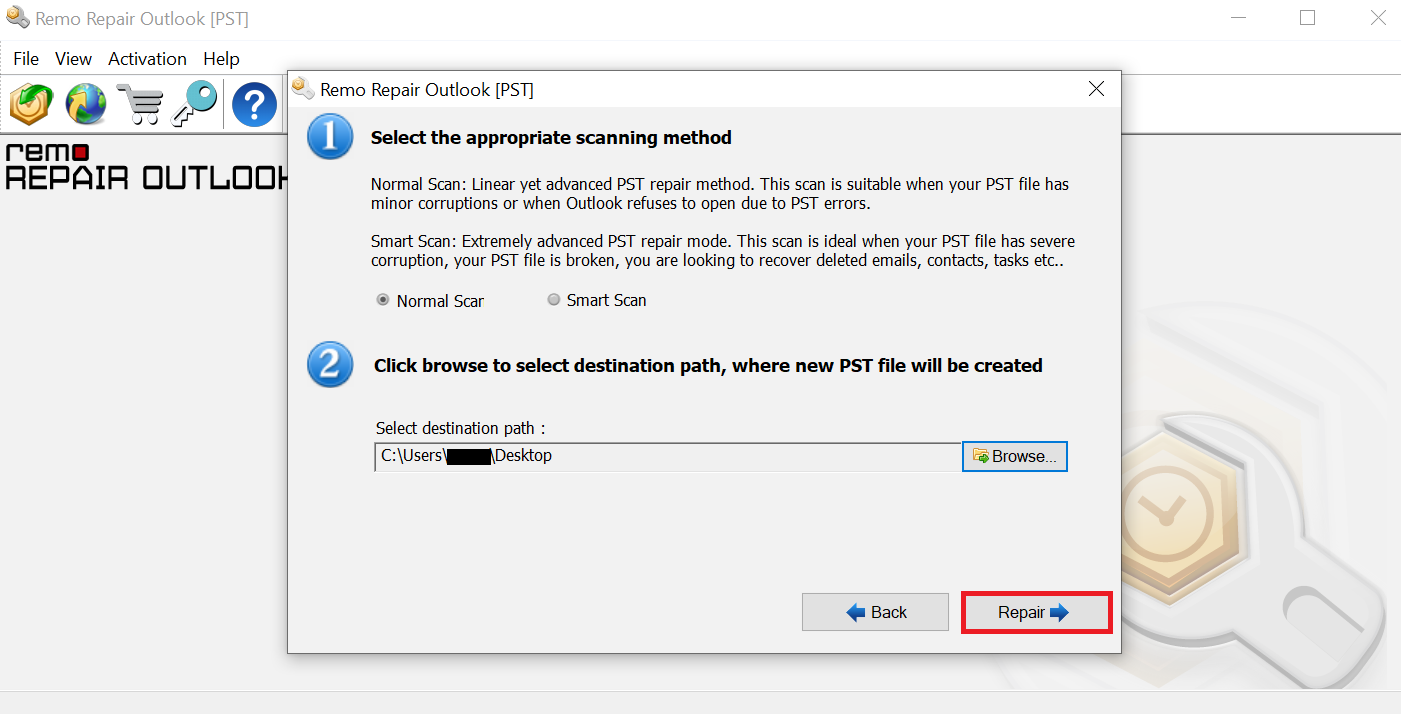
Step 3. Select a destination location to import the repaired PST file. You can use the Browse Option to do so. After selecting the destination file click Repair.
Step 4. When the repairing process is completed, view the recovered Outlook emails and import the repaired PST file to your Outlook, and access emails.
Conclusion
The above- article summarizes how to fix PST files that are not showing emails in all the versions of Outlook 2010, 2013, 2016,2019, and 2021. If you have any further queries regarding the article, please make use of the comment section below to effortlessly know about your questions regarding the above article
There are several reasons for your Outlook not exporting all emails to PST. Here are some of the solutions:
Corrupt Outlook PST file: If your Outlook PST file is corrupt, it might cause the export process to fail or not include all emails. You can try repairing the PST file using the built-in inbox Repair tool scanpst.exe
Size limitation: PST files have size limitations, and if your mailbox contains a large number of emails or attachments, it may not be possible to export all of them to a single PST file. In this case, you can try exporting the emails in batches or creating multiple PST files.
Hidden or deleted items: Outlook may not export hidden or deleted items by default. You can change the export options to include these items by selecting the Include subfolders and Include items marked for deletion options when exporting.
Incomplete export settings: Incomplete export settings may occasionally prevent Outlook from exporting all emails. Make that all of the necessary folders and subfolders are selected for export.
Outlook Version Compatibility: There can be compatibility problems if you try to export emails from an older version of Outlook to a more recent version. Try exporting the emails using Outlook's identical version.
Permission issues: Outlook may fail to export specific folders or emails if you don't have the right access permissions. Verify that you have the required access rights to all the folders and emails you want to export.
To automatically move emails to PST Here are the steps to follow:’
Activate Microsoft Outlook.
Select Info from the File menu.
Manage Rules & Alerts can be selected.
Select New Rule by clicking.
Move messages with specific words in the Subject to a folder
Select specific words and type one or more words that are present in the emails you want to relocate.
Select the PST file where you wish to move the emails by clicking on the specified folder and then browsing.
To close the folder dialogue box, click OK.
To proceed, click Next.
Verify any further restrictions and exclusions you want to impose on the rule.
Select the folder where you want to move the emails by selecting "move it to the specified folder" and checking it.
Any additional actions you want to add to the rule should be checked.
To create the rule, click Finish.
1. Oversized PST file
2. Improper ‘View Settings’ on Outlook
3. Emails going into the Spam folder
4. Corruption of the PST file
5. Methods to Fix PST File is not Showing Emails in Outlook
6. Fix PST File not showing emails in Outlook using the below methods.

