
Congratulations on getting a new system.
If you have ended up here. I am sure you are an Outlook user, who heavily relies on Microsoft Outlook for managing emails, contacts, calendars, tasks, meetings, etc. I also understand that you understand the importance of maintaining the familiar Outlook setup, personalized settings, and configurations.
The old settings add a lot of value to our daily workflow by offering familiarity, ease of use, increased efficiency, and boosting overall productivity.
For most users, the thought of losing these settings when transitioning or moving to a new computer from an old one can be daunting and worrisome.
Many individuals want to preserve personalization, settings, and configurations and maintain their workflow when transitioning to a new computer. They also aim to retain older data, including emails, contacts, calendars, and other information.
This approach makes the process of moving to a new computer more seamless, avoiding disruptions in workflow, ensuring consistency across various devices, and saving significant time and effort.
Therefore, it makes sense to move the Outlook setting to the new computer, and this article will show you how to do it easily and confidently.
- How To Transfer Outlook Settings to a New PC/Computer?
How To Transfer Outlook Settings to a New PC/Computer?
The process of moving anything from one place location to another is the same; you first need to pack your older stuff, move it to the new location, and restore it.
Outlook settings and other Outlook data are no different. You first need to backup or export your Outlook settings, migrate it to your new computer, and import the settings in Outlook. Just a simple three-step process, and you are good to go.
You can try in-built tools like the Import/Export Wizard, which demands manual work and can be a bit time-consuming. Or, you can try specialized tools like Remo Outlook Backup and Migrate that automate the process and make it absolutely seamless.
Method 1: Copy Outlook Settings to New Computer Using Outlook Import/Export Wizard
The Outlook built-in tool Import/Export Wizard is designed to simplify the process of exporting and importing your Outlook data, such as settings, emails, contacts, and other vital data, to a new computer.
Here’s how to export Outlook settings to another computer.
Step 1: Export Outlook Settings and other Data from the Old Computer
The first step in the process is to back up your Outlook.
1: Open the Outlook application on your old system.
2: Click on the File option on top of your screen.
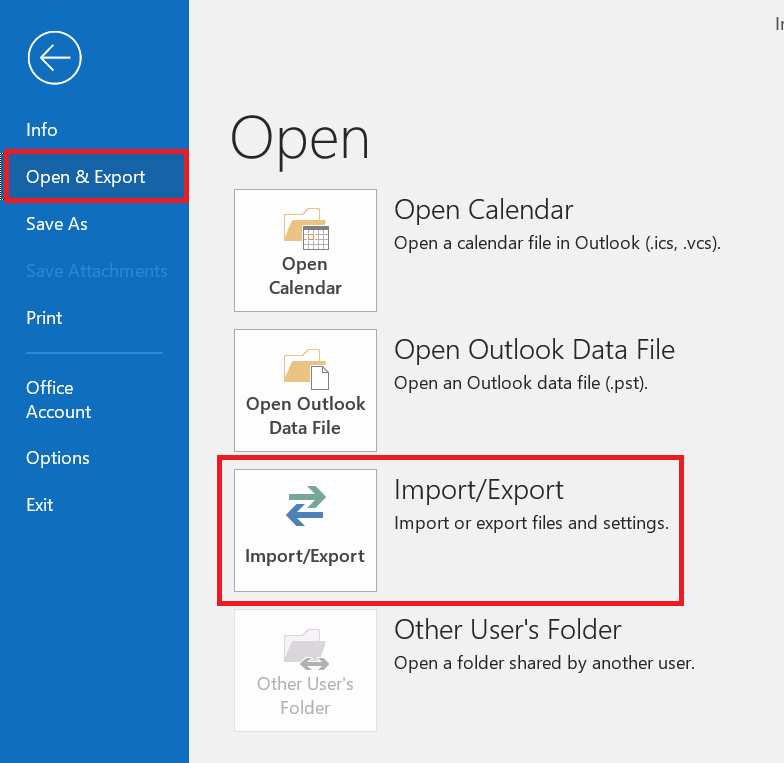
3: Click on the Open & Export option, followed by clicking on the Import/Export.
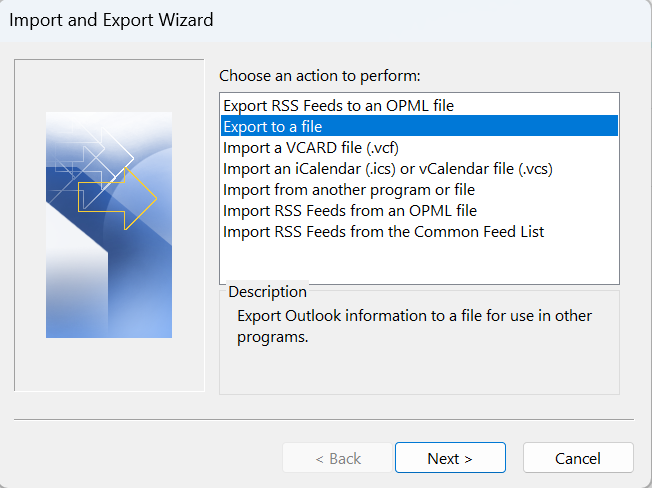
4: In the Import/Export Wizard, click on the Export to a file option and click on the Next button.
5: Select the Outlook Data File (.pst) option and click on the Next button.
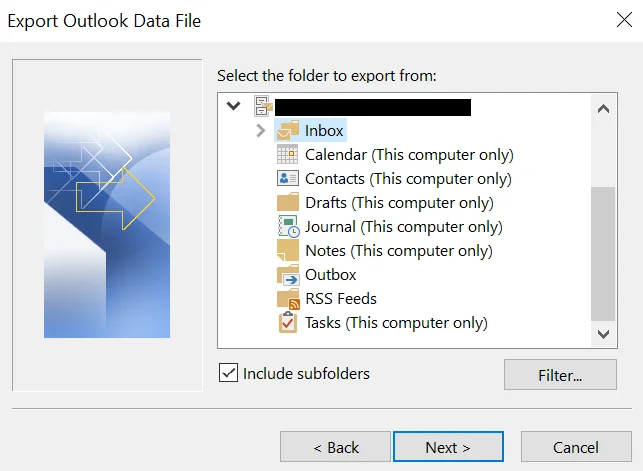
6: Select the folder to export Outlook settings from and click on the Next option.
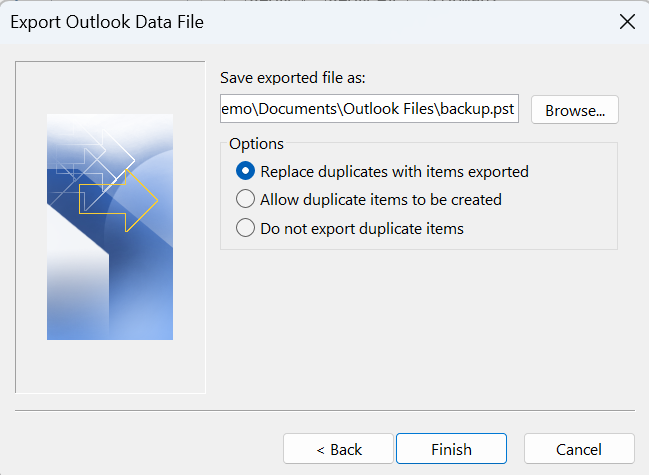
7: You must now browse and select the location where you want to save the exported file. Also, select the appropriate option to deal with the duplicate items, and click on the Finish button to start the Outlook settings export process.
Step 2: Copy and Move the Exported File to the New Computer
Once a new Outlook .pst file is created with all the necessary Outlook settings and saved in the desired location.
You are now required to move the file on any external storage device such as Hard Drive, Solid State Drive, or USB, or even Cloud such as Dropbox, Google Drive, or Microsoft OneDrive.
Step 3: Import the Outlook Settings to the New Computer
Now that you have backed up your Outlook settings and moved them to a safe location, the third step is to import them from the device or the drive.
Connect the external storage device, which contains your exported Outlook settings in a .pst file, to your new computer.
1: Launch the Outlook application on your new system.
2: Go to the File > Open and Export > Import/Export.
3: Click on the Import from another program or file option and click on the Next button.
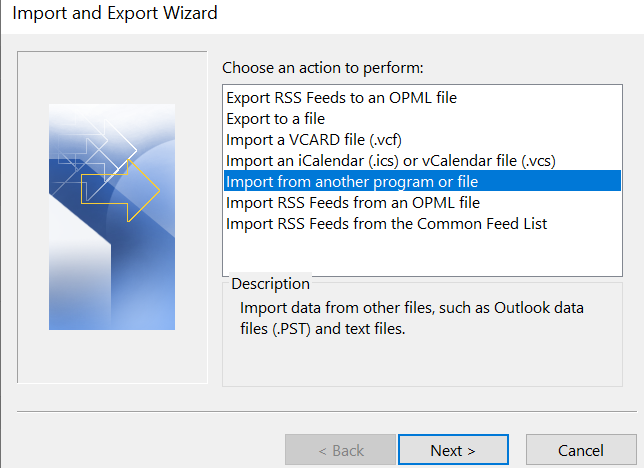
4: Select the Outlook Data File (.pst) and click on the Next option.
5: Browse and select the location where you have saved your file.
6: Choose options like how you want to deal with duplicate items, and also select the items or the folders that you want to import.
7: Click on the Finish option to start importing Outlook settings on your new computer.
You have now imported the data into your new computer. It’s time to complete the process.
Step 4: Complete the Import Process
Close the Outlook application and restart it again. Then, verify if all your Outlook settings and other data, such as emails, contacts, tasks, appointments, and account configurations, have been successfully transferred.
Import/Export is a good solution when you want to move Outlook data from one computer to another, as well as from an older OS to a newer OS.
It often comes with a handful of drawbacks, including incomplete data transfers due to limited scope, effort, time-consuming, high chances of losing data, file corruption, etc.
That’s why tools like Remo Outlook Backup and Migrate exist. They offer a more user-friendly interface designed to streamline the process, making it easier for users to migrate their Outlook settings without requiring any advanced technical knowledge. This saves time and significantly reduces the chances of encountering errors and problems compared to using the Import/Export Wizard.
Method 2: Migrate Outlook Setting to New Computer Using Remo Outlook Backup and Migrate Software
Remo Outlook Backup and Migrate, built to save time and effort, offers more comprehensive backup and migration than the Import/Export Wizard. The tool is designed to back up not only important Outlook attributes such as emails, contacts, and calendars but also other information, including settings, preferences, signatures, rules, and even entire Outlook profiles, in just a few simple clicks, with minimal human intervention.
Additionally, the tool offers more advanced features that are not available in the free tools.
Steps to Move Outlook Account Settings to New Computer Using Remo Outlook Backup and Migrate Software
Part 1: Backup or Copy Outlook Settings from Old Computer
1: Download, install, and launch Remo Outlook Backup and Migrate Tool on your old system.
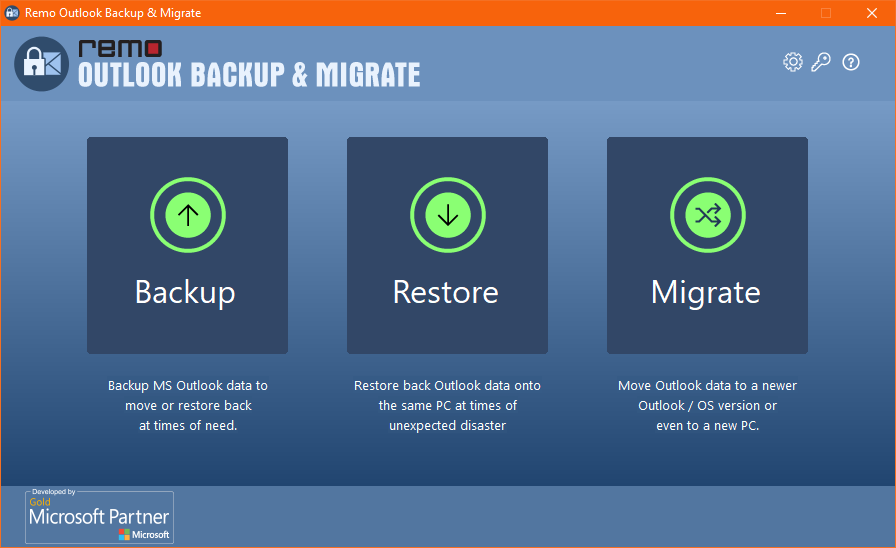
2: From the main screen, click on the Backup option.
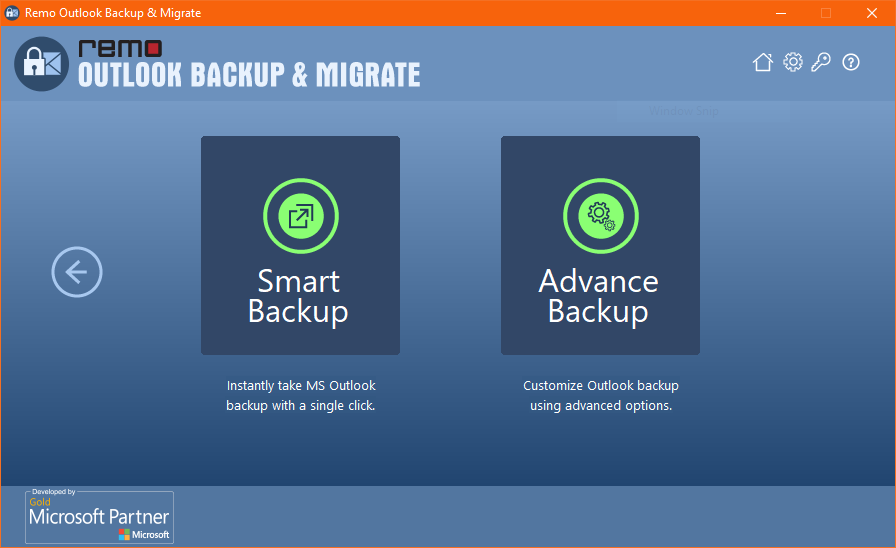
3: You have two options to choose from: Smart Backup and Advance Backup.
Smart Backup: Takes automatic backup of entire Outlook data in a single click.
Advance Backup: This lets you customize the backup process.
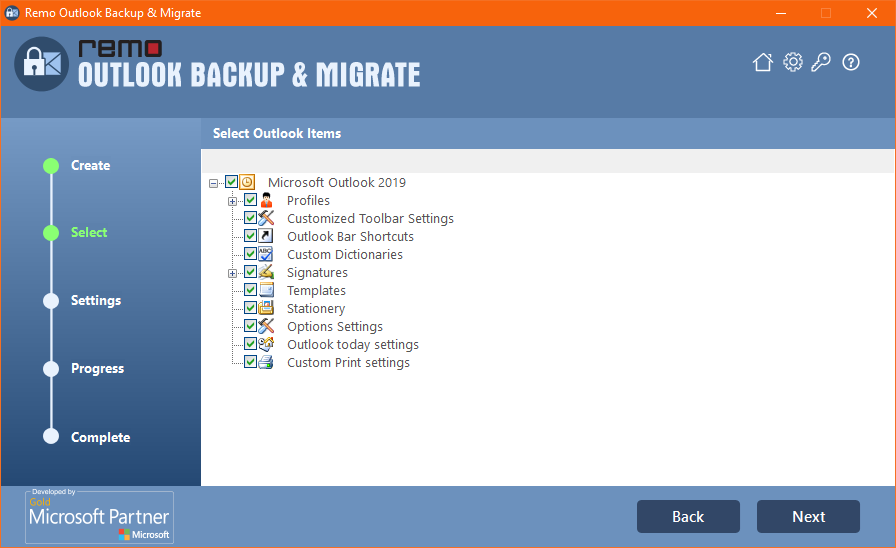
4: A list of all the items that you can back up will be displayed on your screen. Select all the items that you want to back up once done. Click on the Next button.
5: Remo will start the Outlook data backup process. Once it is completed, you can view the backed-up data using the View Report option.
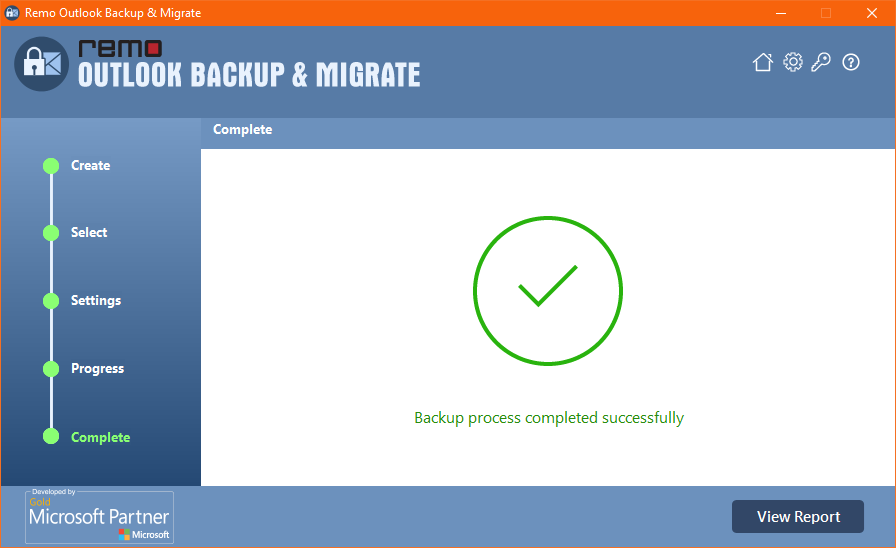
Once you have saved the files locally, you are required to move the Outlook backup file to an external storage device or the cloud.
Part 2: Migrate and Restore Outlook Settings on a New Computer
You now need to download the Remo Outlook Backup and Migrate software on your new system and follow the steps mentioned below.
1: Connect the drive that has your Outlook backup file to your new computer.
2: Open the Remo Backup and Migrate Software, and from the main screen, click on the Migrate option.
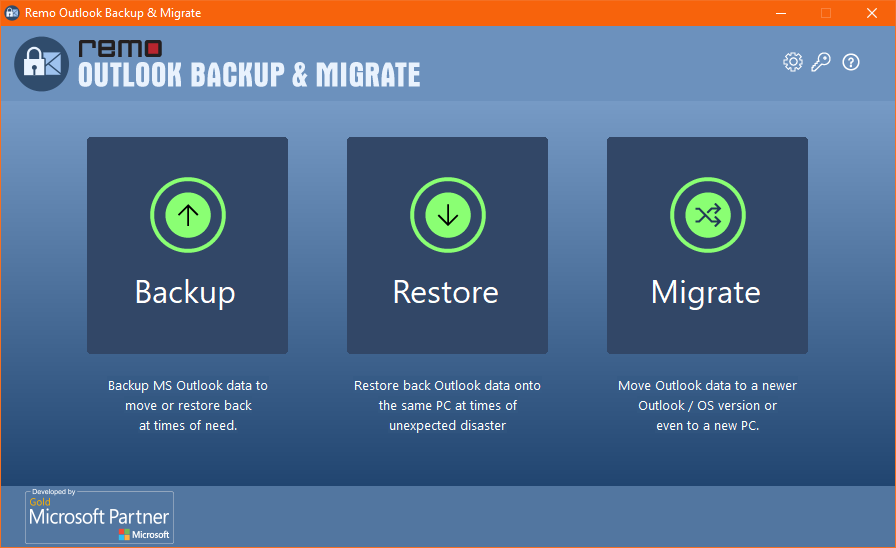
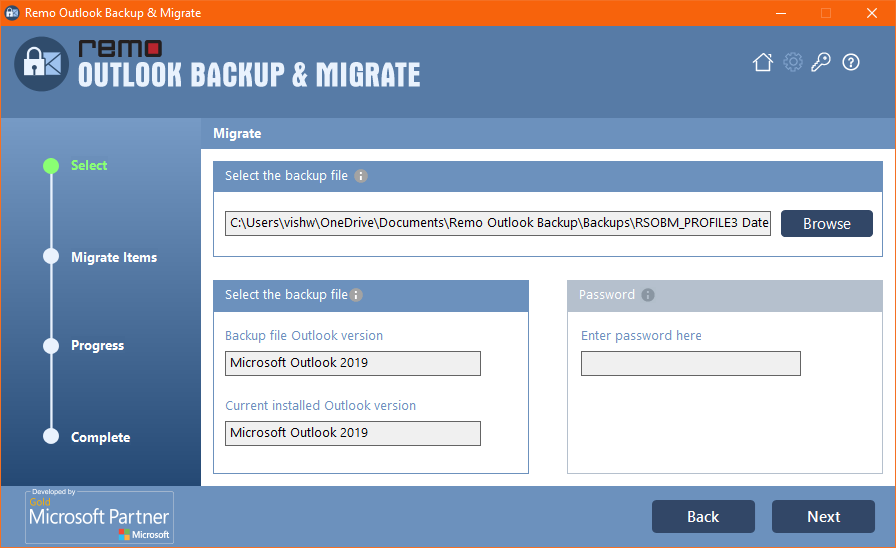
3: Click on the Browse button to find and select the Outlook backup file that contains your Outlook settings. Fill in other details, such as the backup file and password, and click on the Next option.
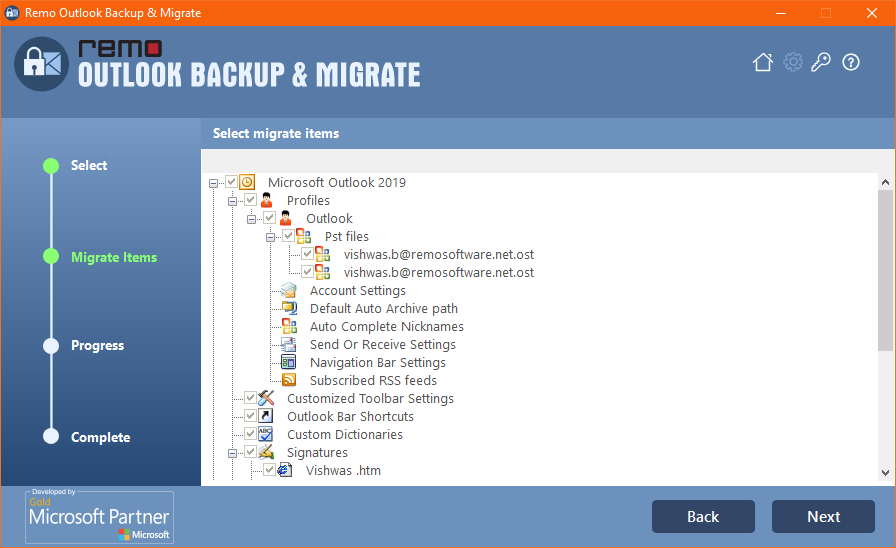
4: Select the Outlook items that you want to migrate or restore and click on the Next button.
5: Remo will start importing your backup Outlook data, such as settings, from the old computer to the new computer.
Upon completion of the process, click on the View Report option to see the details.
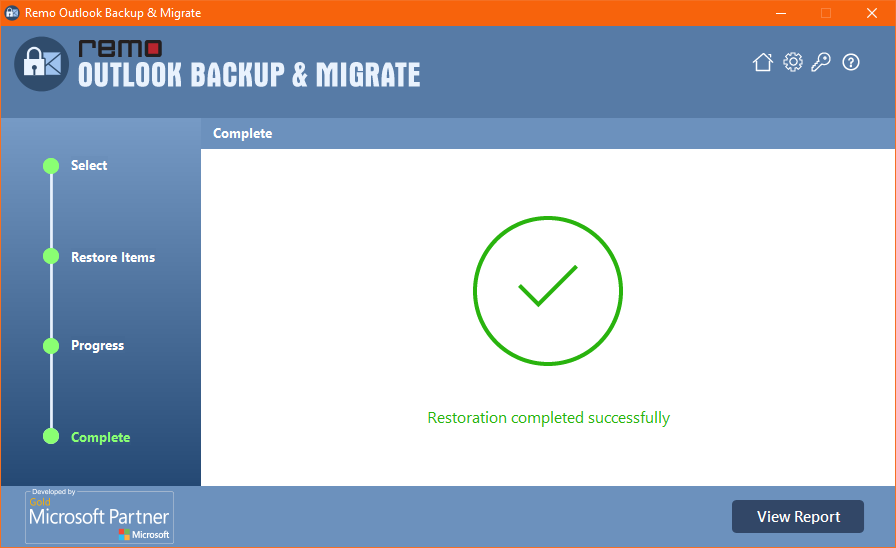
6: Restart the Outlook application and verify the process.
Note: If you have created a new Outlook account, I recommend you read this article to learn how to set up an incoming mail server in Outlook.
Outlook PST file is necessary, especially if you are using POP or IMAP accounts, in case you want to move Outlook data from one computer to another computer.
But if you use Outlook through the Microsoft 365 suite, you need not use the PST file. You can simply log in to your Microsoft 365 account using your login credentials, and your data will get automatically synced.
Method 3: Transfer Outlook Account Settings to New Computer on Microsoft 365 Accounts
Microsoft 365 users who use Outlook.com can enable cloud storage.
1. Open Outlook and click on the File > options.
2. Click on the General option in the left pane.
3. Under the Cloud storage tab, click the "Store my Outlook setting in the Cloud" option.
4. Click on the OK button to save the changes.
5. Log in to your Microsoft 365 Account using your login credentials.
6. Verify if the Outlook settings from the old system have been properly synced to your new system.
I am sure that by using the solutions mentioned above. You were able to transfer Outlook data, such as settings, emails, calendars, contacts, and other files, from one computer to another.
Conclusion
Transferring Outlook settings from one computer to another, especially from an older one to a newer one. Is a crucial process to ensure the preservation of the older settings, preferences, customizations, etc.
This article helps Outlook users transfer settings to a new computer using solutions like the Import/Export Wizard and professional tools like Remo Outlook Backup and Migrate.
While the Import/Export wizard is a free solution, it also has its fair share of limitations. On the other hand, tools like Remo are comprehensive, automated, and safe alternatives. When you want to transfer Outlook settings to a new computer

